
Custom reporting and exporting data
Introduction
You can easily produce reports on the data in your ChurchSuite modules and export them to a CSV file. This may be helpful if you wish to retain a hard copy of certain data for historical record-keeping purposes or if you are migrating your ChurchSuite data to an alternative system. You might also use an export CSV file for a mail merge in an external word processing application.
Each module has a section listing all the core data for that module, presented in a paginated, ordered table. Module users will frequently visit these sections when performing their daily tasks. For example, in the Address Book, the Contacts section contains the core data for adult contacts in that module.
In addition to standard reports in all modules, users can generate custom reports in the following modules and download the data to a CSV file or produce Address Labels and Name Badges. The primary sections include powerful Filters that allow users to drill down and view matching data of interest, and then perform Bulk actions for selected rows in the results table. Users can further customise the output by choosing the fields to be included in the download file, which can be readily viewed, further manipulated and printed from common spreadsheet applications like Apple Numbers and Microsoft Excel.
| Module | Primary section |
| Address Book | Contacts |
| Children | Children (and Visitors) |
| Calendar | Events |
| Small Groups | Groups |
| Giving | Givers |
| Bookings | Customers |
| Network | Organisations |
Choosing your data
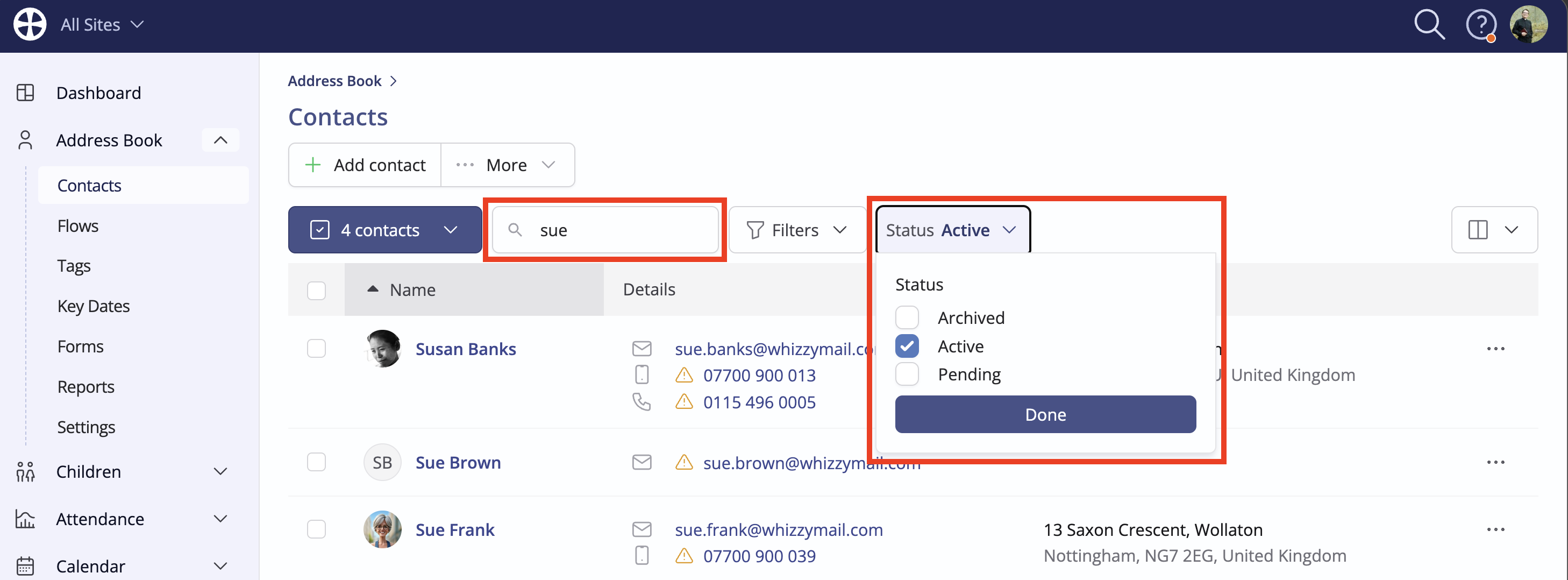
Navigate to the primary section of the relevant module, in this example, the Contacts section for the Address Book module. The Search filters the list as you type, making it easy to find a record of interest using full or partial known details, such as a name. Here, we are filtering active contacts, but note the status Filter for Active, Archived and Pending contacts.
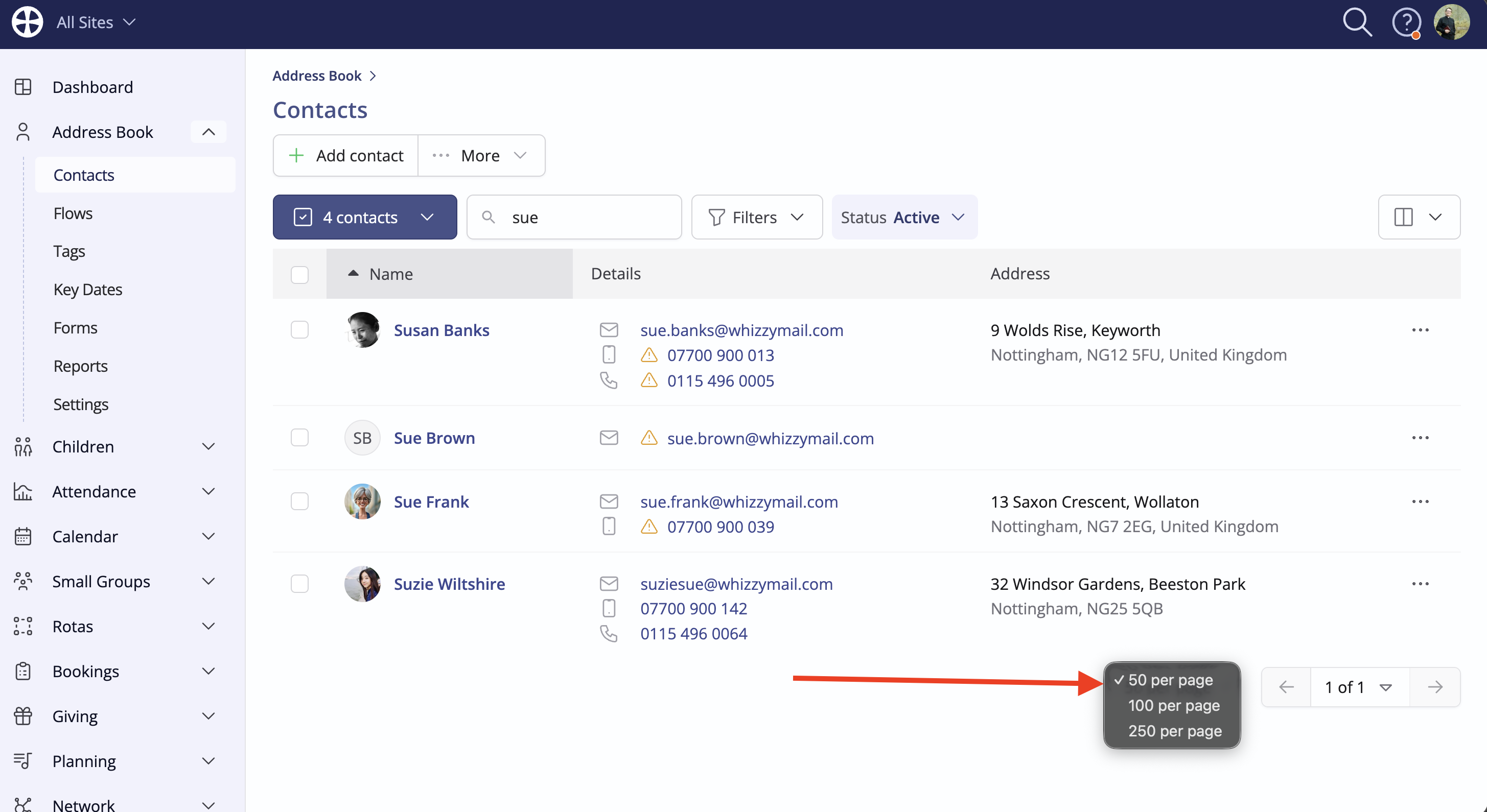
The data is paginated and, for multi-site customers, shows records for the Site being viewed by the User. The pagination controls located in the bottom-right corner of the page allow you to increase the number of records per page.
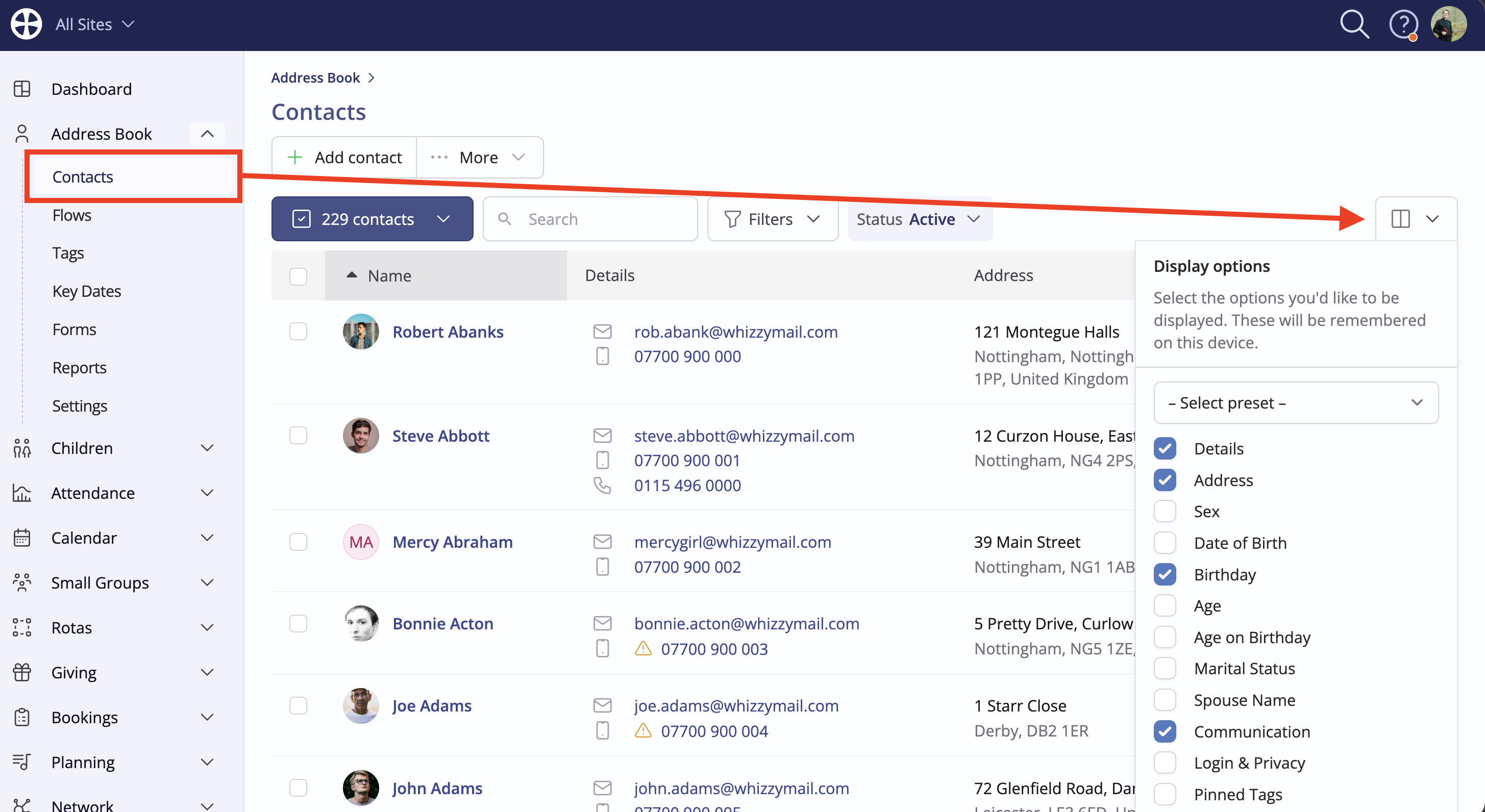
You can customise the data columns shown, choosing from a list of available fields for the context or one of the preset views provided for common tasks. It's not possible to change the column order or add custom presets; however, customised columns chosen in this way are remembered for the logged-in user on their device, meaning that if they navigate away from the page or log out and later return, the previously selected custom columns persist:
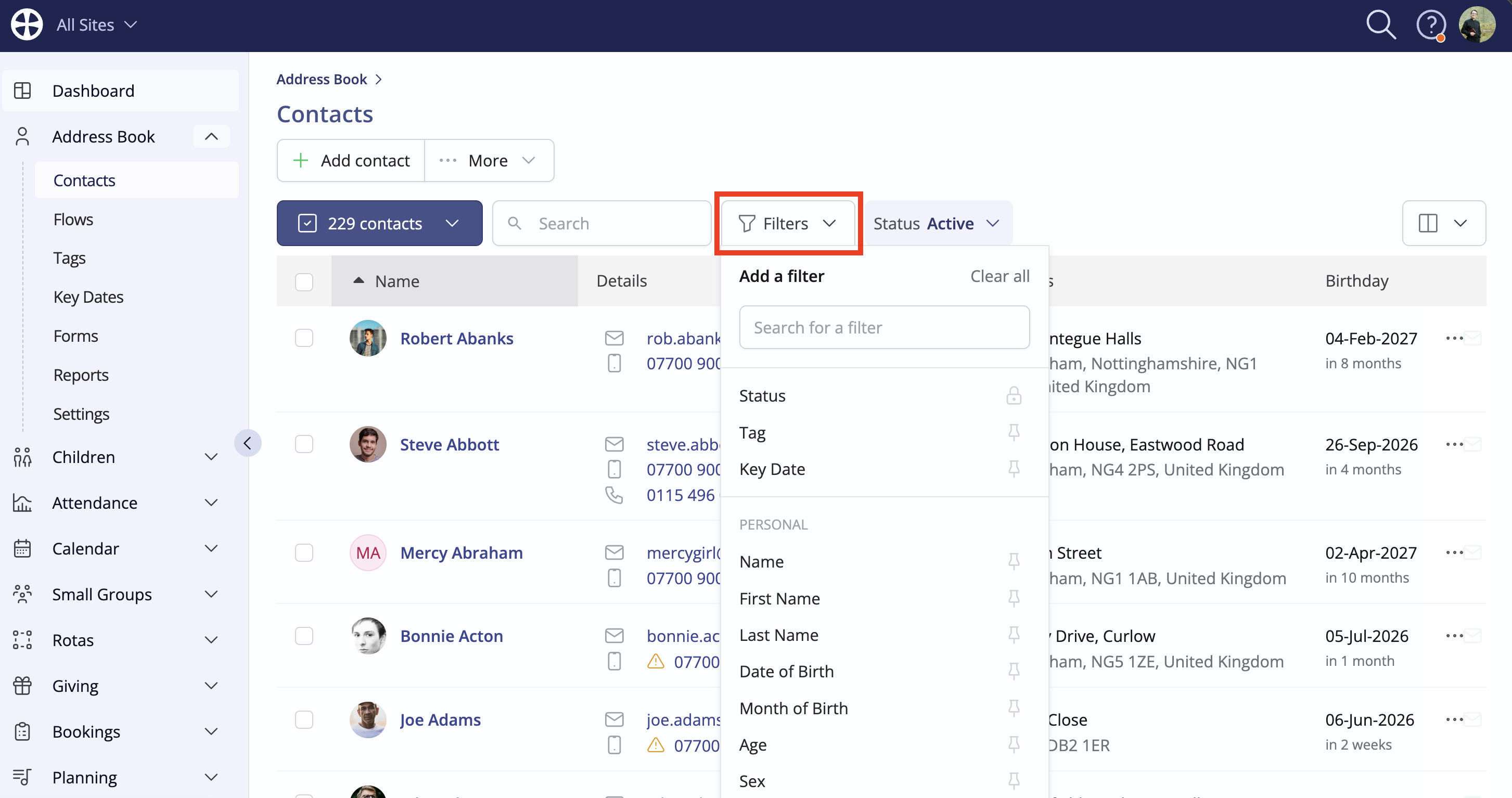
By default, each primary section in a module shows all data for the site being viewed, but you can further filter your data using the Filters. Choose from a wide range of one or more criteria for each module to drill down and see just the data of interest. For example, you can filter by Tags or Missing Data and even Pin a frequently used filter. Once a filter is selected, you can choose or select the filter criteria; the matching data updates immediately as each filter criteria is specified.
Outputting your data
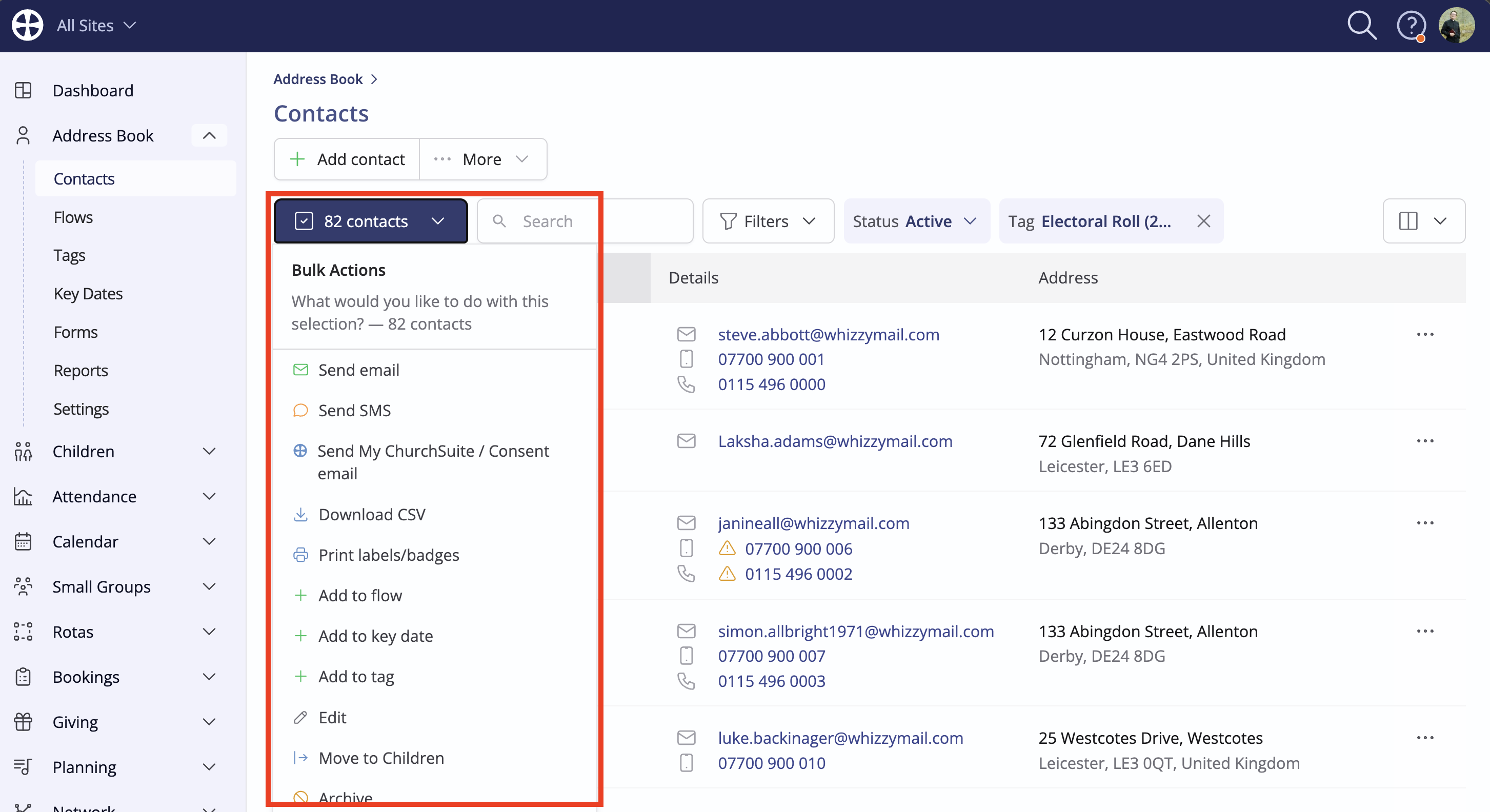
Use the available bulk actions to, for example, Send email, Send SMS, Download CSV or Print labels/badges. The bulk action respects the filters applied, and the number of selected records is displayed. You can also make a custom selection of ad hoc records from the list, and when selecting multiple records, you can easily select a series of records in a block - click the first checkbox in the block, then hold down Shift on your keyboard and click the last checkbox in the block - all of the checkboxes in between the first and last record are automatically selected:
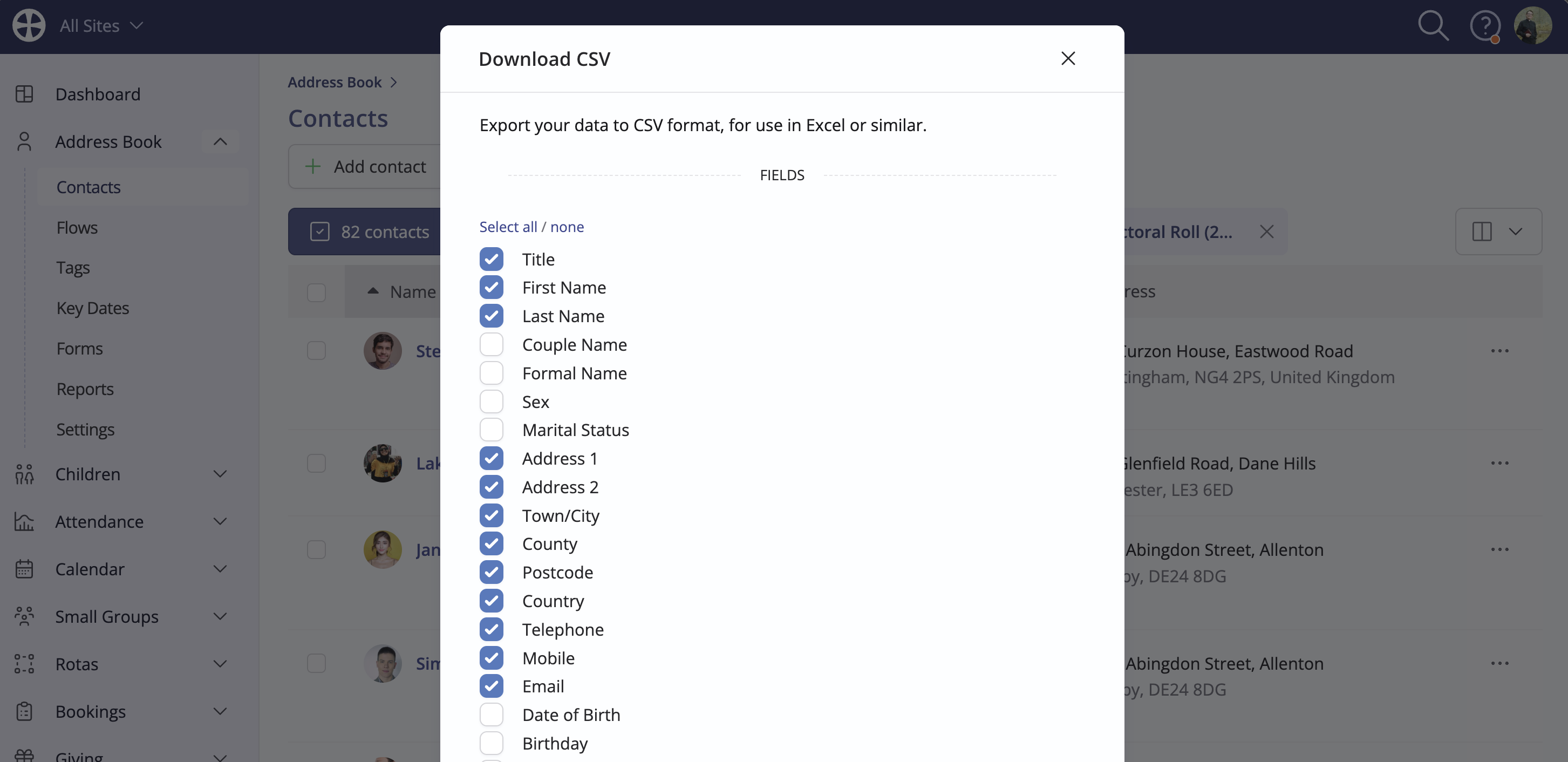
The Download CSV action opens a pop-up showing the previously selected custom or preset columns ticked. You can change the fields included in the output if you wish. Click Download on the pop-up to export your data. While the data shown on the screen is paginated, the CSV file and printed output contain all data matching your specified criteria.
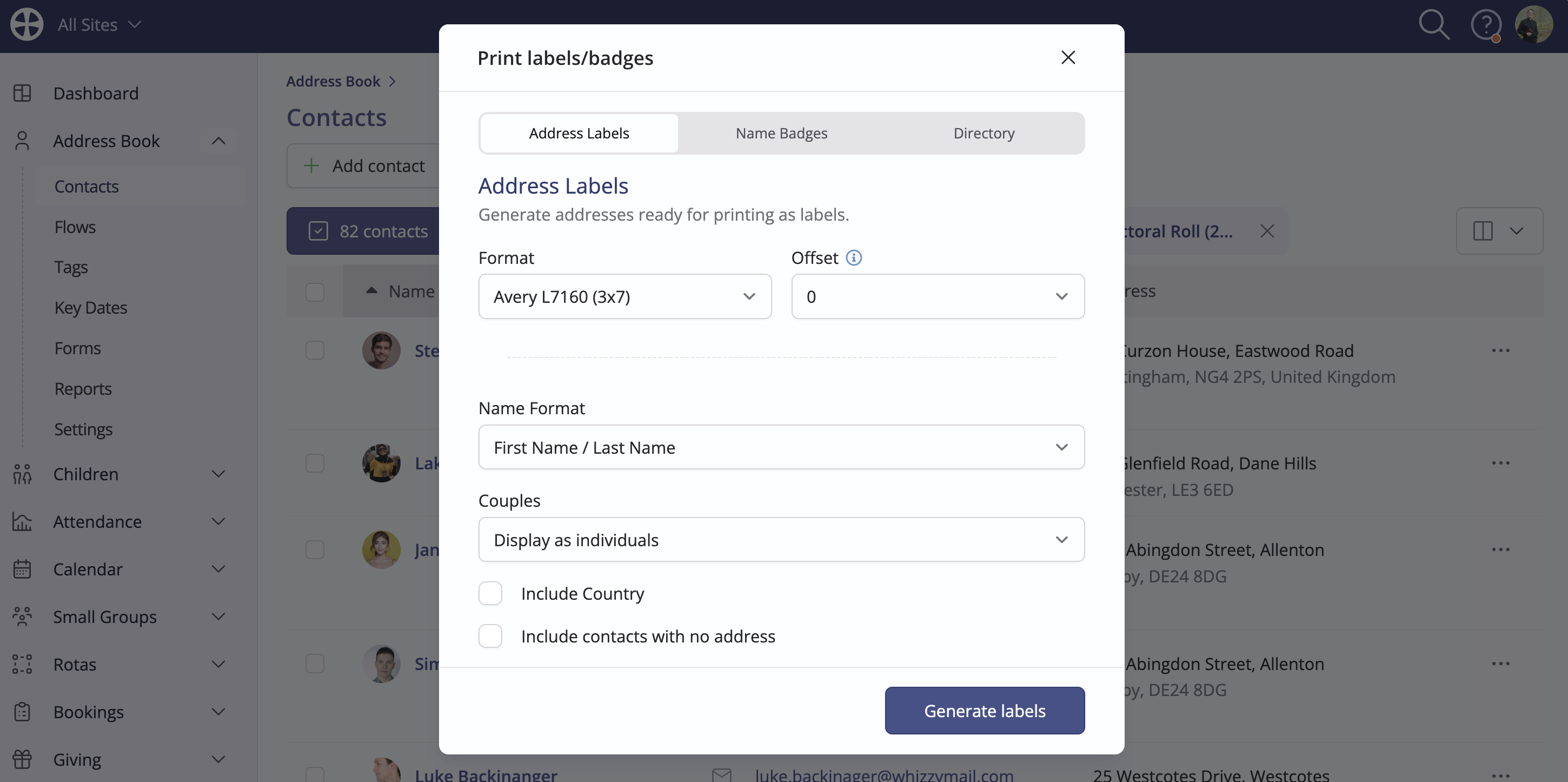
Clicking Print labels/badges opens a pop-up that allows you to produce Address Labels and Name Badges and, for the Address Book module only, a printable Contact Directory. While the data shown on the screen is paginated, the label, badge and directory preview contain all data matching your specified criteria. The last used label Format will persist on the user's device and be pre-selected when printing labels or badges in the future.
Top Tip! Making bulk changes to data
As well as using Bulk actions to export custom reports from your data, you can also use them to edit data in bulk.
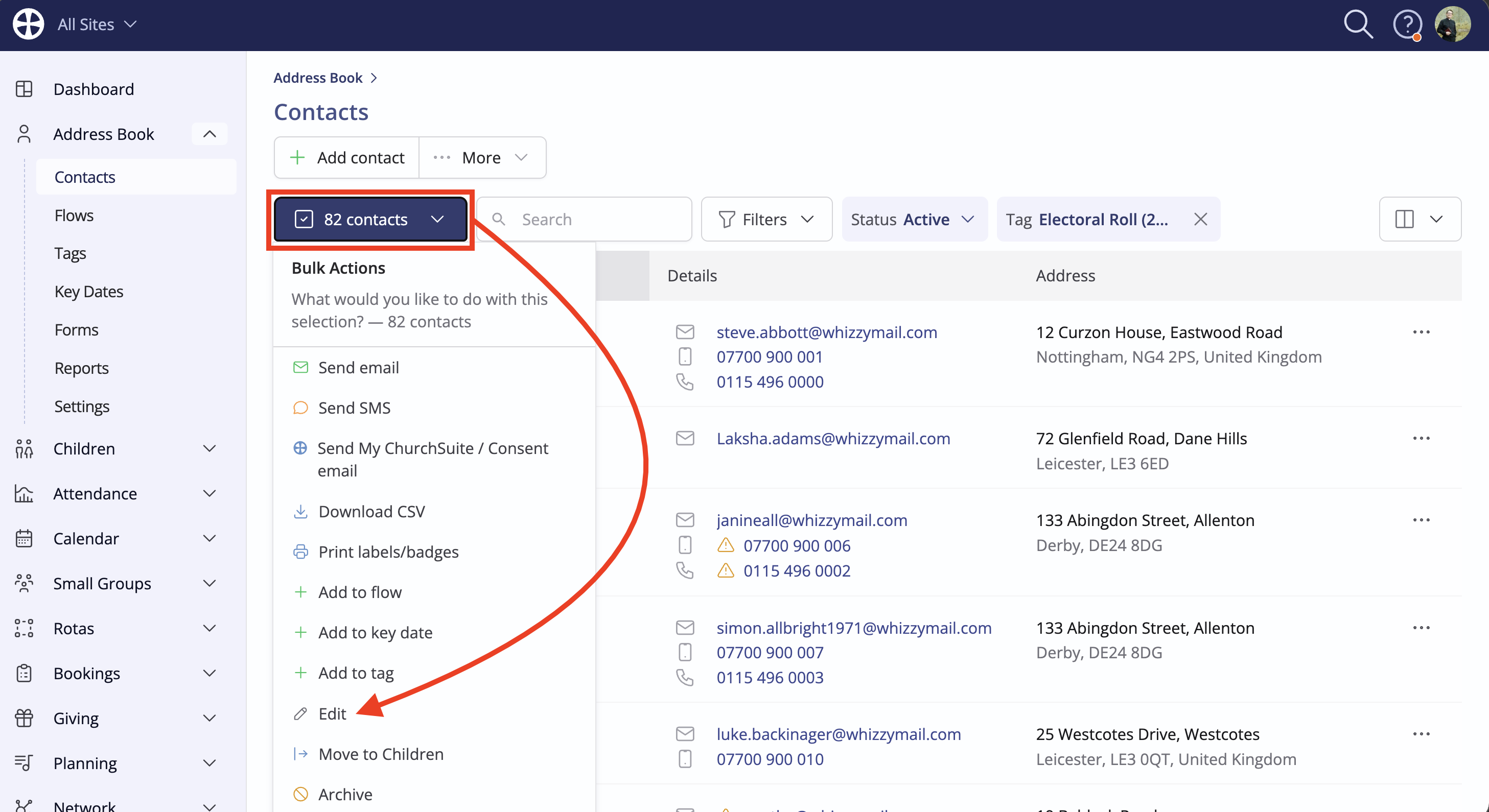
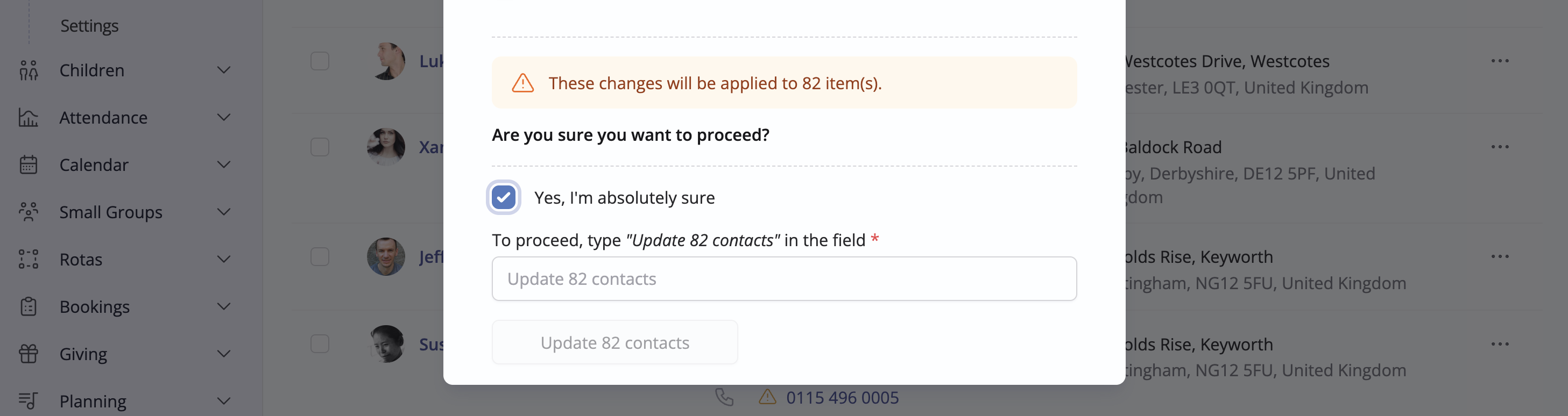
To try and avoid any data inadvertently breaking on a mass scale, bulk edit requires you to type in a confirmation before your edit can be submitted if 50 or more contacts are being edited.
Below, you'll find a video demonstrating how to use bulk actions.