
Integrating with Twilio (SMS)
Are you a nonprofit?
Twilio's Impact Access Program provides eligible nonprofits and social enterprises with exclusive discounts and credits for Twilio products. How to apply: 501c3 charitable organisations, B Corps or social enterprises can sign up for a Twilio account and apply for the Impact Access Program.
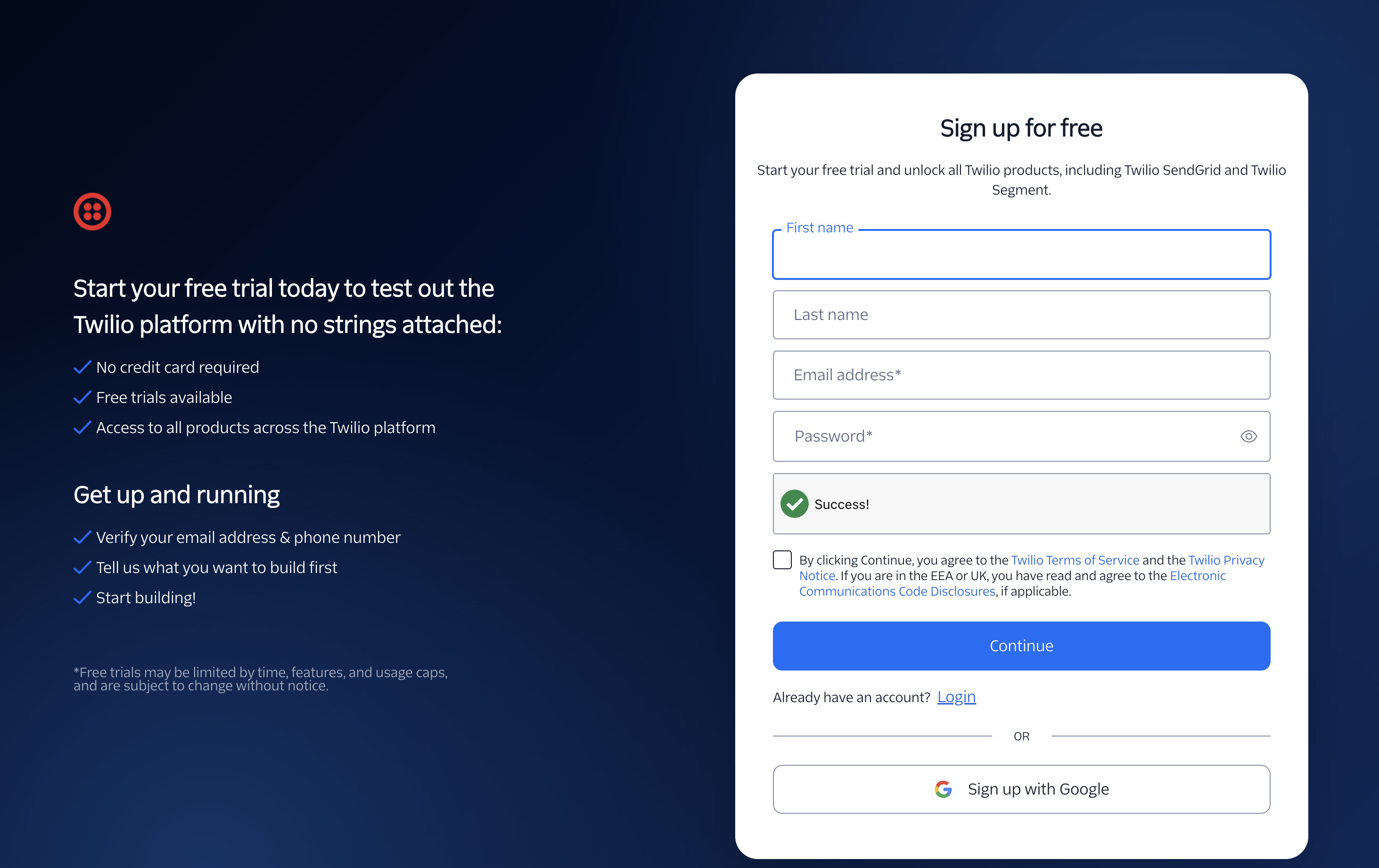
Linking a Twilio account to ChurchSuite is easy and enables churches to send out and receive SMS messages from church members through ChurchSuite. Unlike BulkSMS, our other available SMS integration, Twilio routes SMS replies sent to your Twilio number to an email address. To configure the Twilio integration, you'll first need to create an account with Twilio by signing up though Twilio.com. While Twilio do offer a free trial, you'll need to be a subscribed Twilio customer in order to access the features required to integrate with ChurchSuite.
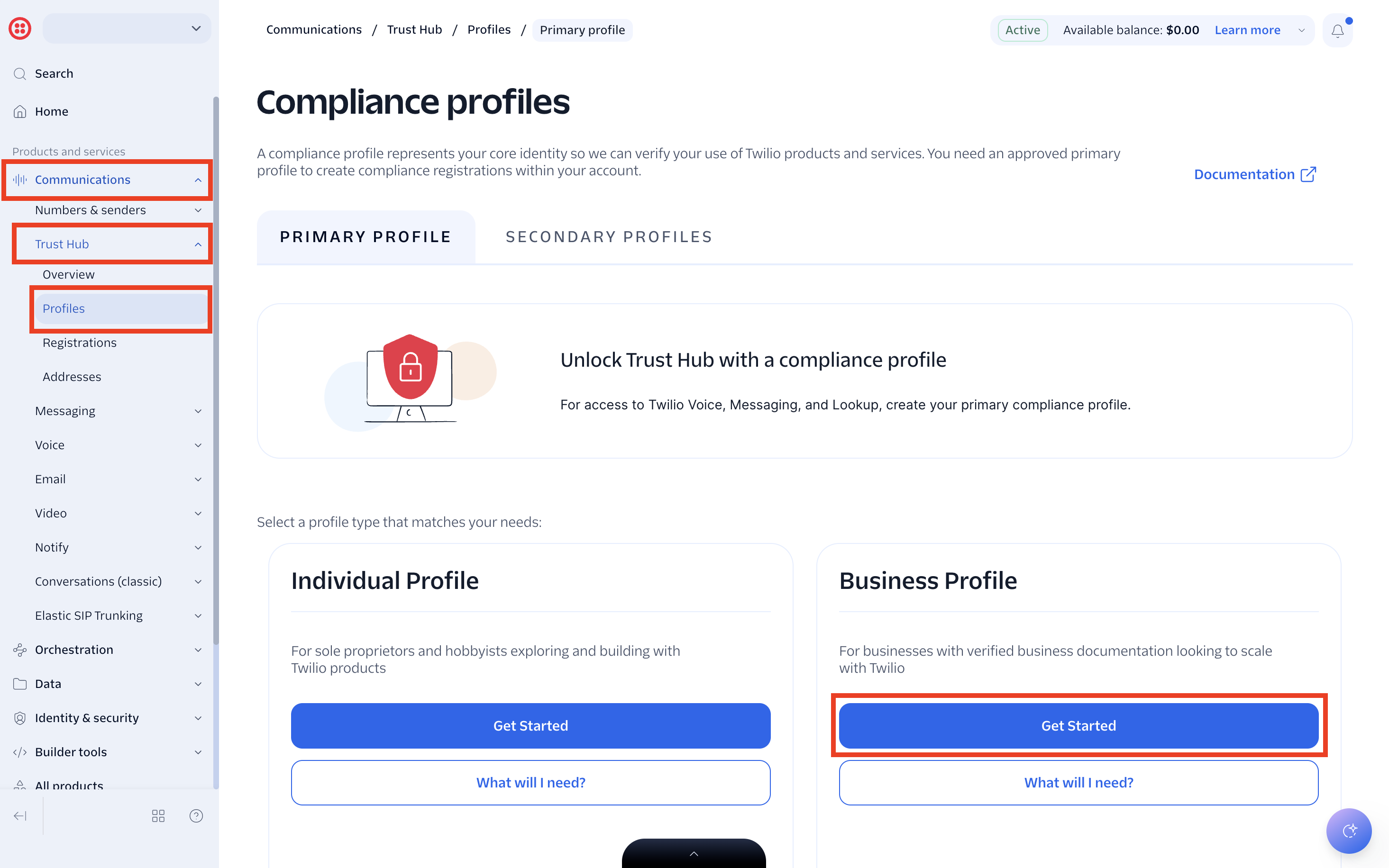
Once you've created your account, you'll need to create a Compliance Profile. Navigate to the Communications section and select Trust Hub, then Profiles. Select Get Started under the Business Profile area.
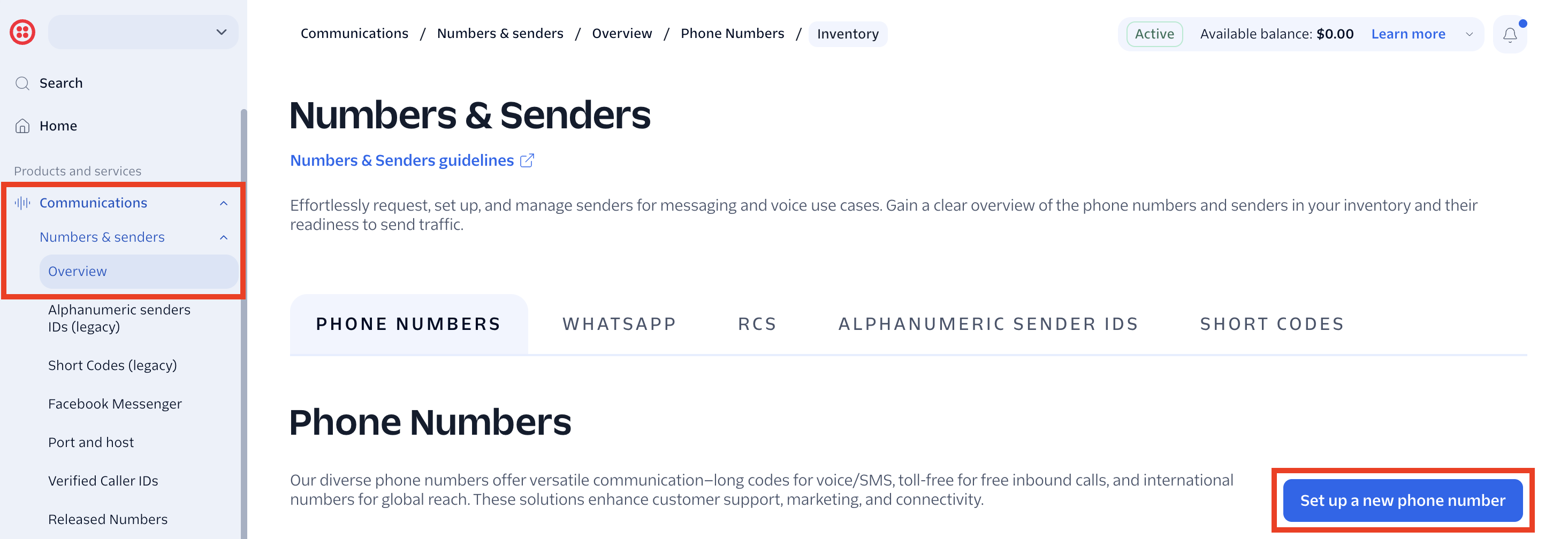
Once you've created a profile and it's been approved, you'll then need to buy a Twilio number so that you can send out and receive SMS messages.
Navigate to the Communications section and select Numbers & senders, then Overview from the menu options. Choose Set up a new phone number.
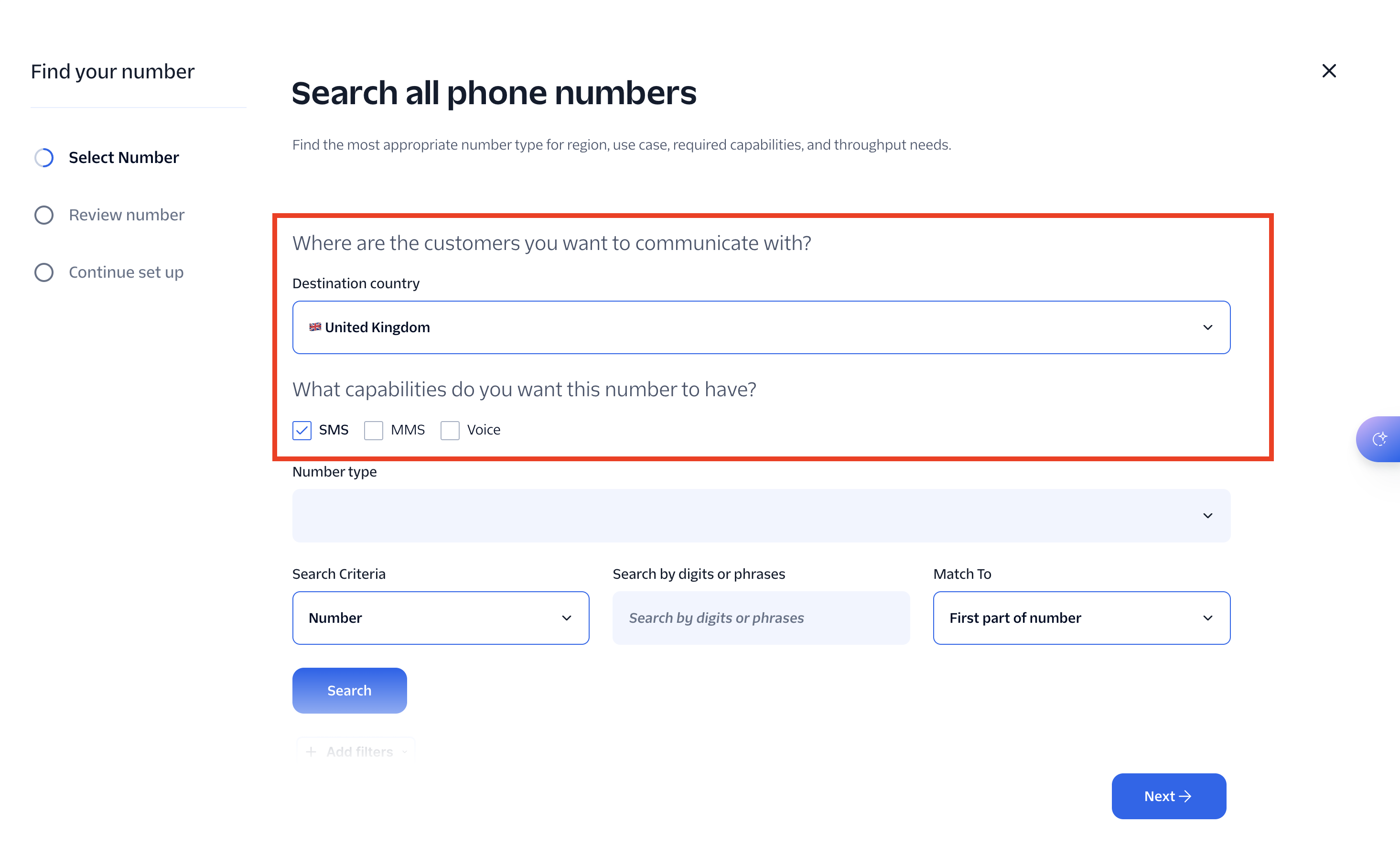
Use the search option to find a preferred number for your Country. Make sure you choose a number that can send and receive SMS messages.
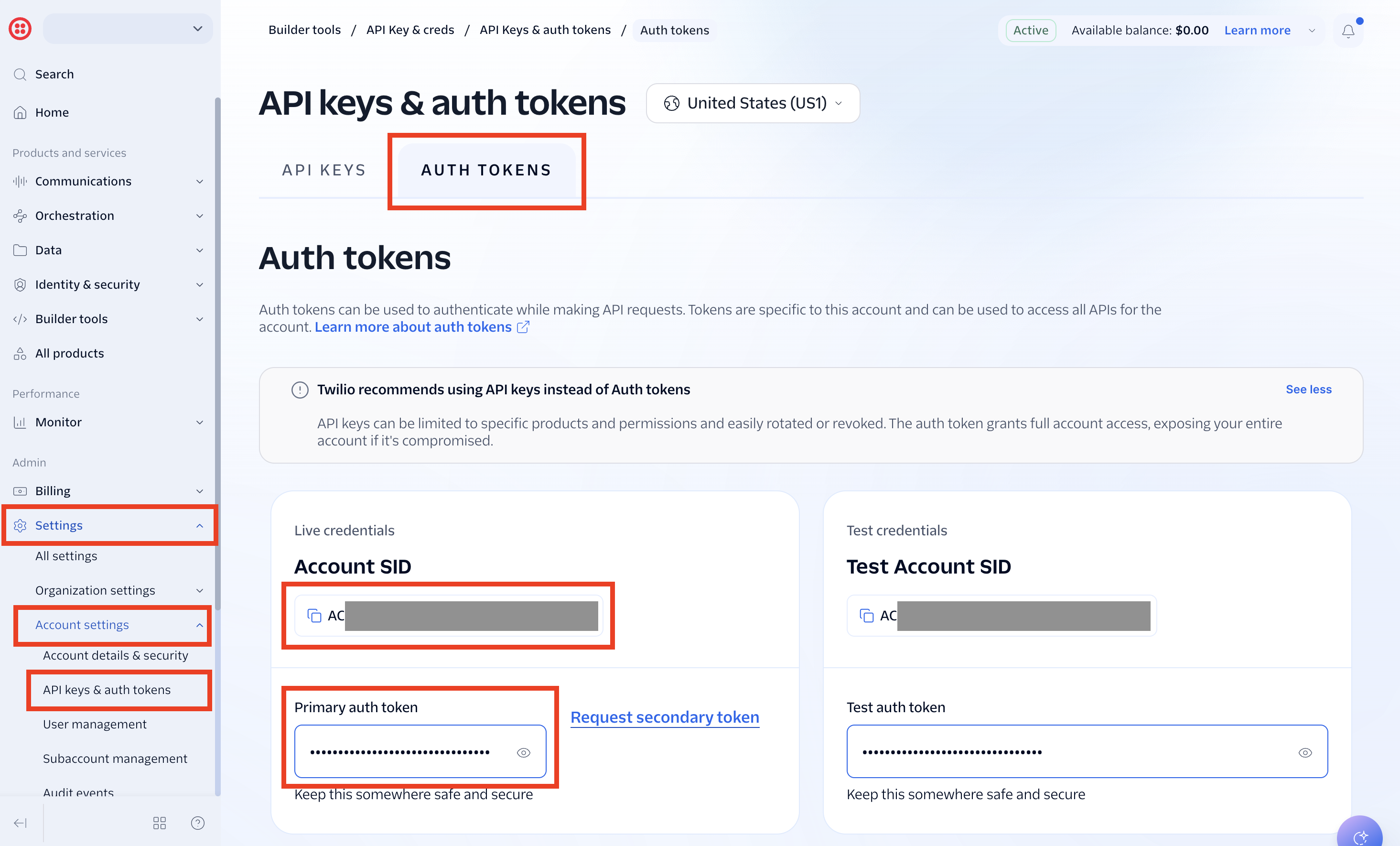
Once you've chosen and configured your number, you'll need to copy and paste the Auth Token into the Twilio integration so that ChurchSuite can send out SMS messages on your behalf. Find these in Admin Settings > Account settings > API keys & auth tokens > Auth tokens; note the Live credentials section with your Account SID and Primary Auth token:
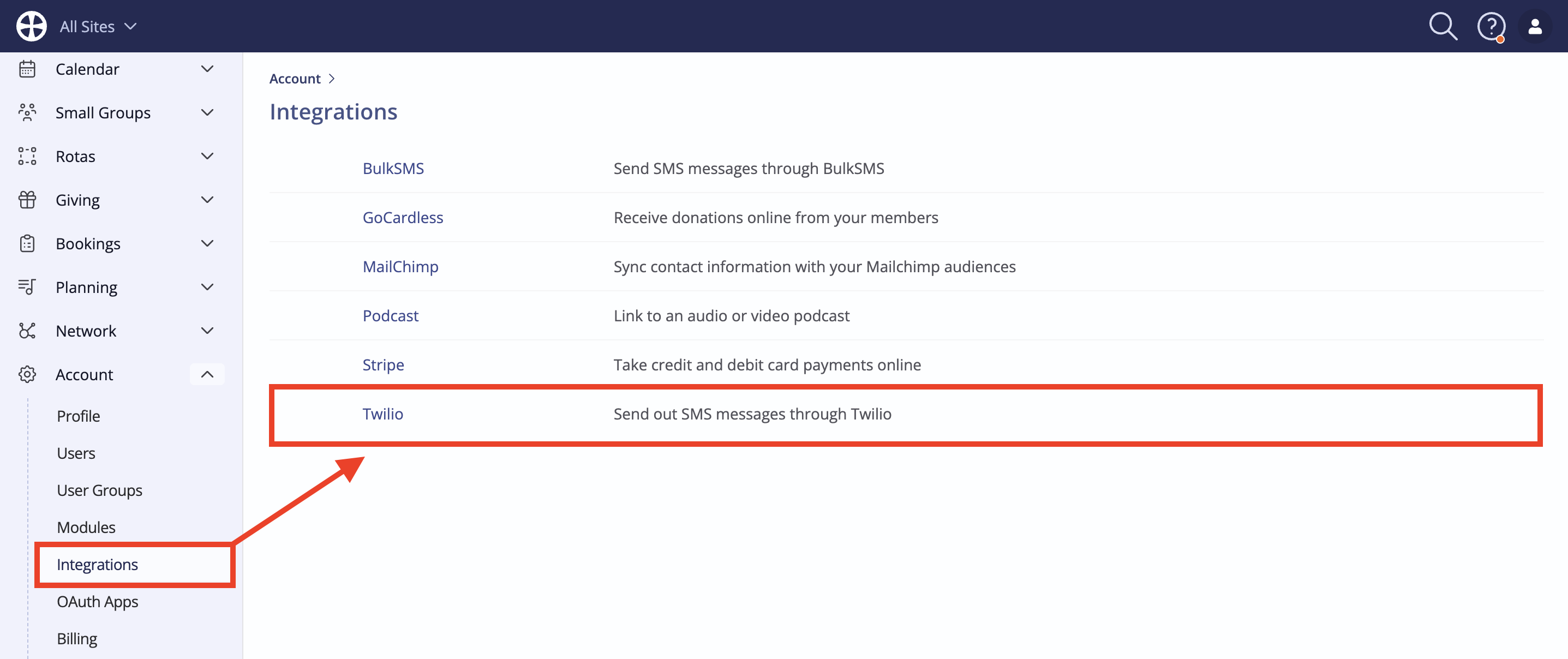
In ChurchSuite, navigate to the Integrations section in your Account Settings and click on Twilio.
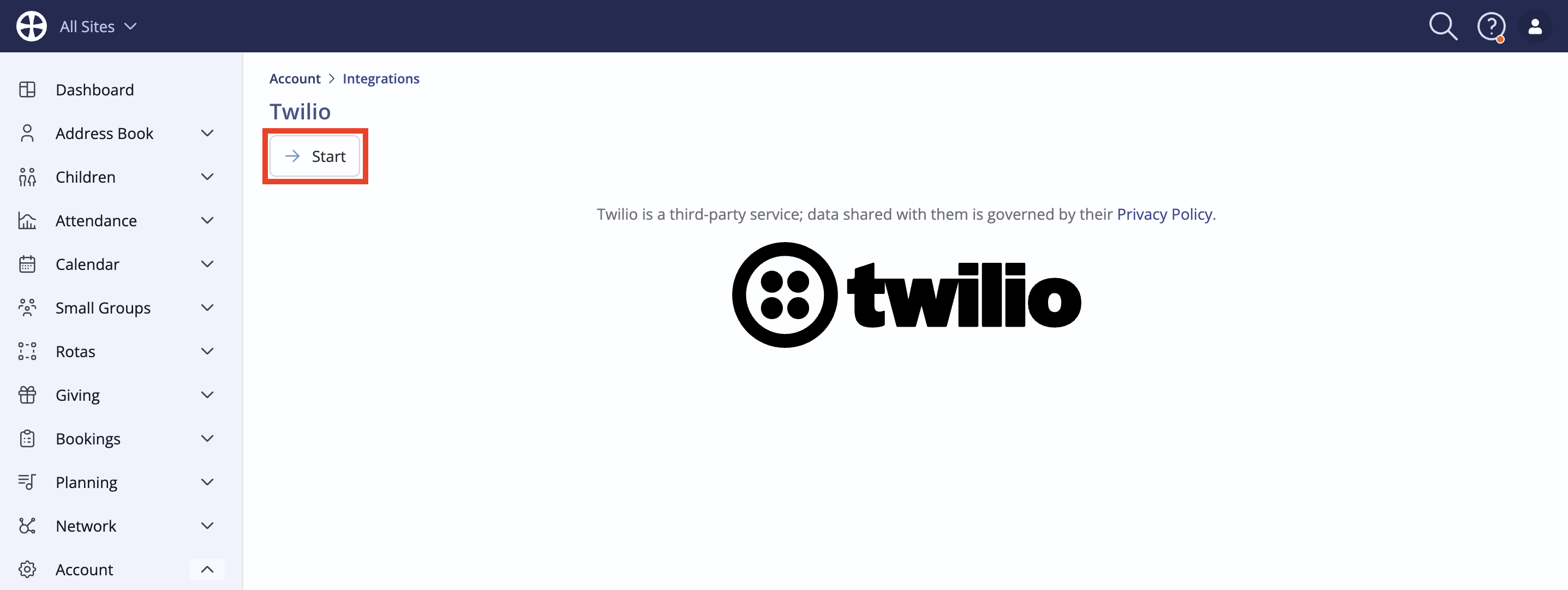
Click Start.
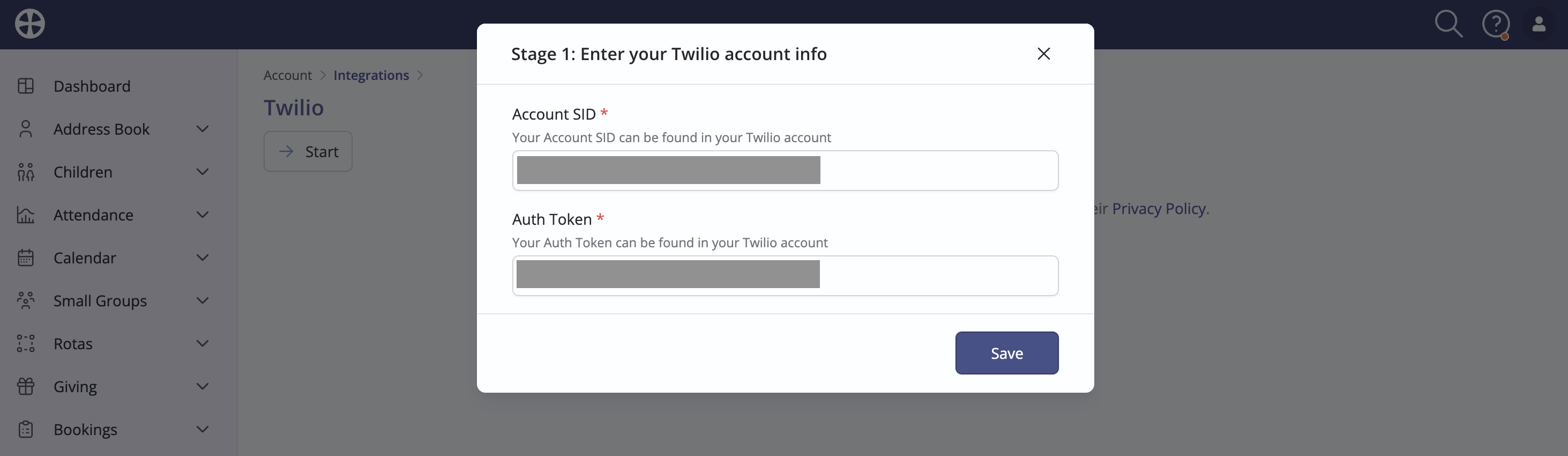
Copy and paste the Account SID and Auth Token details from Twilio into the pop-up fields and click Save.
Next, work through each of the Twilio settings - click Edit to make changes to a setting. Begin by configuring the Twilio SMS Replies.
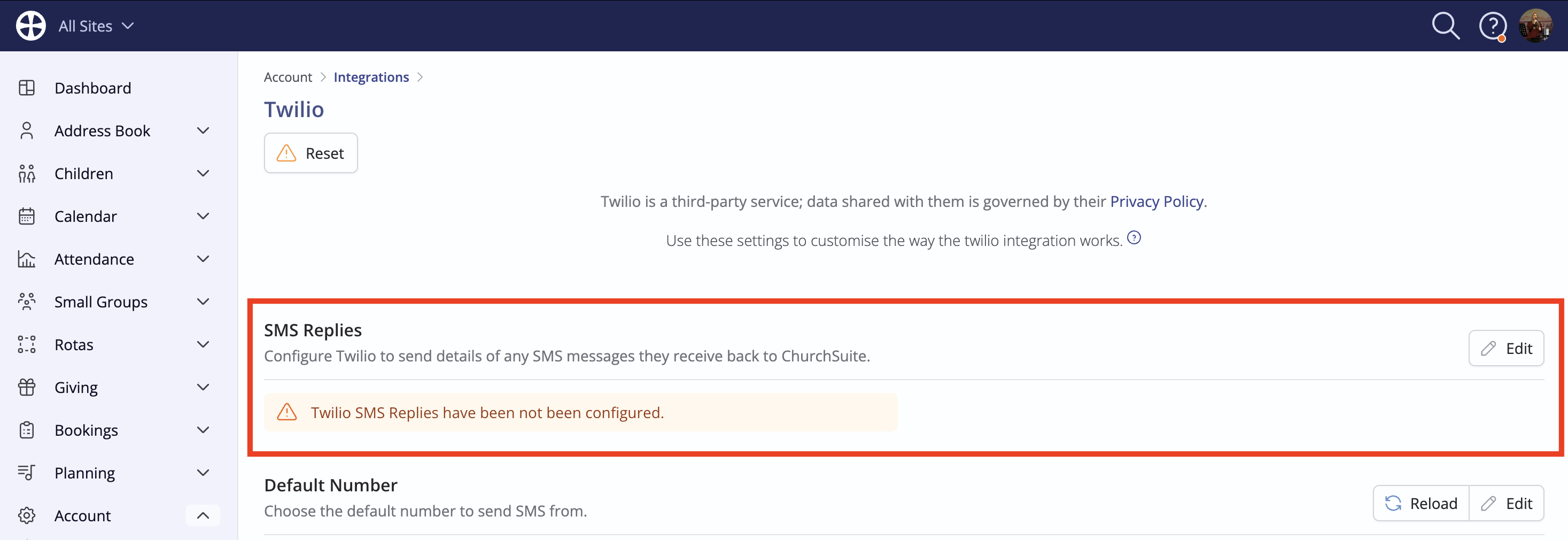
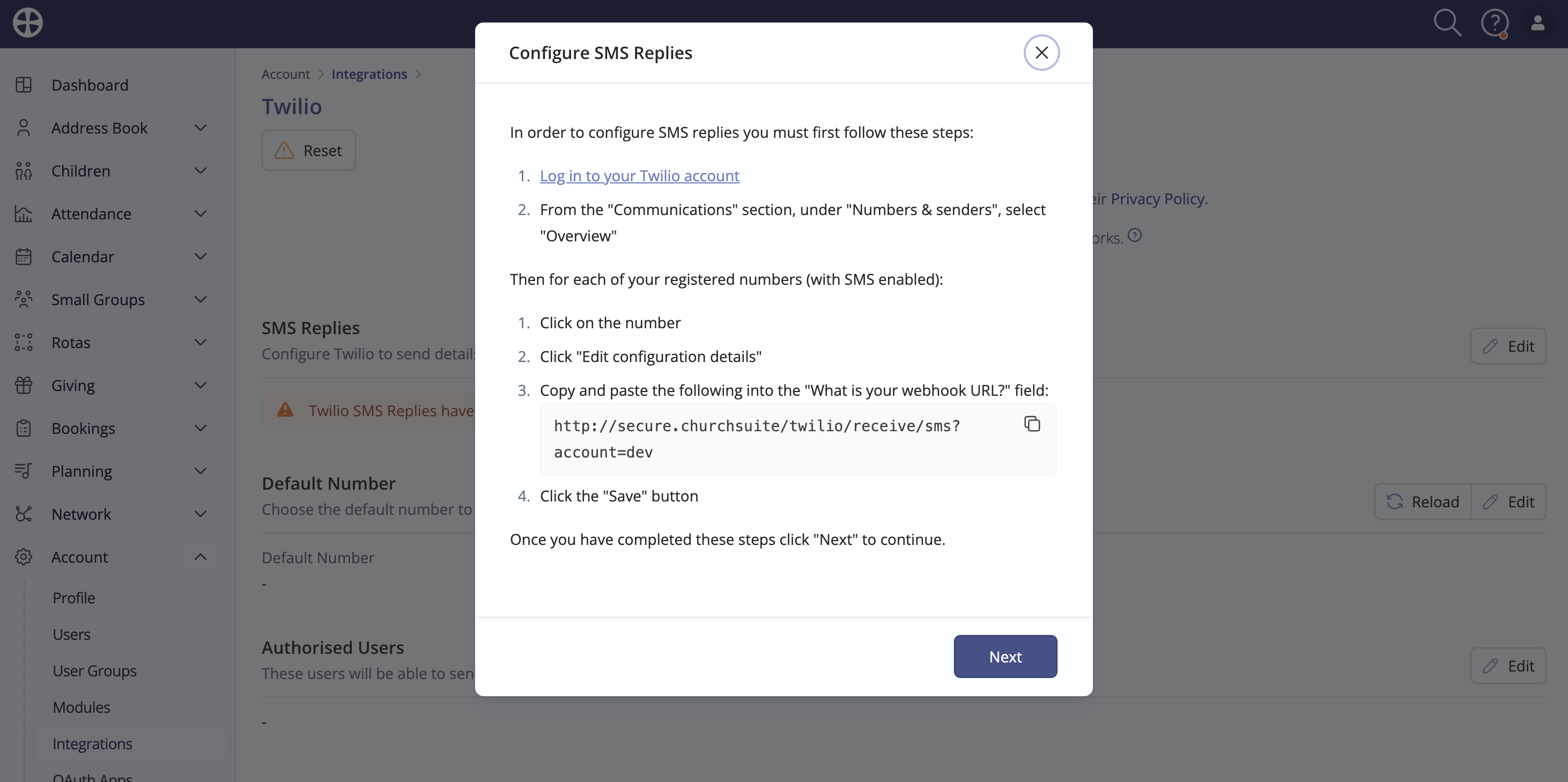
Follow the pop-up instructions to complete the steps within your Twilio account dashboard. Click Next.
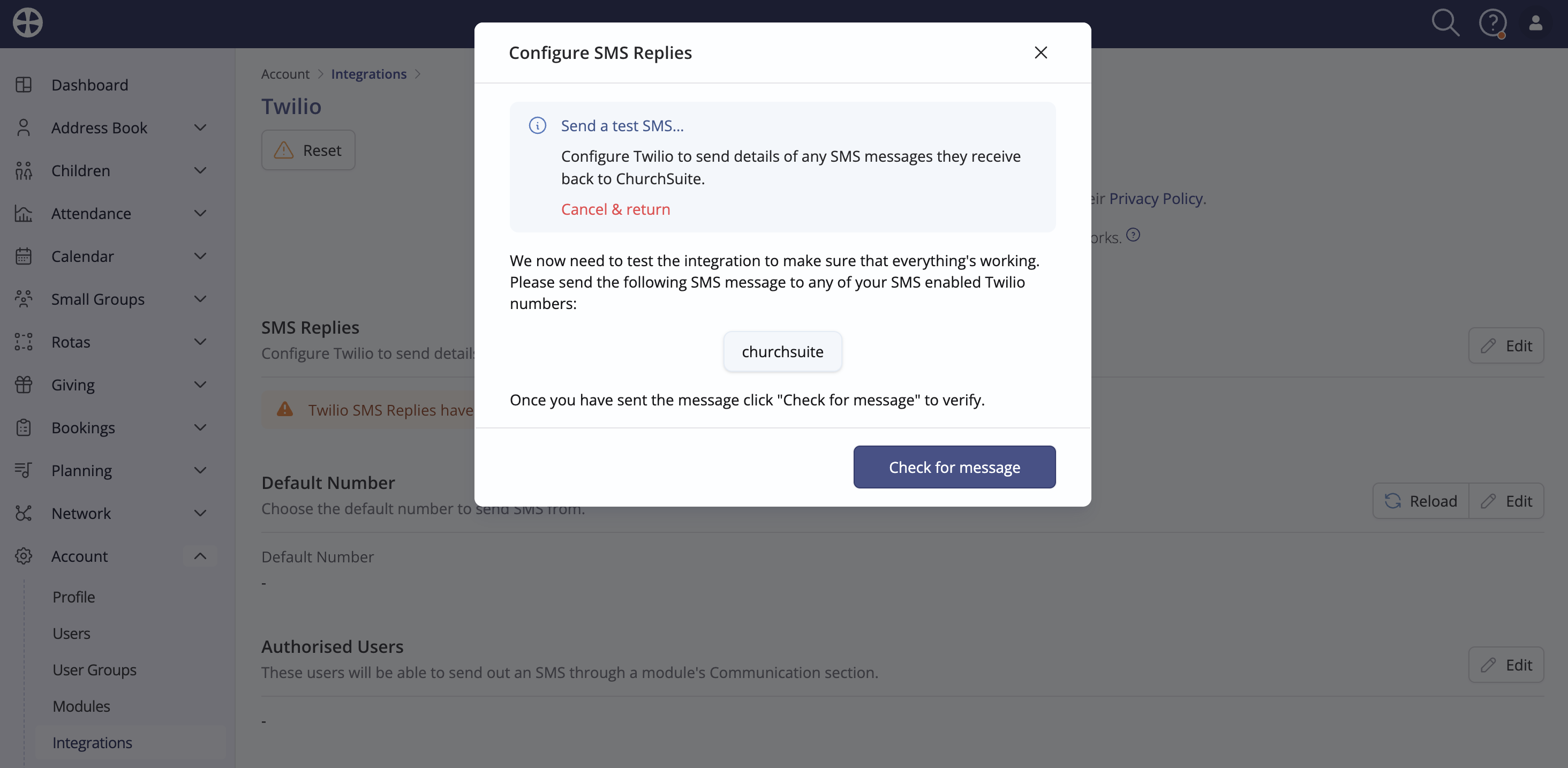
Test your Twilio reply settings by following the instructions to send a test SMS to your Twilio number - click Check for message.
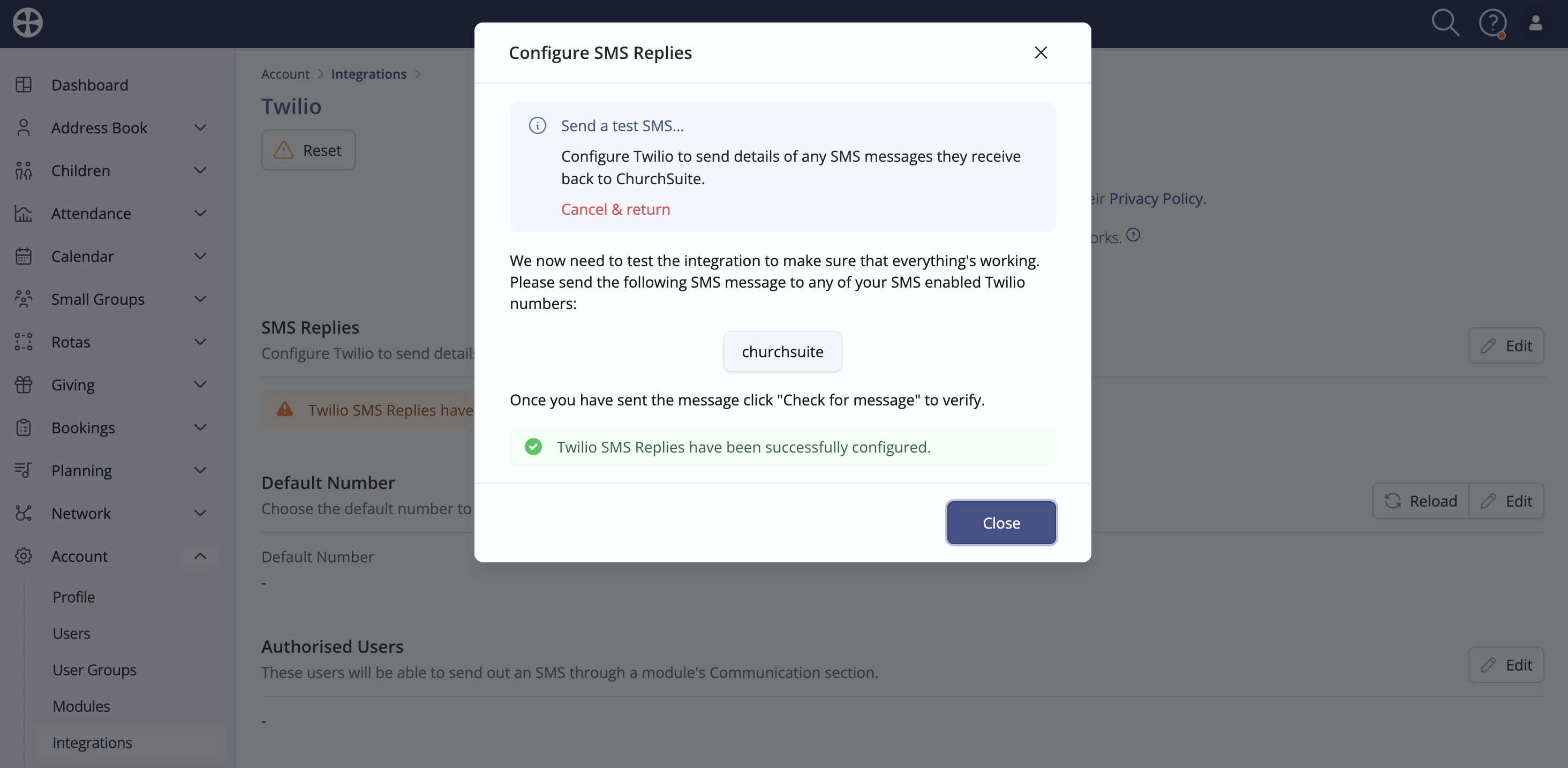
If the Twilio reply settings are correct, a success message is shown. Click Close. If the test message fails, click Cancel & return to go back to the previous instructions.
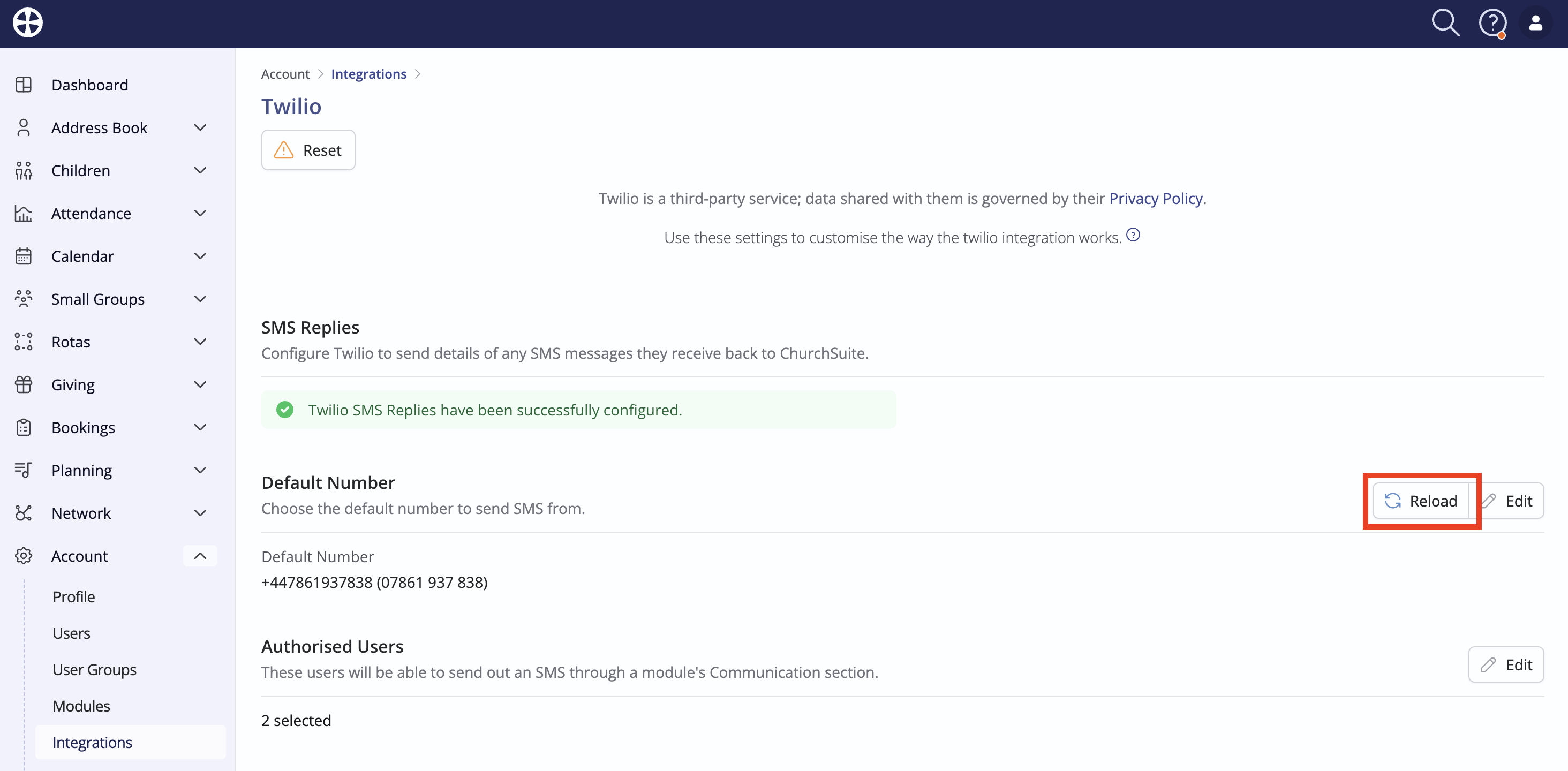
Next, set the Default Number that ChurchSuite should send from. Click Edit. The Reload action can be used if you have subsequently added any new numbers to your Twilio account that you now wish to use with ChurchSuite. Refer to later in this article for guidance on checking for incorrectly configured numbers.
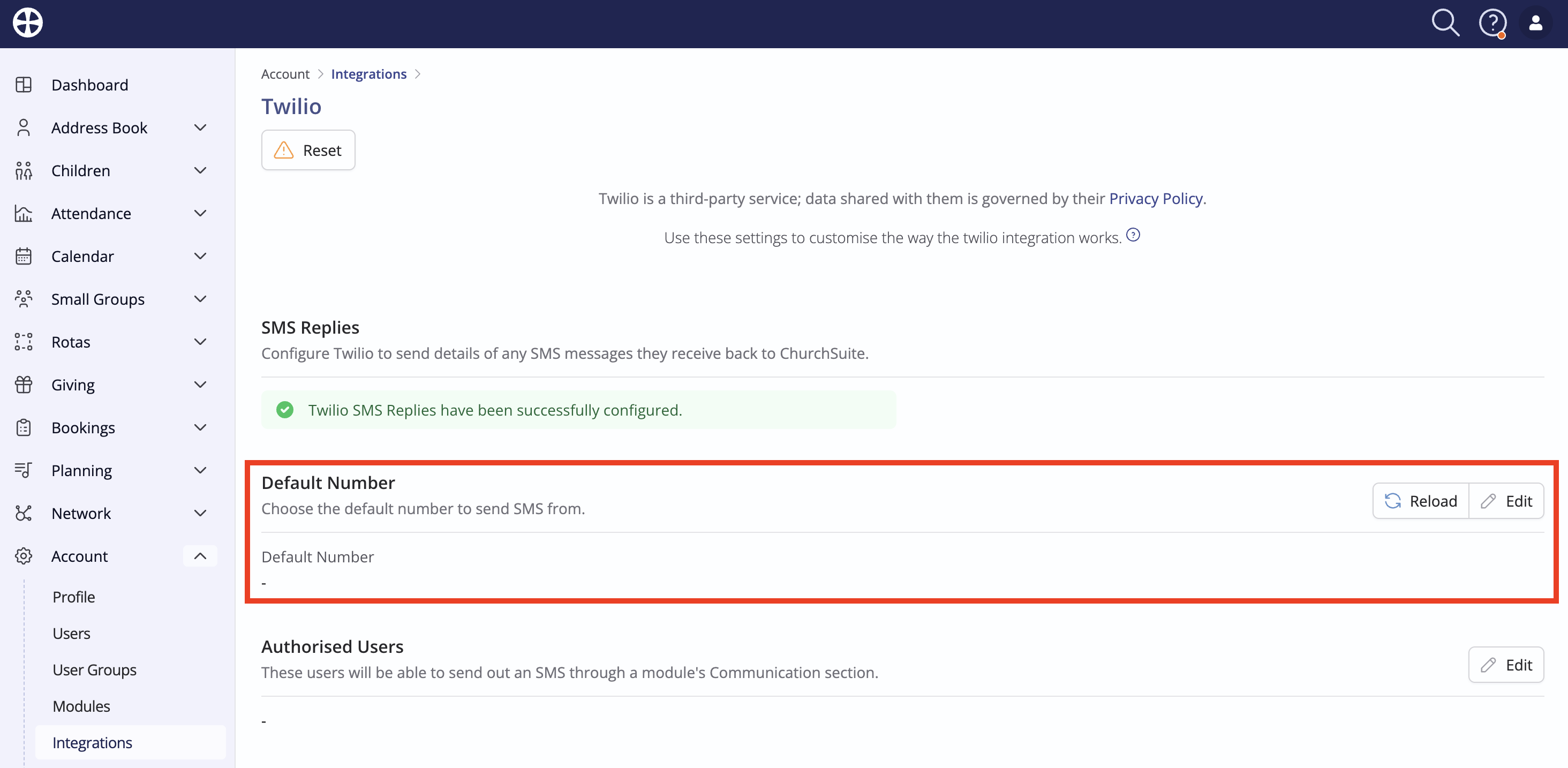
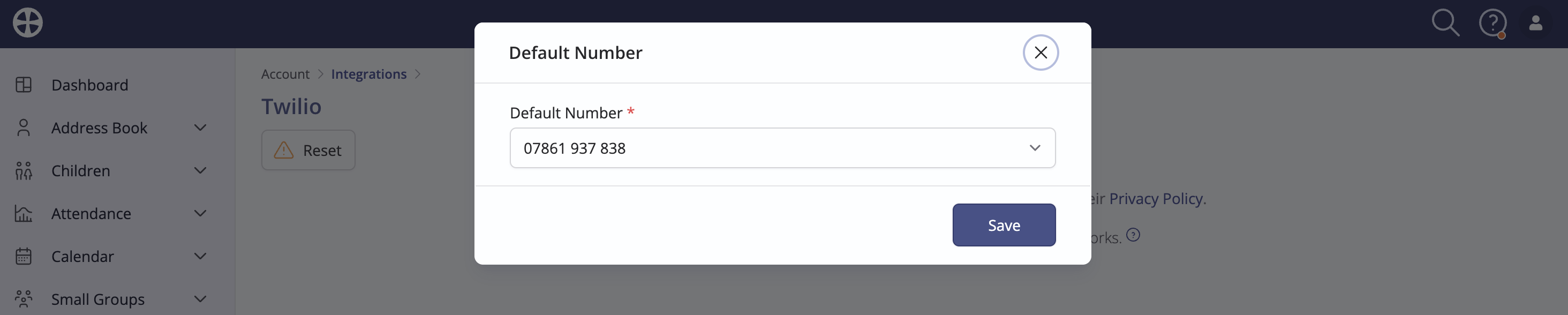
If you have multiple Twilio numbers, they will be displayed in the drop-down Default Number list. Select the number to use as the default (required). The default number can also be overridden at the point a User is composing an SMS message. Twilio also supports "Friendly Names". If you have configured friendly names for your Twilio number, these will be shown in the drop-down list (and also on the SMS 'Compose' pop-up when sending an SMS) - 'Testing' is the friendly name in the example below. While it is not possible to assign a User to a Twilio number within ChurchSuite, using friendly names will help your Users identify the correct Twilio number to use. Users will be unable to send SMS via Twilio unless a default number is specified. Click Save to apply a change to the default number.
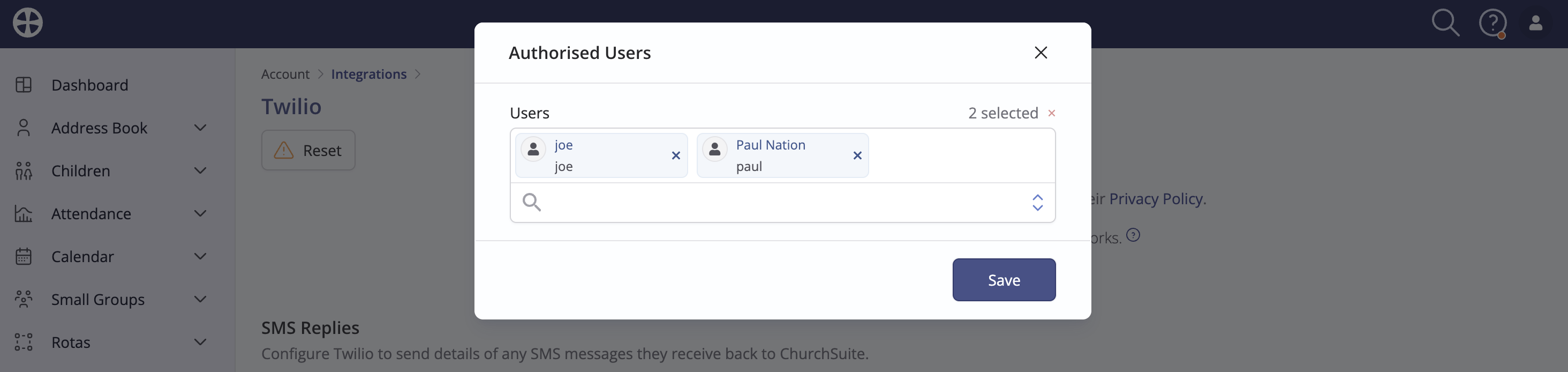
Choose one or more Authorised Users. Only authorised users can send SMS text messages within ChurchSuite.
Having reviewed all of the Twilio integration settings, you can safely navigate away from the integration page. You can return to the integration page at any time in the future to make further changes, e.g. to change authorised users.
Resolving unconfigured numbers
If you've completed the integration and see a message alerting you to one or more numbers not configured correctly, here's how to identify and resolve them. Note that you won't be able to use an unconfigured number until resolved.
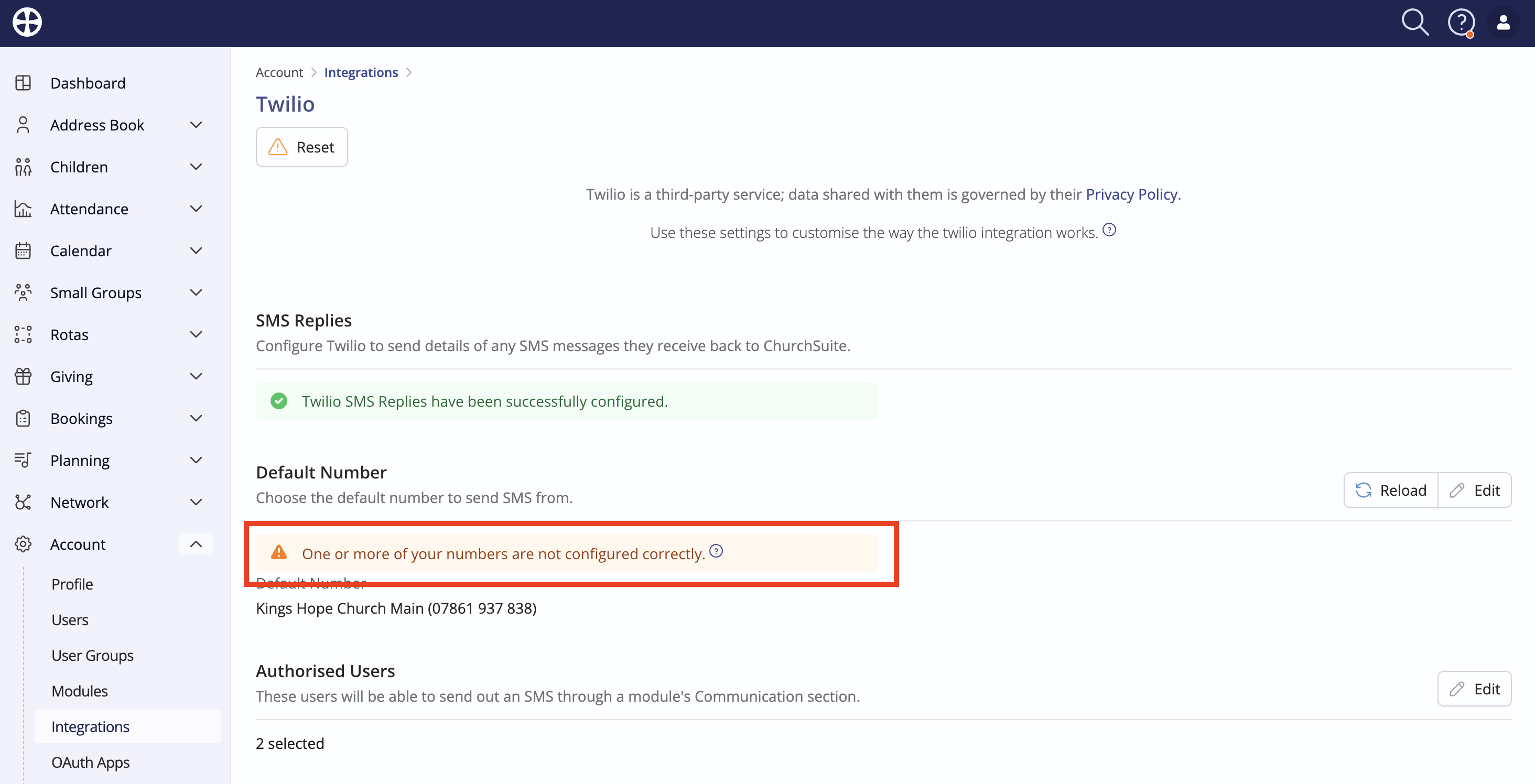
Log in to your Twilio account. In the Numbers & senders Overview list, look for any showing as Unconfigured or with no URL listed after "Messaging configuration"- like this example:
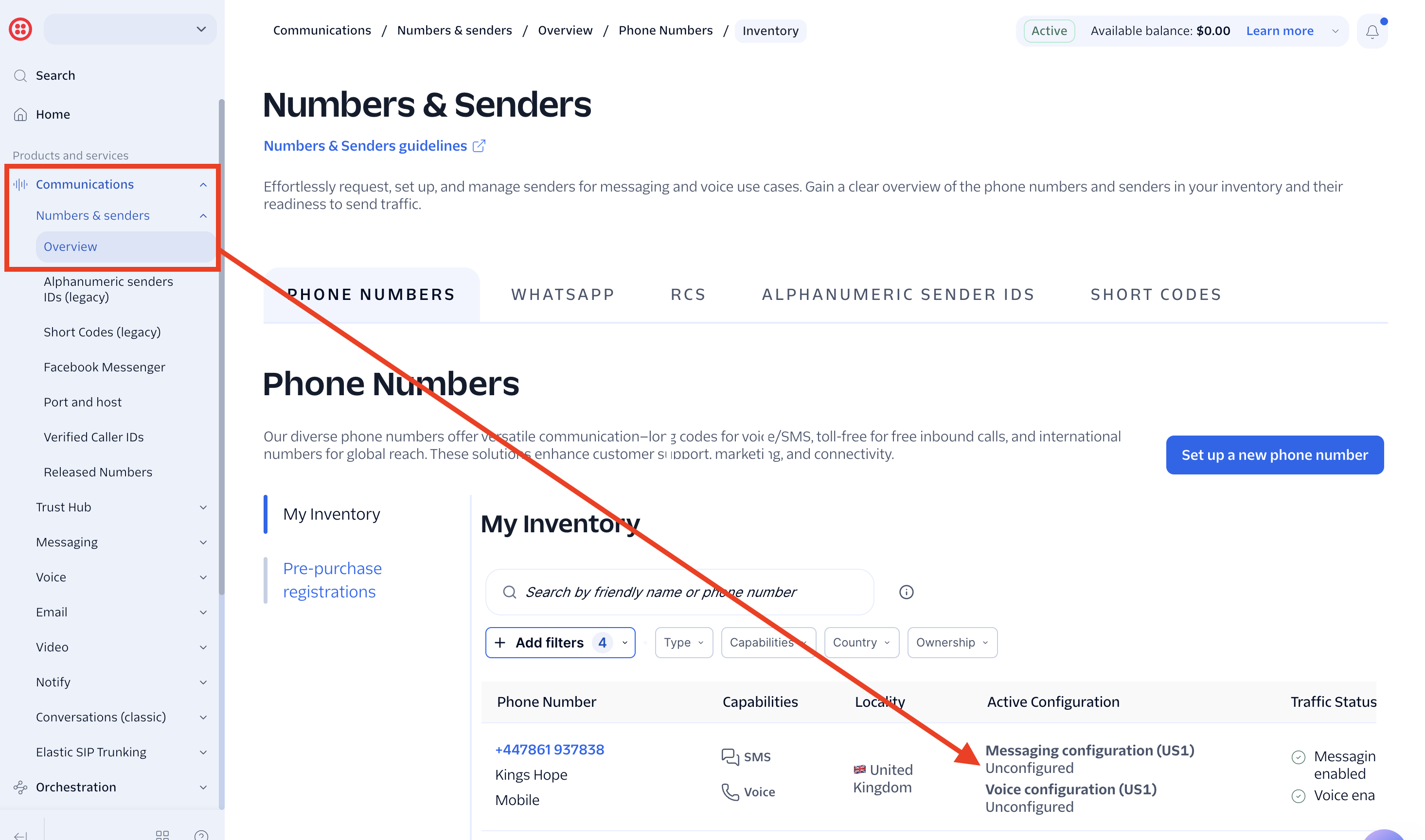
For each registered number that has SMS enabled and shows as Unconfigured, click on the number. In the section titled Configuration details, click Edit configuration details and in the box labelled "What is your webhook URL?", copy and paste the following:
https://secure.churchsuite.com/twilio-receive-sms.php?account=account_name
account_name is the first part of your login URL to access ChurchSuite. For example, if your ChurchSuite account is accessed at kingshope.churchsuite.com, account_name would be kingshope.
Click the "Save" button and repeat the above steps for any other unconfigured numbers.
Return to the Twilio integration page in ChurchSuite and click the Reload action to check that all the numbers now show as valid and configured.
Top Tip - Friendly names
Note: When adding friendly names to existing Twilio numbers or purchasing a new Twilio number, you will need to open the Twilio integration page and click Reload to force ChurchSuite to sync the changes made in your Twilio account.
Having completed the Twilio integration successfully, those designated authorised users can now send SMS text messages from within ChurchSuite. Replies will be routed to your designated email address(es). The SMS compose window is shown below. Note that Twilio doesn't support the sending of scheduled SMS messages.
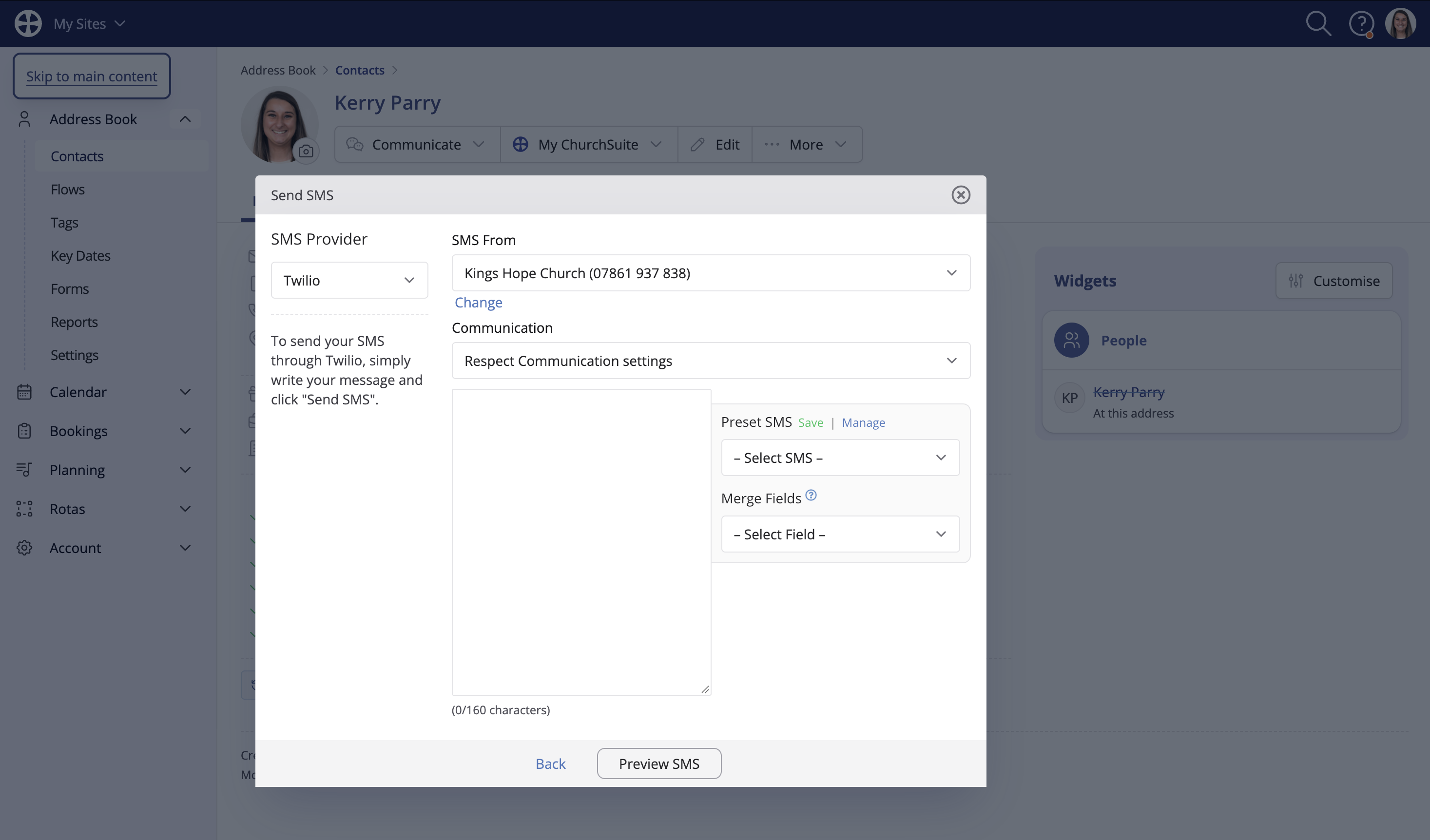
Changing the Sender ID when sending SMS messages
Not all countries support Alphanumeric Sender IDs and some countries require preauthorisation of the alphanumeric sender ID, which the integration is unable to ascertain. In this scenario, the Change [Sender ID] button (shown above) is not shown. Further information and a full list of supported countries can be found on the Twilio support website. The Twilio integration supports alphanumeric Sender IDs for the following countries: Austria, Switzerland, Germany, Spain, France, United Kingdom, Republic of Ireland, Italy, Netherlands, Portugal and Sweden.
Why? Many cell operators don't allow you to send an SMS message through a service like Twilio, except from the telephone number(s) you purchase through that service provider. This means that you can't send out an SMS through ChurchSuite and have replies come back to your phone. The issue is that cell operators have blocked this functionality, not a limitation of ChurchSuite or Twilio.
One number or multiple numbers?
In terms of making use of your Twilio account, you can either use just a single number and have all your authorised users send out messages from that number or you could have several numbers registered and ask each of your team members (authorised users) to make use of different numbers, selecting their number from the drop-down list when composing a message.
If you do choose to use a single number, ChurchSuite has intelligence built in to try and determine who the intended recipient of an SMS reply is. Here's how it works:
User "A" sends out an SMS through ChurchSuite to 'Joe', 'Brad' and 'Phil'. The sent SMS is logged against each contact in the Address Book. Brad replies to that SMS, so the reply goes back through Twilio to ChurchSuite and is recorded in the Communication log against Brad's profile in the Address Book (by matching Brad's mobile/cell number in his profile). Additionally, ChurchSuite can see that User "A" has sent out an SMS to Brad within the previous two weeks, so Brad's reply is emailed through User "A".
The next day, User "B" sends out an SMS to 'Brad', 'Jan' and 'Andrea'. Again, the sent SMS is logged against each contact in the Address Book. Brad replies to that SMS and, as before, the SMS reply is recorded against Brad's Address Book profile in ChurchSuite (by matching Brad's mobile/cell number against his profile). Since Brad replied to both User "A" and User "B" within the previous 2 weeks, both User "A" and User "B" will receive his SMS reply as an email. This is unavoidable because SMS messages don't include the details of the message they're responding to. As a result, ChurchSuite cannot determine whether the response is intended for User "A" or "B", so it sends the responses to all recent senders (Users) on that number to be safe.
The above scenarios illustrate the advantages of buying multiple numbers from Twilio.
In the above scenario, if User "A" and User "B" sent the SMS from separate Twilio numbers, ChurchSuite would identify the replying number and email the correct User with Brad's response.
Continuing the conversation
When you receive an SMS response via email if you wish to continue the exchange from your cell number, you could tap on the sender's cell number included in the email, which should auto-launch the telephone/messaging app on your mobile/cell phone; allowing you to send out an SMS from your own phone's call/SMS plan.
Rota reminders
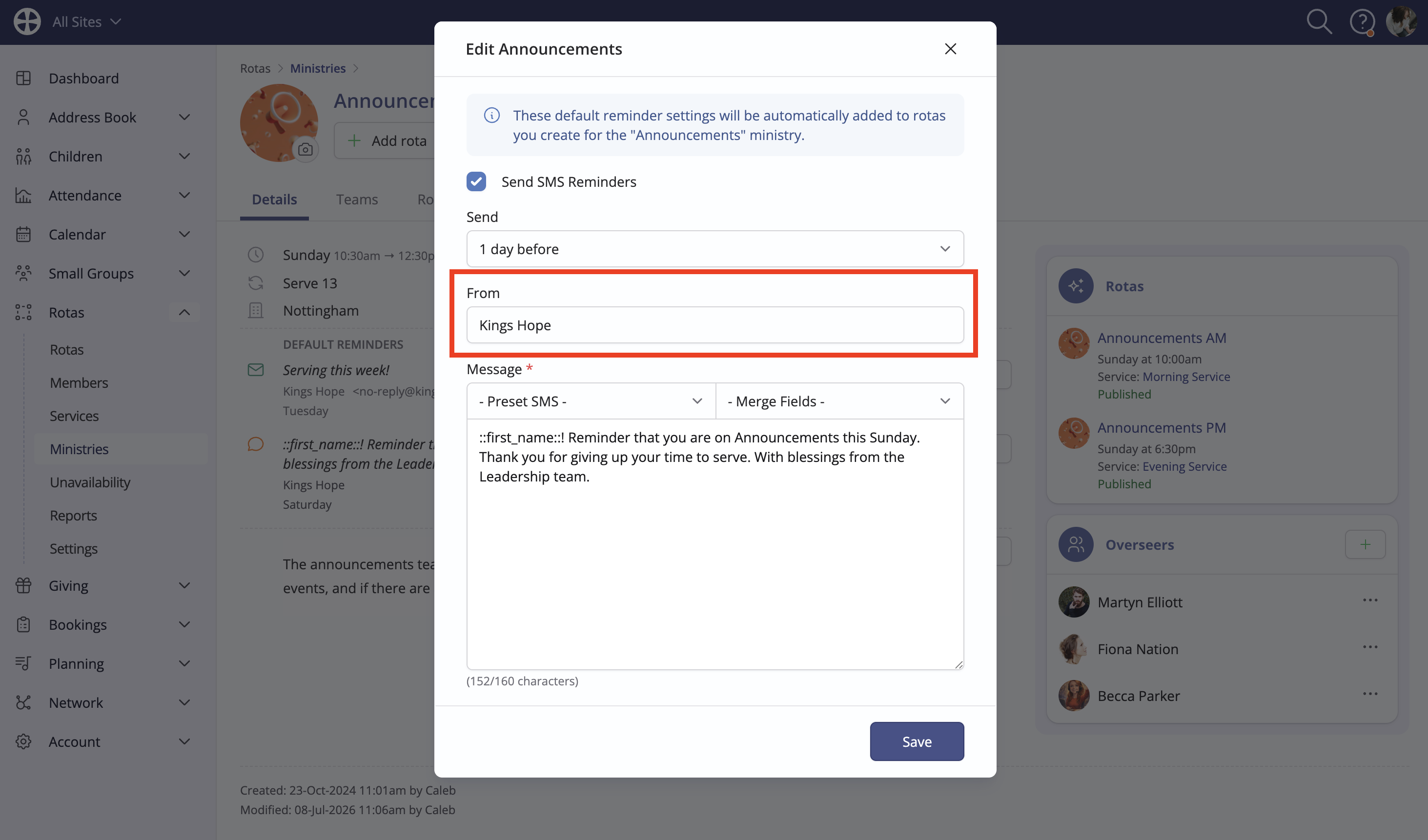
For rota reminder SMS, replies will be logged in the Communication log as above but no notification email will be sent, as no live user is associated with the sending of SMS reminders. For this reason, you may prefer to set your SMS From field to an alphanumeric SenderID rather than a telephone number, so that replies cannot be sent:
Which SMS provider is for me?
We provide integrations with two SMS service providers - BulkSMS and Twilio. Here's a brief comparison to help you decide which is best for you.
| Service | BulkSMS | Twilio |
| Scheduled SMS support | ✅
|
❌
|
| View SMS replies in the ChurchSuite communication logs | ❌
|
✅ |
| Use a personal mobile number as the Sender ID and receive replies to that number* | ✅
|
❌
|
| Register a church, organisation or personal name as an alphanumeric Sender ID for broadcast messages where replies are not needed* | ✅
|
❌
|
| Specify an alphanumeric SenderID when composing a message (no pre-registration)* | ❌
|
✅ |
| Pricing benefits for organisations supporting communities or causes/non-profits* | ✅ | ✅ |
*in supported countries