
Beta access: New email compose experience
Getting started...
The functionality described below is available to accounts that opt in to our beta program. If you would like to apply to be part of the beta, please complete our online application form.
The new email composer experience is made available to the entire account and all users within it. Once it is enabled on your account, you should expect to see the following:
Send email buttons
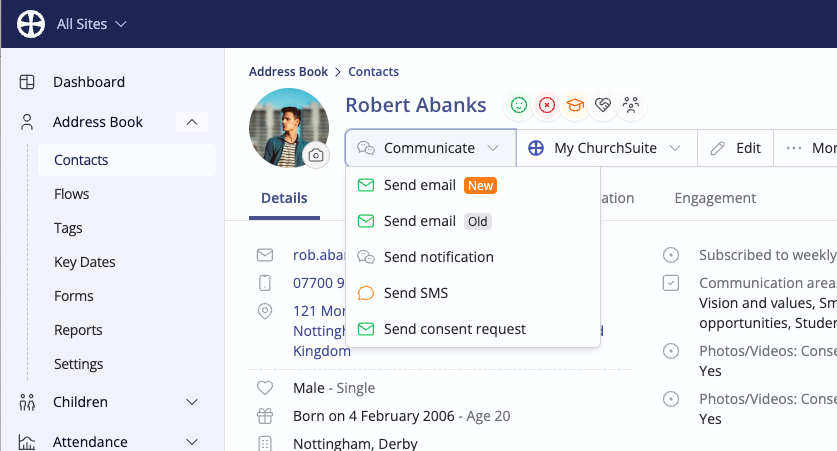
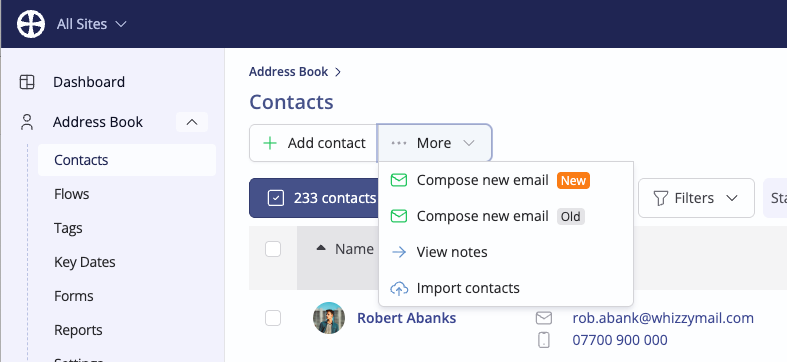
Throughout the application, we offer "Send email" and "Compose new email" buttons. In each place you previously found these buttons, you will find Send email (New) and Send email (Old). The new email composer will launch when you click on the "New" button, and the old composer will launch with the "Old". You can safely use both composers within your account, and if you come across any issues when using the new one, you can switch back to using the old one.
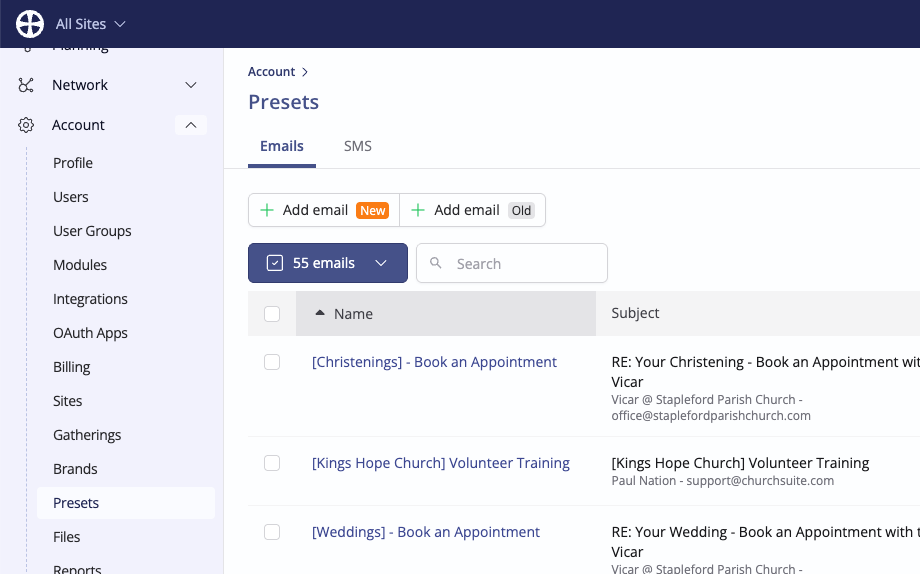
Under Account > Presets, you're able to manage the preset emails for your account, which can be selected within the composer. You will find two new buttons available - Add email (New) and Add email (Old). We recommend that you use the new email composer, but if you find any issues, you can safely switch back to the old composer as a temporary measure.
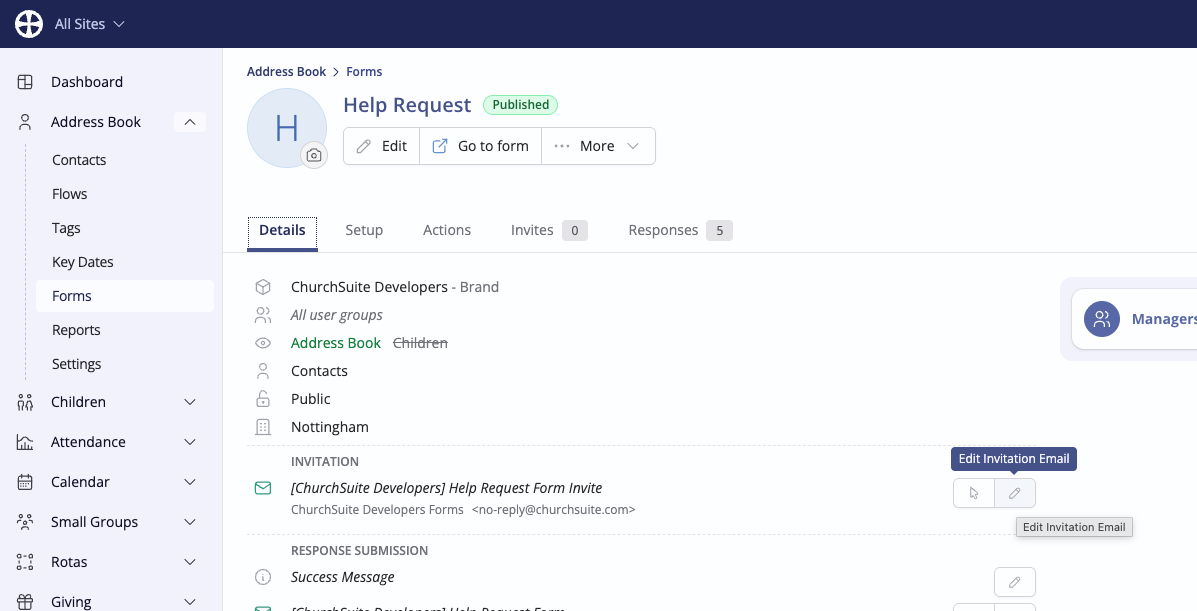
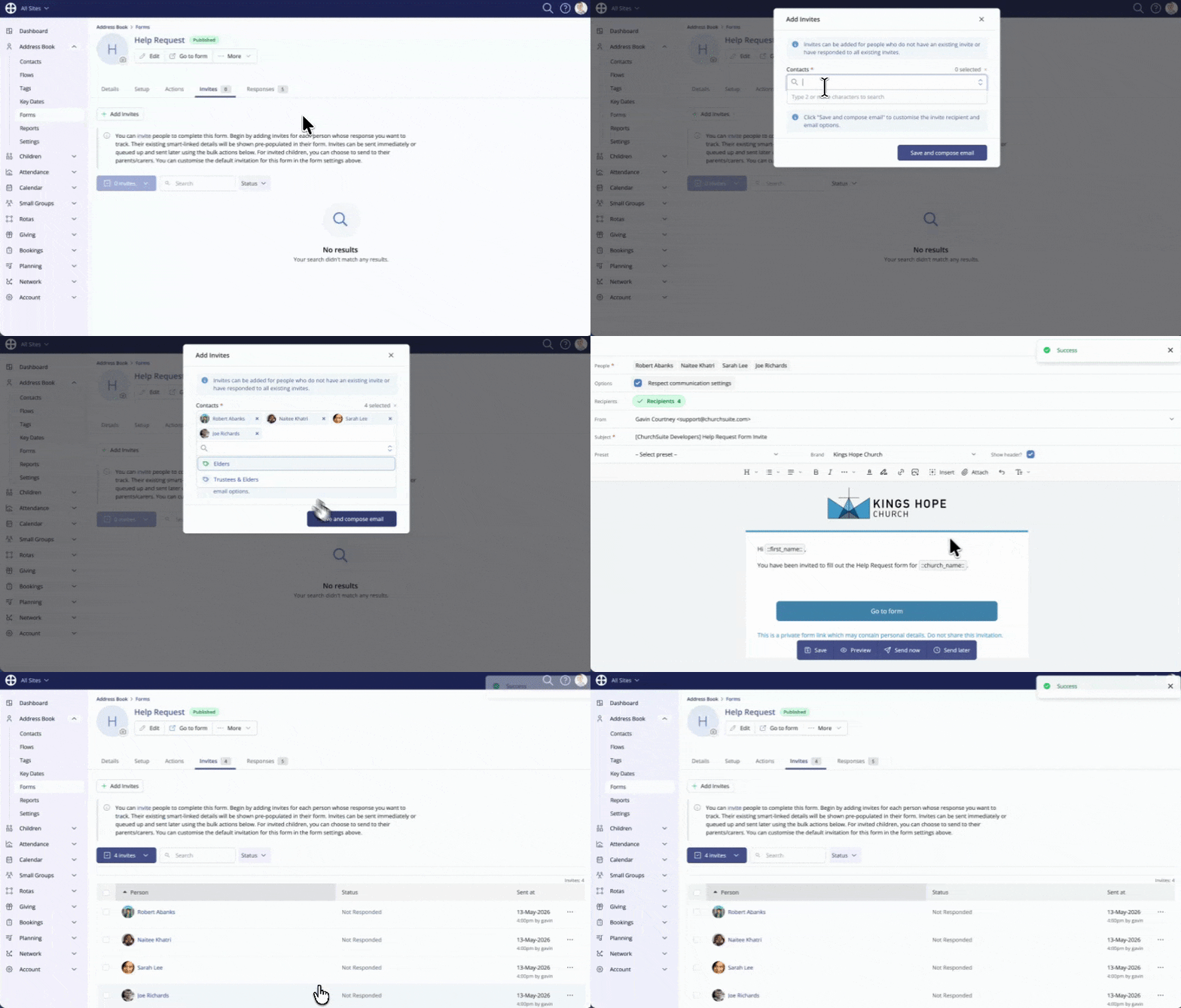
The process of inviting someone to complete a form has been updated, with the workflow improved, making it smoother. The new workflow also makes it possible to send invitations to parents and carers and track the response status for their invited children. The contents of the email can be edited from the form's Details tab:
Having edited your invitation email, and with your form having been published, you can then go to the Invites tab and click on Add invites. From here, you're taken through the process of selecting your recipients, further customising the email (if necessary) and then sending it out - either immediately or scheduled for a later date:
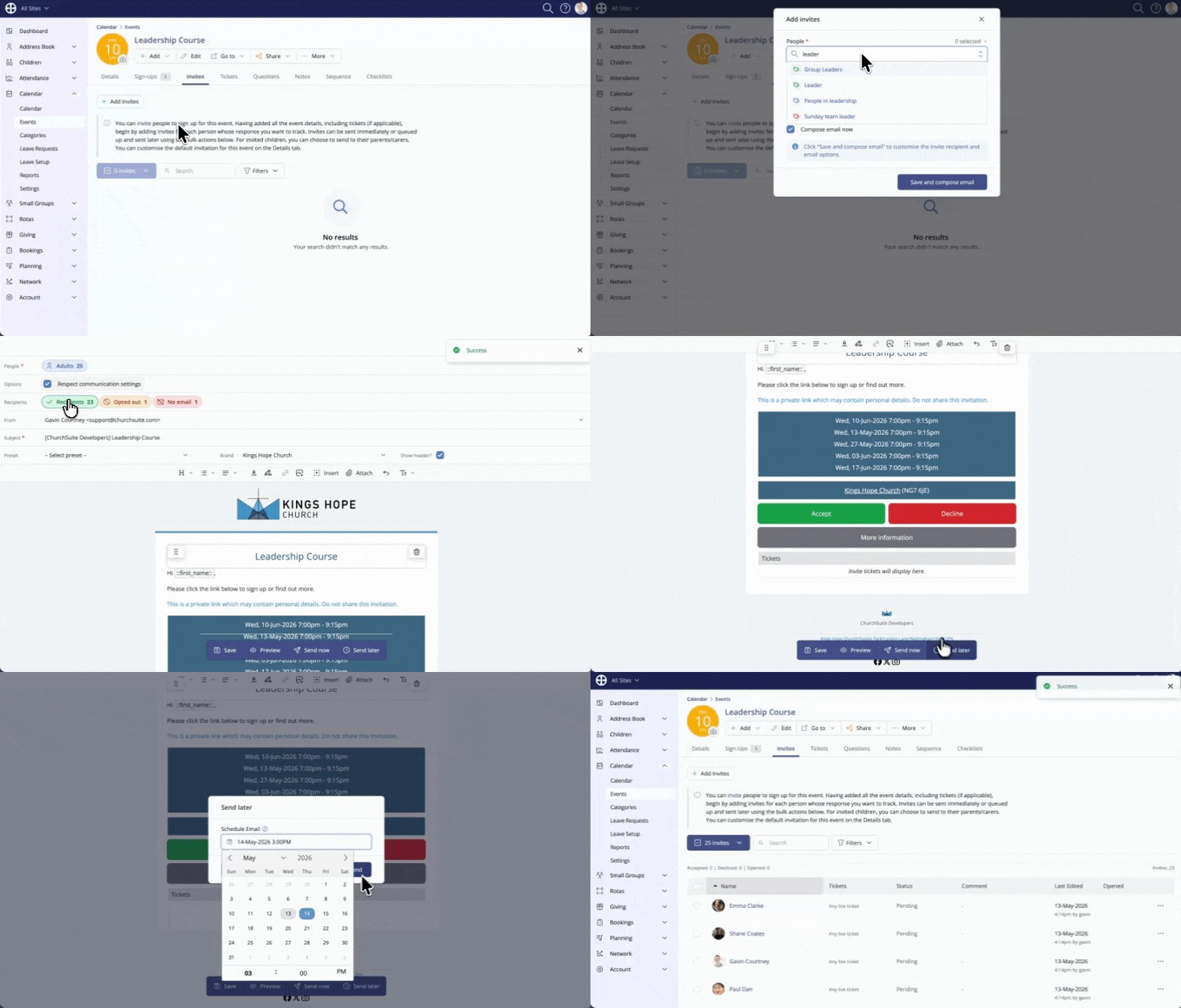
The same improvements that have been made to the form invite process have also been applied to events. The contents of the email can be edited from the event's Details tab:

Having edited your invitation email, you can then go to the Invites tab and click on Add invites. From here, you're taken through the process of selecting your recipients, further customising the email (if necessary) and then sending it out - either immediately or scheduled for later:
Providing feedback
The new email compose experience also includes lots of new features. We would really appreciate your sharing any feedback about the new email composer through our online feedback form.