Collecting organisation metrics
In this article
Introduction
Adding a Metricset
Connecting organisations
Inviting organisations to submit metrics
Visualising metric data
Introduction
The Network module allows you to invite connected organisations to share anonymised numerical and currency-based metrics, helping you build a clearer picture of the health of individual organisations and your network as a whole. For example, you might ask connected organisations to share their average Sunday service attendance or the number of baptisms performed over a given period. These insights can help you assess the health of individual organisations, identify wider trends and better understand the overall health of your network.
Adding a Metricset
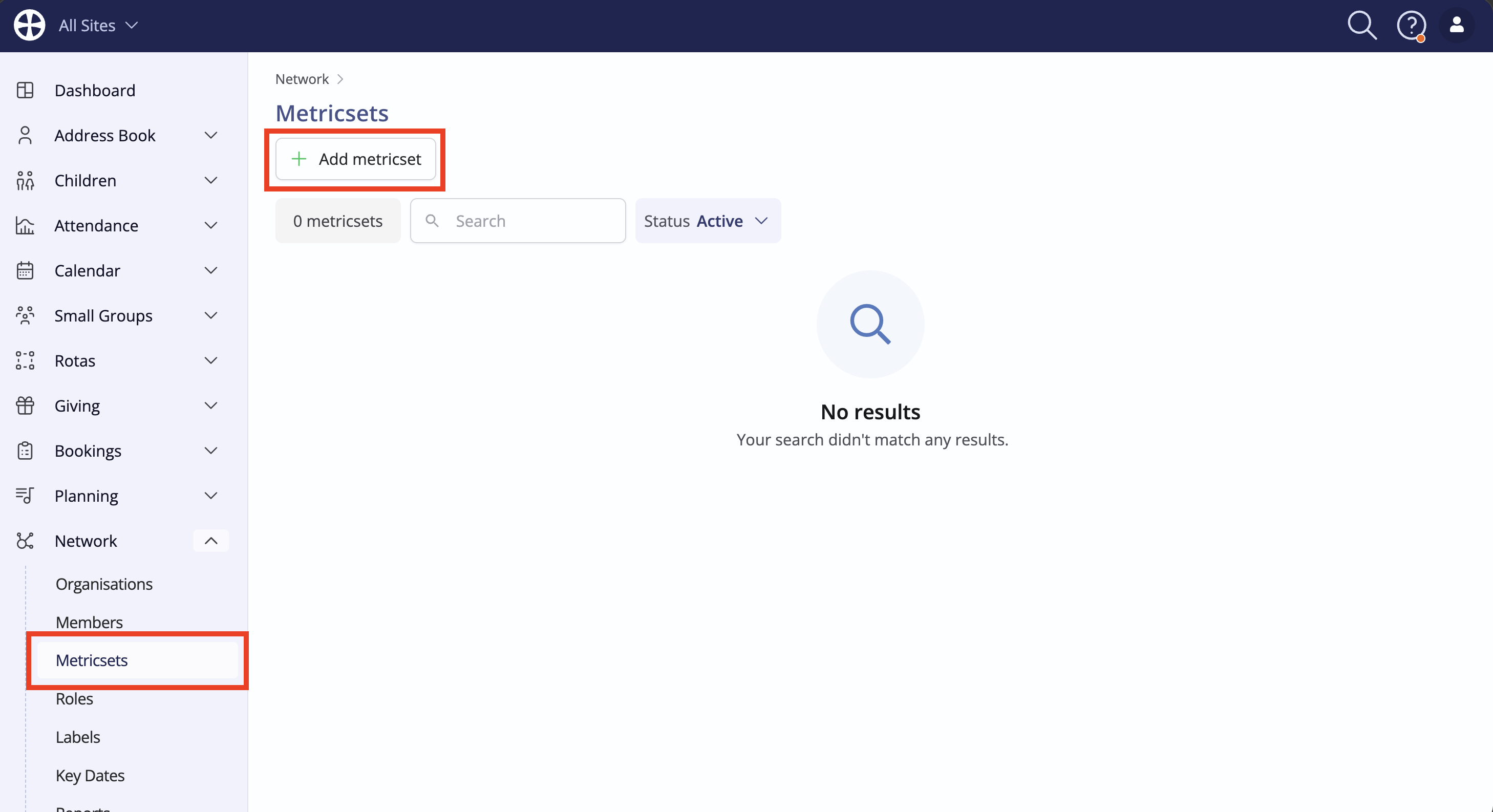
First, you'll need to add a Metricset, where you'll define the data that you'd like to collect. You can manage multiple metricsets, perhaps collecting different types of data. For example, you might have one metricset for your quarterly general organisation health statistics, another for collecting food bank usage data from organisations that run a food bank. Each metricset can collect a different set of data from the relevant organisations. Navigate to the Metricset section of the Network module and click Add metricset.
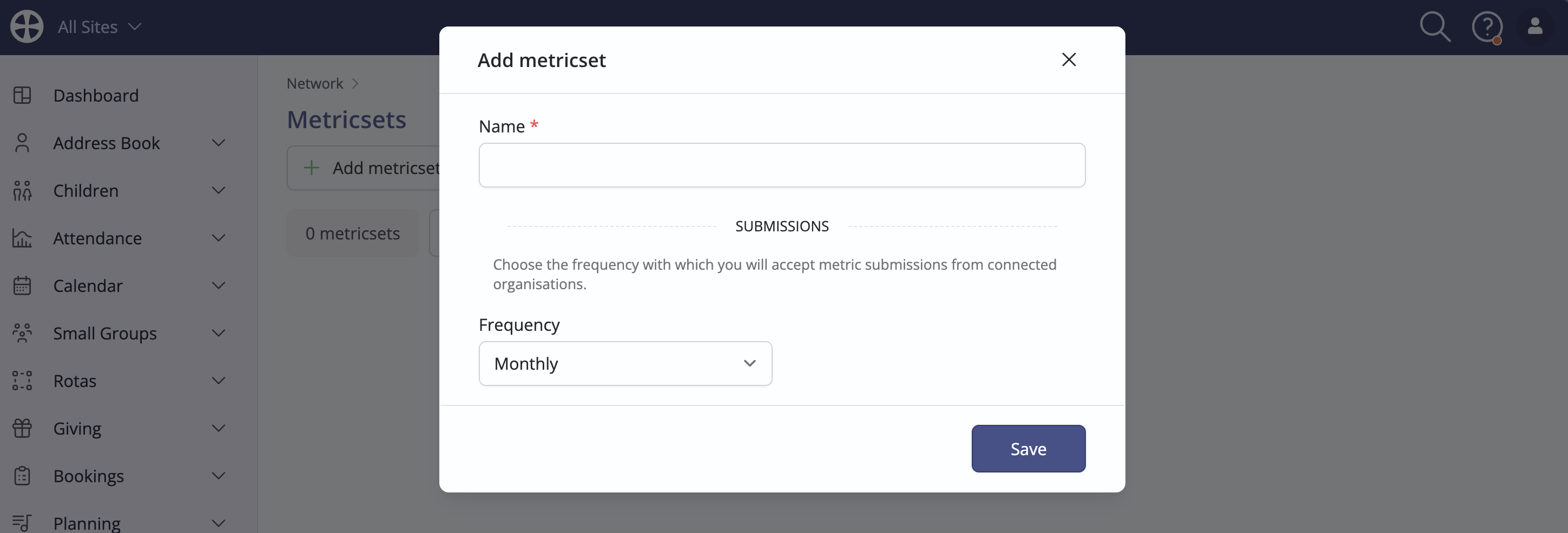
Give your metricset a suitable Name and specify the Frequency at which you'd like to collect this data, then click Save.
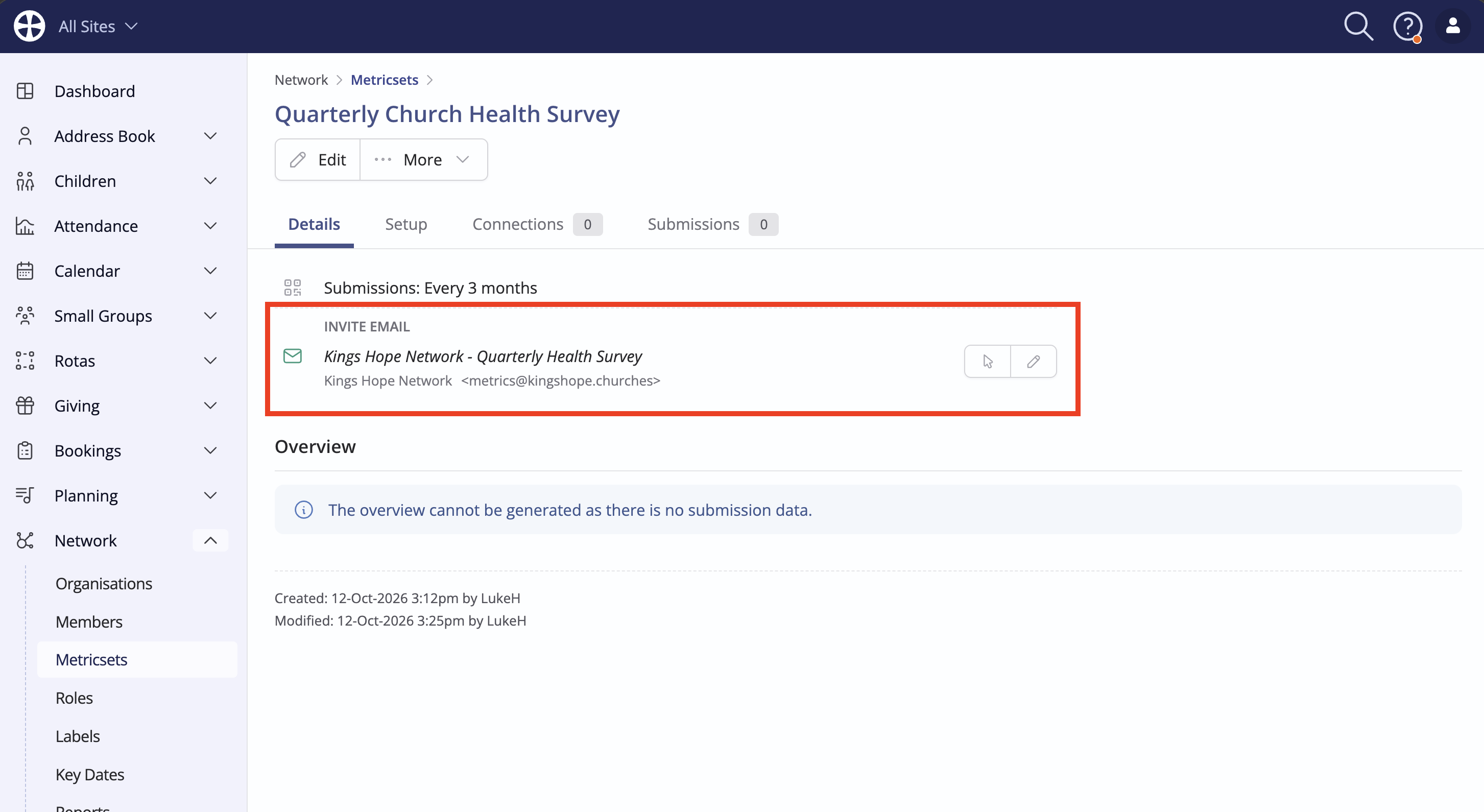
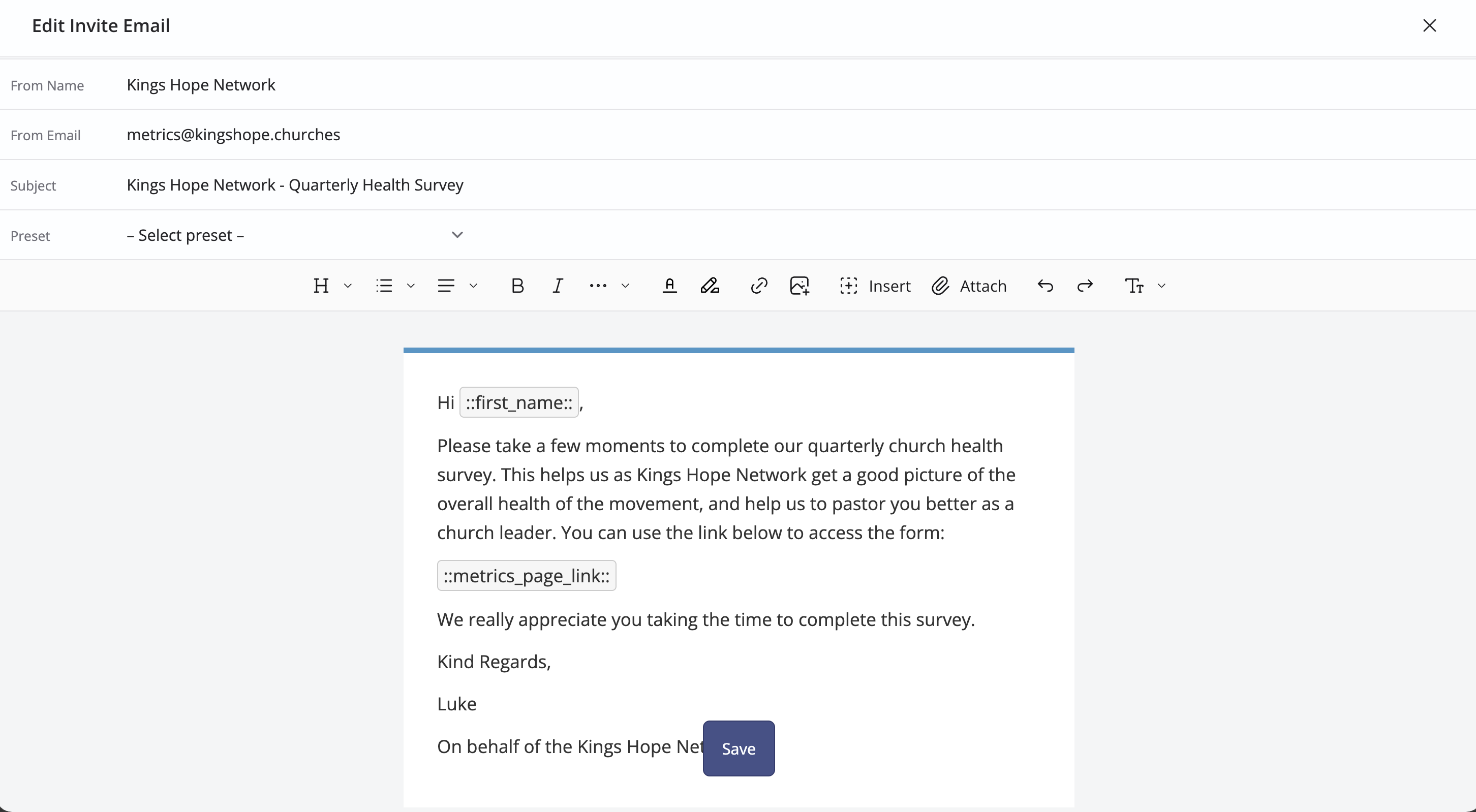
You're now taken to the Metricset's view page. Click the pencil icon to customise the default invite email.
Customise the message as needed, ensuring you leave the ::metrics_page_link:: merge field in place, then click Save.
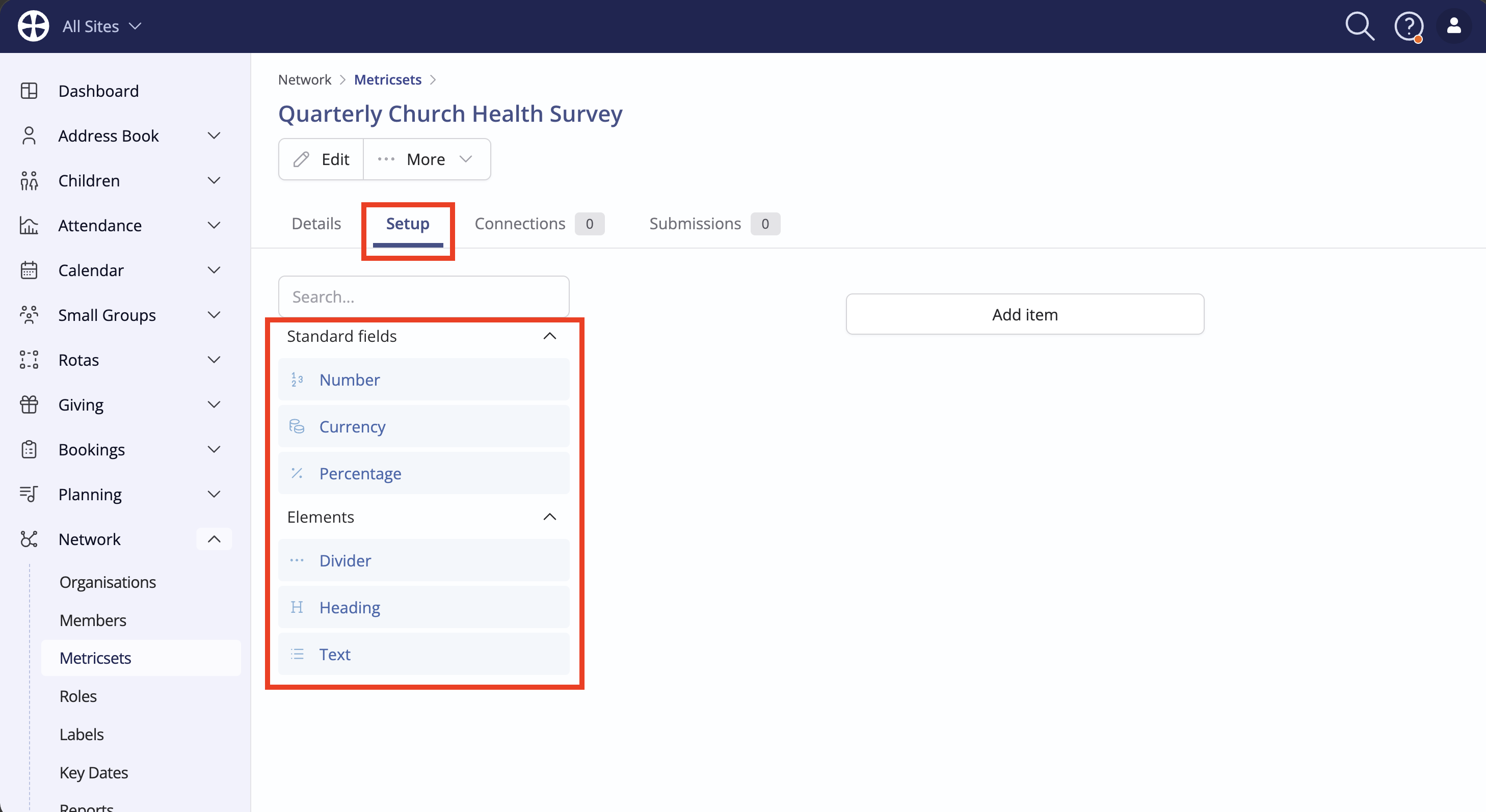
Next, navigate to the Setup tab of the metricset to start building the metrics you'd like to collect. Drag and drop a field from the menu into the form.
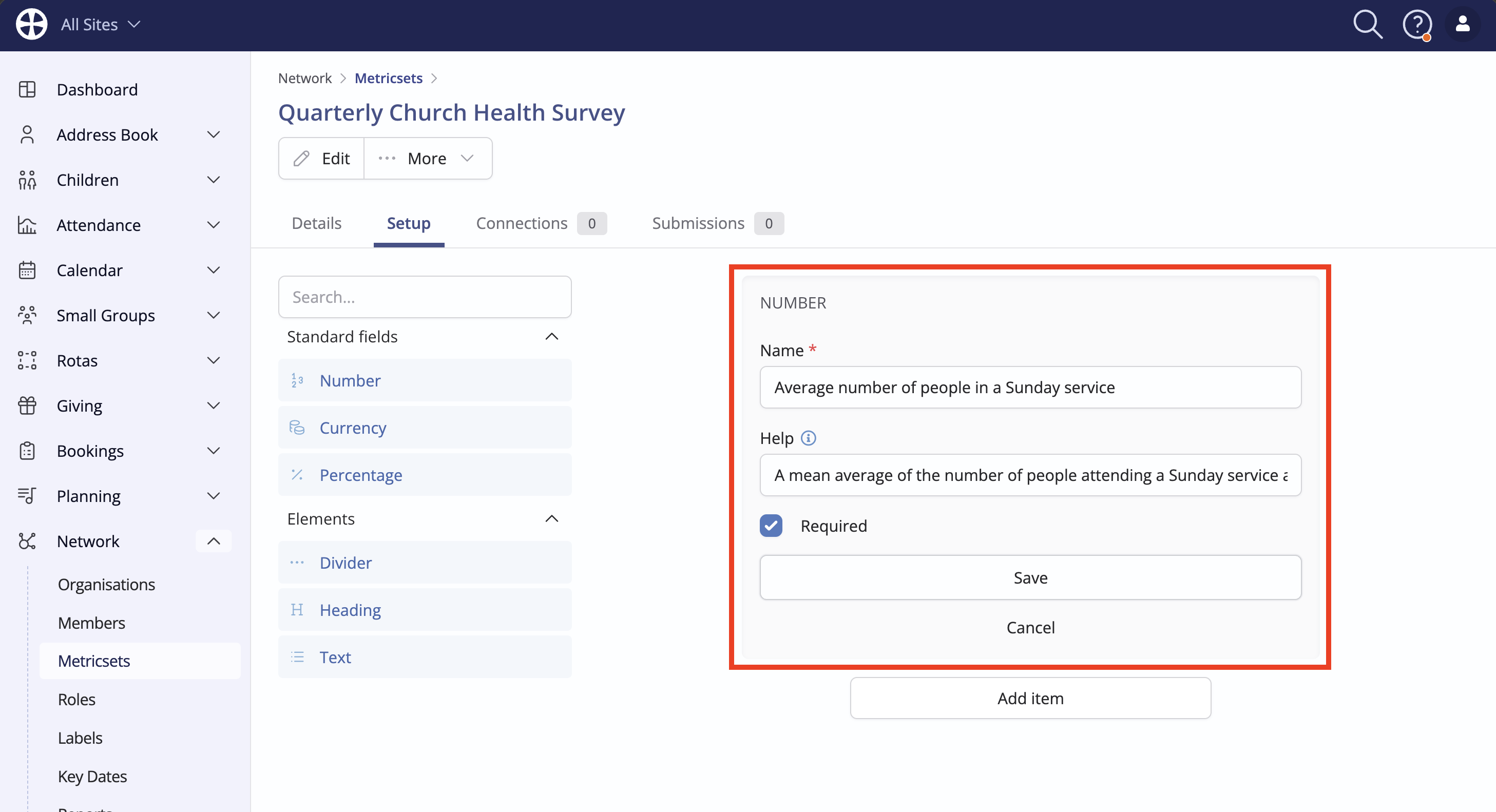
Once a field is added, give it a suitable Name, add any required Help text and optionally set it as Required. Click Save to add the Metric.
Connecting organisations
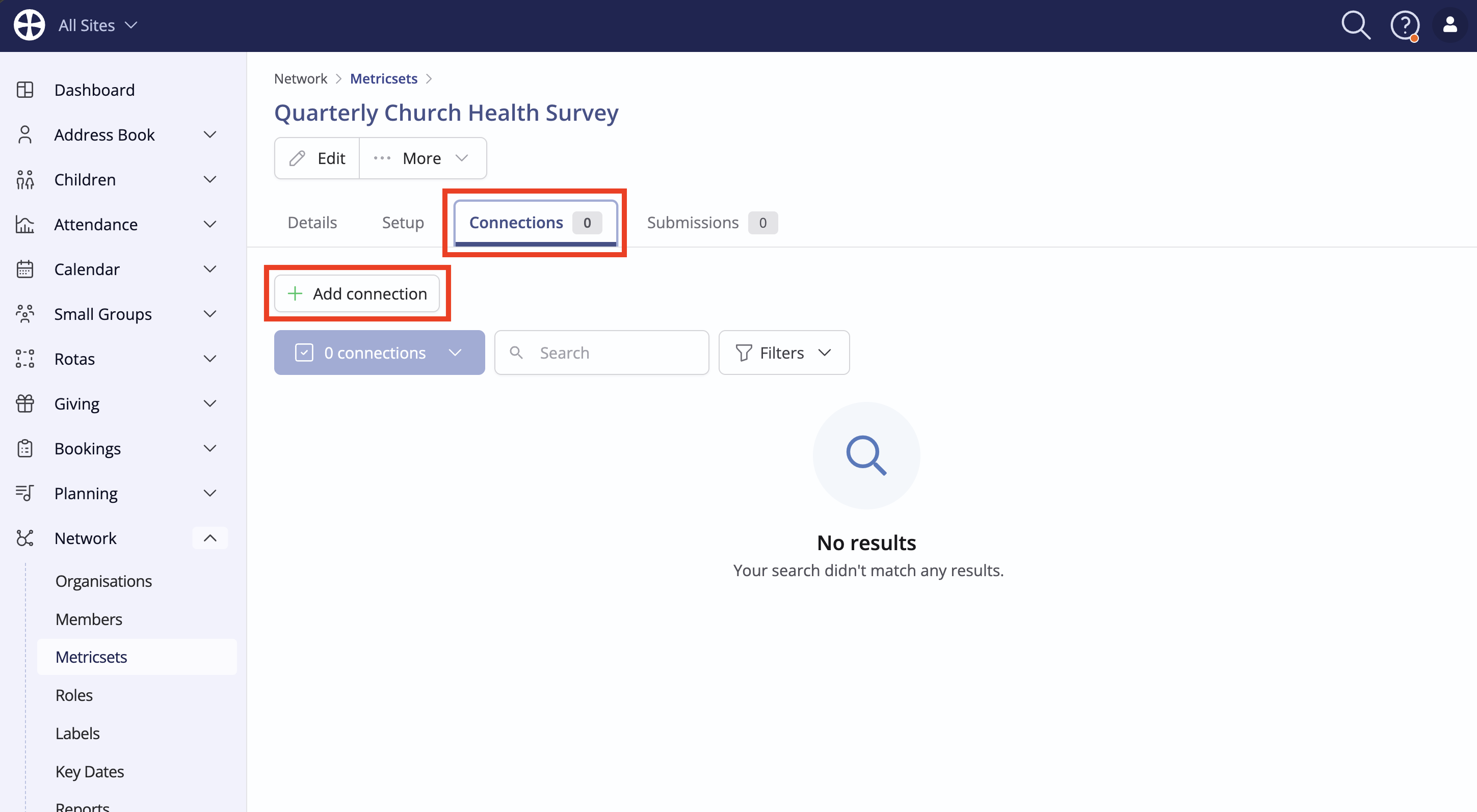
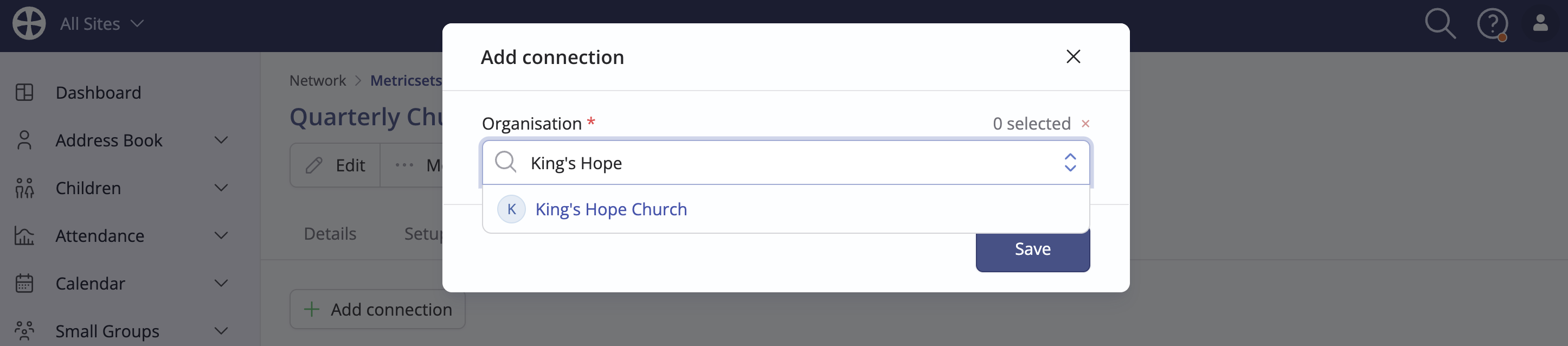
Before you can collect metric data, you'll need to add a Connection for each relevant organisation in your Network module. Navigate to the Connections tab of the pertinent Metricset and click Add connection.
Search for, and select, the pertinent organisation(s). Click Save.
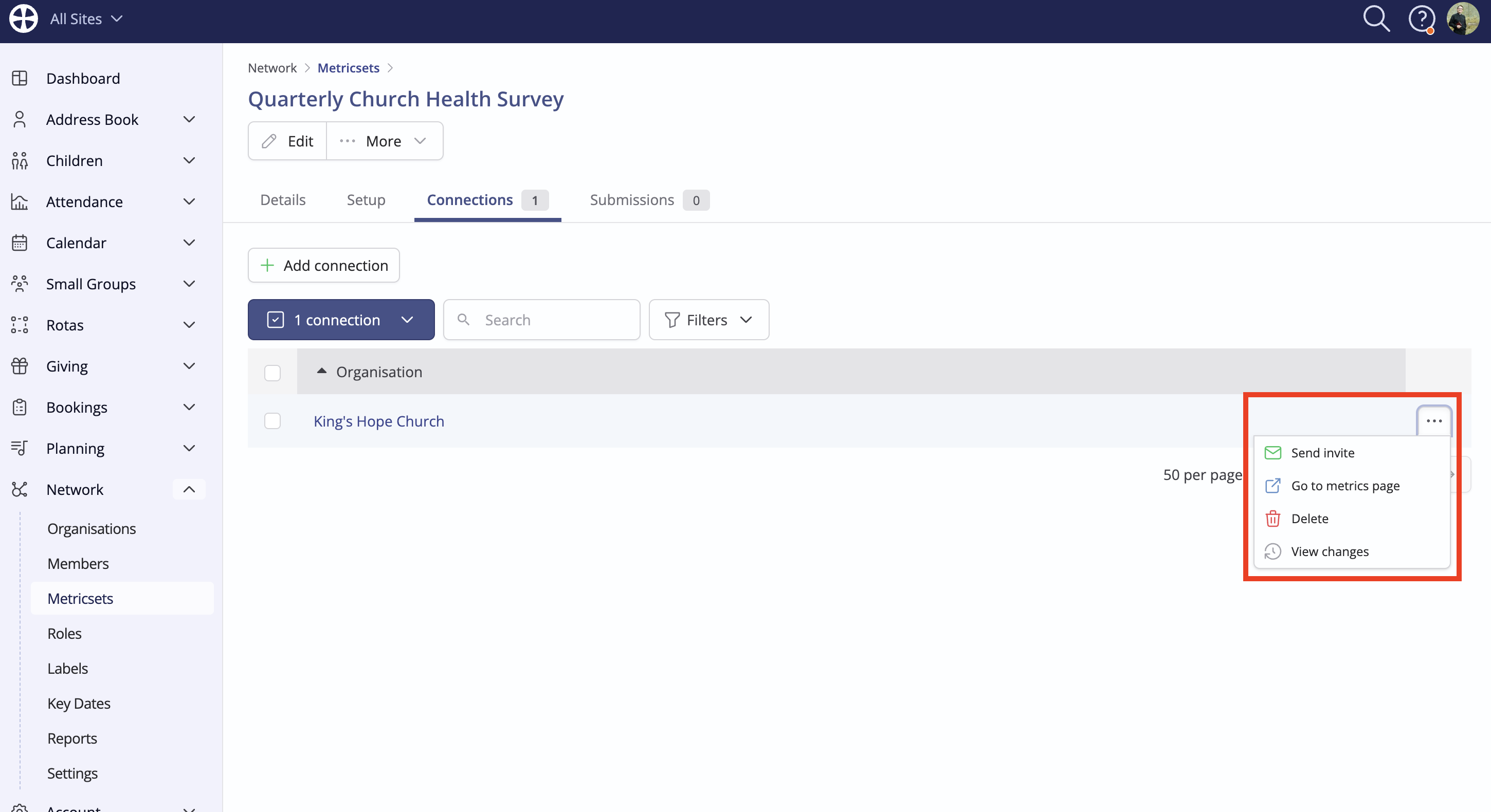
Your connected organisations will be listed in the Connections tab. You can add further connections or remove existing ones at any time as your network changes.
Inviting organisations to submit metrics
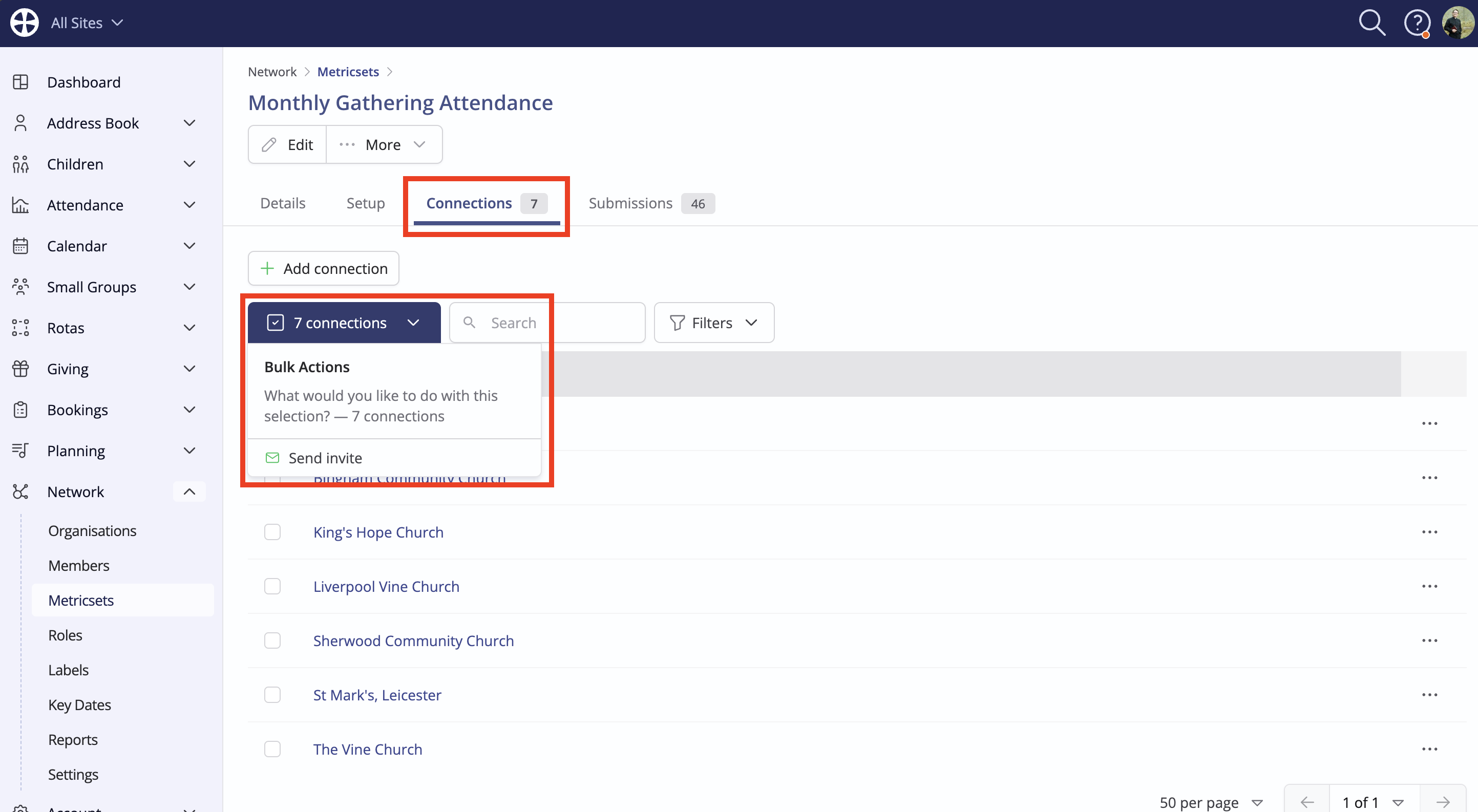
Now that you've added a Metricset, and connected the appropriate Organisations, you can begin inviting them to submit their metric data. Navigate to the Connections tab of the relevant Metricset and use the bulk action to select Send invite.
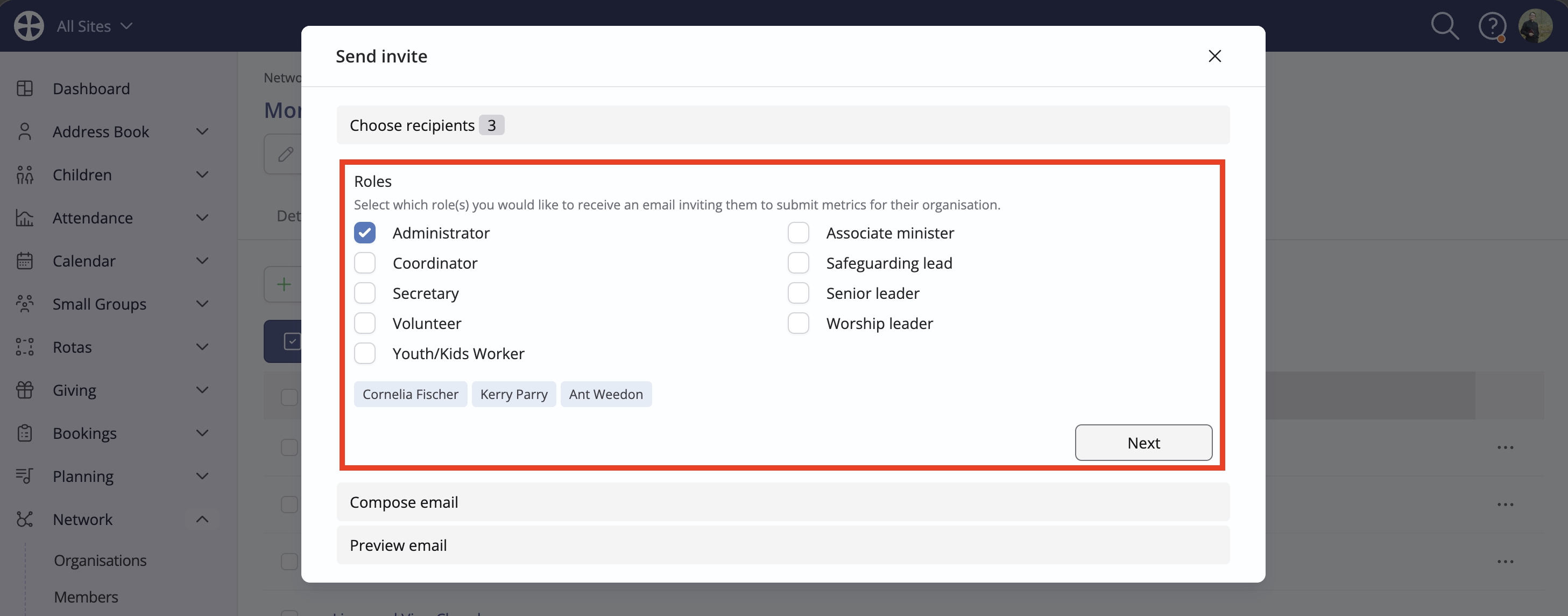
Select the role holders in the connected organisations you'd like to receive the invite, then click Next to proceed.
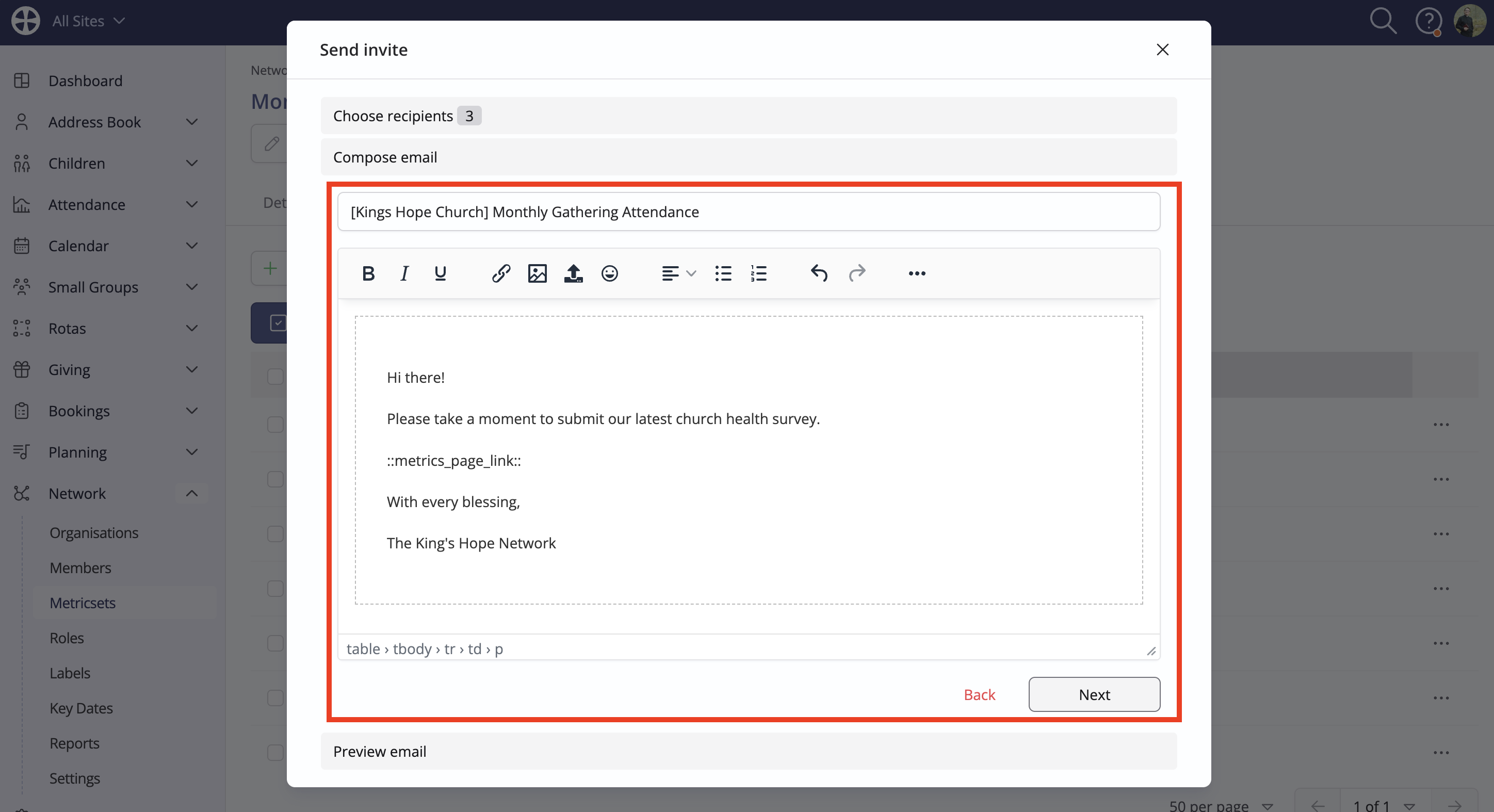
Review the invite email and make any necessary changes. By default, the invite email you configured in the Details tab of the Metricset will be pre-loaded.
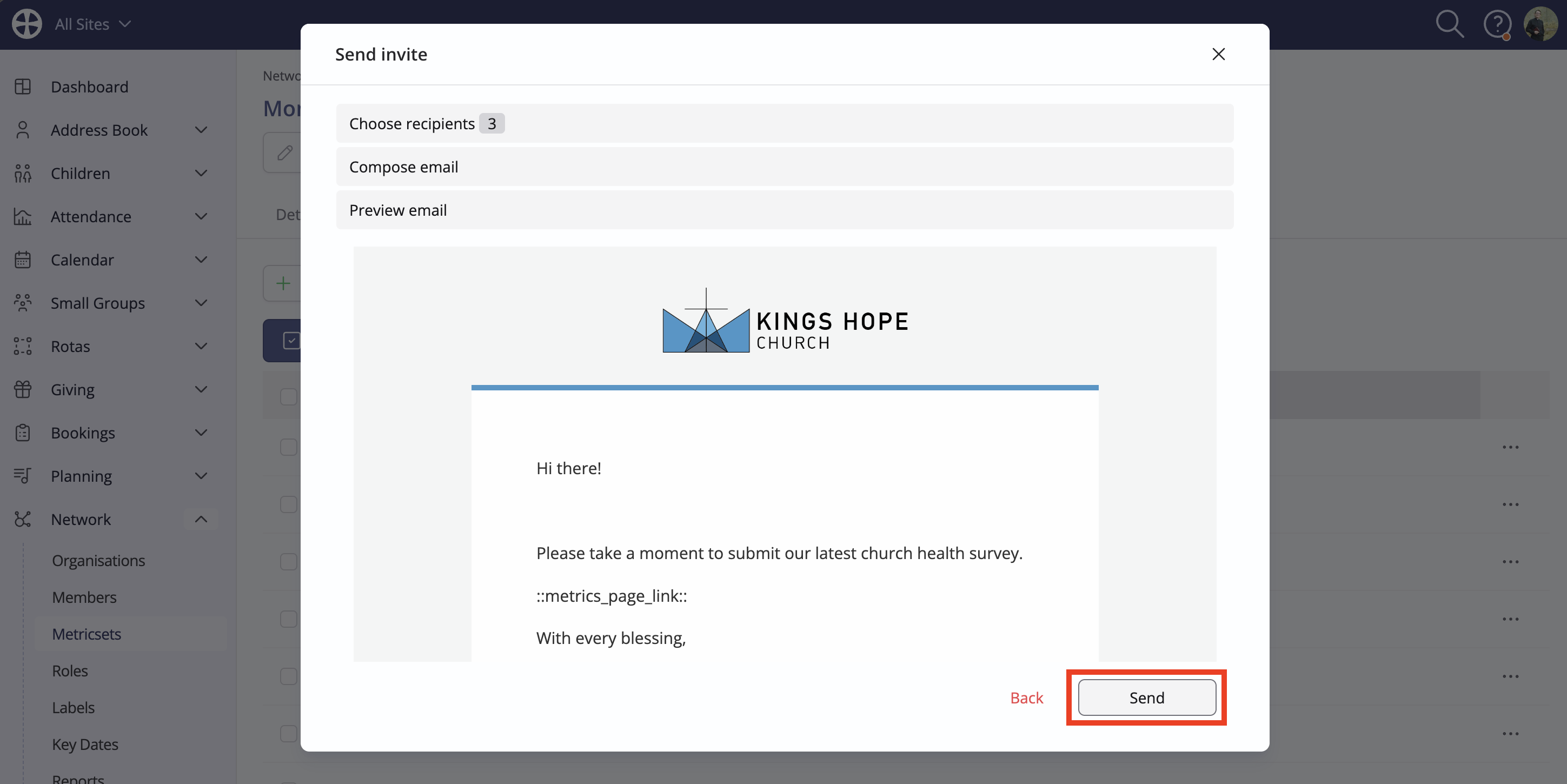
Preview the formatted email and, when you're happy with it, click Send.
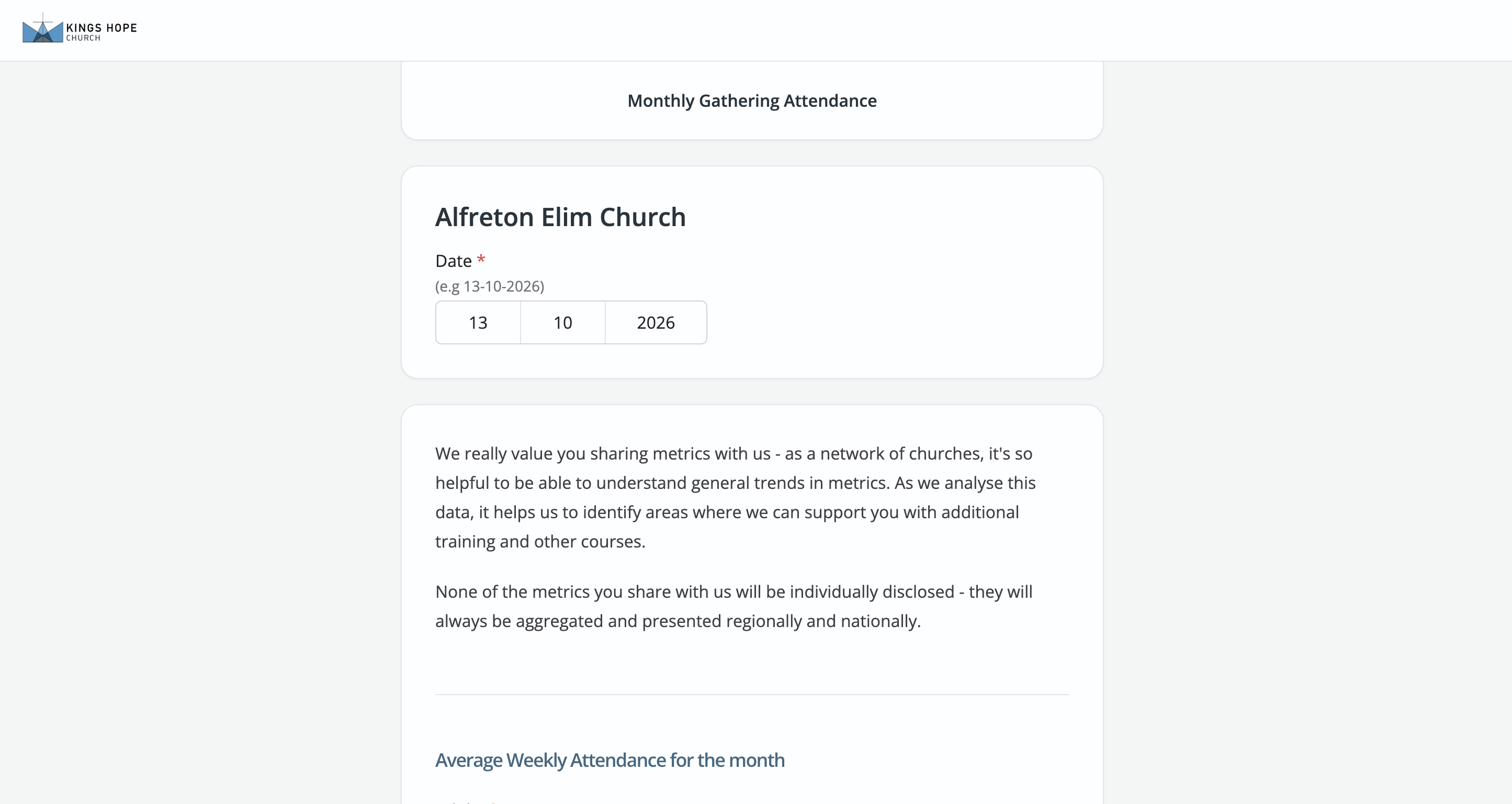
The selected people will then receive an email containing a personalised link to their Metrics page, where they can submit the requested data.
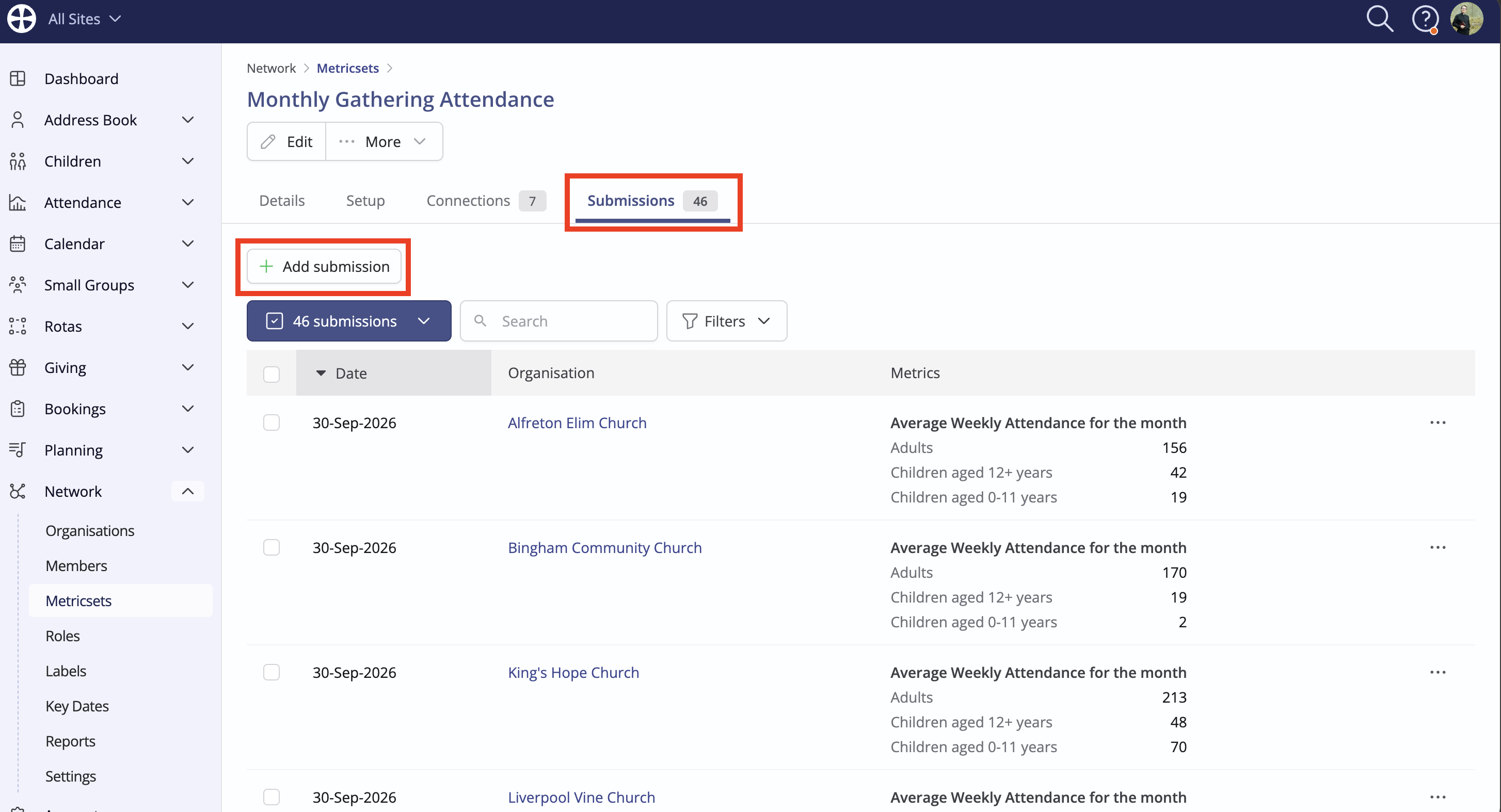
If a connected organisation is unable to submit its metrics through the form, you can add the data manually instead. Navigate to the Submissions tab and click Add Submission.
Visualising metric data
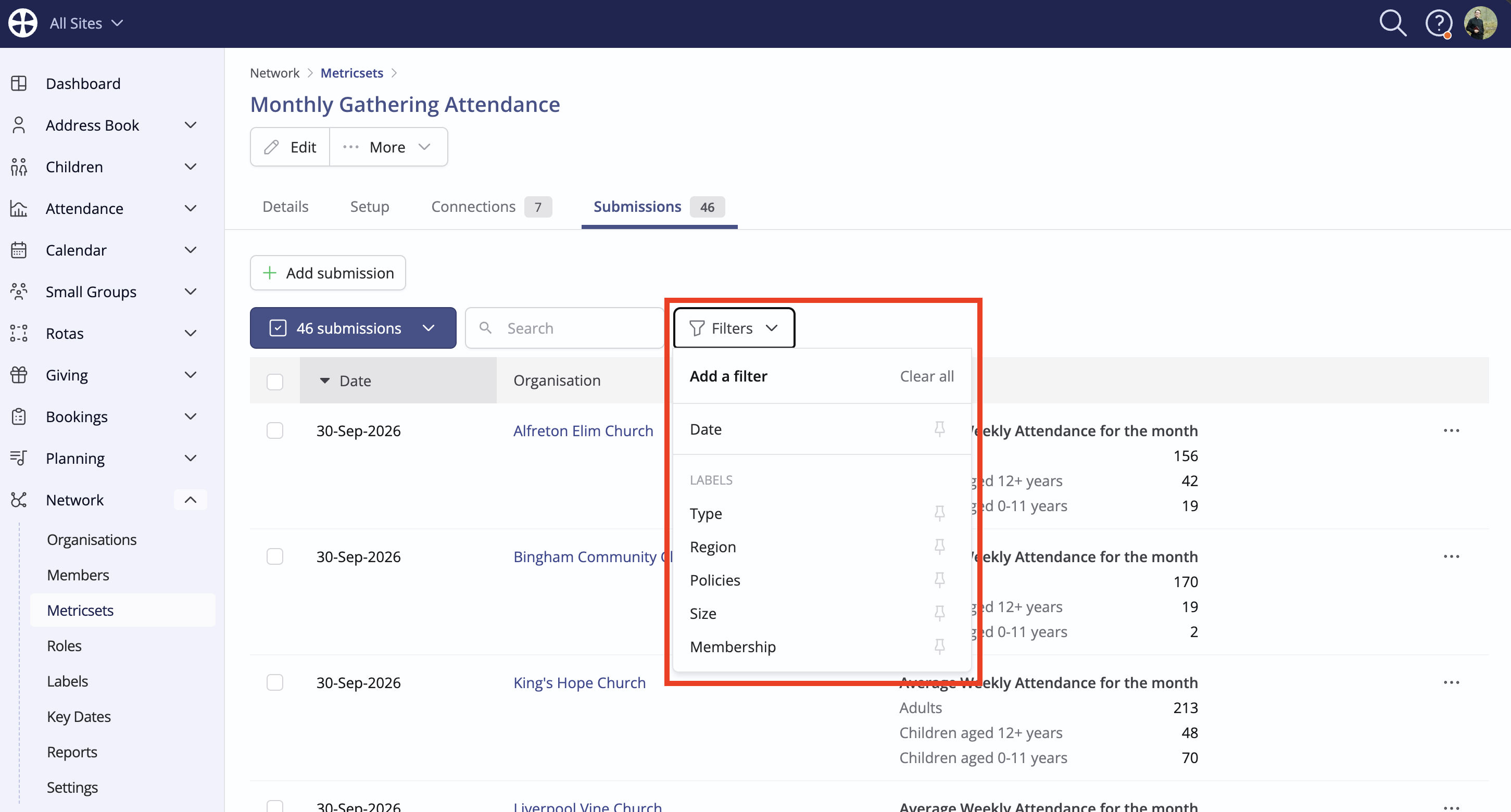
The Submissions tab displays previously submitted metric data for each connected organisation. You can filter submissions by Date or particular Labels to view data for a specific period or category of organisation.
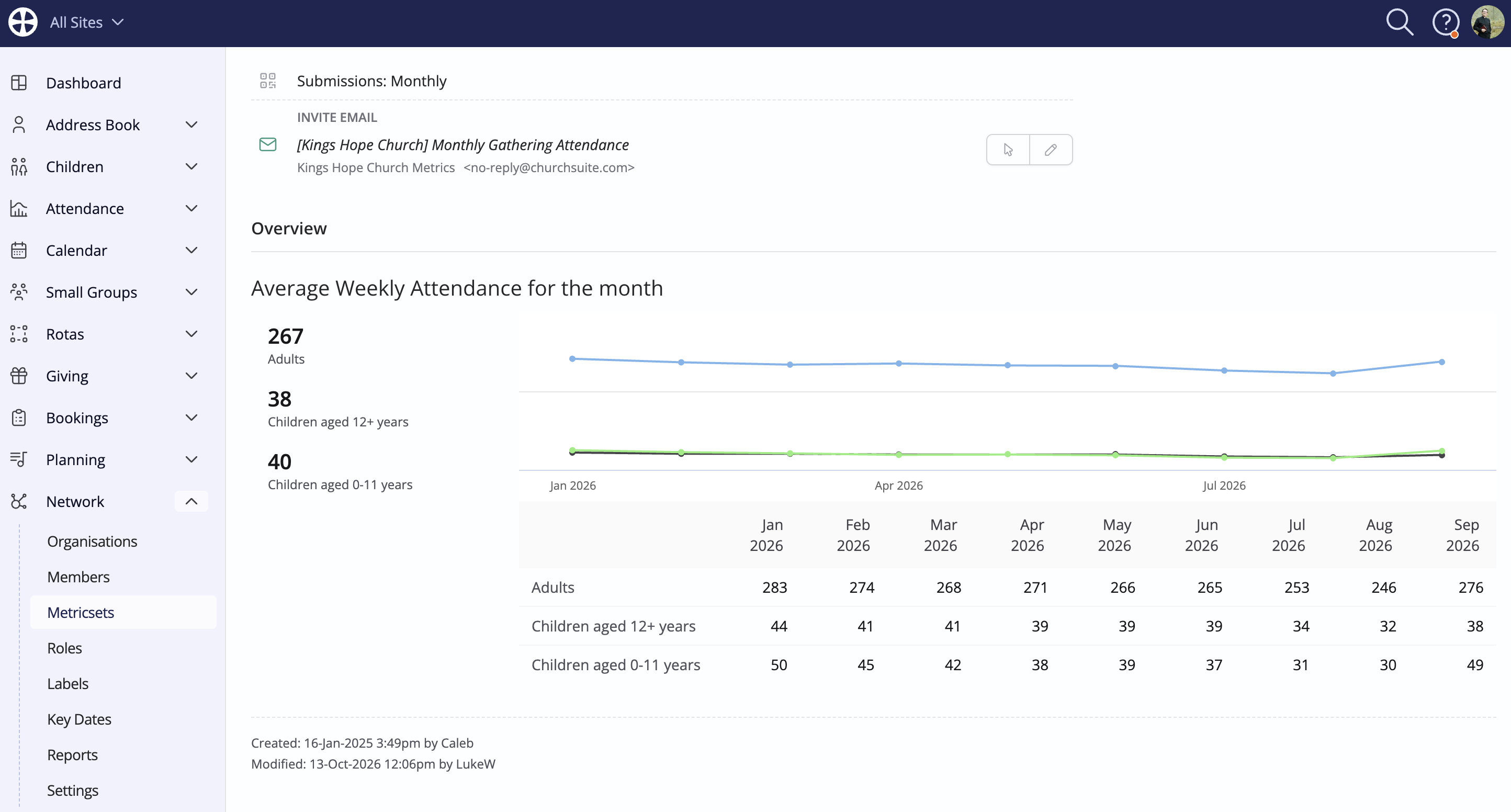
The Details tab includes graphs that help you identify trends in the metrics you're collecting.
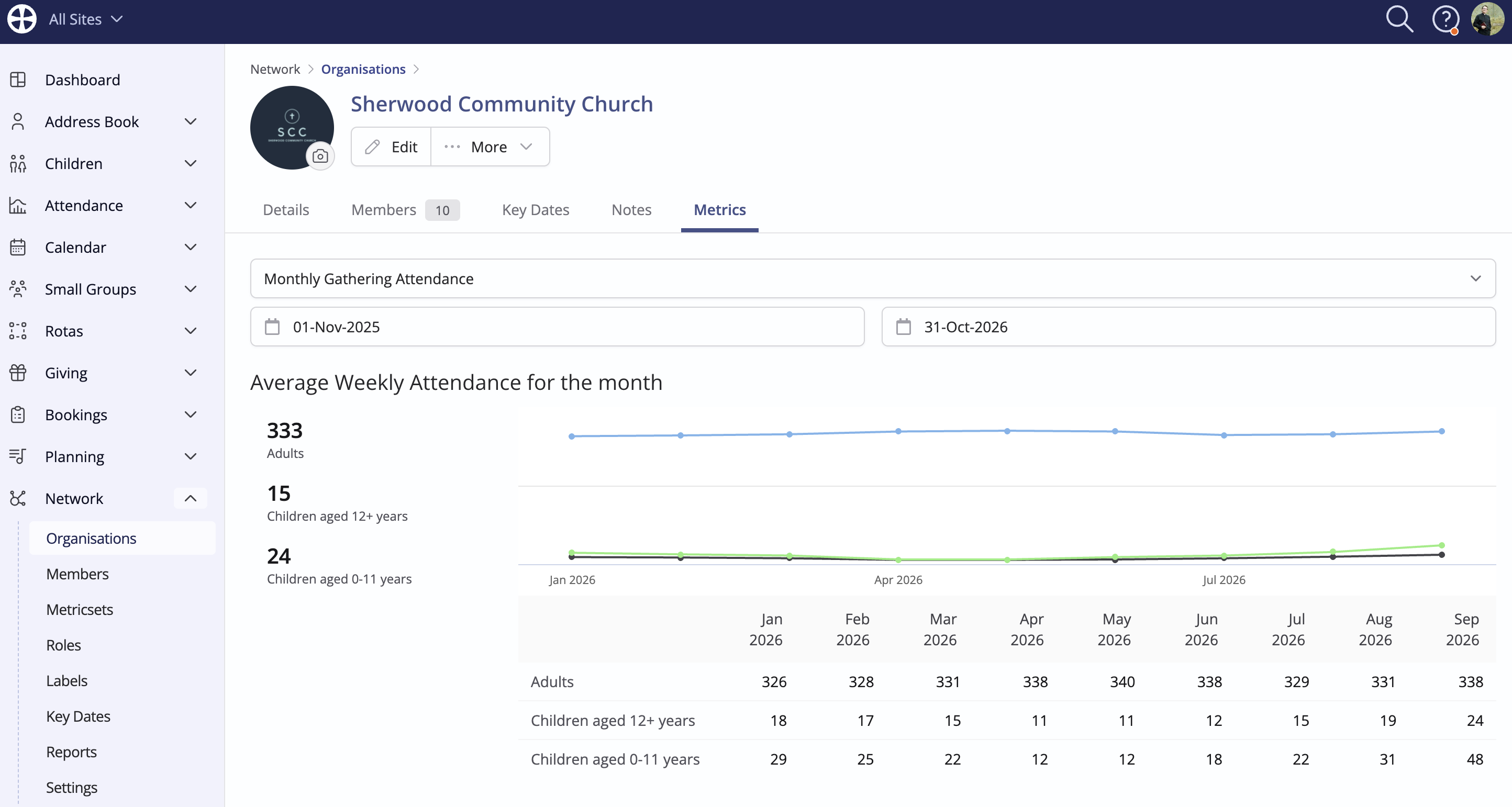
Each connected organisation also has a Metrics tab, where you can view how its submitted metrics have changed over time.
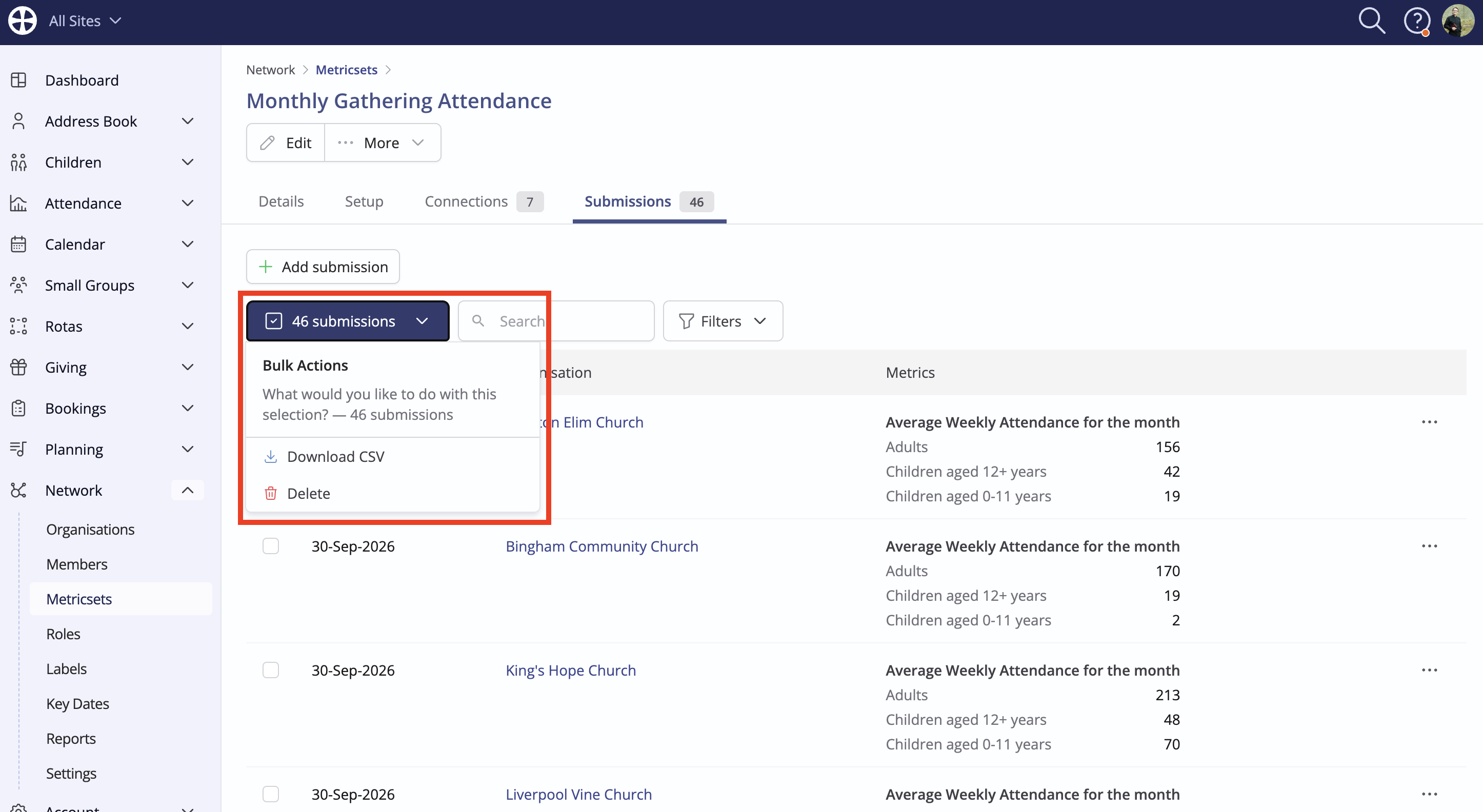
To create custom reports or graphs, or to analyse the data further, use the Download CSV action on the Submissions tab of your Metricset to export the data.