Producing giving statements for your givers
In this article
Introduction
Generating statements
Sending and printing statements
Introduction
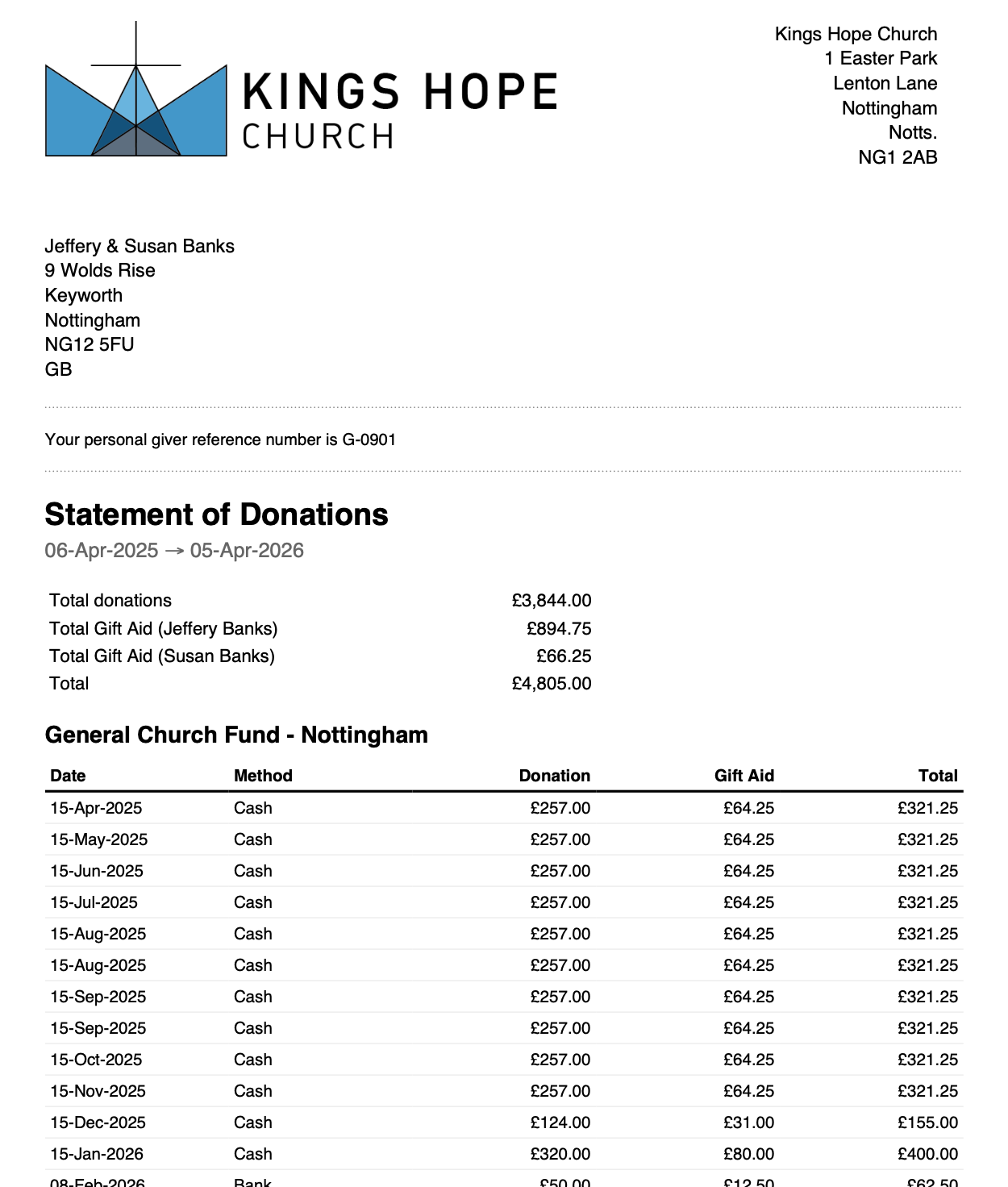
You can easily produce branded statements of donations that can be printed or emailed directly to your givers. Here's an example:
Generating statements
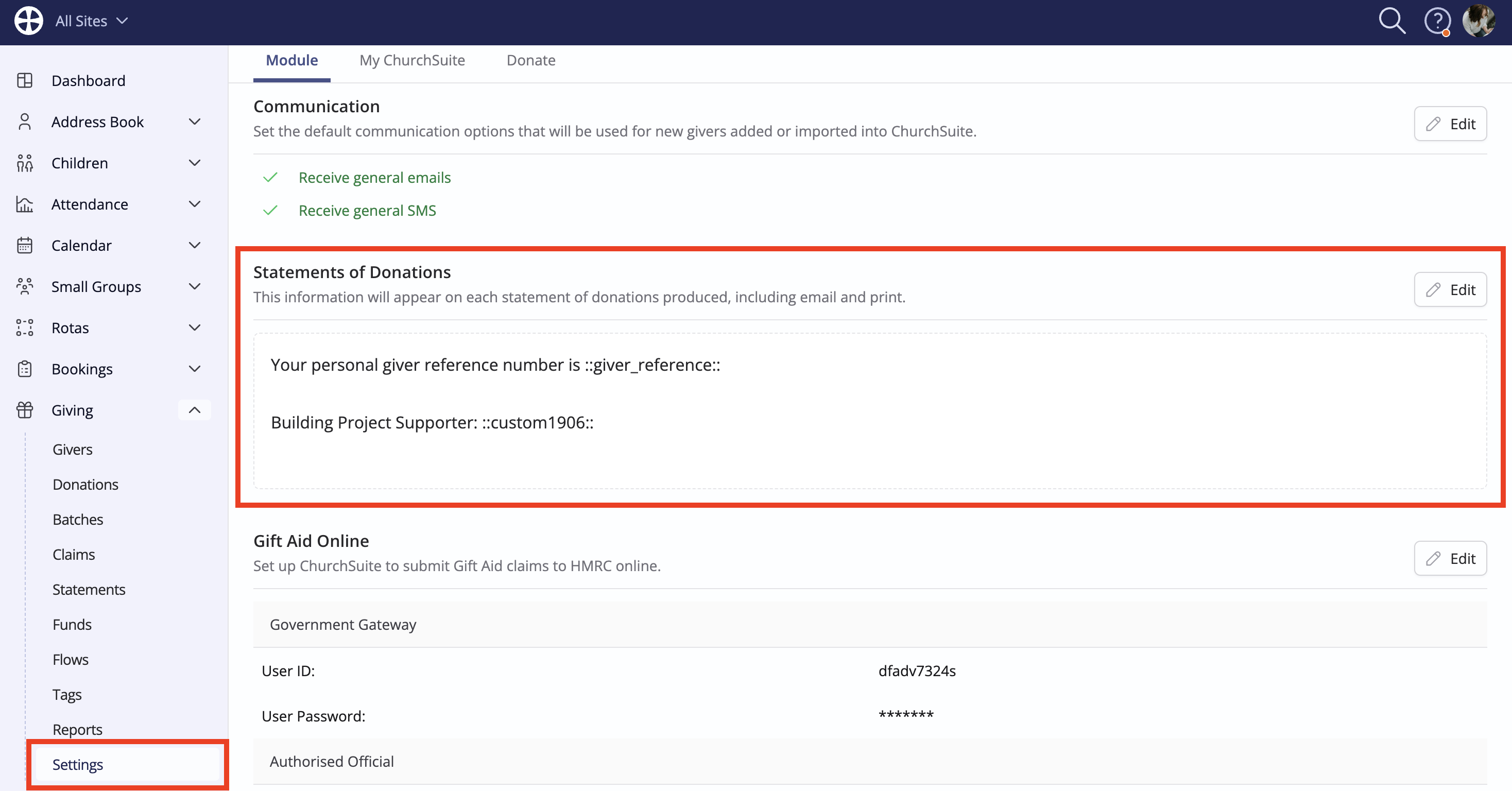
In the Giving module settings, you can optionally add a default statement message that is applied to new statements that you subsequently produce (changes made to the default message are not applied to existing statements):
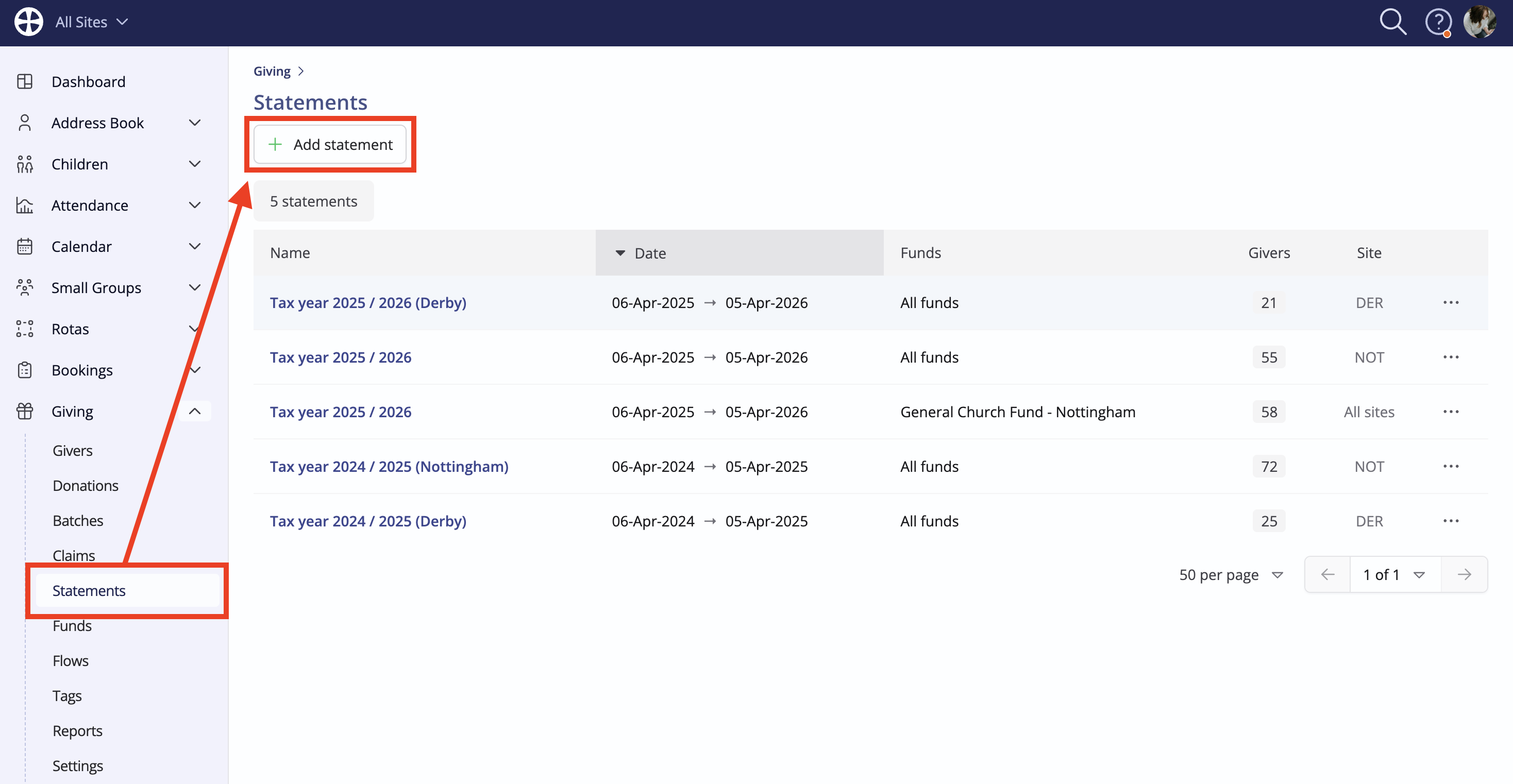
To generate donation statements, navigate to the Statements section of the module and click Add statement.
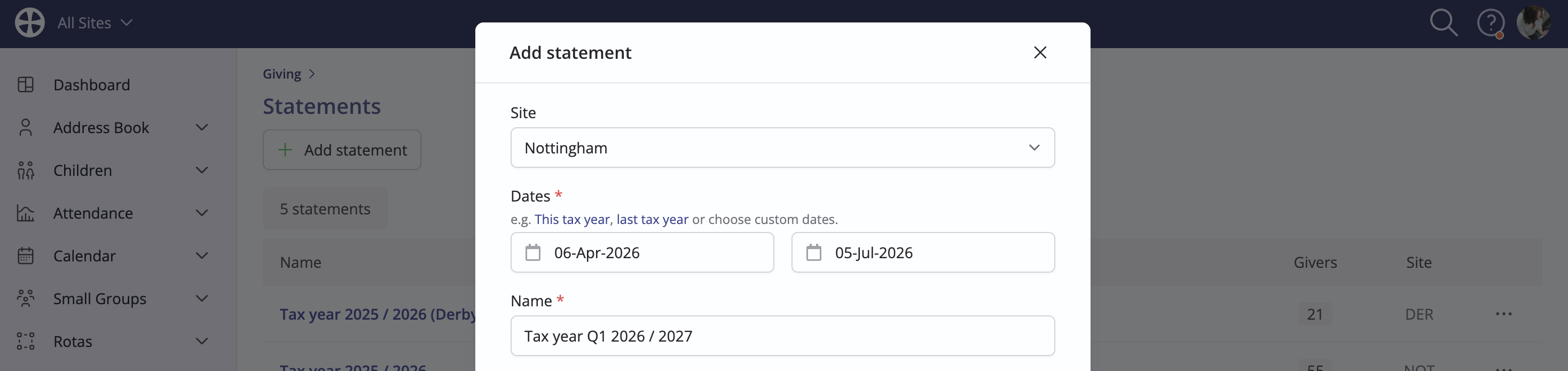
On the pop-up, choose the Site (multi-site customers only), specify the statement Dates and enter a Name to identify the statement/s you are producing - a default name will be assigned based on the dates selected, but you can change this if you wish:
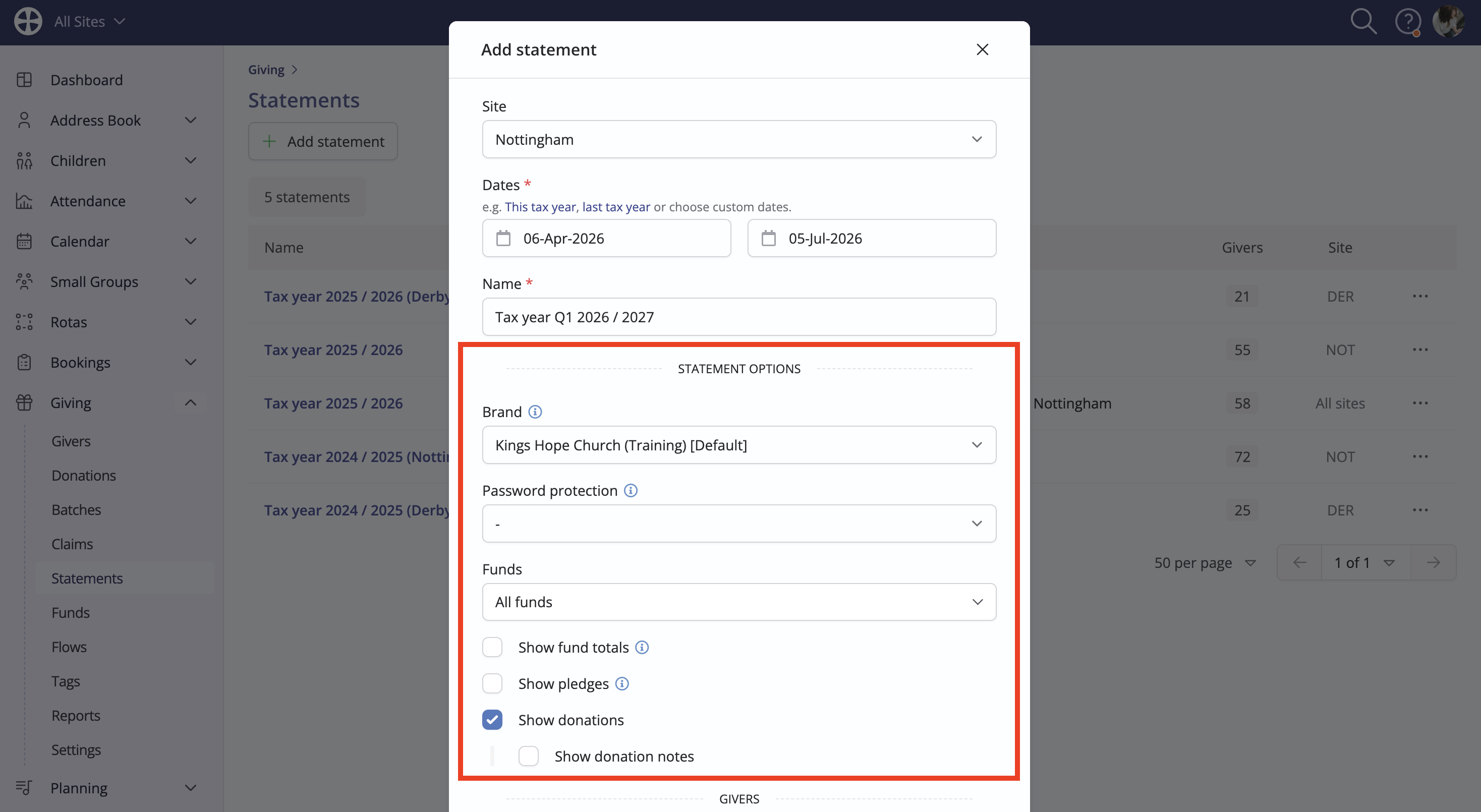
Next, select the Statement Options. Statements are produced using your default account branding, or you can choose a custom Brand. We've produced a related support article on Using brands. You can optionally add Password protection to each giver's statement PDF. If the selected password criteria are missing for a giver, their statement won't be password-protected. For example, if you choose to apply password protection using a giver's mobile/cellular number, that password is applied to givers who have a mobile/cellular number, but no password is set for those with a missing mobile/cellular number. Where password protection is used, the giver's statement email will contain instructions about what details to enter for their password, i.e. "Password: Enter your mobile/cellular number". Lastly, choose your fund, pledge and donation settings, as appropriate. When making a subsequent change to the statement options highlighted, existing statements are automatically regenerated to reflect the changed settings.
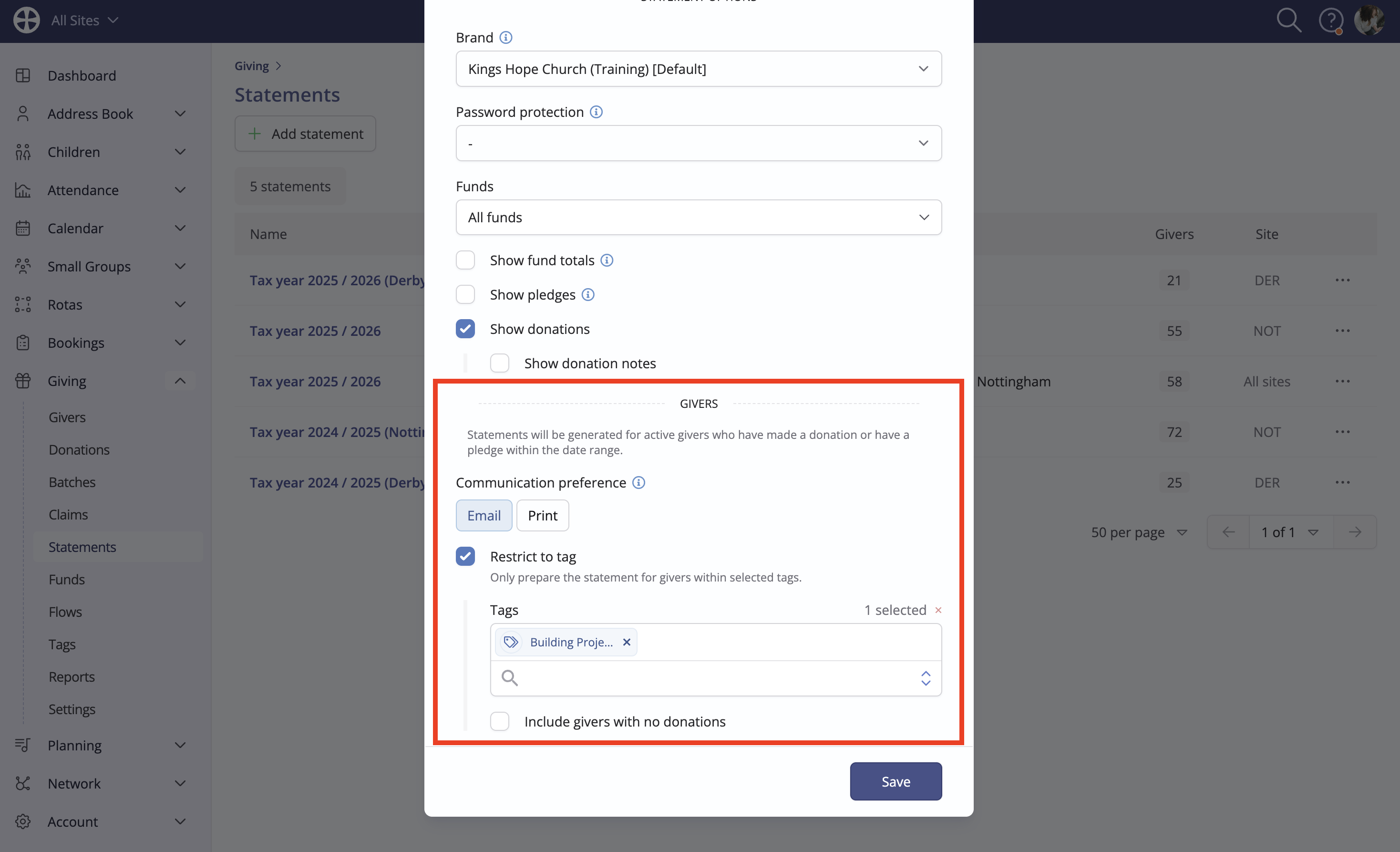
Finally, optionally filter the Givers whose statements you'll produce. Choose the default Communication preference for how givers will receive their statement. This can be changed for individual givers in the next step. For example, choose "Email" if you intend to send statements by email to all givers who have an email address; a "Print" preference will be applied to any givers who do not have an email address. By default, statements will be generated for all active givers who belong to the statement site and who have made a donation or have an active pledge within the statement date range. However, you can further filter to only produce statements for givers in selected Tags. Note also the option to include givers who have no donations. The giver filters selected here cannot be changed later; however, you can choose different giver filters by adding a new statement.
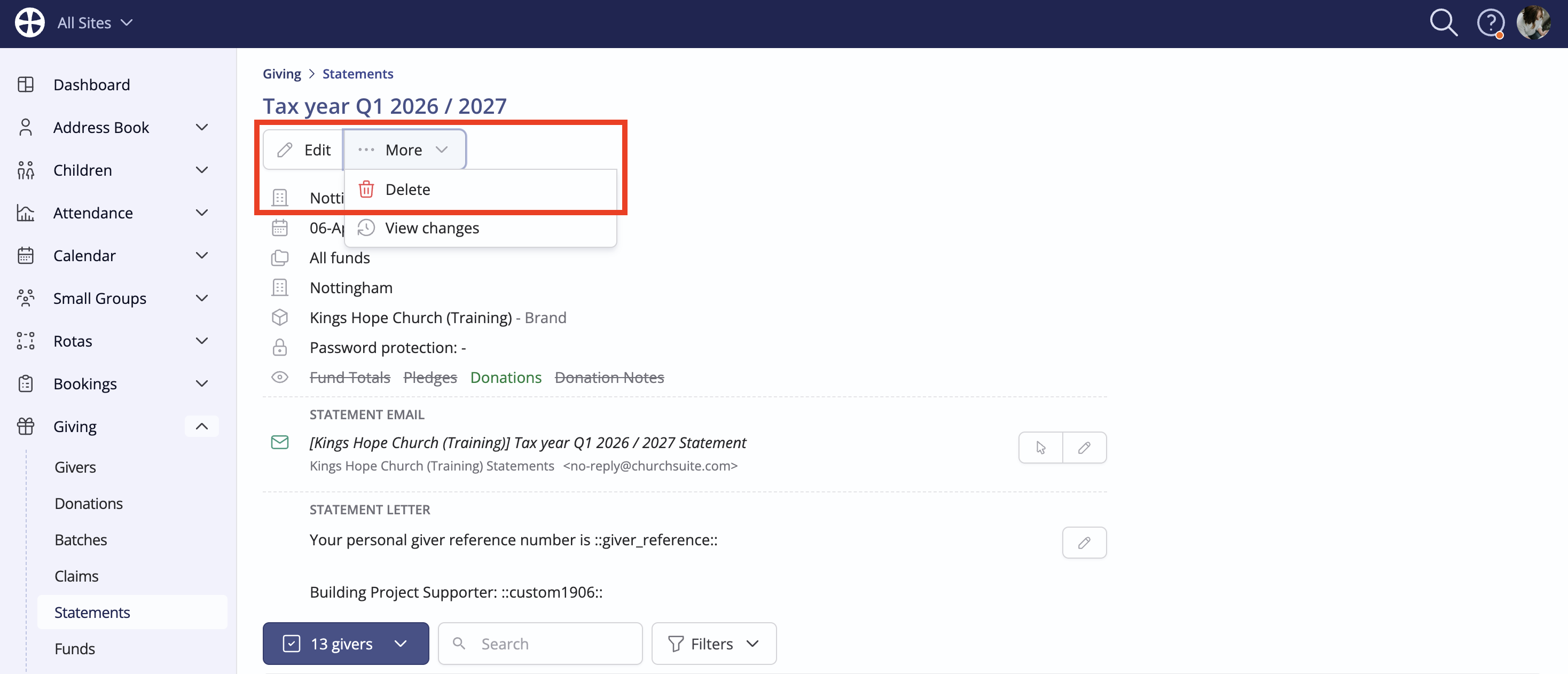
Click Save to generate the statements. The statement view page is surfaced, showing all the details selected. You can return to this page at any time should you need to Edit certain statement settings, or Delete statements that are no longer wanted.
Sending and printing statements
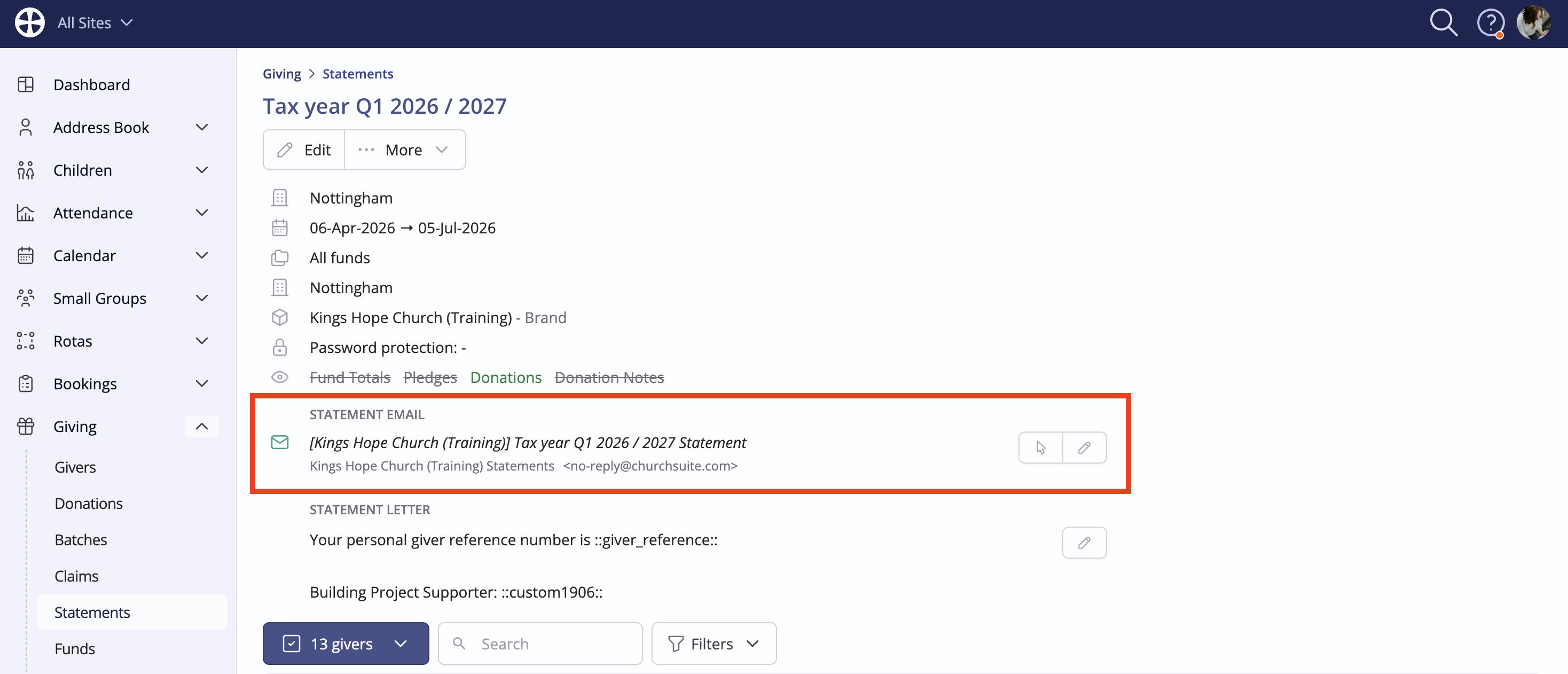
From the statement View, and before sharing generated statements with your givers, note the statement settings available to customise the content of the Statement Email message to which statements are attached when sent to each giver, perhaps to add a personalised greeting using a merge field.
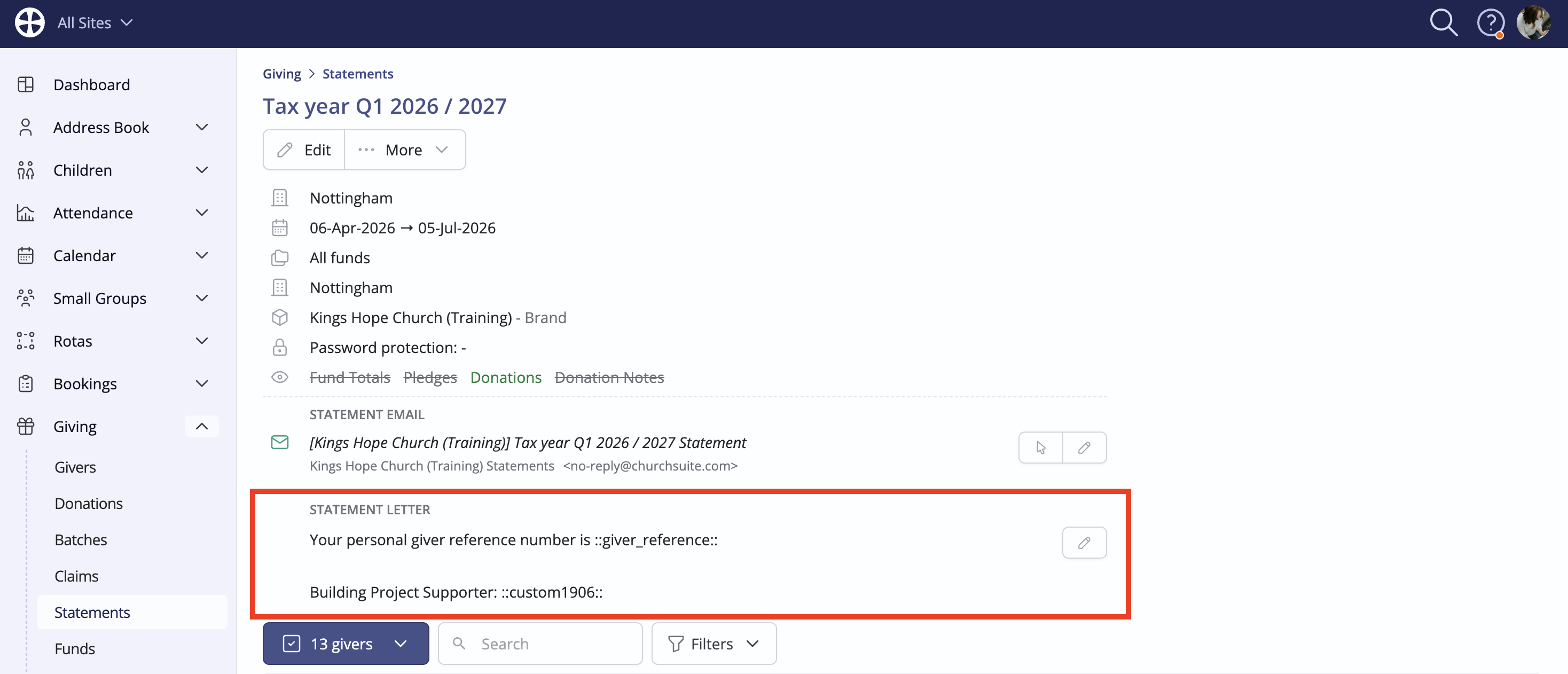
You can also add a custom Statement Letter message that is positioned at the beginning of the statement, after the giver's address and before the statement details are shown. Mentioned earlier in this article, a Giving module setting enables you to define a default statement message to be added to all new statements you subsequently produce.
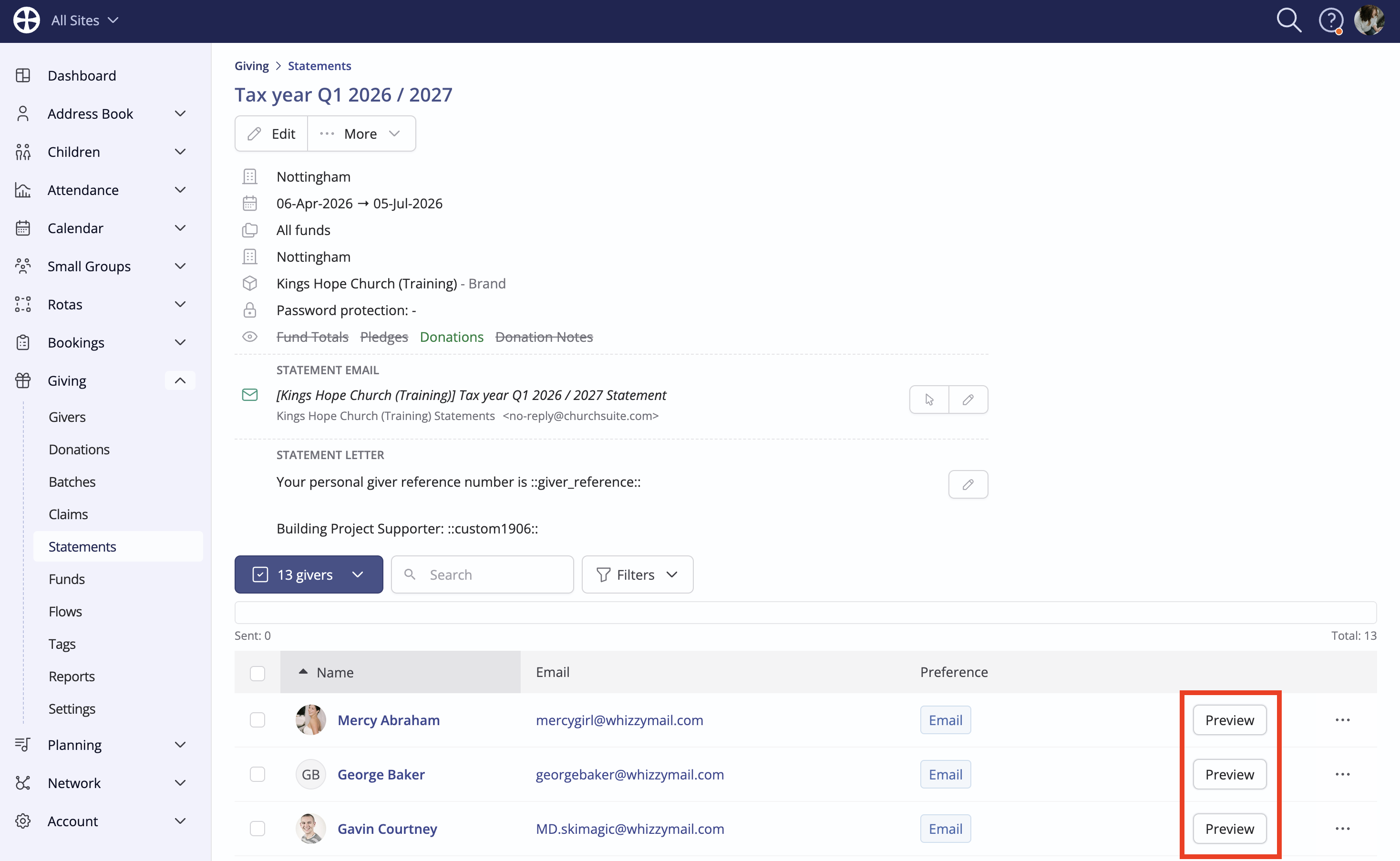
From the list of givers on the statement View, you can Preview individual statements:
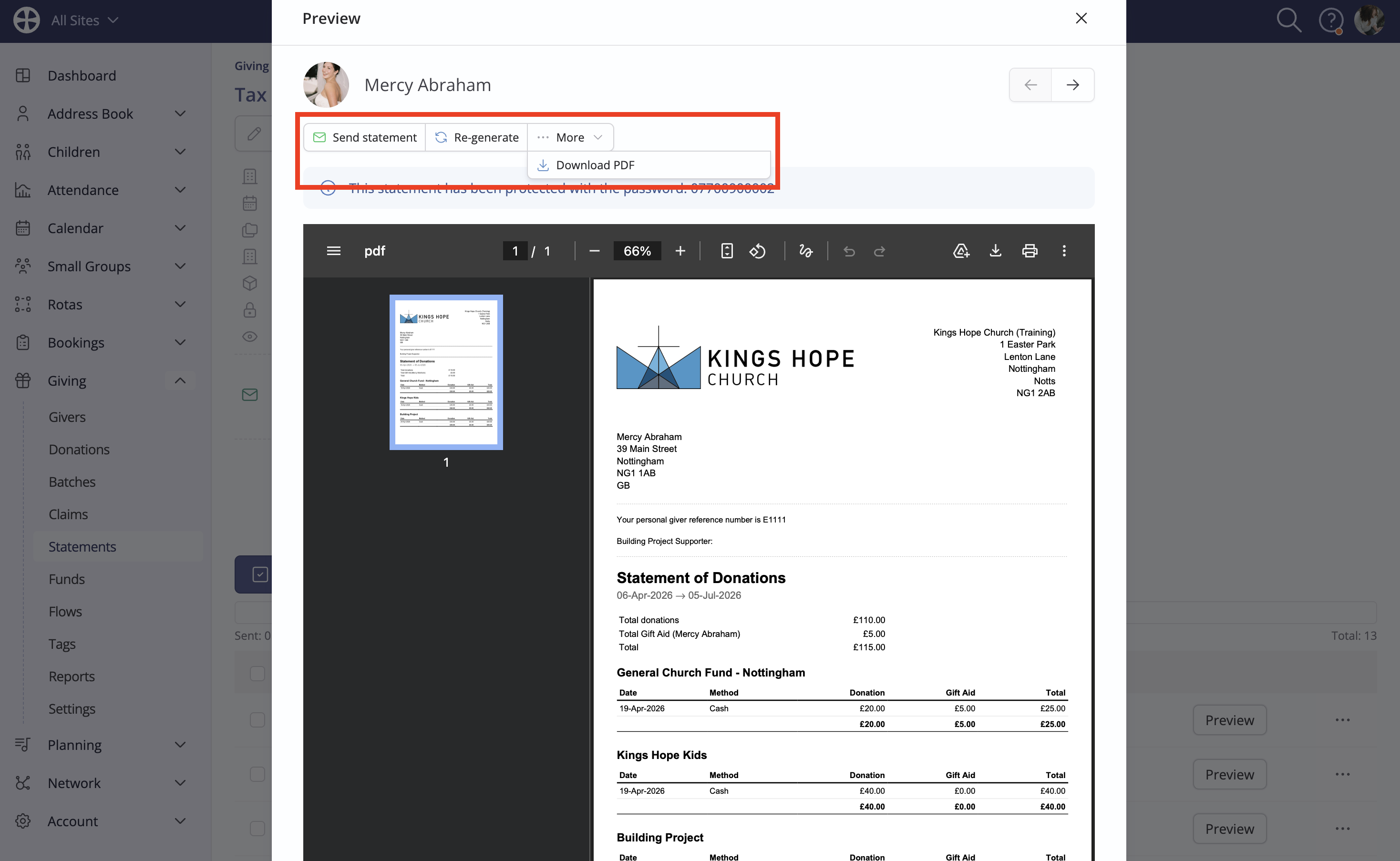
When previewing a password-protected statement, the password is shown to the User:
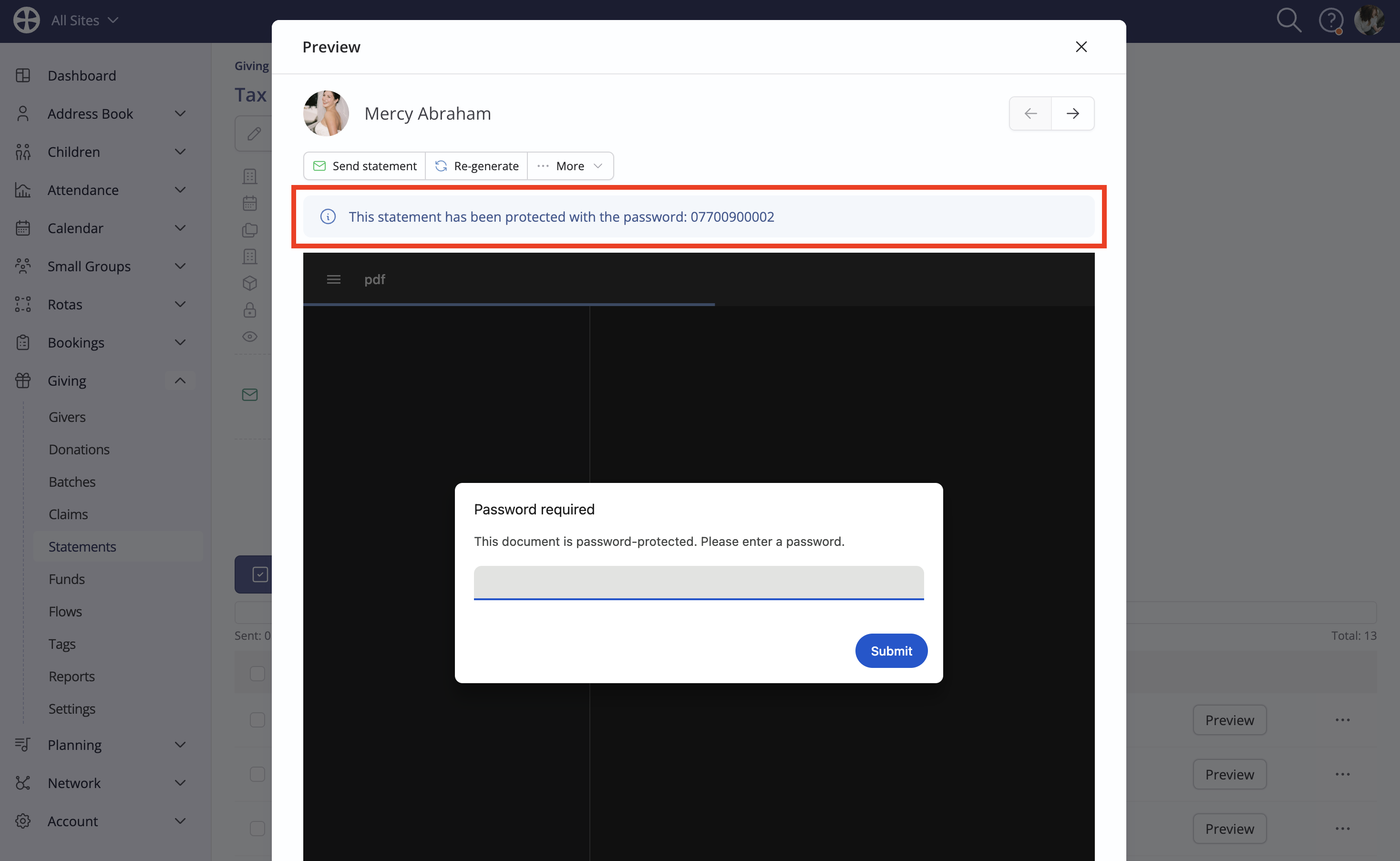
From here, you can send an individual statement by email, download the statement PDF, or force a regeneration of the statement to reflect any changes made.
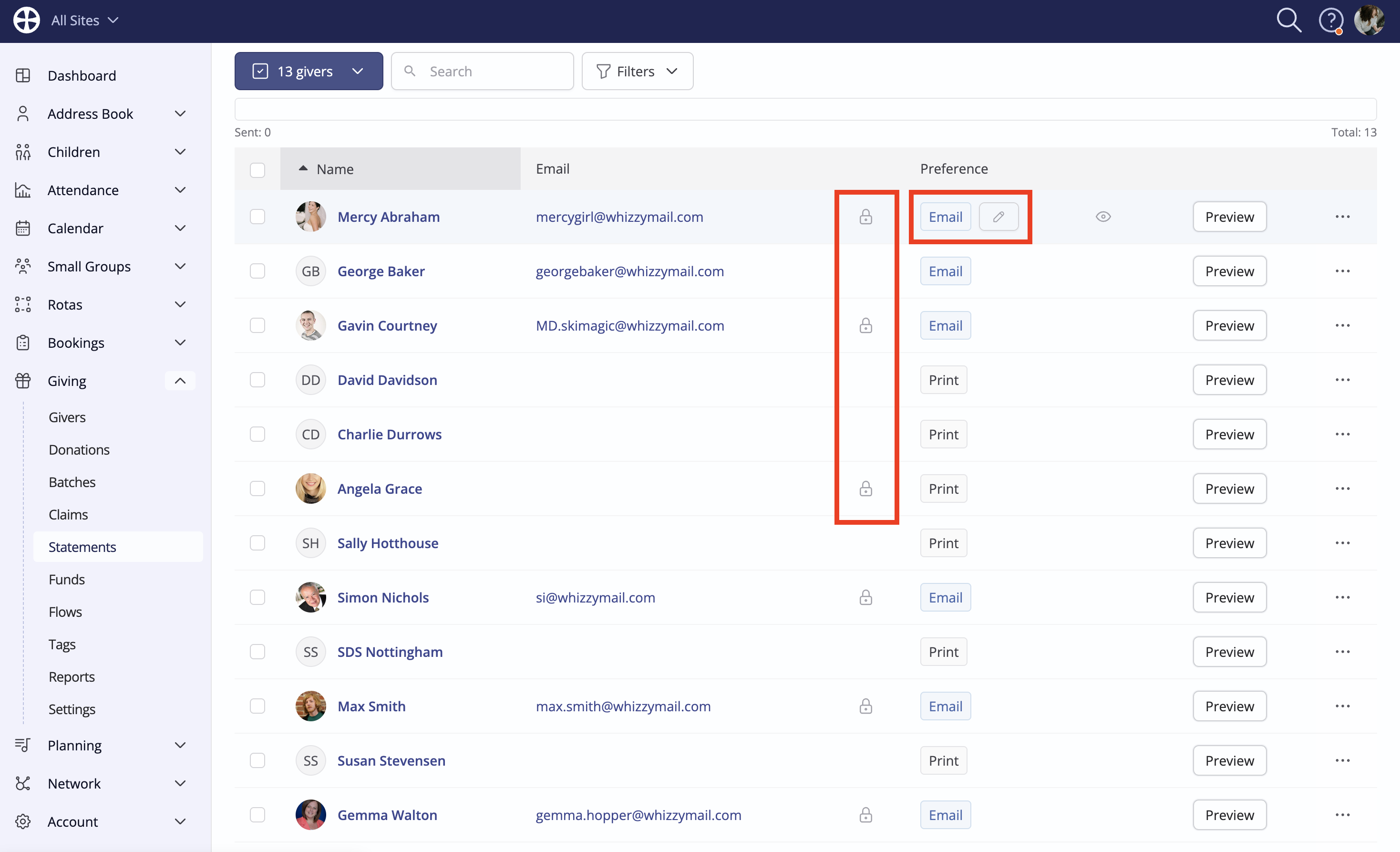
A padlock icon distinguishes password-protected statements. Note the option to override the statement communication preference for individual givers, if you wish. Note that you can only choose an "Email" preference if the giver has an email address.
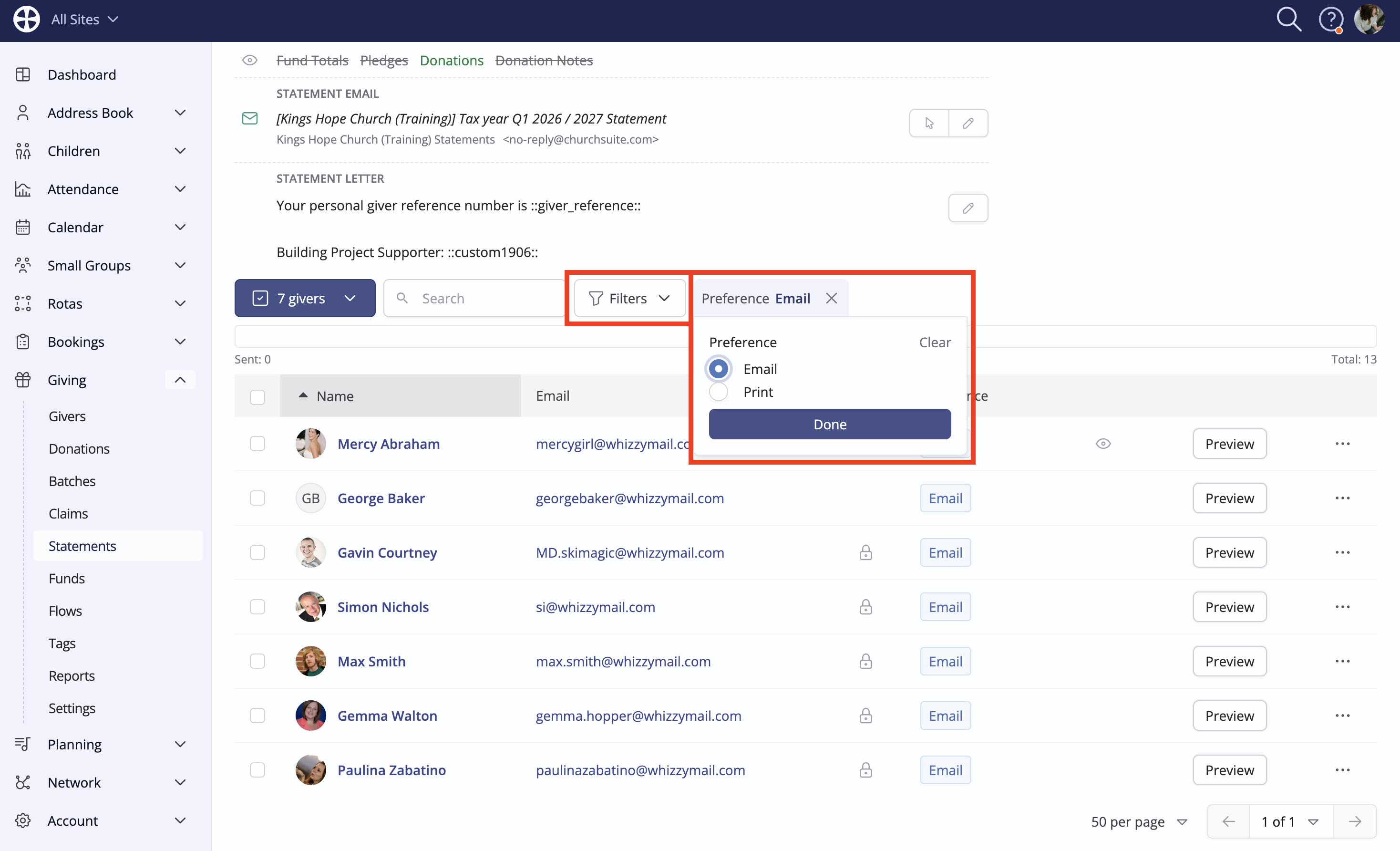
Finally, when working with long lists of givers, you may find it helpful to use the Filters to identify just those with a certain communication preference, so you can bulk send by Email, and then bulk Print to paper.
When you are ready, Bulk Actions are provided to Send statements to one or more selected givers, or to all givers in the list.
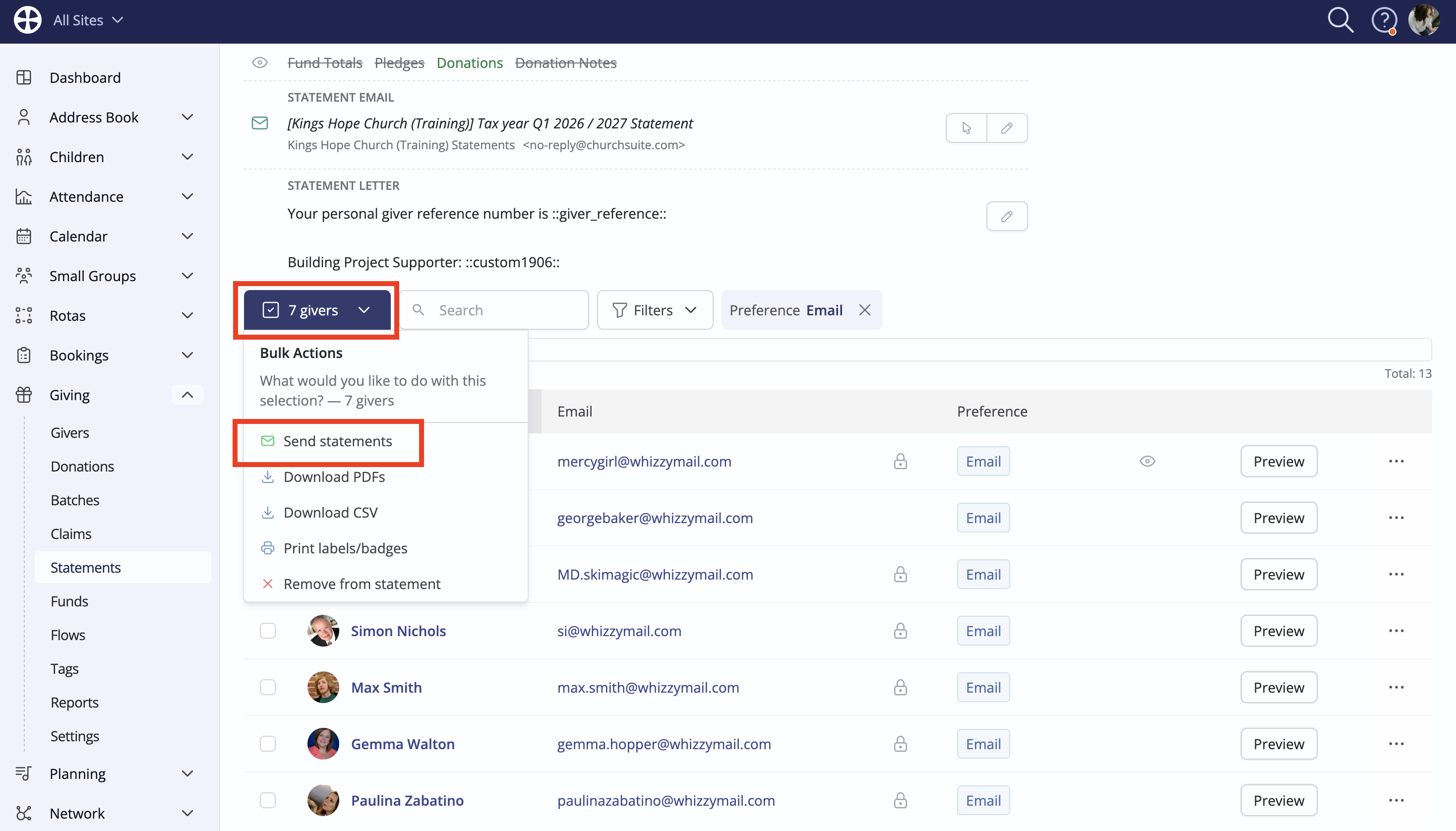
Bulk actions can also be used to download statement PDFs, produce address labels, and much more. Should you need to print a number of PDF statements at once, for example, you can do so by first filtering to just those with a preference of Print and then use the bulk actions to Download PDFs:
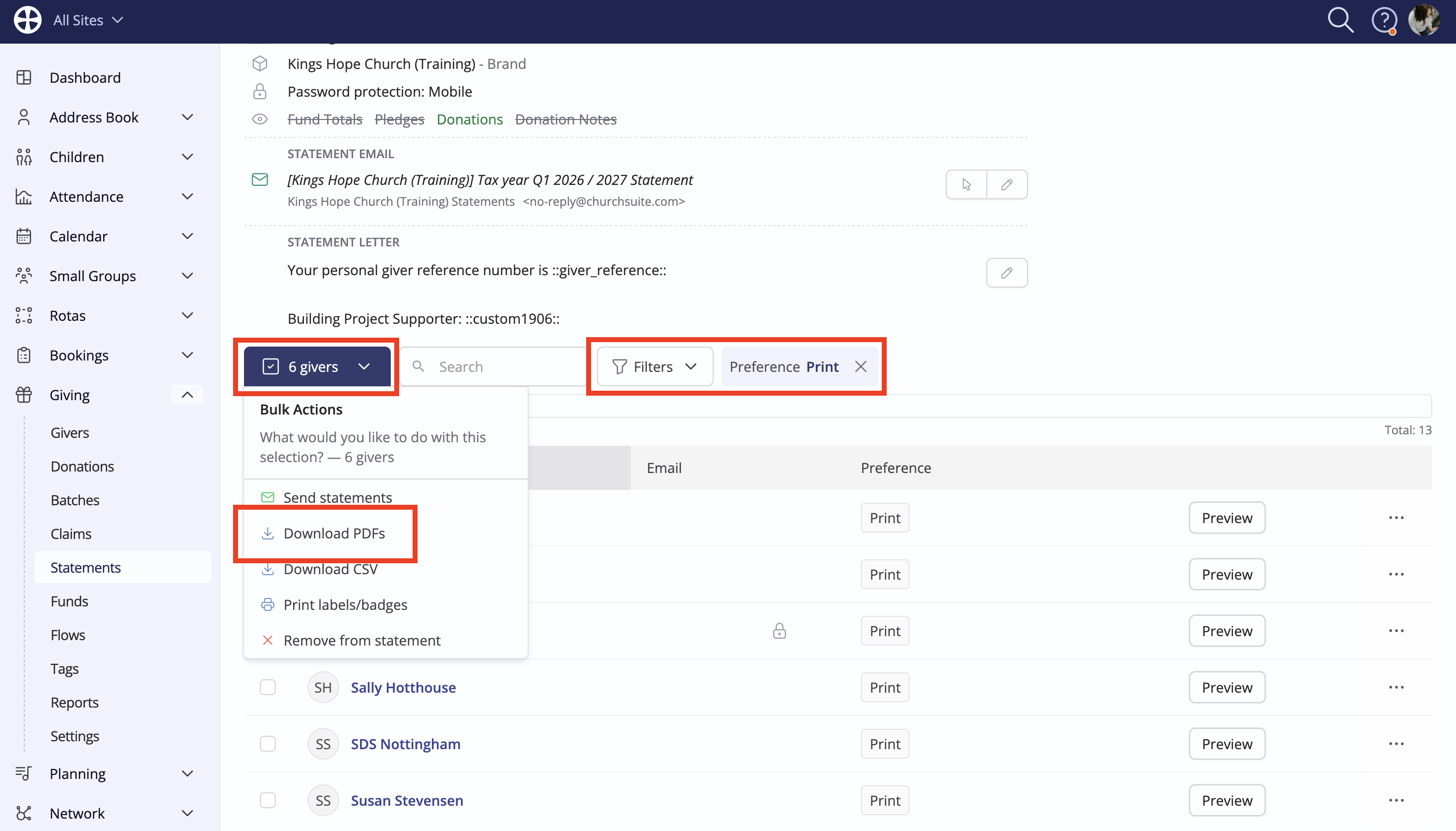
Note that you can then merge the separate PDFs into a single PDF document for printing, using an external PDF manager, such as Adobe Acrobat Online.
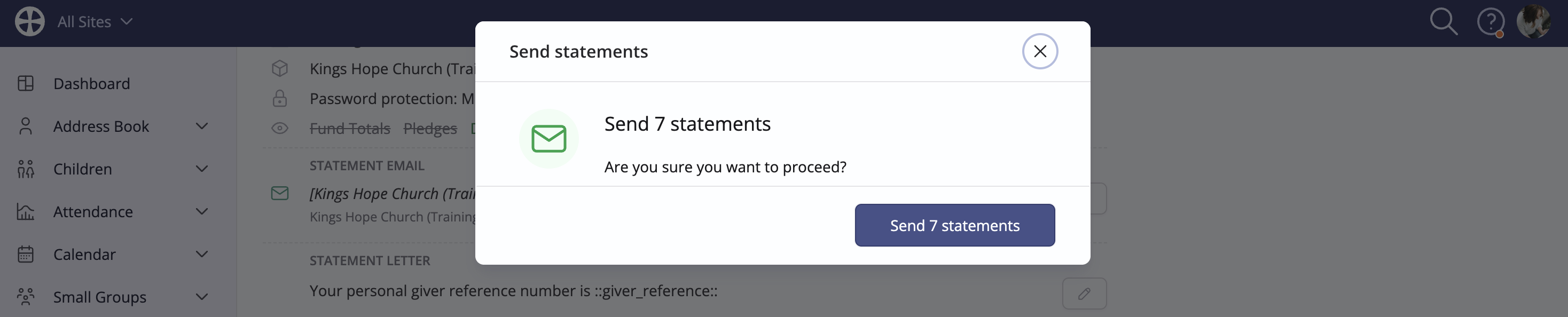
When sending statements by email, a pop-up confirms the number of statements that will be sent. Click Send to complete the process. Sending statements does not require a giver to opt into "Receive general email" on their giver or contact profile - statements are considered legitimate interest 'system' communications, and send emails are shown logged when viewing the Communication tab on a giver's profile.
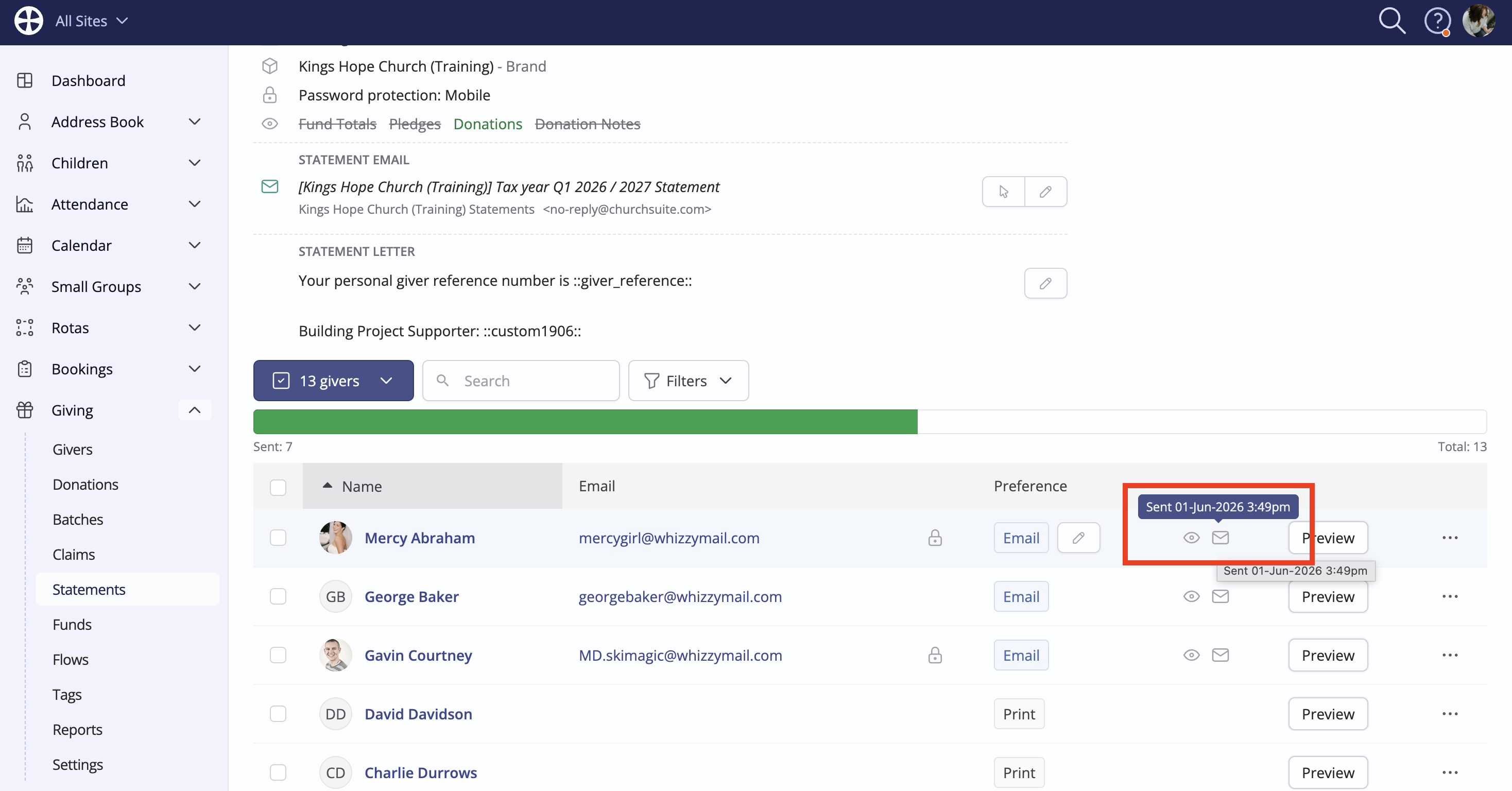
A statement-sending progress bar shows how many of the generated statements have been sent by email, and an icon distinguishes sent statements in the list.