
Migrating from Fluro: Next Steps
In this article
Organising your imported people data
Cleansing your imported people data
Getting Set Up
Before you begin...
This article assumes that you've completed the migration of data from your Fluro account into ChurchSuite and focuses on what to do next. If you've not yet done that, check out our related article to get started.
Introduction
The Fluro Import tool will migrate as much of your historic data as possible. However, for your ongoing usage of ChurchSuite, we'd recommend taking some time to organise, cleanse and set up your data before you begin. This article will walk you through some suggested next steps and how some of your data might translate across to ChurchSuite.
Organising your imported people data
Not all Fluro functionality translates directly into ChurchSuite, so we've designed the import tool to import data to places that give you the most flexibility moving forward.
Organising your custom fields...
Any detail sheets you've chosen to be imported will be created as a Custom Field. Going forwards, some of that custom field data would be more powerful stored elsewhere in ChurchSuite. For example, important dates that have migrated into a Custom Field would be better placed as a Key Date. Where that's the case, use the Add to key date action in the settings of the module you're working in:
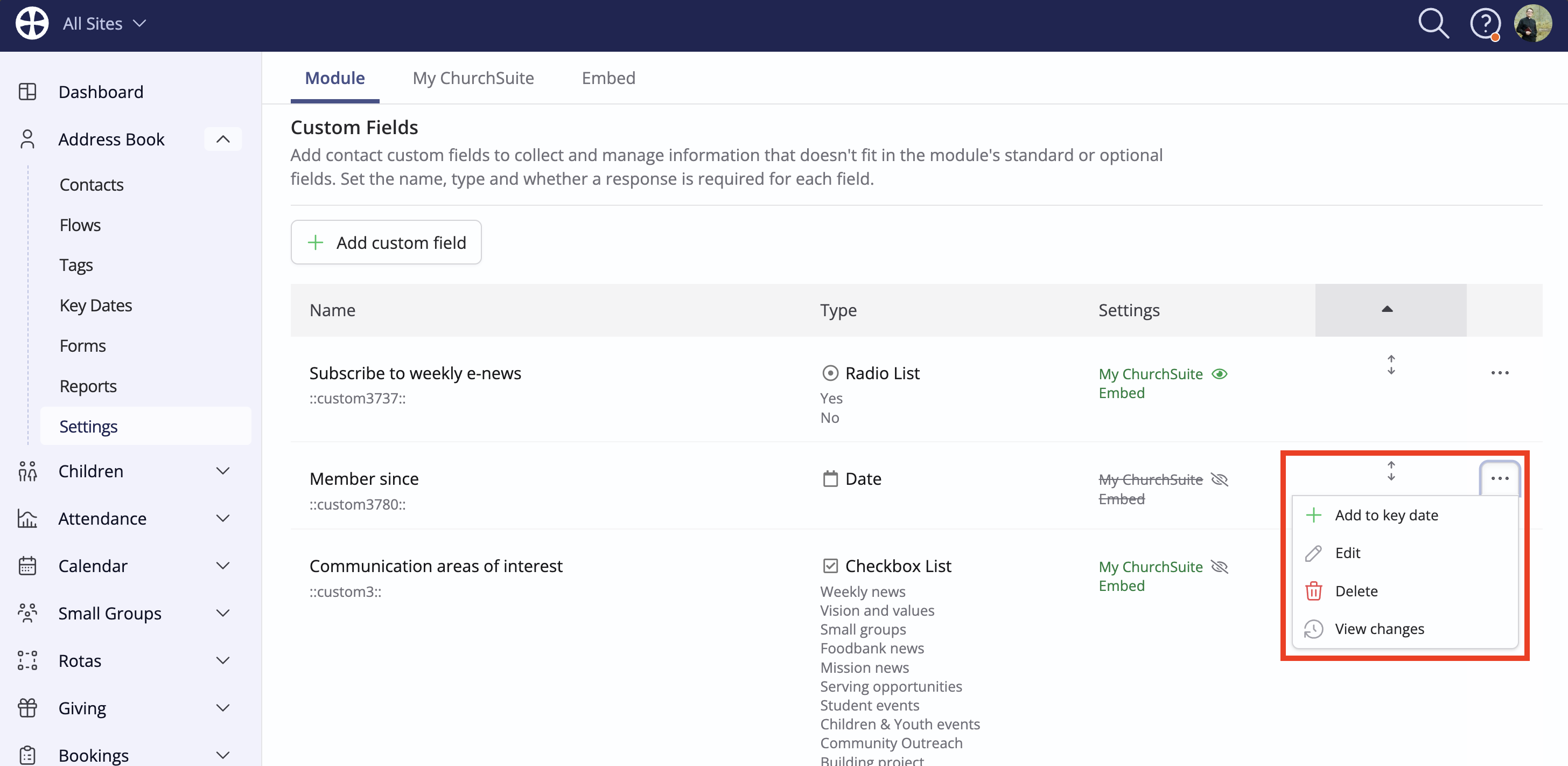
This creates a Key Date on the date stored in the field, with the name of the field being the name of the Key Date. For example, if John Smith had Custom Field data for First Visited on 18th March 2025, a First Visited Key Date would be added for John on that date.
Some custom field data might fit better into a Fixed Tag. For example, where you have a custom field that stores people's serving teams. To help you set up the Rosters module later on, a fixed tag would be advised, which you're able to subsequently use to bulk-add people to a Ministry.
To 'convert' a custom field into a Fixed Tag, use the Custom Field filters available in each people module to then bulk-add people to a tag:
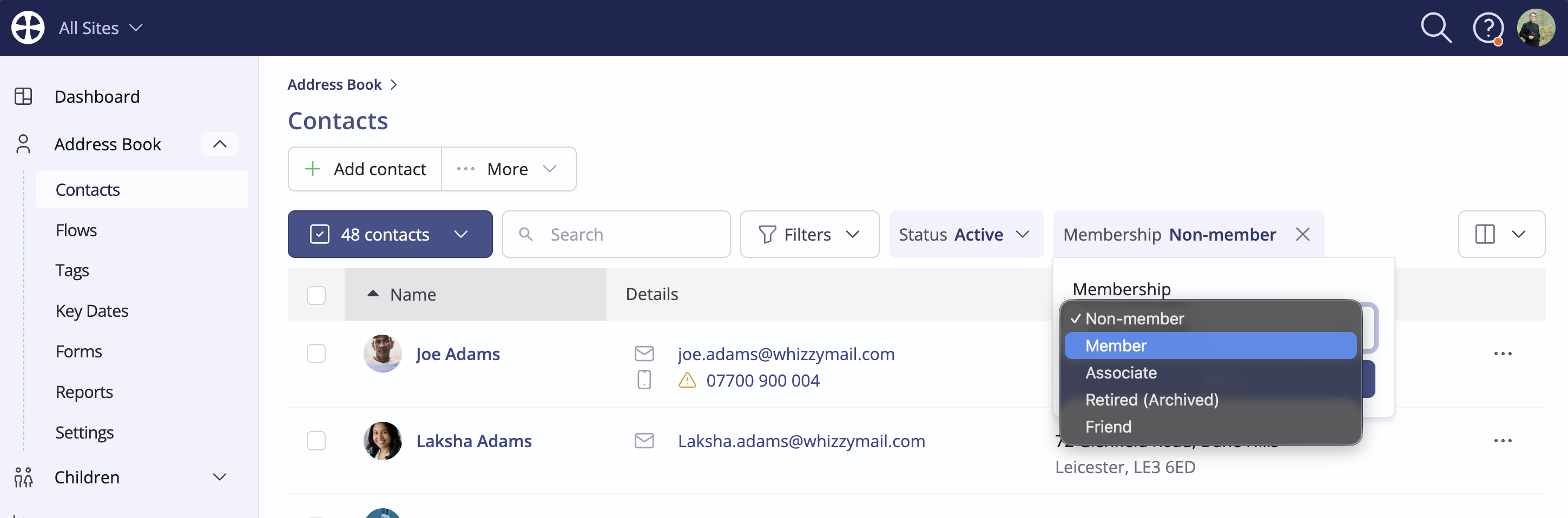
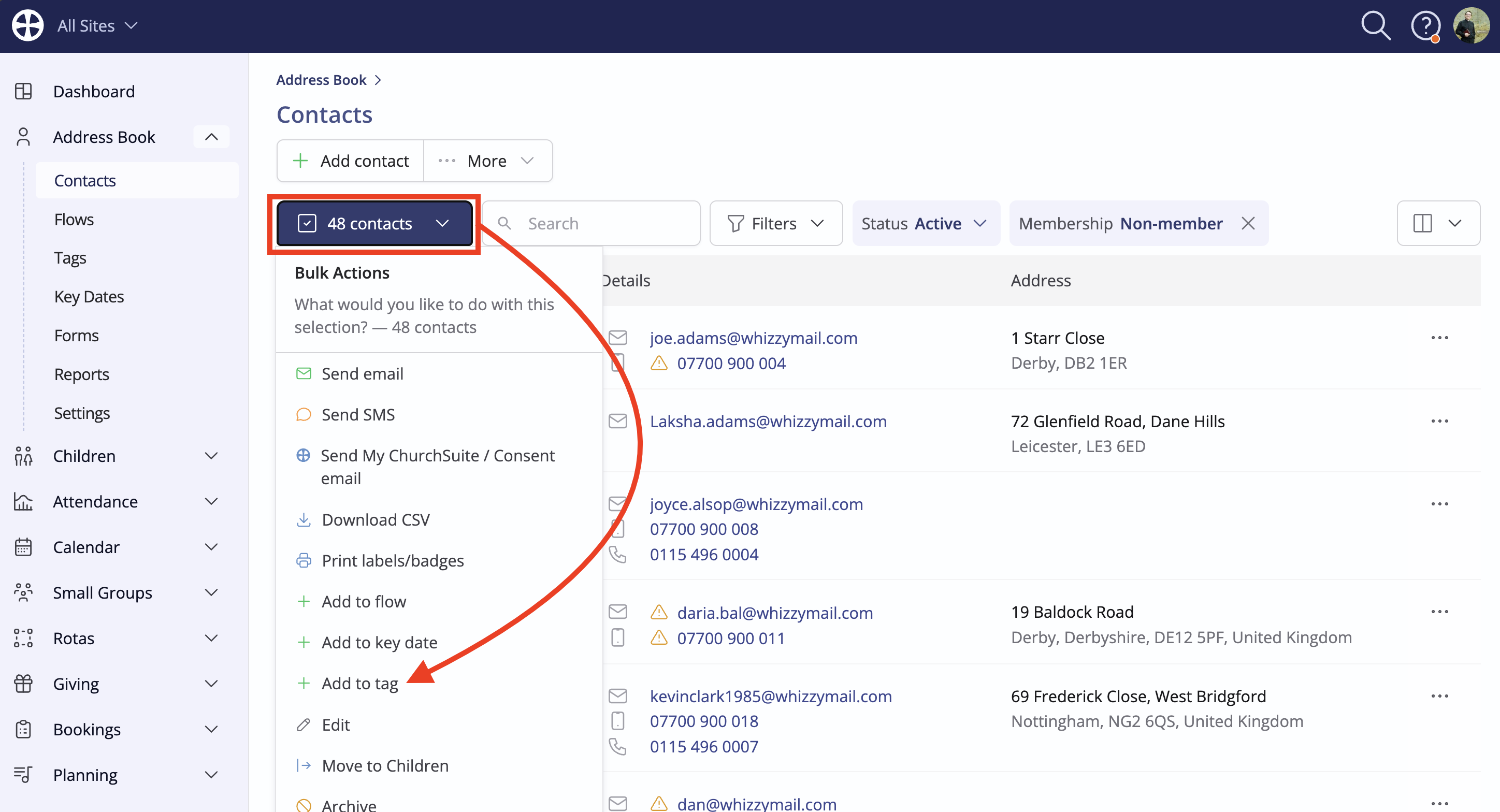
Conversely, some of your Fluro tags that have been migrated to a Fixed Tag in ChurchSuite may be more appropriate as a Custom Field. In that scenario, first create your Custom Field in the pertinent module's settings, then follow the same process as above but instead use the Edit action to bulk-update the custom field data for the filtered selection (note, you'll need to repeat this action for each page of results).
Organising your Small Groups...
The import tool will migrate your historic Small Group data directly into the Small Groups module, including group membership, assignments/positions and attendance. However, there's some additional functionality that you're now able to use. In Fluro, Small Groups are generally managed as Events and thus, the recurring nature of those events mean the groups don't 'end'. In ChurchSuite, it's possible to add an End Date to a group, which enables you to retain the group's membership list and attendance data but prevents further signups (if using) and ensures by default you only see Active and Future groups.
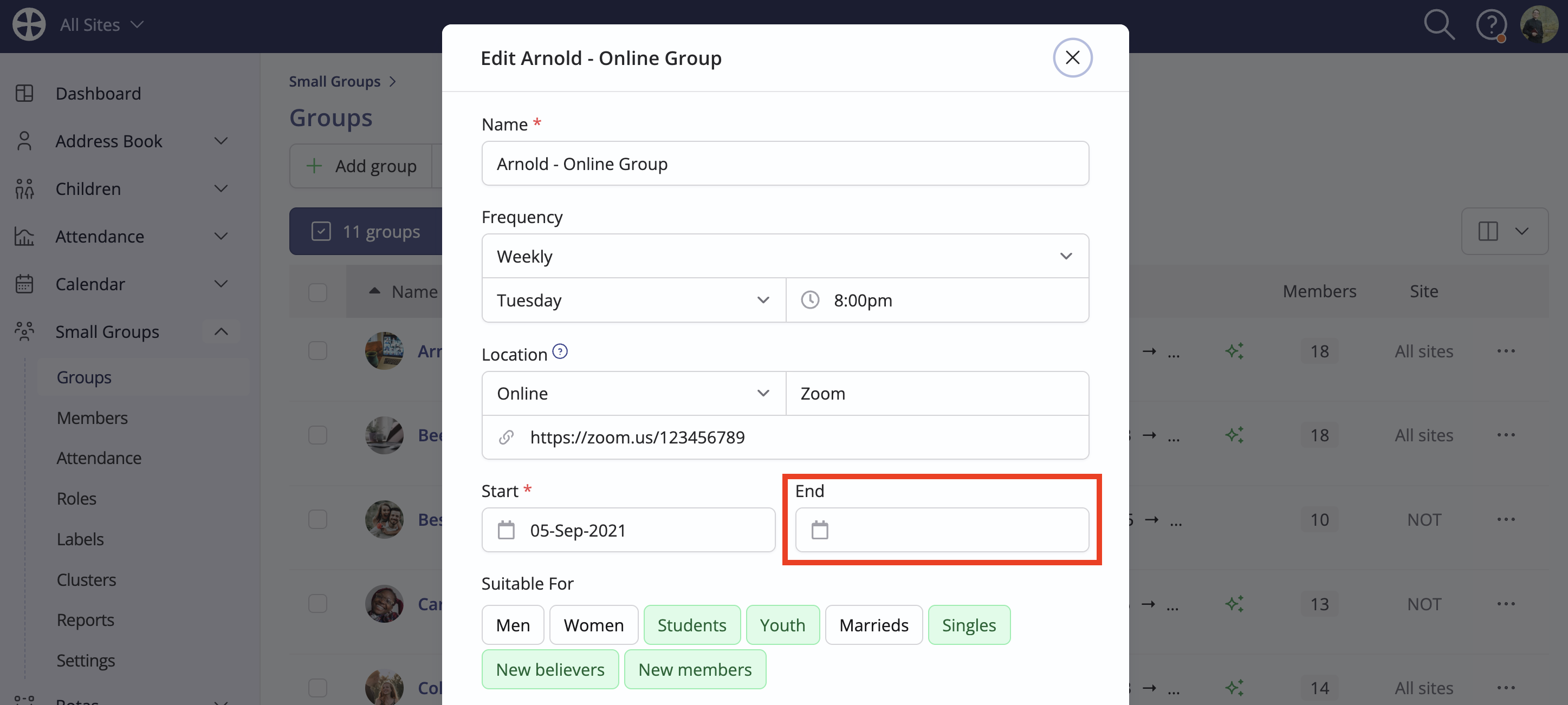
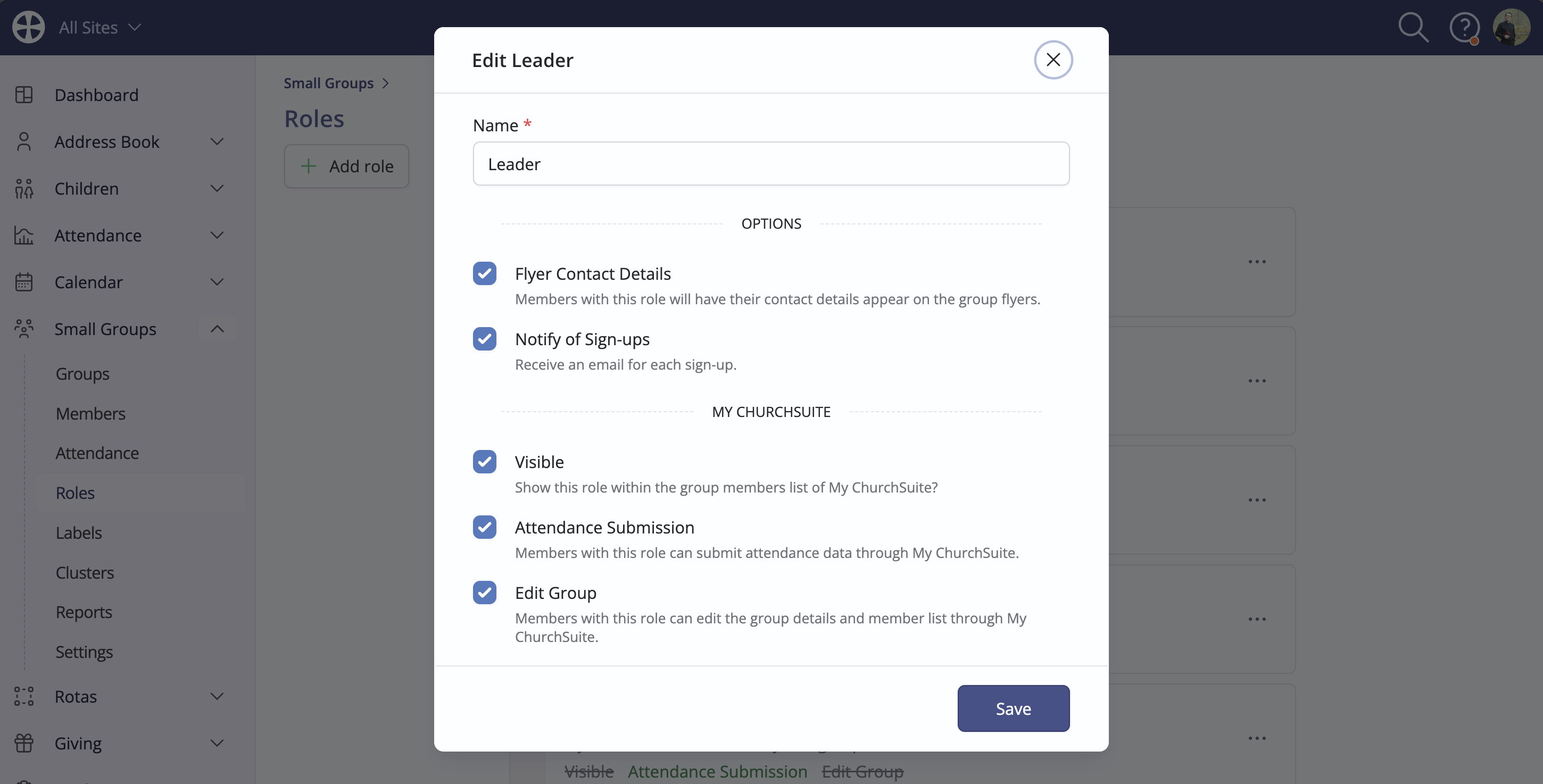
The import tool will also import your assignments/positions as Small Group Roles. You should review each role's options. For example, a Leader role may need "Attendance Submission" enabled; otherwise, leaders will be unable to submit attendance through My ChurchSuite.
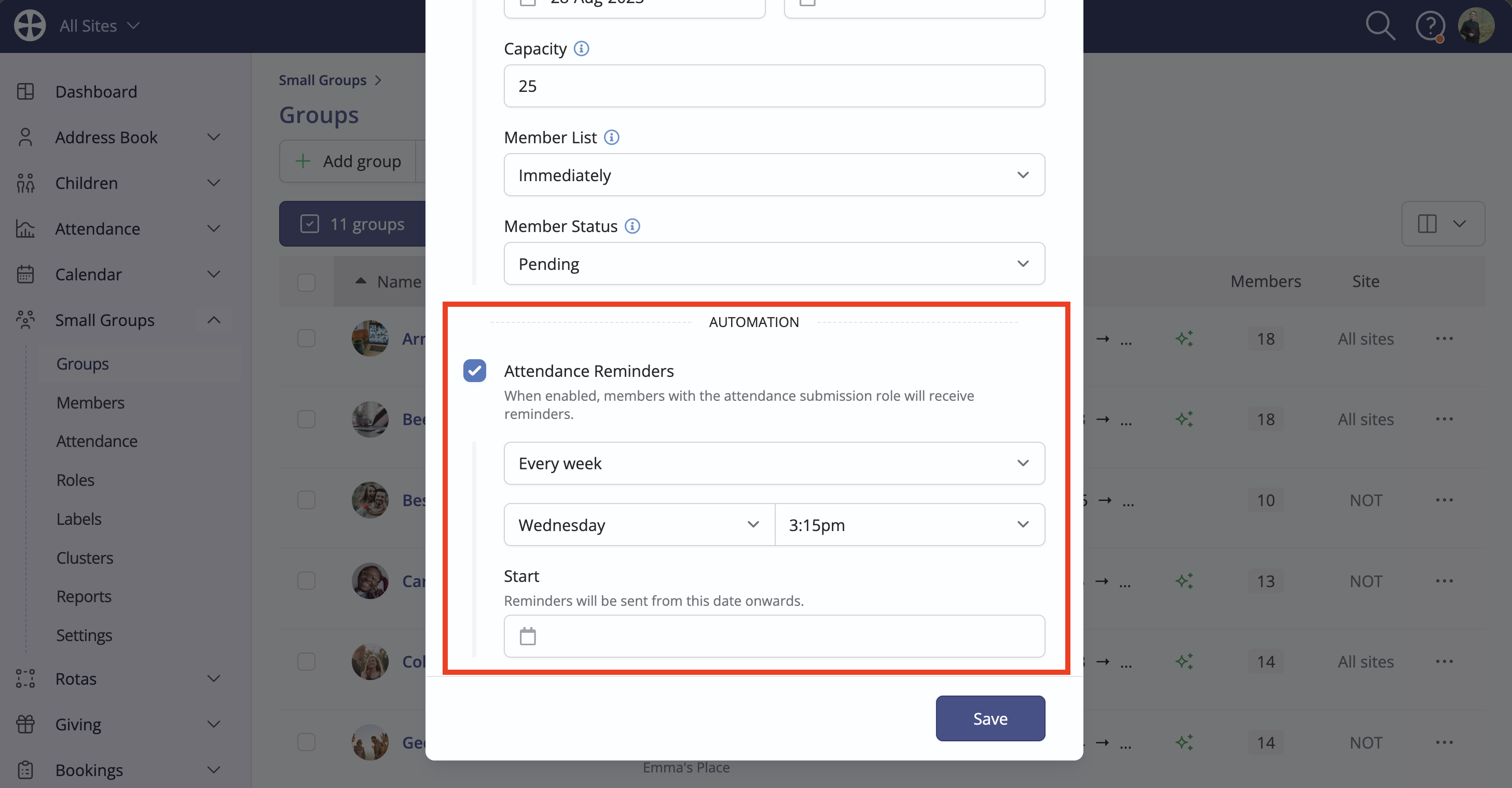
While it's not possible to import the automated attendance submission reminders from Fluro, you can edit each imported group and enable that functionality in ChurchSuite.
Cleansing your imported people data
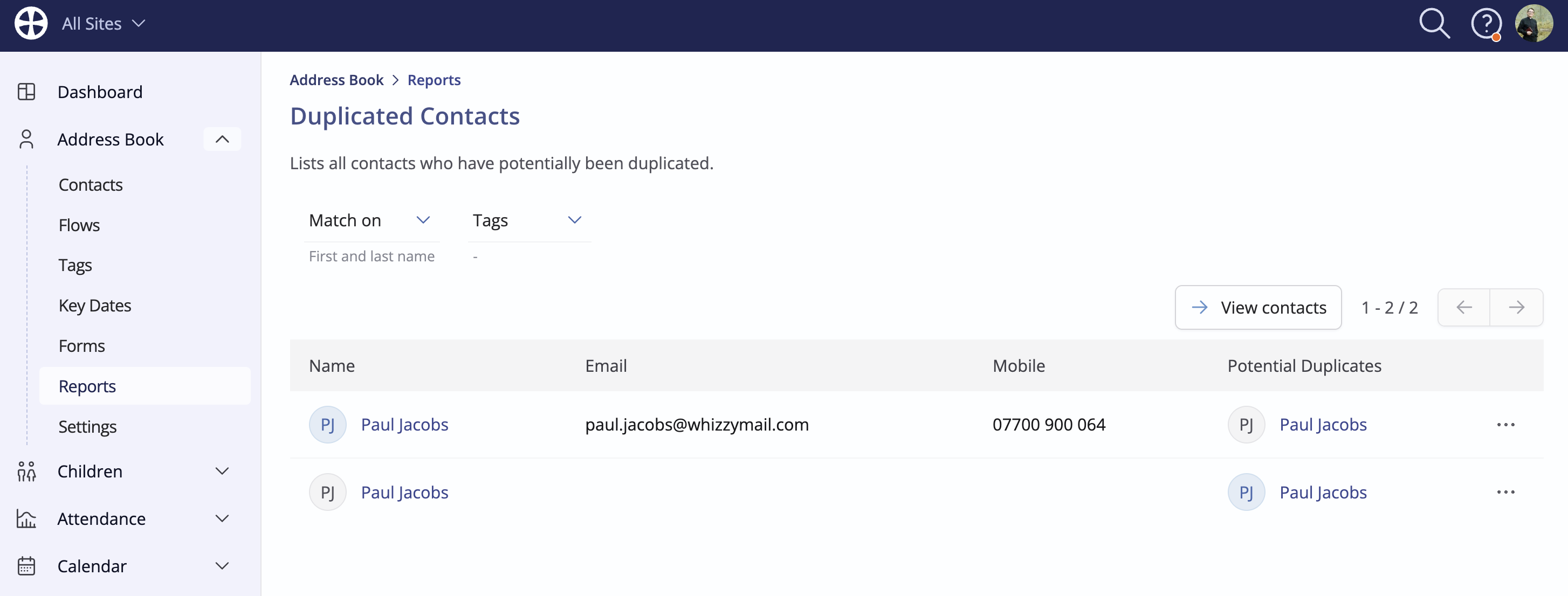
Once your data has been organised, consider undertaking some data cleansing. It may be that there are some duplicated contacts in your Fluro account that have now been imported as duplicates into ChurchSuite. A helpful task will be to use the Duplicated reports (available in Address Book, Children, Bookings and Giving) to identify and merge any duplicated people.
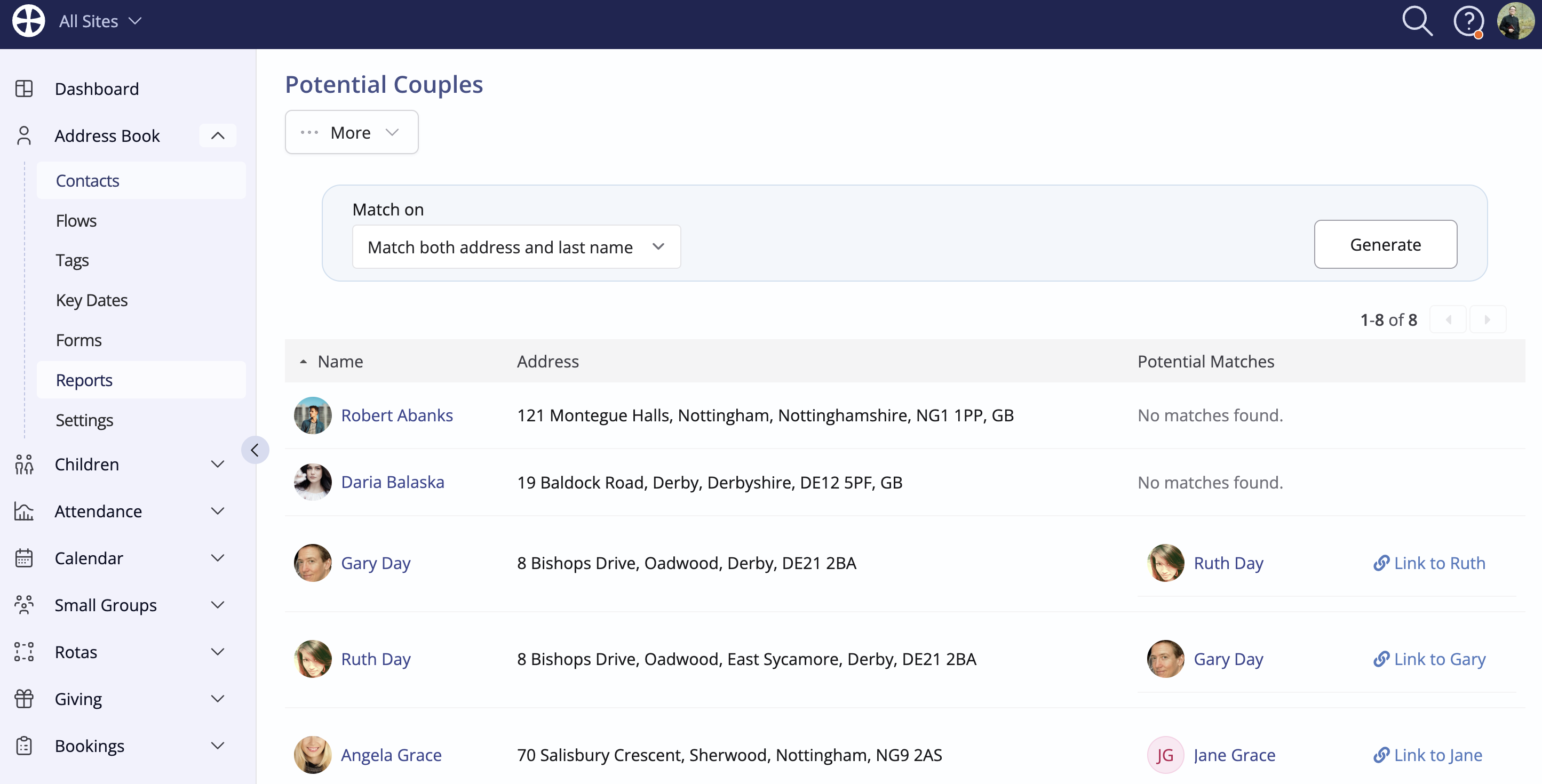
Next, use the Potential Couples report in the Address Book to link any spouses together who haven't already been linked as part of the import. As explained in our article on importing data, where a household relationship is explicitly defined, the link should be imported automatically.
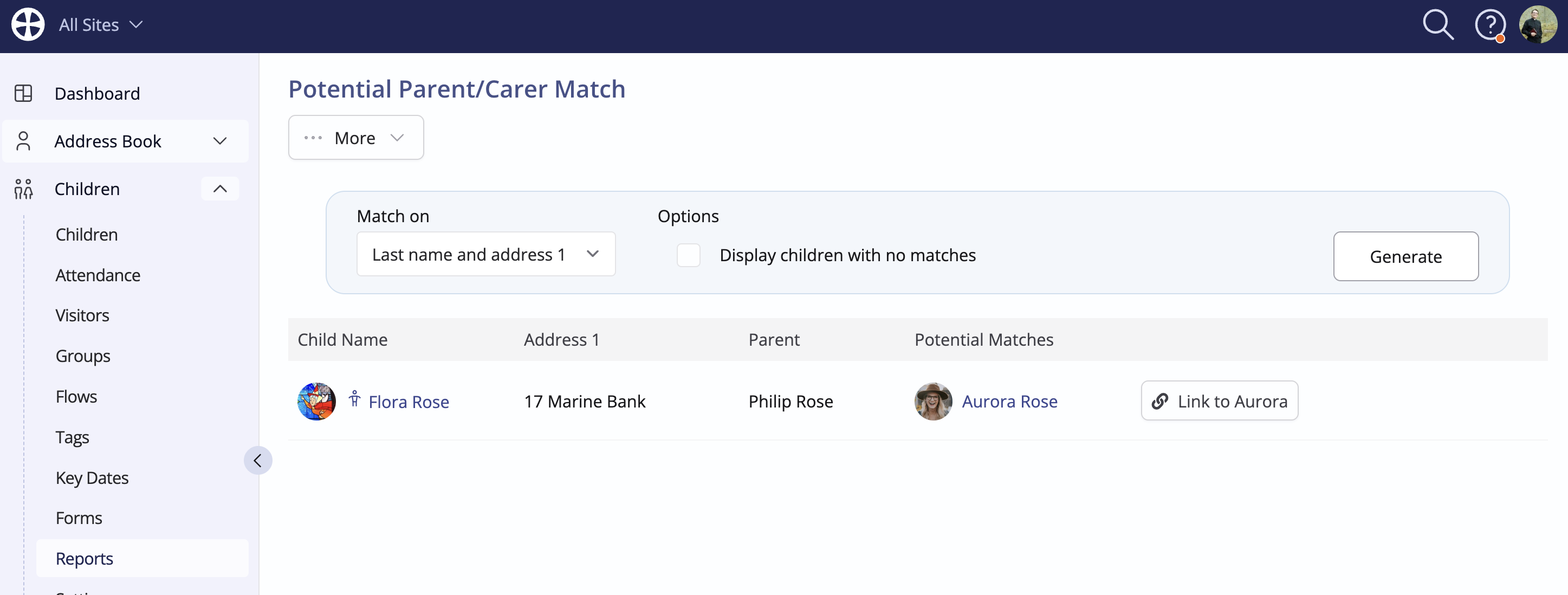
Similarly, in the Children module, use the Potential Parent/Carer Match report to link any children to their associated parents/carers in the Address Book.
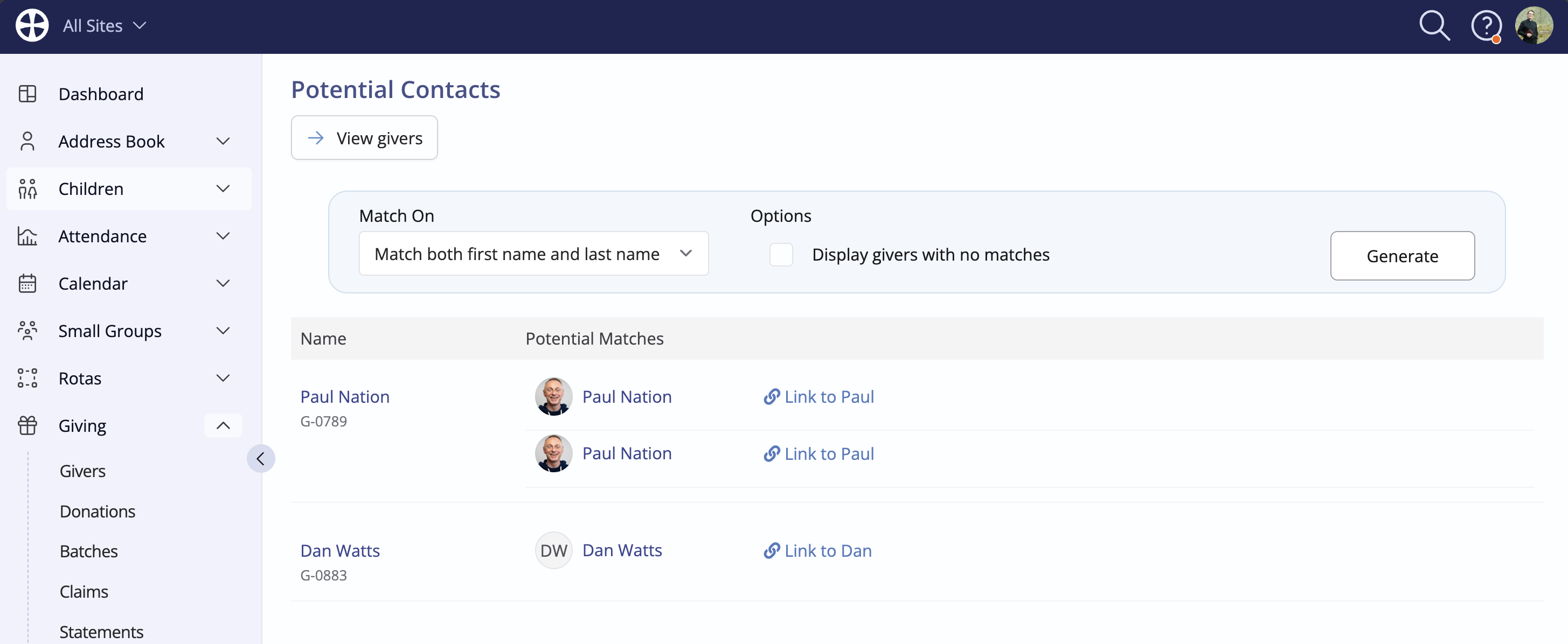
In the Bookings and Giving modules, use the Potential Contacts report to link any Customers and Givers to their associated Address Book contacts. In the Giving module, linking people means individuals will be able to see their own Giving history in the member-facing My ChurchSuite.
Send an Ongoing Consent request...
It may be that the People Date you bring over from Fluro includes people whose data is out of date or who aren't connected with your church anymore. An Ongoing Consent request is a great way to cleanse your data, ensuring it's accurate and anyone who needs to is archived/deleted as necessary.
You may also choose to send a Consent Request to everyone in your Address Book/Children modules. This is a great way to ensure the data you hold is up to date but it also gives you an opportunity to archive/delete data for those who are no longer part of your church.
Each person has a chance to review what data you currently hold for them, update anything that needs changing or to request their data be deleted if they're no longer connected with you. See our related article Ongoing Consent to learn how that works and some suggested workflows for managing the process.
Getting set up
Now that you've tidied and cleansed your data, your next steps will depend on the modules you're using and the priority of which functionality you'd like to set up first. Each module has a Getting Started article, which we'd recommend reading before beginning set-up. There are a few specific things to note when moving forward after a Fluro import.
For the Attendance and Children modules, the way the import tool creates the data in ChurchSuite isn't how we recommend using the module going forward. We recommend treating this data as historical - the import tool will archive those gatherings and group setups on import.
Instead, we'd recommend setting up new Gatherings in the Attendance module and new Group Setups in the Children module.