Importing data from Fluro
For those migrating to ChurchSuite from Fluro, we've built a helpful tool that can import much of your Fluro data directly into your ChurchSuite modules. The importer makes use of Fluro's API to bring across all your Fluro contacts and historic attendance data. While your Fluro data is unchanged by this import process, this article explains the changes you will need to make in Fluro to make your data import-ready.
Before you begin...
The import process is split into 4 key stages, it's important you work through each stage methodically and in order to get the best results.
Stage 1 - Get to know ChurchSuite: We encourage you to take a free, no-obligation 30-day trial of ChurchSuite. In addition to enjoying a helpful evaluation of the features and functionality available, you'll also become familiar with differences in terminology and how the data in ChurchSuite modules is stored, which will help you prepare your existing Fluro data for import.
Stage 2 - Prepare your data: Once you're familiar with the functionality of each ChurchSuite module, you'll need to decide which module you'd like your Fluro data to be imported into. This article details how each piece of data should be tagged in Fluro for the import tool to process.
Stage 3 - Preview your data: Once you've prepared your data and fetched it using the import tool, it's really important that you use the Previews for each module to ensure your data looks correct. At this point, you can return to Stage 2 make any changes to your tagged Fluro data, refetch and re-preview the data. It's important that you don't click Start Import until you're confident that each module's preview is correct. Once the import has been run, it may not be possible to import historic linked attendance data separately at a later point.
Stage 4 - Import your data: Click Start Import to migrate your data from Fluro into ChurchSuite.
If you have questions at any point during the process, particularly about which module data should be imported into, please don't hesitate to ask by emailing support@churchsuite.com where one of our expert support team will be happy to help.
Preparing your data for import
Before you begin the import process in ChurchSuite, you'll first need to define some of the "types" of data in your Fluro account using Fluro's Tags, so that your data is imported to the correct place in ChurchSuite. The importer will import all Fluro Contacts and Events that the API key has access to. You can optionally limit the scope of import by restricting API access to just certain Fluro Realms. It's important to make sure that the API key has a role that has the correct View permissions for your people, definitions, tags, events, etc. We also require the Account permission to be enabled. This is because we require account level settings to able to configure your data correctly due to the agnostic manner in which Fluro data stores data.
Step 1: Sites
ChurchSuite includes multi-site functionality for churches that operate across multiple campuses or distinct geographic locations. If you are a single-site church, you can ignore this step.
Multi-site churches will need to add Tags in Fluro to define which site in ChurchSuite the data should be imported to. Site tags in Fluro must follow a specific naming convention for the importer to identify them correctly: cs.import.site.Site Name. For example, if your church has two sites called "North Campus" and "South Campus", you will add two tags in Fluro called cs.import.site.North Campus and cs.import.site.South Campus, and then ensure all your Fluro contacts are tagged accordingly. If a person belongs to multiple sites, you will assign them multiple site Tags in Fluro and, should they belong to all your sites, you should tag them cs.import.sites.All Sites. In ChurchSuite, "All sites" means all current sites (North and South, in our example) and any future sites you may add to ChurchSuite.
Step 2: People
Functionality in ChurchSuite is structured into modules, whereas in Fluro, types of people and events aren't distinguished by default. As such, you'll need to specify which module you'd like your data to be imported into.
Your Fluro contacts can be imported into any of the 4 people modules in ChurchSuite - the Address Book, Children, Bookings and Giving modules. If there are no contacts of that type in your Fluro account, you can ignore that module Tag. For example, if you don't hold any Giving data in Fluro, you wouldn't apply the Giving module import Tag to any of your contacts.
- For contacts to be imported as Contacts in the Address Book module - you'll use the Tag cs.import.module.addressbook
- For contacts to be imported as Children in the Children module - you'll use the Tag cs.import.module.children
- For contacts to be imported as Givers in the Giving module - you'll use the Tag cs.import.module.giving
- For contacts to be imported as Customers in the Bookings module - you'll use the Tag cs.import.module.bookings
If we find a Contact without any module Tags but in a realm you've given us access to, they'll be imported as an Address Book Contact.
In many cases, to make preparing the data simpler, you'll be able to tag the Definition rather than manually sifting through the Contacts themselves and then tag ad-hoc Contacts as necessary. We will prioritise the Definition's tag if both the Contact and the Definition are tagged.
Relationships
In order to link people that are married or children to their parents/carers as part of the import process, you'll need to ensure that those relationships are explicitly defined in Fluro. For example, to import a linked Married couple, they would need to be in the same Household, have a Marital Status of Married and have a defined Relationship of Spouse in Fluro. For children - we'll create Parents/Carers linked to Contacts where the parent/guardian and child are in the same Household and the parent/guardian has a Household Role of Parent or Guardian and the child has a Household Role of Child.
Contact Detail Sheets
After we've imported your Contacts, all Detail Sheets they have will be imported as Notes against that person. It may be, however, that you'd like some of the fields in your Detail Sheets to become Custom Fields. Consider carefully which fields you'd like to import this way - while Custom Fields are Module specific, they appear for all people in a Module and, for some of the information in your Detail Sheets, the Note created will be sufficient; not all your detail sheet fields need to become Custom Fields. We'd recommend using custom fields for data that is semi-permanent or that you'd like to be visible and/or editable to the person themselves in My ChurchSuite.
By tagging the Detail Sheet Definition with the tag cs.import.field.[Module]Field Name, e.g.cs.import.field.Module.Favourite Bible Verse, we'll match that Tag against a Field name in the Detail Sheet, create a Custom Field and import the data into that Custom Field in the module(s) you specify. If you'd like to import the field into multiple modules, you'll add both modules to the tag name per the example below. You'll need to add a Tag for each field you'd like to import, and for each module you'd like to import it into. If your field name contains a '.' you'll need to rename it to remove it - this is because the import tag uses a'.' to distinguish parts of the tag. Your field names will also need to be unique, if you have three 'Allergy' fields, we'll only import the first one found by the migration tool. For example, if you have a detail sheet with fields named 'WWCC Number', 'Date Check Completed'', and you'd like to import those as custom fields into the Address Book and Children modules, you also have another field called Allergies that you'd like to import to the Address Book only, you'd add the following tags to the Detail Sheet Definition:
- cs.import.field.addressbook.children.WWCC Number
- cs.import.field.addressbook.children.Date Check Completed
- cs.import.field.addressbook.Allergies
Tags
Any Tags in Fluro will be imported as Fixed tags in ChurchSuite.
Posts
Any posts against your Fluro contacts are added as Notes against the person in ChurchSuite.
Step 3: Events
Next, you'll prepare your Fluro events, which could be imported into either the Attendance, Children, Small Groups or Calendar module. If there are no events of that type in your Fluro account, you can ignore that module tag. For example, if you're not recording the attendance for your Small Groups, then you wouldn't apply the Small Groups import tag to any of your events.
- For attendance data to be imported into the Attendance module - you'll use the tag cs.import.module.attendance
- For attendance to be imported into the Children module - you'll use the Tag cs.import.module.children
- For attendance that contain a mixture of adult and children attendance - you'll use the Tag cs.import.module.mixedattendance
- For attendance to be imported into the Small Groups module - you'll need to ensure that the Event is attached to a Track and has Auto-Create enabled in Fluro, then you'll use the Tag cs.import.module.smallgroups
- For attendance to be imported into the Calendar module - you'll use the Tag cs.import.module.calendar
We'll import all events we have access to. If we find an Event without any module tags, it will be imported as a Calendar Event.
In many cases, to make preparing the data simpler, you'll be able to tag the Definition of either the Track or the Event, the Track or the Event itself. If multiple of these are tagged, we will prioritise Track Definition; Event Definition; Track then Event.
Not sure which tag to use?
We'd recommend having a browse through the Tour section of our website, which gives you a flavour of what each module is designed to do, and will be helpful in deciding which module is best to import your data into. Below is a brief outline of the relevant modules to take into consideration when deciding which Tag to use:
For People:
Address Book - This is where you'll store the data for all your adult contacts, generally defined as those over 18; see Getting Started with the Address Book.
Children - This is where you'll store the data for all your children, generally defined as those under 18; see Getting Started with Children.
Bookings - The Bookings module enables you to keep a customer list, perhaps those not part of your church but who hire your rooms and resources; see Getting Started with Bookings.
Giving - The Giving module is designed to help you manage your incoming donations, and the details of the people that are giving; see Getting Started with Giving.
For Events:
Attendance - This is where you'll primarily track named adult attendance, but also the total number of people in a Sunday or midweek service; see Getting Started with Attendance.
Children - Children attendance data is stored separately to adults, enabling you to ring fence sensitive child data to those that need to see it, and helping you keep compliant with safeguarding protocols; see Getting Started with Children.
Small Groups - This is where you'll manage your midweek Community Groups, member lists and assigned roles, as well as attendance; see Getting Started with Small Groups.
Calendar - This is where you'll manage your more public-facing 'What's On' calendar and events that you'd like to publicise and/or invite people to sign up to; see Getting Started with Calendar.
If you'd like advice deciding where data should be imported into your new ChurchSuite account, get in touch with our support team and we'll be happy to help.
How Fluro data is mapped into ChurchSuite
The migration tool will import your Fluro data into the modules you've specified. This section explores how that data is mapped across into your various ChurchSuite modules.
Importing Contacts into the Address Book and Children modules...
Not all fields in Fluro map directly onto a field in ChurchSuite - so will be imported into Custom Fields that we'll create for you. Here's how we map the data, with the Fluro fields in Bold and the ChurchSuite fields in Italics.
Prefix ---> Custom Fields (Address Book contacts only)
Suffix ---> Custom Fields (Address Book contacts only)
First & Last Name ---> First & Last Name
Maiden Name ---> Former Name (Address Book contacts only)
Gender ---> Sex
Phone ---> If prefixed as a mobile number, will be imported into Mobile. If prefixed as a landline number, will be imported into Telephone. Any additional numbers are imported as a note.
Email ---> The first email returned by Fluro's API will be imported into Email. Any additional emails are imported as a note.
Importing attendance into the Attendance module...
For Fluro attendance you've chosen to import into the Attendance module, here's how we'll import the data:
Track title --> Gathering name, where there's no Track title, we'll import the data to a Miscellaneous gathering.
Time --> Metricset name, within that Metricset, we'll create a single metric called 'Guests'.
Event Title --> This will be imported as a note against the Attendance record in ChurchSuite.
Checked in guests --> Any checked in guests that are Address Book contacts will be imported as named attendance against the attendance record.
We'll import the total number attended in Fluro into the Guests metric in ChurchSuite.
Importing attendance into the Children module...
Children module attendance records are linked to Gatherings and Groups, which we'll create as part of the import process:
Track/Event definition title --> Gathering name.
Track/Event Title --> Group name within the Gathering.
Expected groups --> Imported as group members.
Since this relates to historic data, we'll archive any gatherings created as part of the import process. We'd encourage you to create new Gatherings and Groups to use going forwards.
Importing attendance containing mixed attendance...
For attendance you've tagged as having mixed adult and child attendance, we'll follow the same patterns as with Attendance and Children module imports, however adults will also be imported as Team in the Children attendance records imported. We recognise this may not be the desired format, however Team numbers won't skew any attendance reporting for the Children module.
Importing attendance into the Small Groups module...
For attendance you've chosen to import into the Small Groups module, here's how we'll import the data:
Track Title --> Group name
Next new date --> Start date
Archive date (if present) --> End date
Frequency --> Where the specified frequency matches a ChurchSuite preset frequency, it will be imported to match. Where there isn't a matching frequency, we'll import this as Various in ChurchSuite and add some text detailing the frequency set in Fluro.
Expected groups --> Active contacts imported as group members.
Assignments/Positions --> Imported as Roles.
Total number of checkins --> Imported as total attended
Checked in guests --> Any checked in guests that are contacts or children will be imported as named attendance for the group.
Importing attendance into the Calendar module...
For events you've chosen to import into the Calendar module, here's how we'll import the data:
Event title --> Event name
Start date/time --> Start date/time
End date/time --> End date
Category --> We'll create a single category in ChurchSuite called 'Fluro Import' to add your historic events and event attendance to.
Checked in Guests --> We'll add a Check-in for each of your checked in guests in Fluro.
Running a transition period?
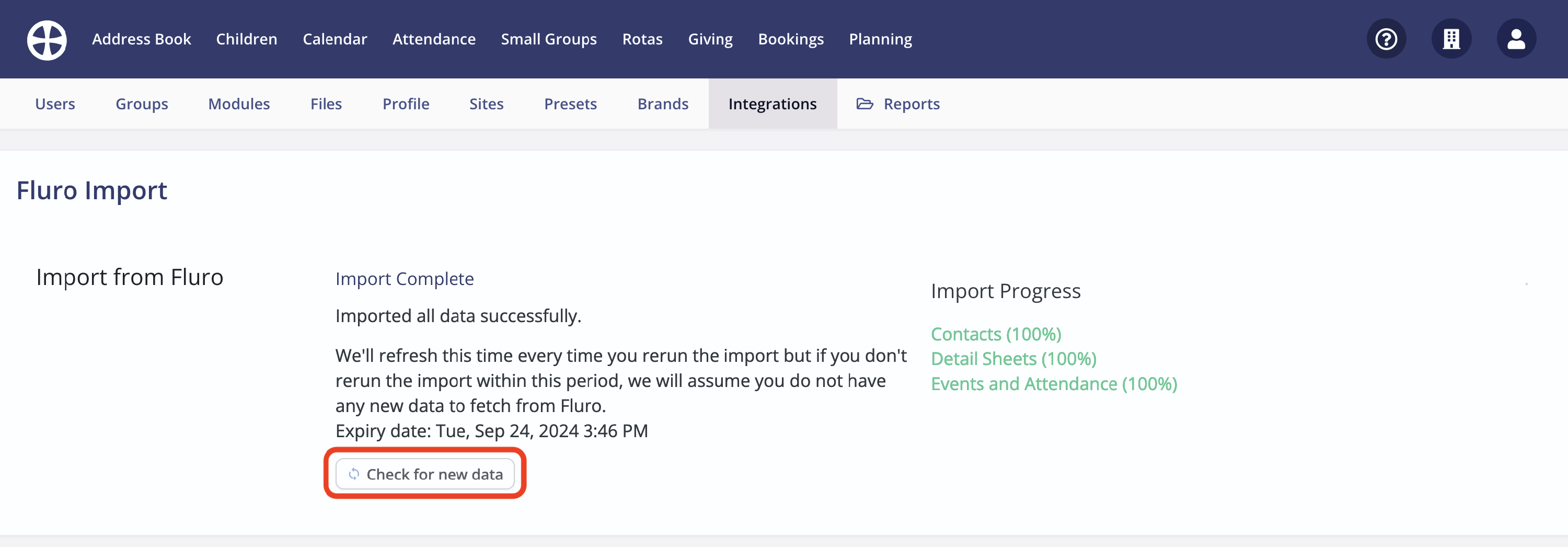
We've provided a variety of pre-prepared training materials to help onboard your users to using ChurchSuite. It may be however that you choose to operate Fluro and ChurchSuite in tandem during a transition period while you set things up. In that scenario, you're able to check for new Contacts or Events added since the last import and import them. You'll be able to re-run this import indefinitely, provided it's within two weeks of the previous import being run. So, for example, if you ran the import today, you'd have two weeks to run the import again. If you ran the import again in 3 days time, the two week counter would reset.
It's important to note that we rely on the names of certain things (e.g. Definitions, Tracks etc.) in Fluro to avoid duplicating data in ChurchSuite. We'd recommend avoiding renaming things in Fluro after the first import. We won't make any changes to previously imported data.
Running the import
You're now ready to import your Fluro data into ChurchSuite. This section walks through what the import process looks like.
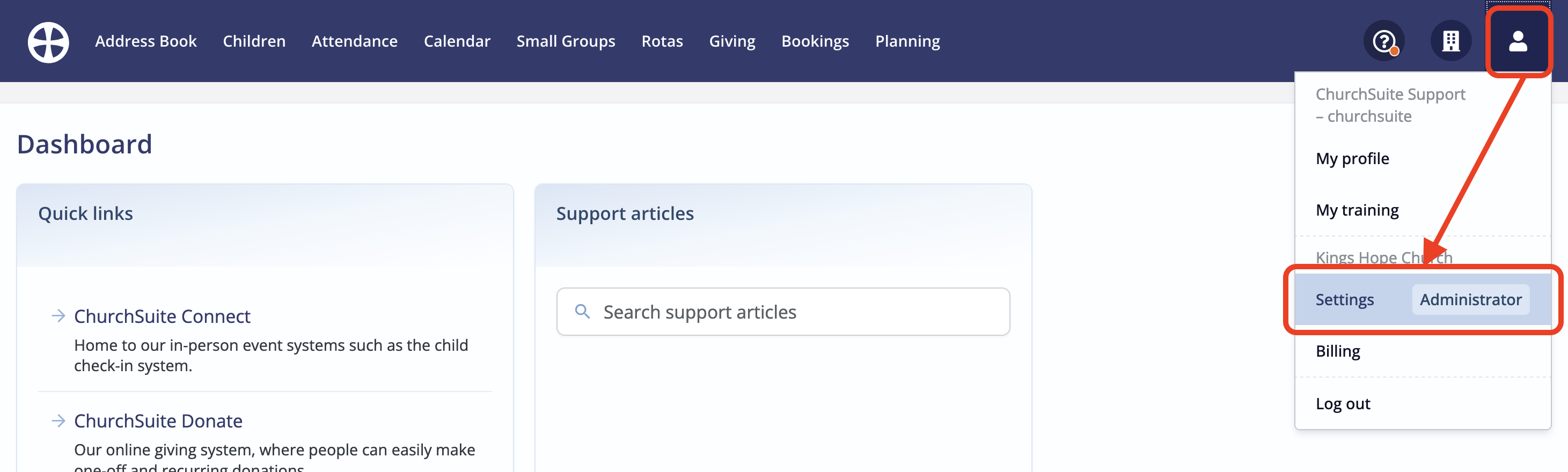
In ChurchSuite, navigate to your Administrator Settings:
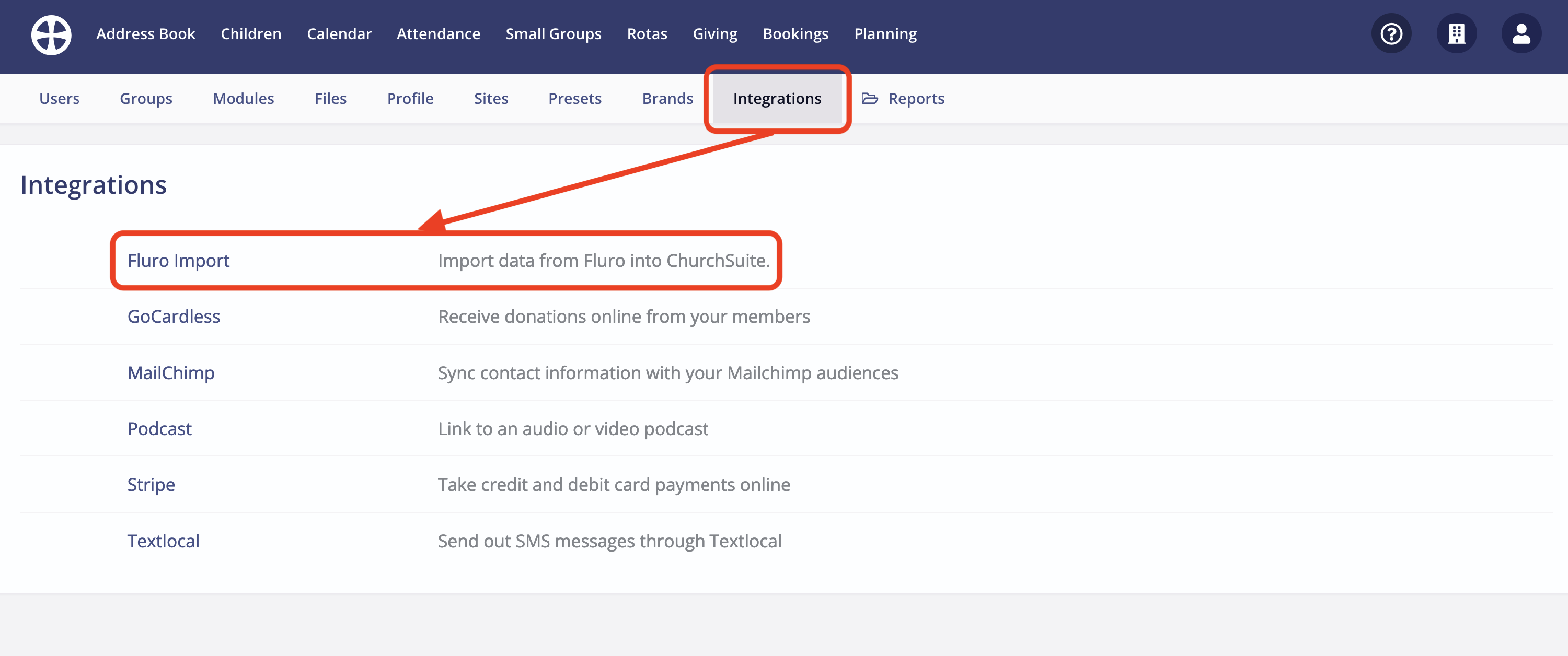
From the Integrations section, navigate to the Fluro Import integration:
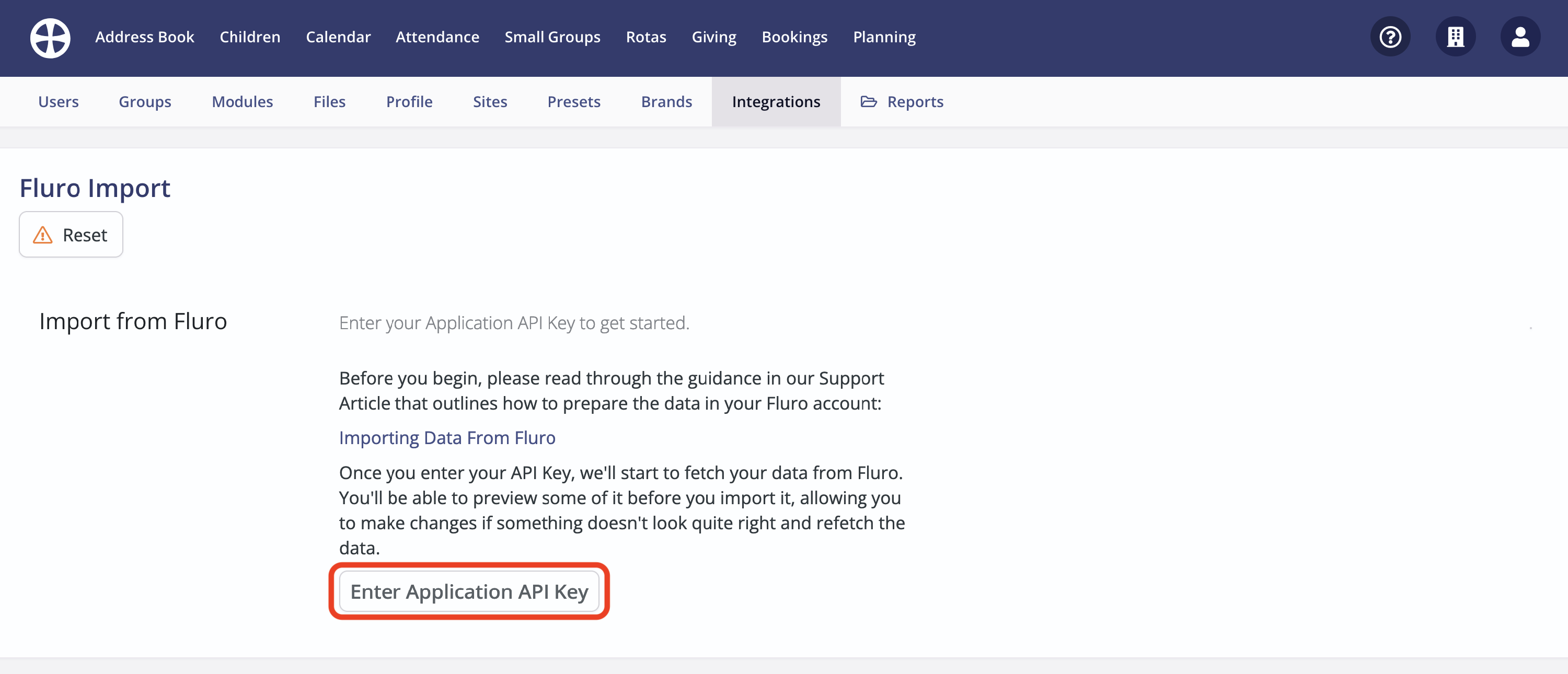
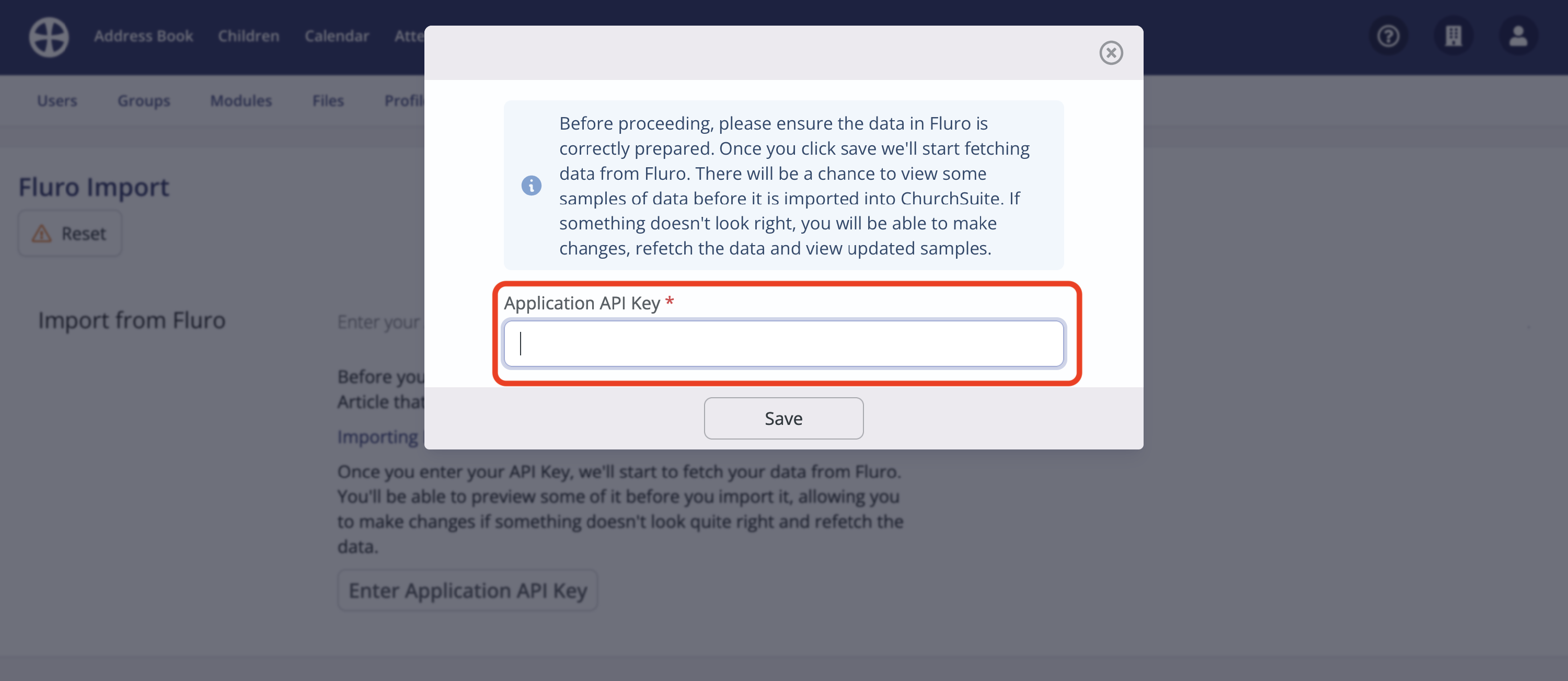
You'll need to create an Applicaton in Fluro and retrieve the Authentication API key. For the Application you generate, you'll specify which Realms that application has access to - we'll only be able to see and import data from the realms you specify there. Once retrieved, click Enter Application API Key:
Copy and paste your Application API Key into the pop-up:
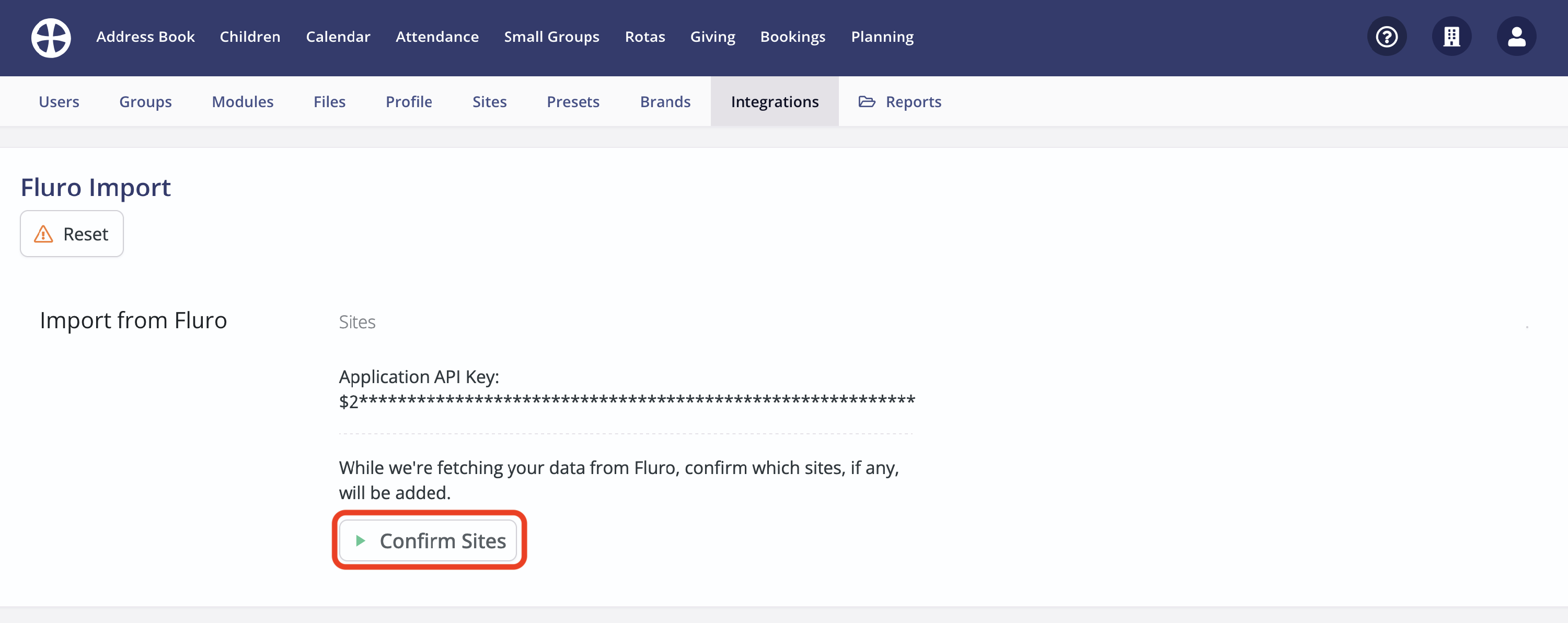
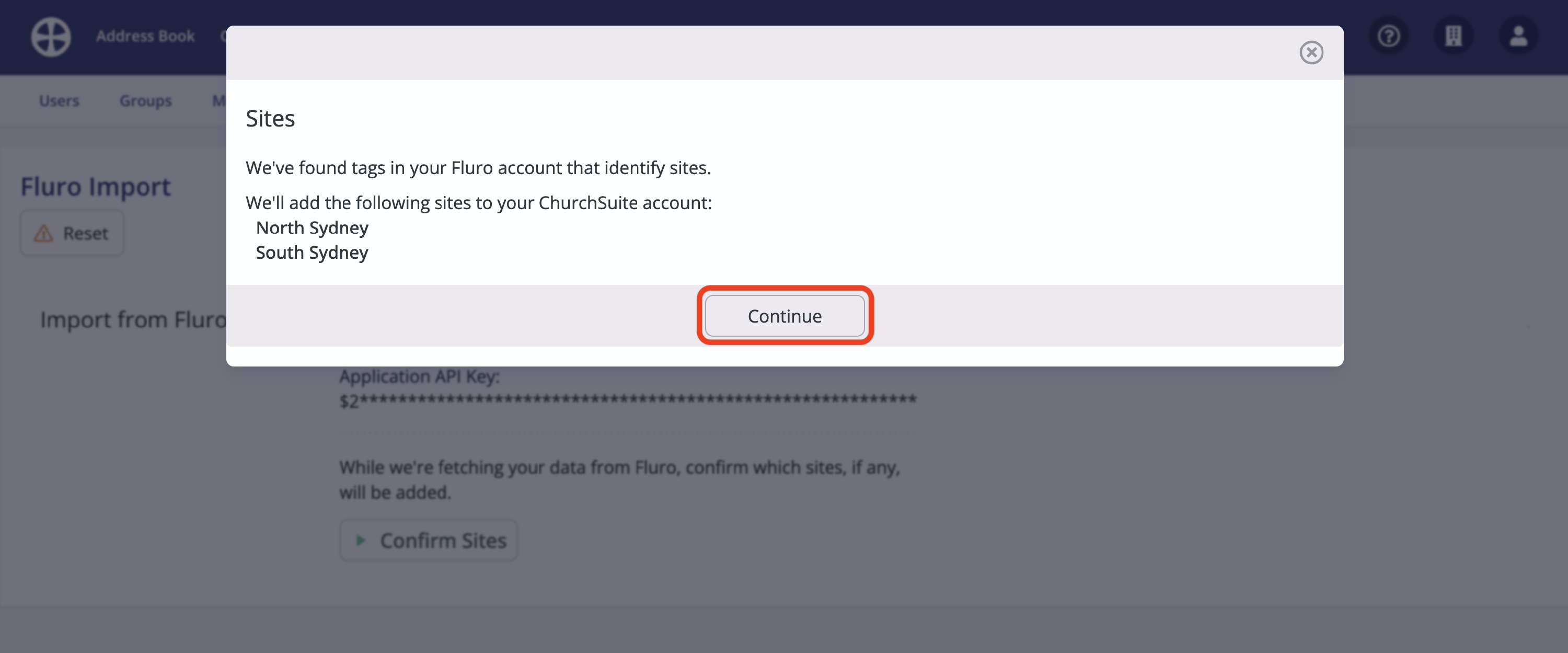
Click Confirm Sites to review which sites will be created as part of the import process. Once happy, click Continue to progress. If you're a single site organisation and haven't used any Site tags, click Continue to skip this step.
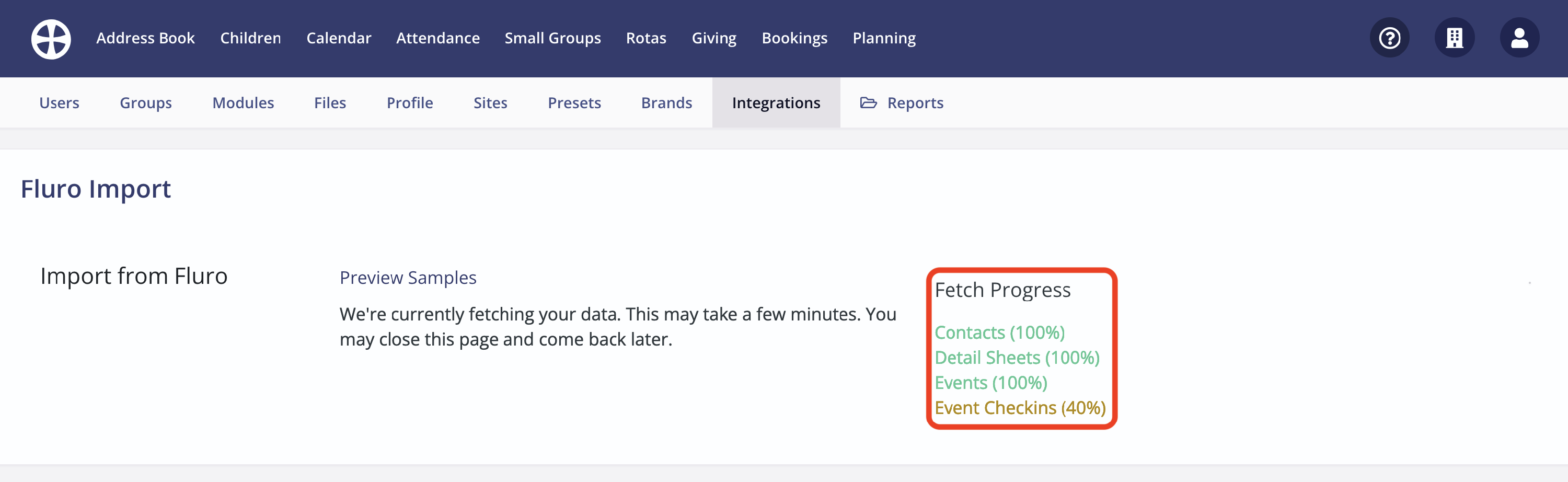
We'll now begin to fetch your data from Fluro. You can view the Fetch Progress on screen, and can safely navigate away from this page while the data is being fetched.
Once the data has been fetched, you will be able to preview the data and see where it will be imported.
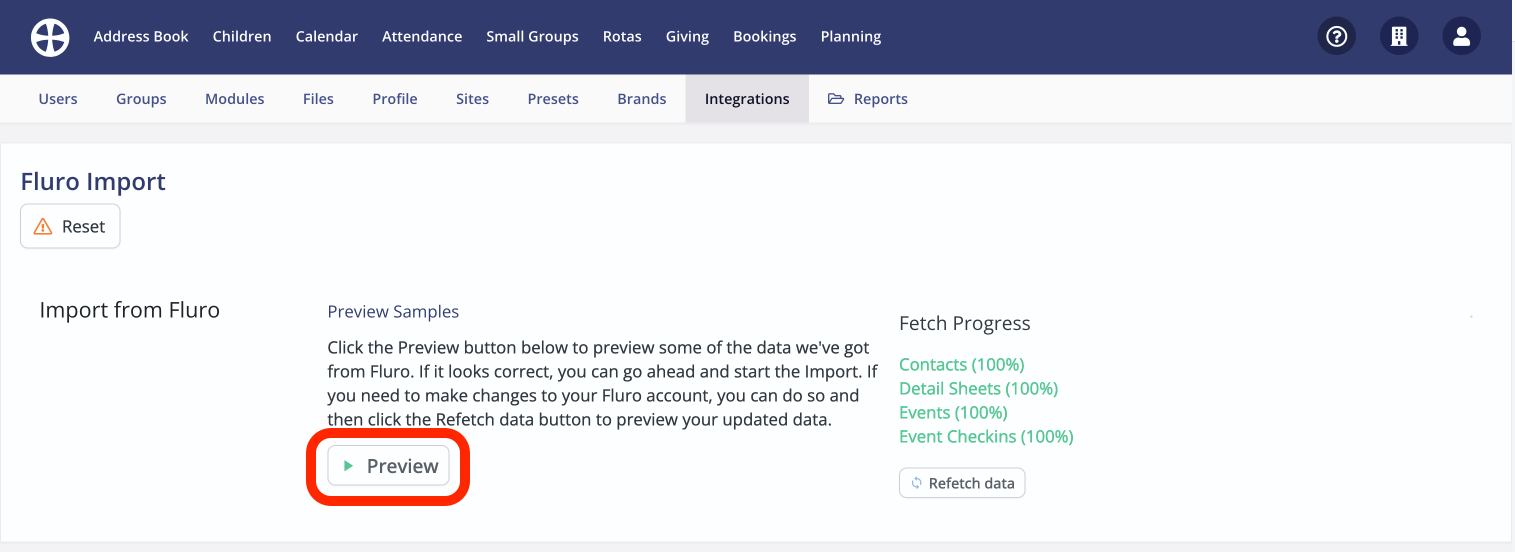
Use the selector to preview data from the modules you've chosen to import data into. Please ensure you've reviewed each module's preview and that you're happy that the data shown is correct before proceeding.
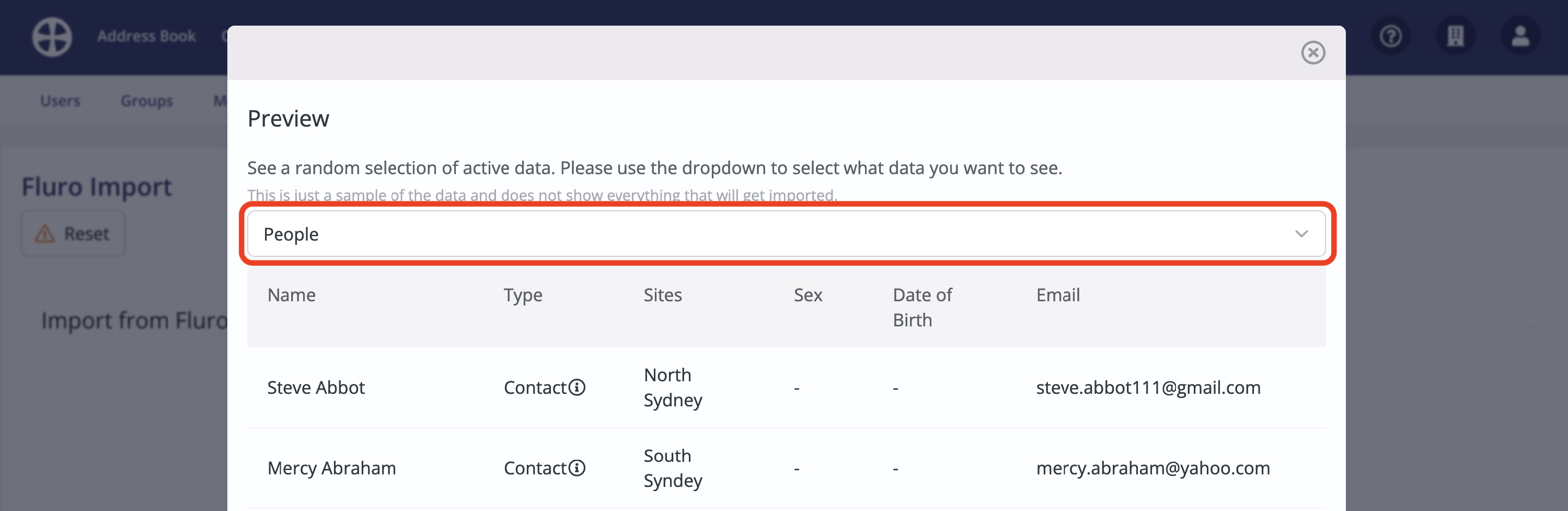
If you notice any errors in your data, you may need to review the Tags you've used in Fluro. Once you've amended any errors, click Refetch data:
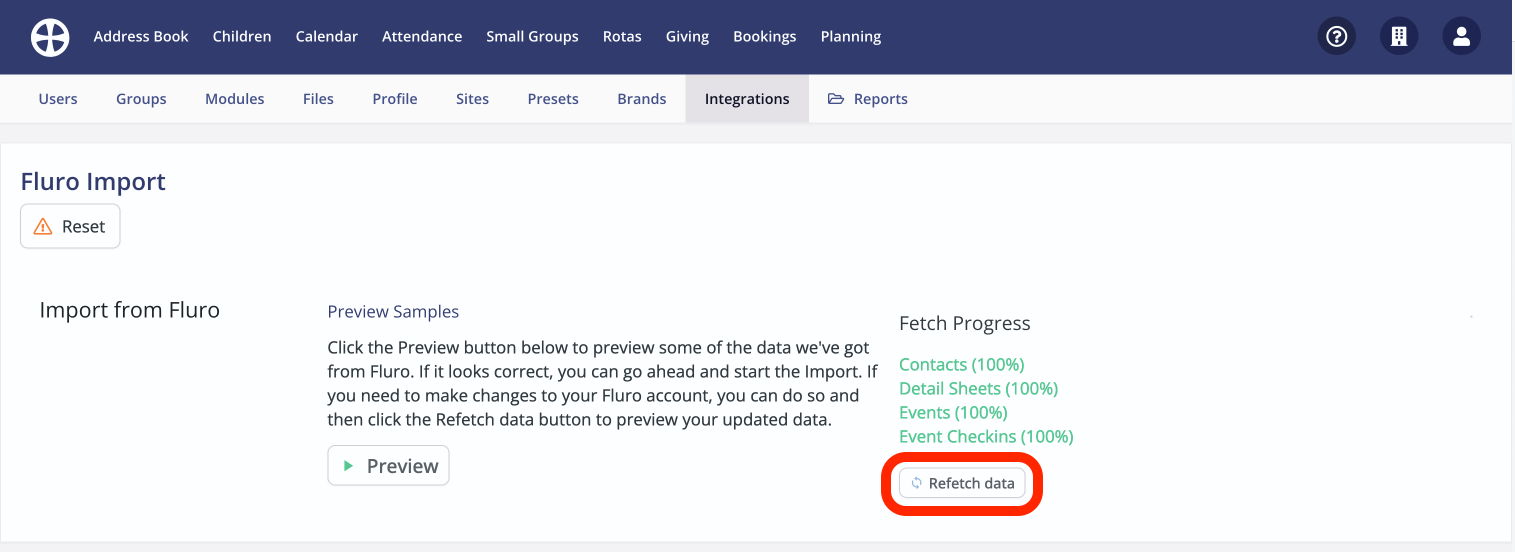
Once you're happy that the data is correct, at the bottom of the pop-up click Start Import. We'll now begin to import your data. You can view the progress of the import on screen, and can safely navigate away from this screen while the import progresses.
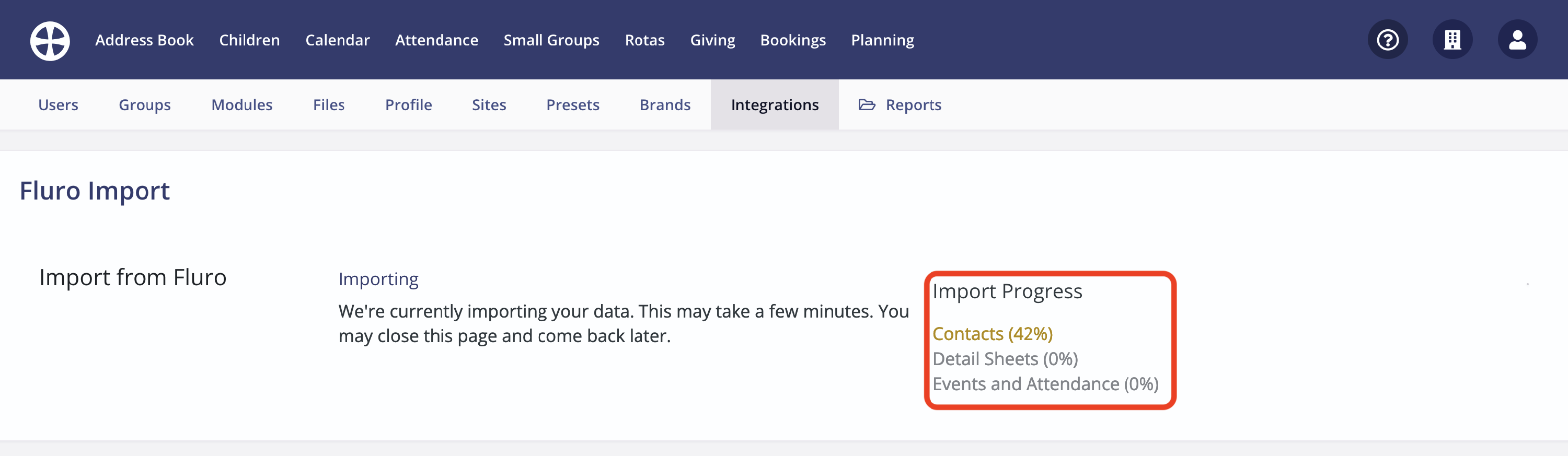
Your import is now complete. As mentioned previously, if you need to check for new data added to Fluro since the import was last run, you can click Check for new data to fetch and import any new data.