Importing historic attendance data for a gathering
In this article
Introduction
Importing metric data
Importing tracked/named attendance data
What happens if my import fails?
Introduction
For those transitioning from another attendance recording system, you can easily import historic attendance data into the Attendance module. You can import numerical attendance metrics and tracked/named attendance. Before you begin, you will first need to add Gatherings to the module - we've produced a related support article: Adding and managing attendance gatherings.
To import historic metrics, you'll need to first add the metricsets and metrics to each gathering, ready to receive data. To import named attendance data, you'll need to first enable People Tracking for each gathering.
Separate data files are needed for each gathering. For example, if you have historical data for a morning service and an evening service in one file, separate the data into two files, one for import to the "Morning Service" gathering and one for import to the "Evening Service" gathering. Similarly, tracked/named attendance and metrics are imported in two separate processes (see below) and will require separate files. It doesn't matter if you import historical metrics first or named attendance first - the system will assign the data to existing date records or create new date records for the gathering if they don't exist.
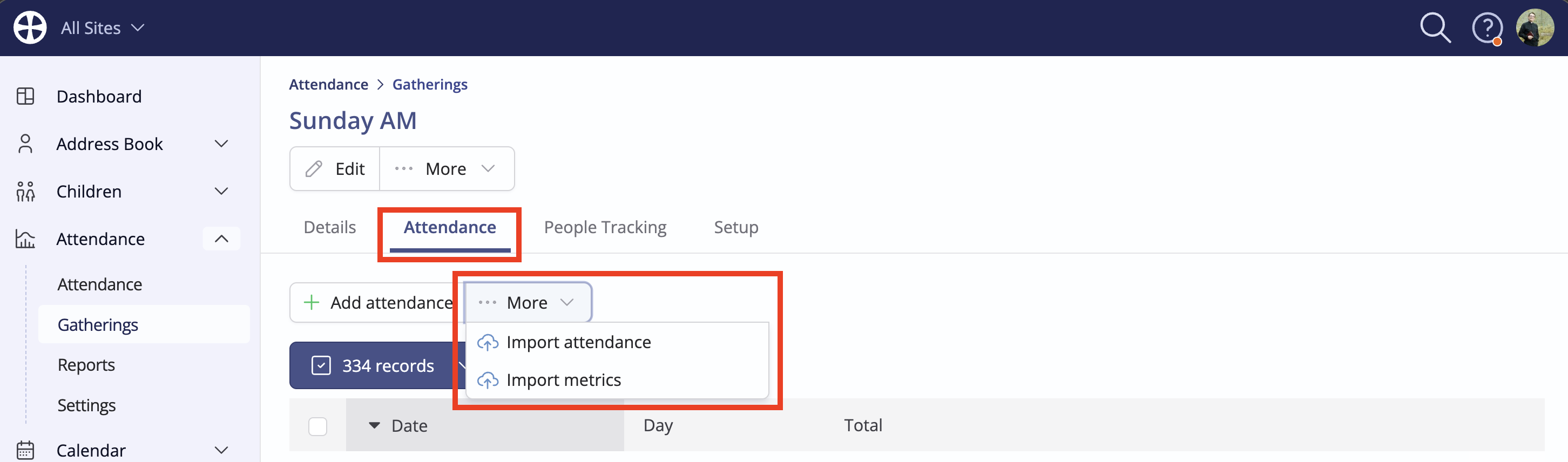
To begin, navigate to the appropriate gathering in the Gatherings section of the Attendance module. On the Attendance tab, select the appropriate importer from More actions. To import tracked/named attendance data, select Import attendance and, to import metric data, select Import metrics. Next, scroll down to the related section in this article for next steps:
Importing metric data
Preparing your data
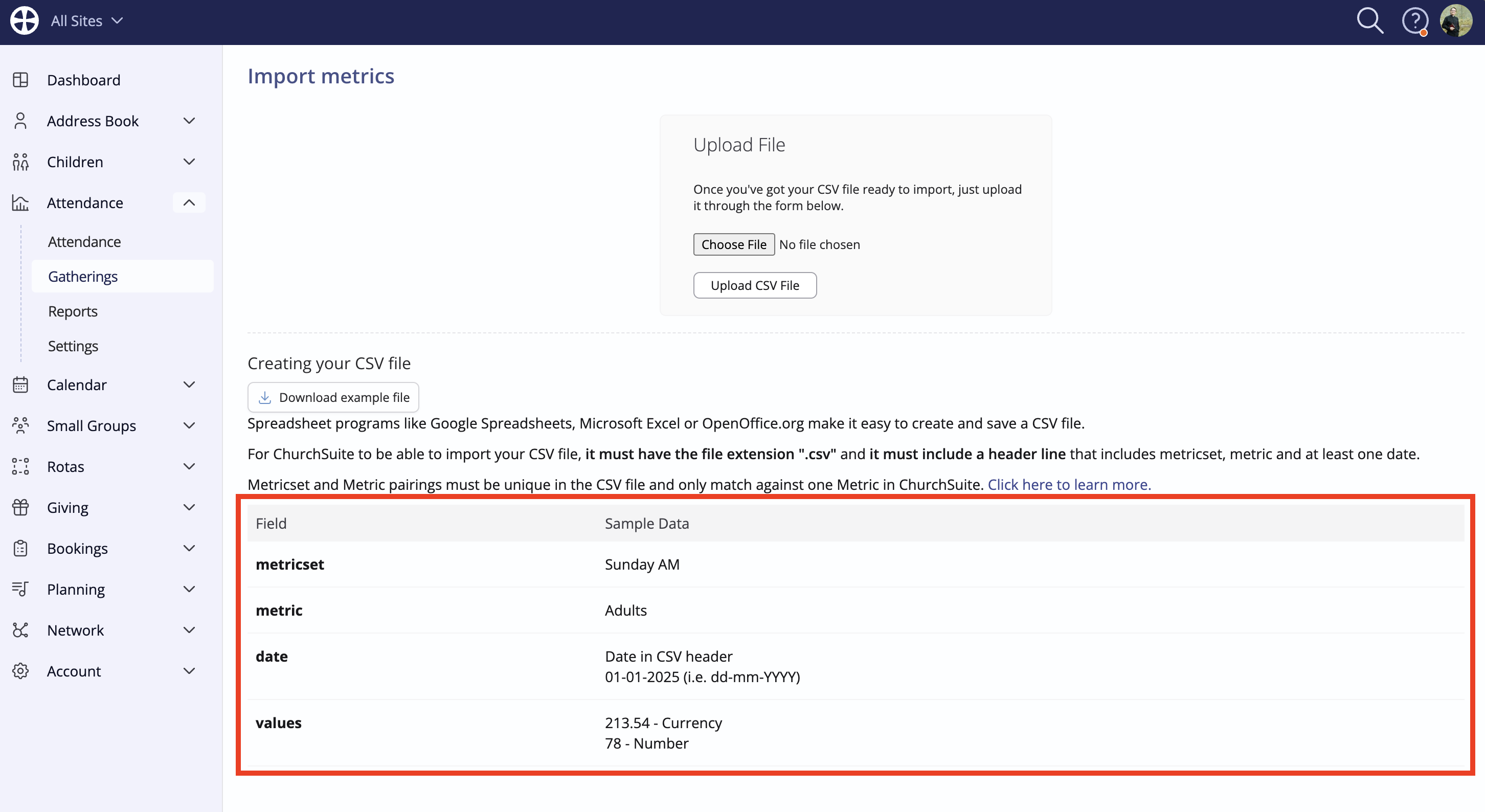
The import page contains instructions for creating your CSV file in the expected format. You can download an example file, which you can use as a guide or to populate with your own data. The first row in the file must contain the header information - the column labels used to match your data to the appropriate fields in the gathering.
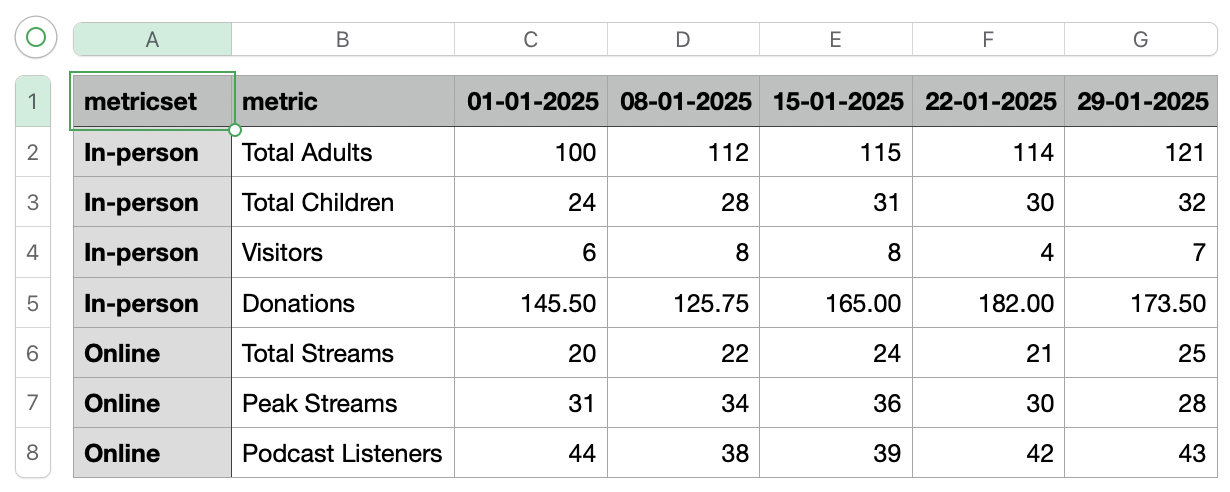
Here is an example of a CSV metrics file for a "Morning" gathering that comprises metrics for In-person and Online metricsets. The two metricsets and seven metrics must exist in the gathering and the naming convention of the headers and column data must be consistent with those used in the gathering, ready to receive the data. Header row dates must be in the expected format dd-mm-YYYY and be unique dates.
Importing the CSV file
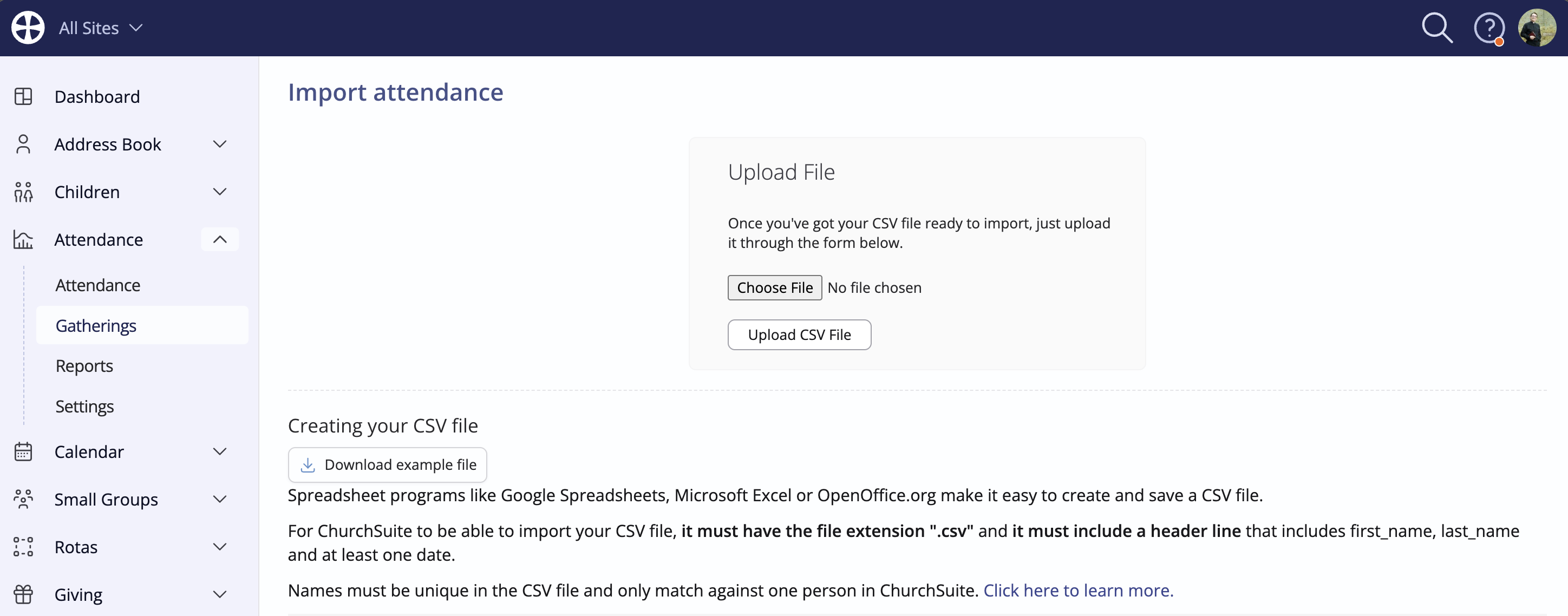
Click Choose File to search and select the file to be uploaded and then click Upload CSV File.
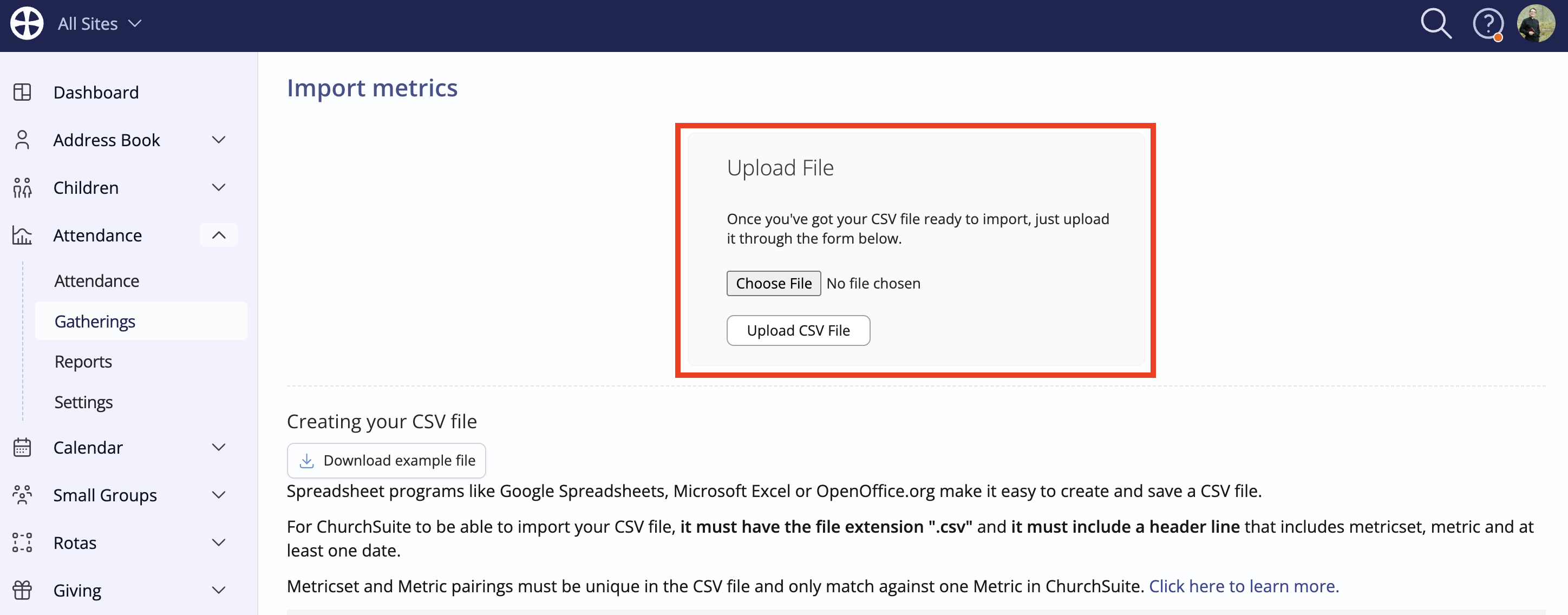
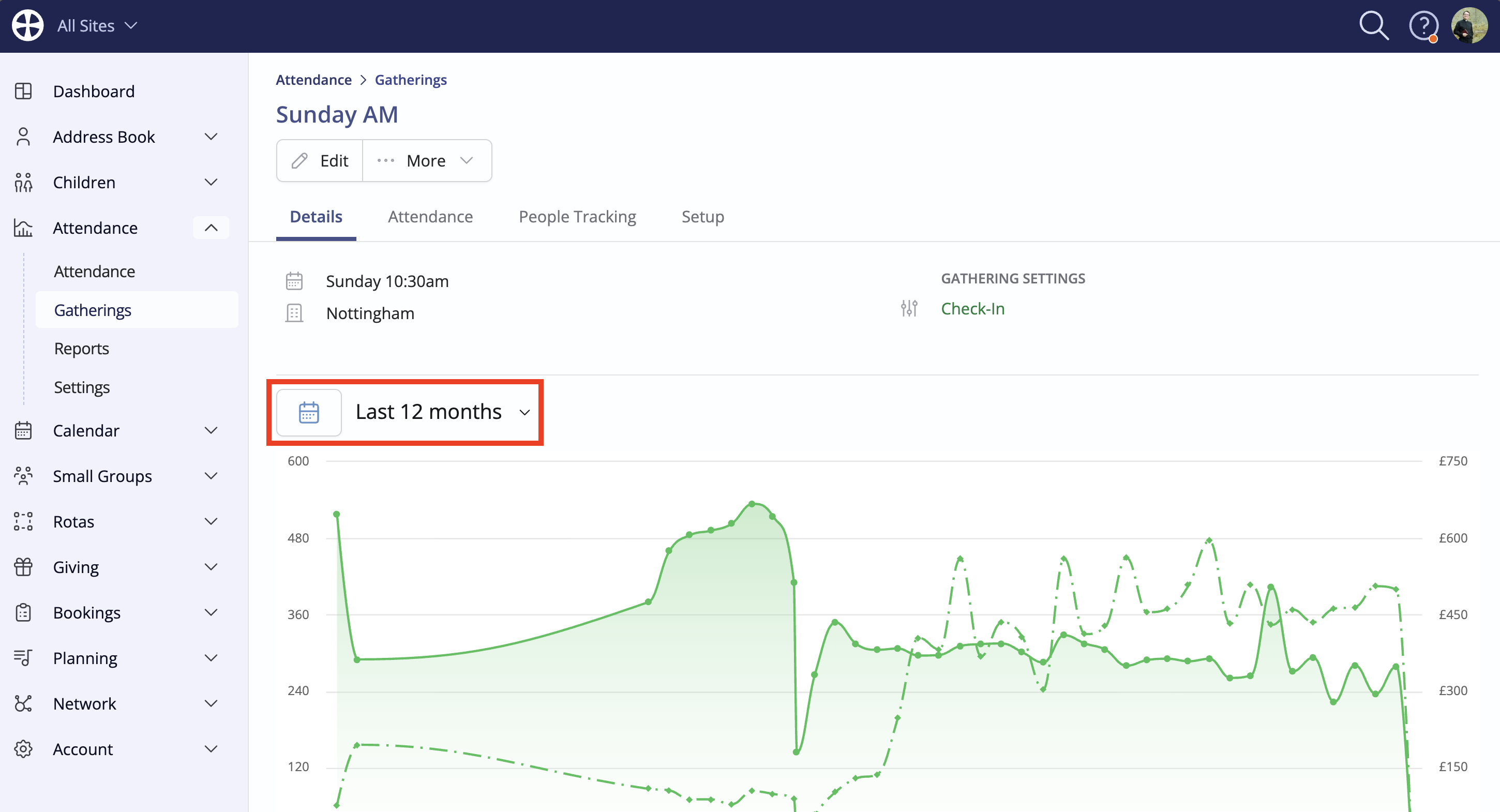
The import is processed. Once complete, you will be redirected to the gathering View page showing an 'import success' message. Adjust the date filters to see your imported data plotted on an Attendance graph:
Importing tracked/named attendance data
Preparing your data
The import page contains instructions for creating your CSV file in the expected format. You can download an example file, which you can use as a guide or to populate with your own data. The first row in the file must contain the header information - the column labels used to match your data to the appropriate fields in the gathering.
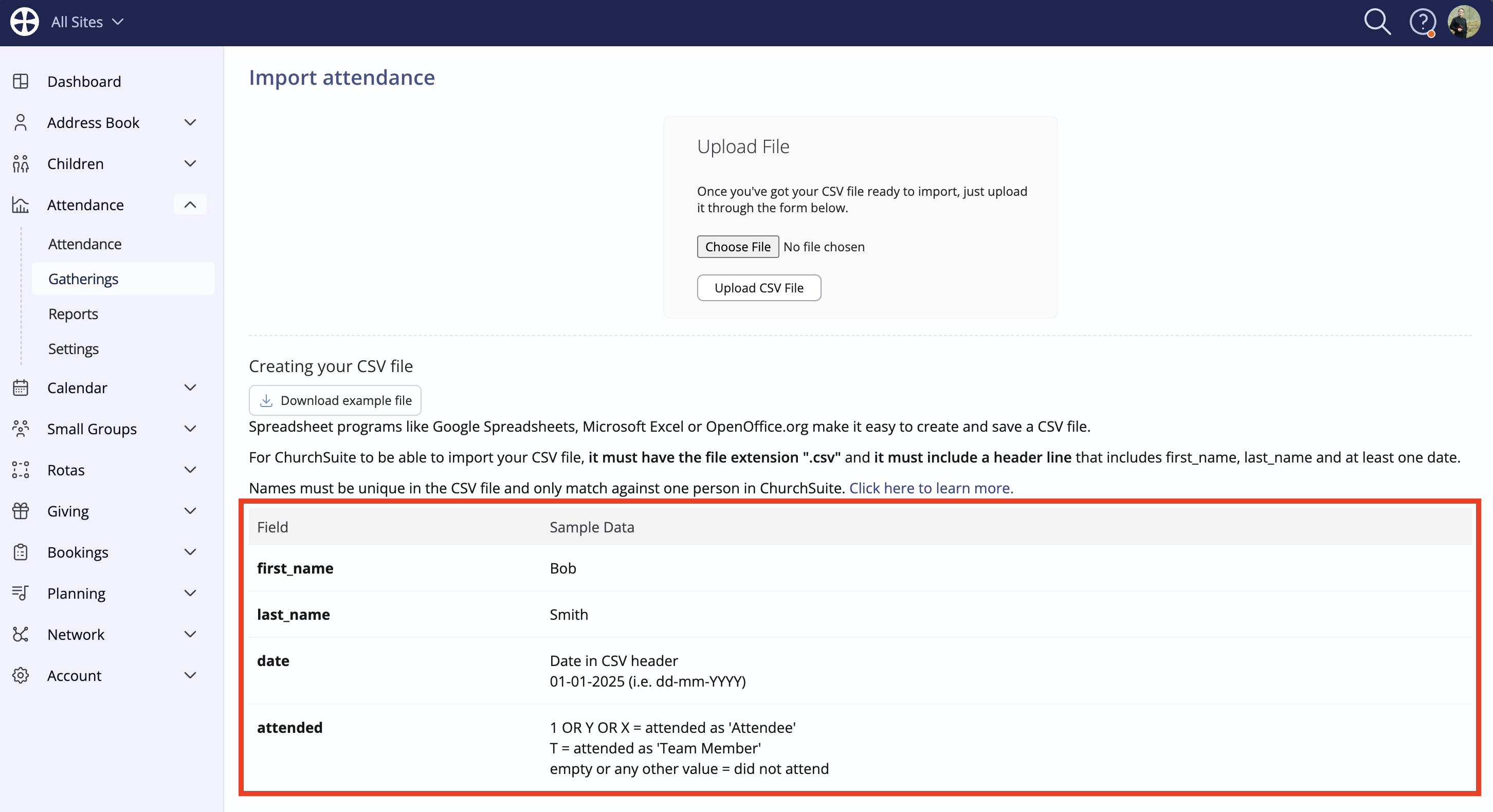
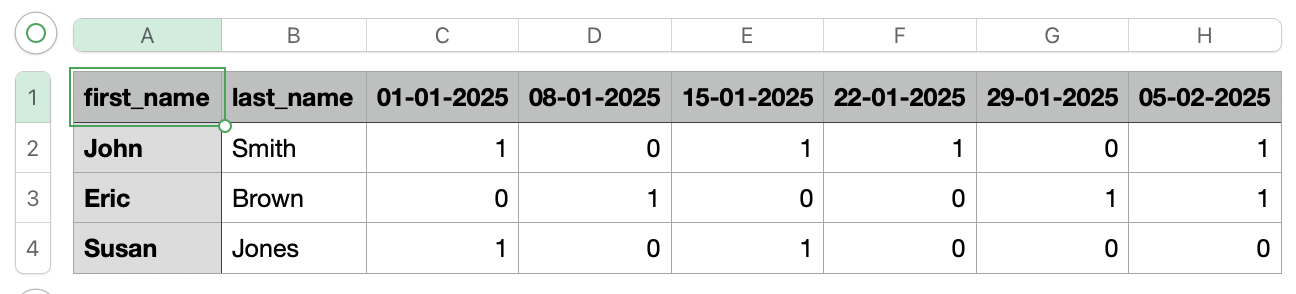
Here is an example of a CSV file with named/tracked attendance for a gathering. You'll need a separate file for each gathering. Header row dates must be in the expected format dd-mm-YYYY and be unique dates. Note the data convention for distinguishing attendees, team members and those who did not attend. Name rows (first name and last name) must be unique. For example, if you have two John Smiths in the same file, add a distinguisher to the naming convention so that the name rows are unique. Similarly, if you have two John Smiths in the Address Book, add a temporary distinguisher to make the names unique - the process will fail if duplicated contact names are encountered. The importer will attempt to link the attendee names to existing contacts in the Address Book; otherwise, an unlinked record of named attendance will be created for the gathering. In this regard, the importer does not add new contacts to the Address Book where there isn't an existing matching contact.
Importing the CSV file
Click Choose File to search and select the file to be uploaded and then click Upload CSV File.
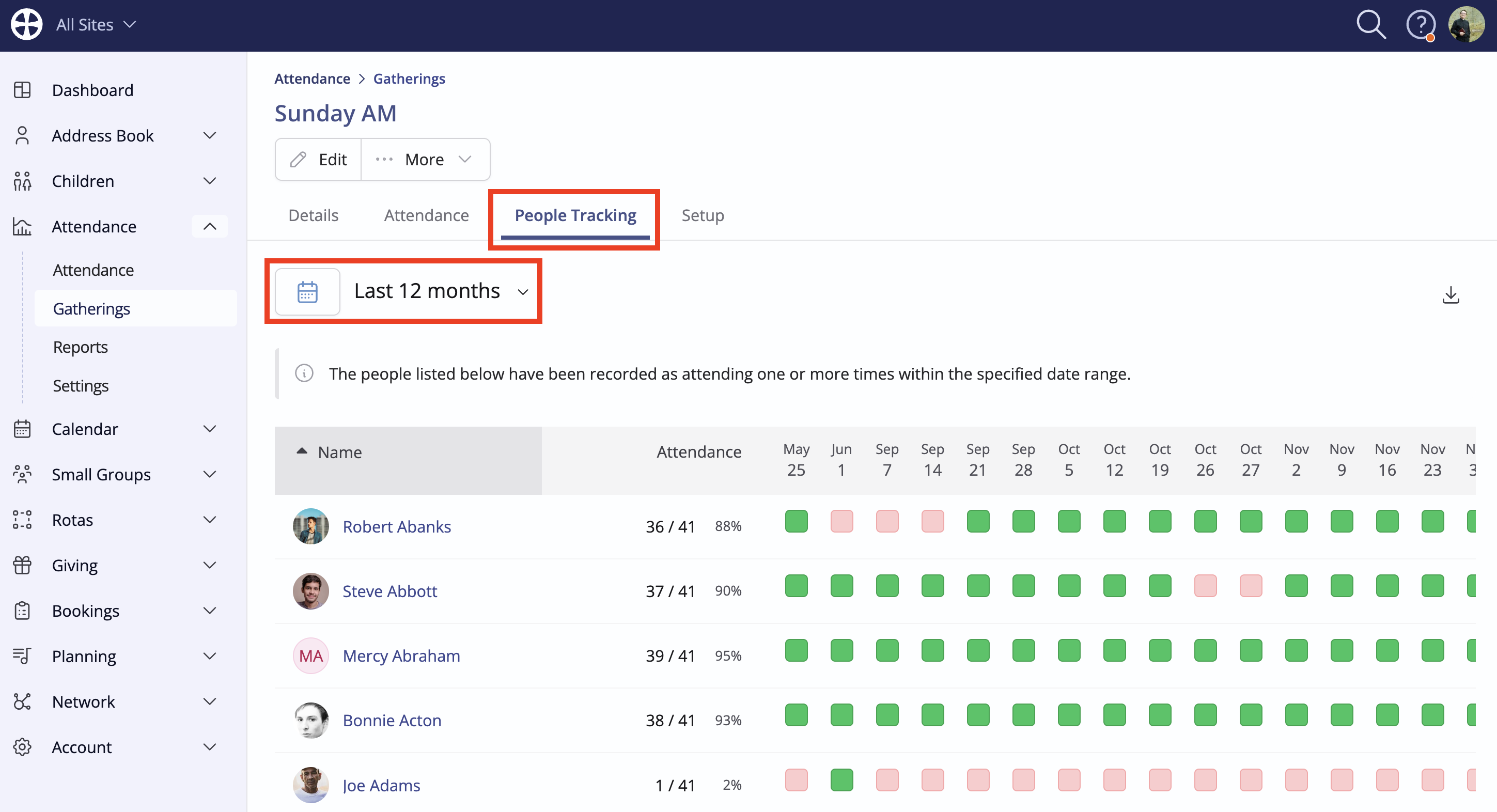
The import is processed. Once complete, you will be redirected to the gathering View page showing an 'import success' message. Click on the People Tracking tab and adjust the date filter to see your imported data shown:
What happens if my import fails?
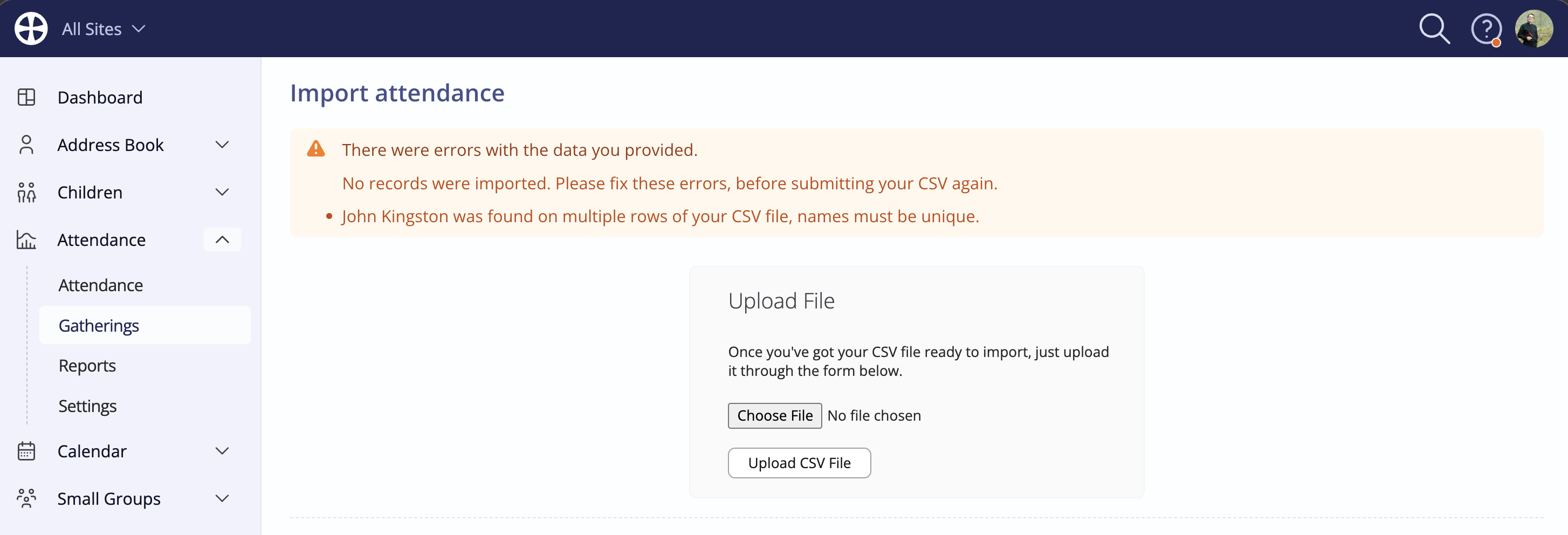
If there are any errors, these will be shown and no data will be imported. Correct the errors and repeat the process.