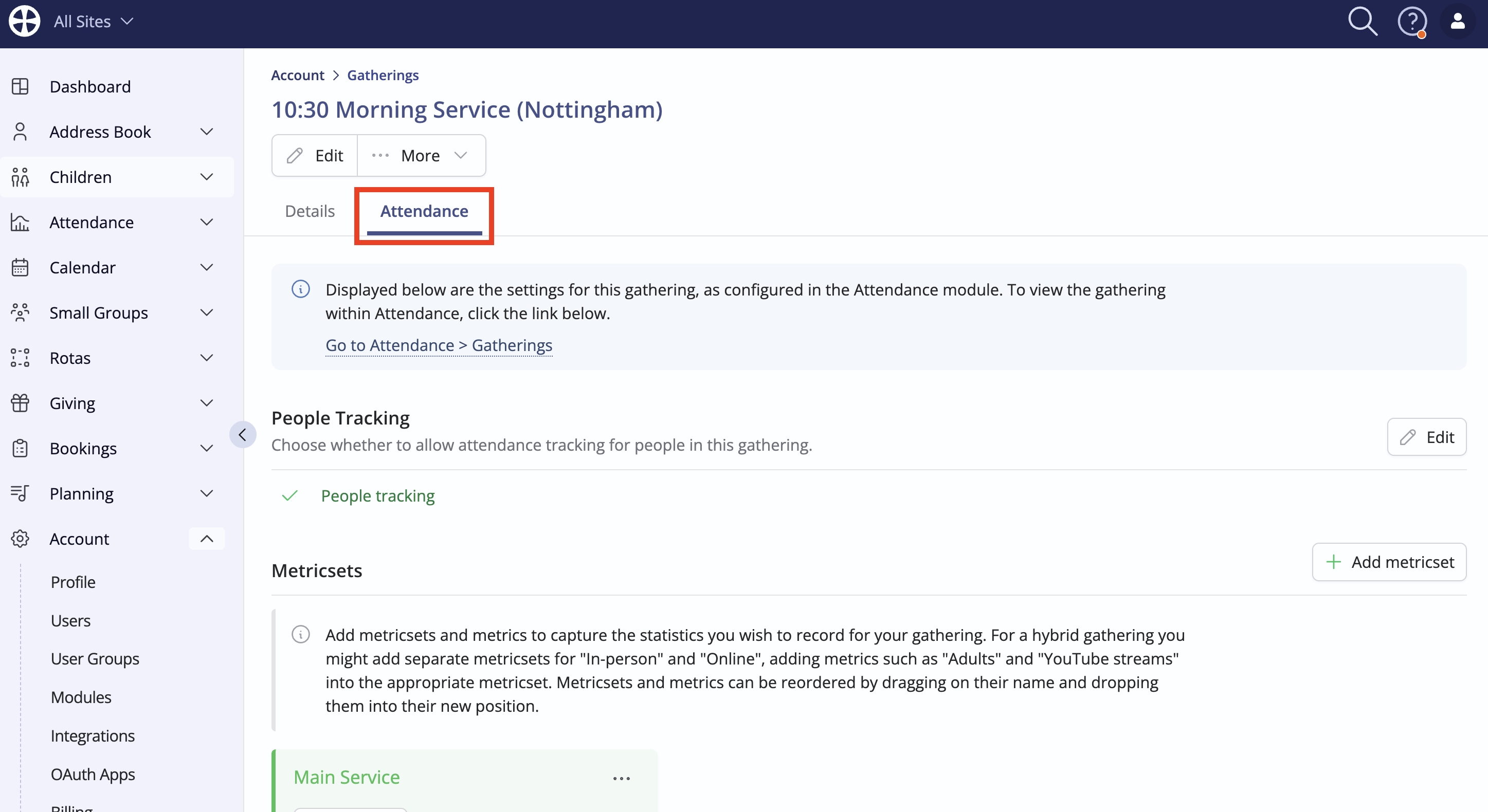
Configuring a gathering for Check-In
Before you begin
To create your gathering, follow the guidance in the support article Adding and managing gatherings. You can then proceed to follow the guidance here.
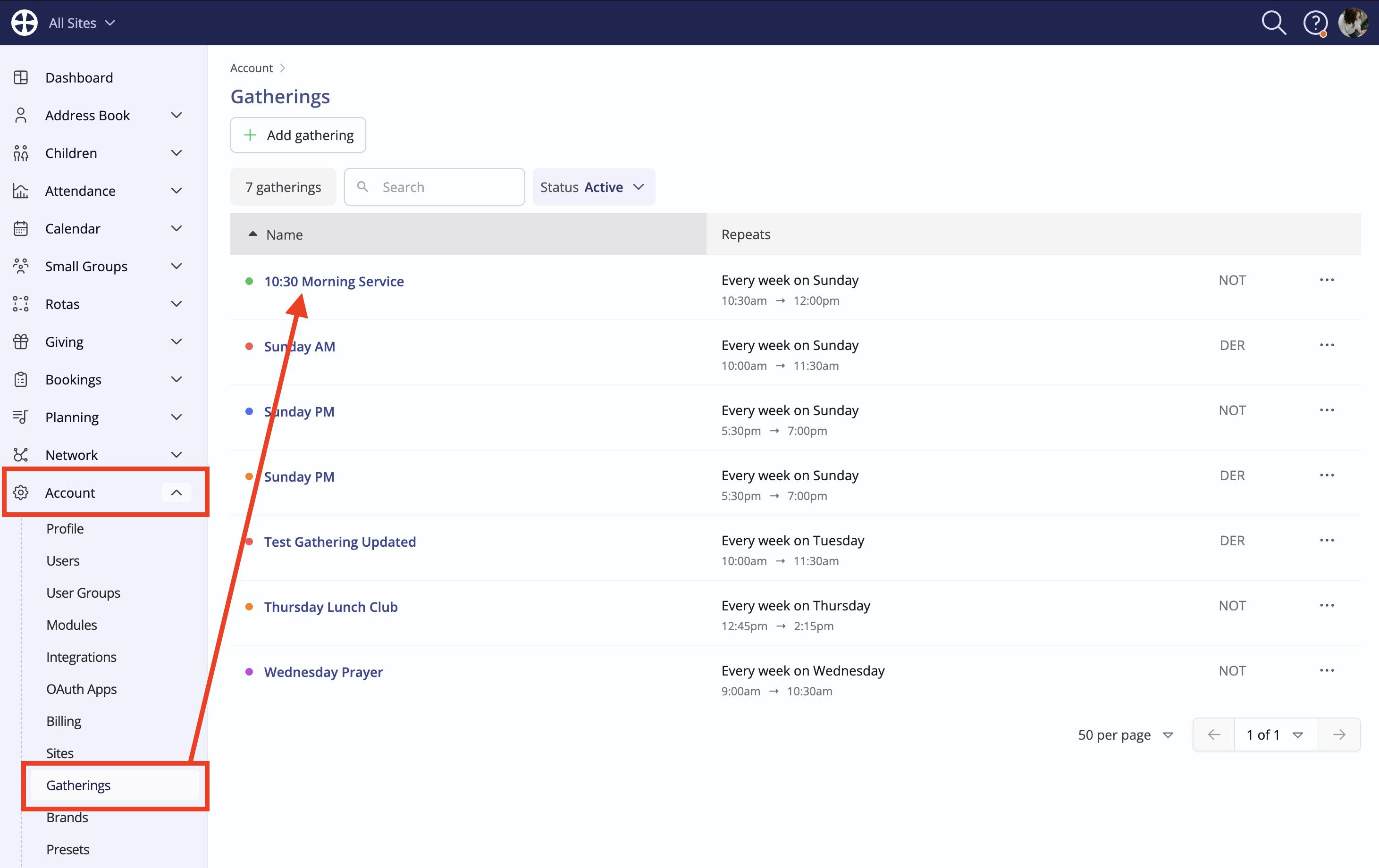
Navigate to Gatherings in the Account section and select the gathering you wish to configure for Check-In.
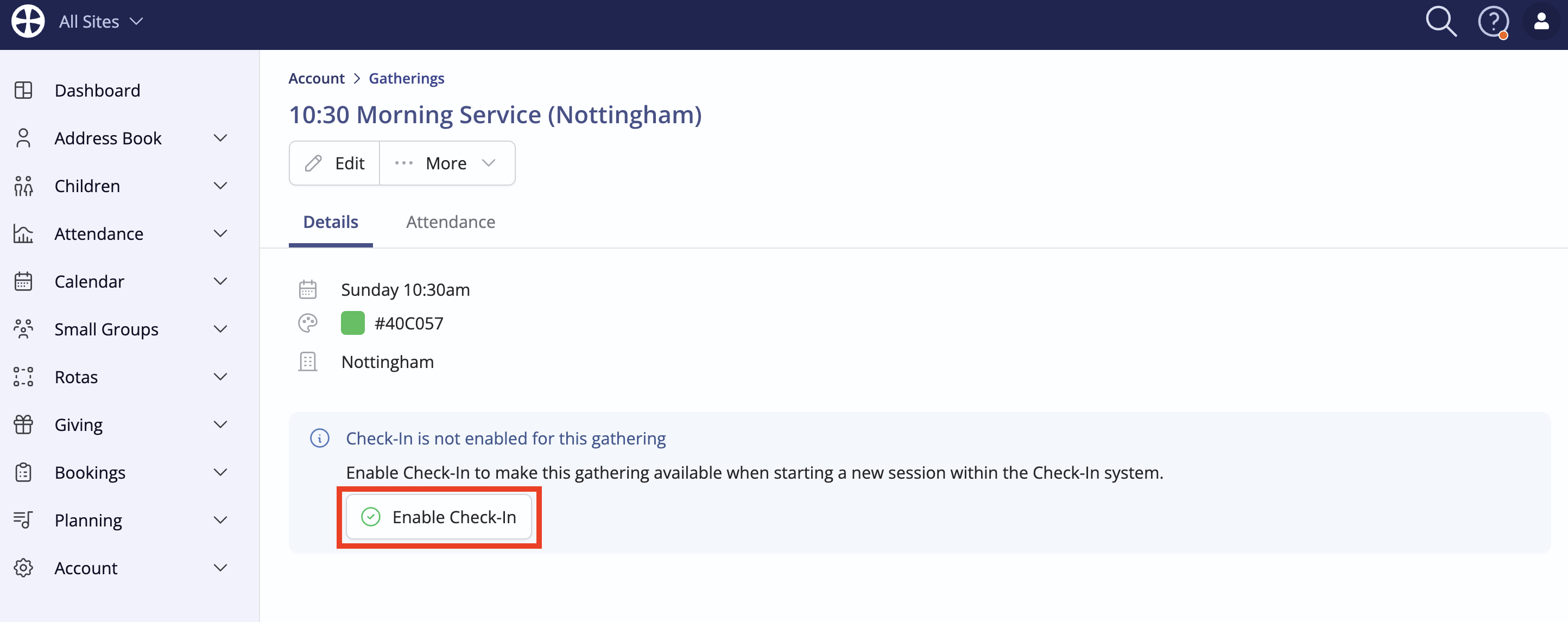
From the gathering's view page, click Enable Check-In to allow the checking in of adults, children or both through Check-In.
First, select what types of people will be checked into this gathering - either Adults, Children or All Age. When using Check-In, adults are checked into an Attendance module record and Children are checked into a Children module record. If you select All Age or Children, you'll also need to specify which Children module Group Setup this gathering relates to.
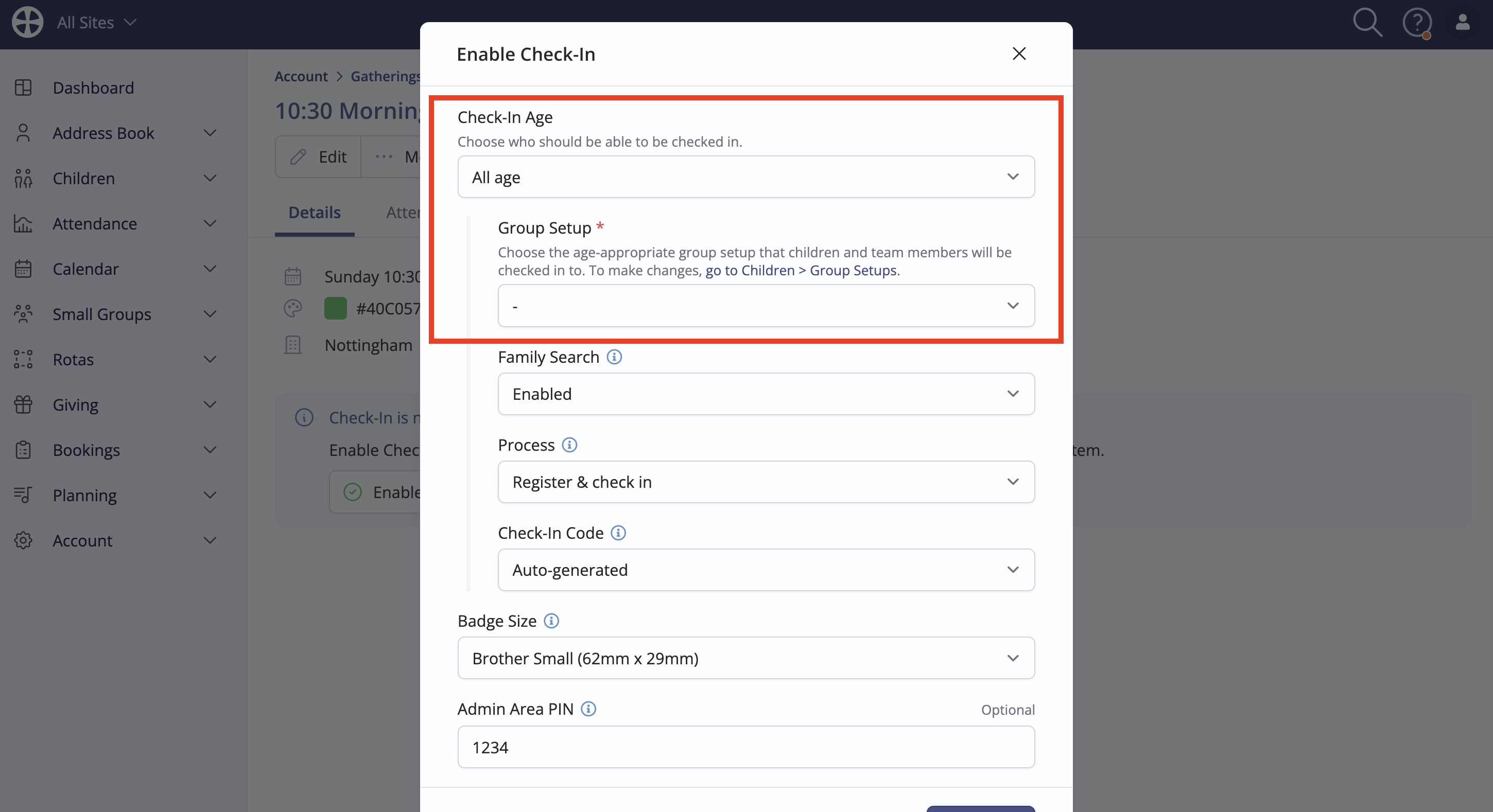
Family Search is enabled by default but you can select to disable that if you prefer.
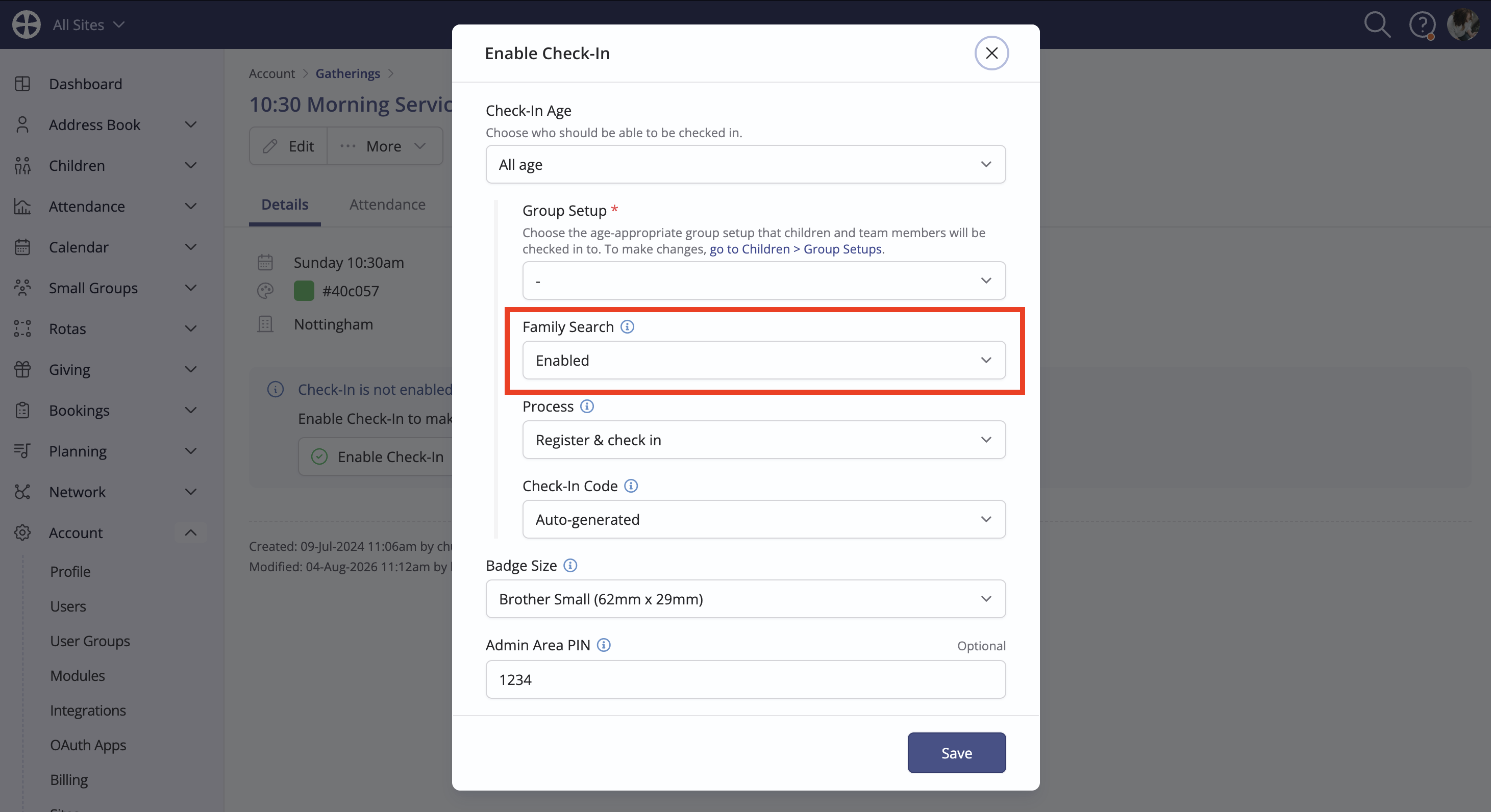
Next, set the Check-In Process and Check-In Code options.
There are two Check-In Process options:
- Register & Check In—This is a one-stage process in which badges are produced and the attendee is immediately checked in and recorded as being in attendance. For child check-in, this option applies where children are immediately handed over to your care as soon as they are registered and their badges are produced.
- Register First, Check In Later—This is a two-stage process in which badges are produced but no check-in attendance is recorded until the child is checked in later in the meeting, which can be done from the Check-In "Admin Area." This option applies where children remain with their parents/carers after registration and are handed over to your care later in the meeting. Adult gathering attendees are still checked in immediately.
In both processes, you always have an up-to-date safeguarding register for the session of children that are registered, those who are checked in as 'in your care' and those who have been checked out and returned to parents/carers.
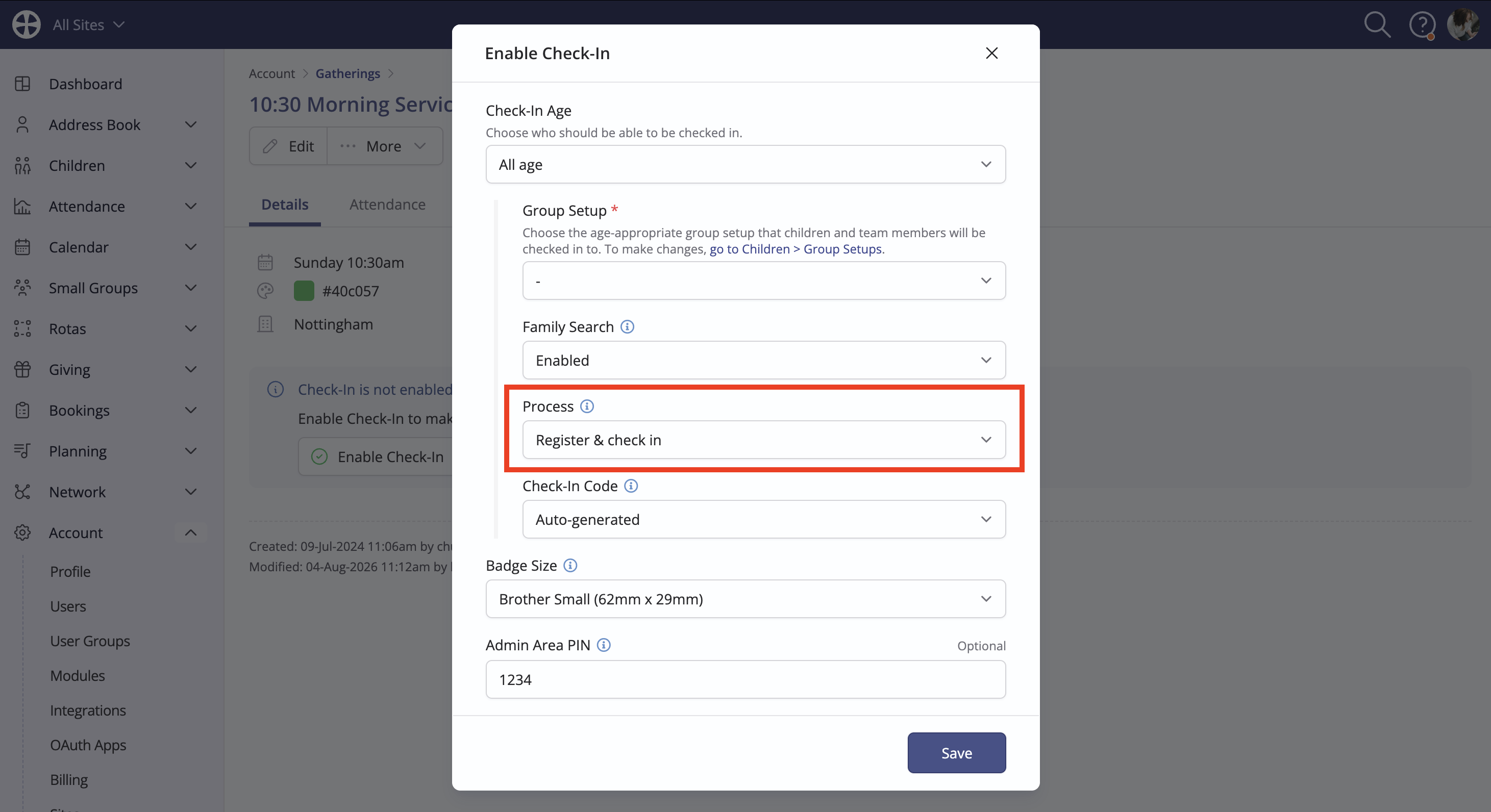
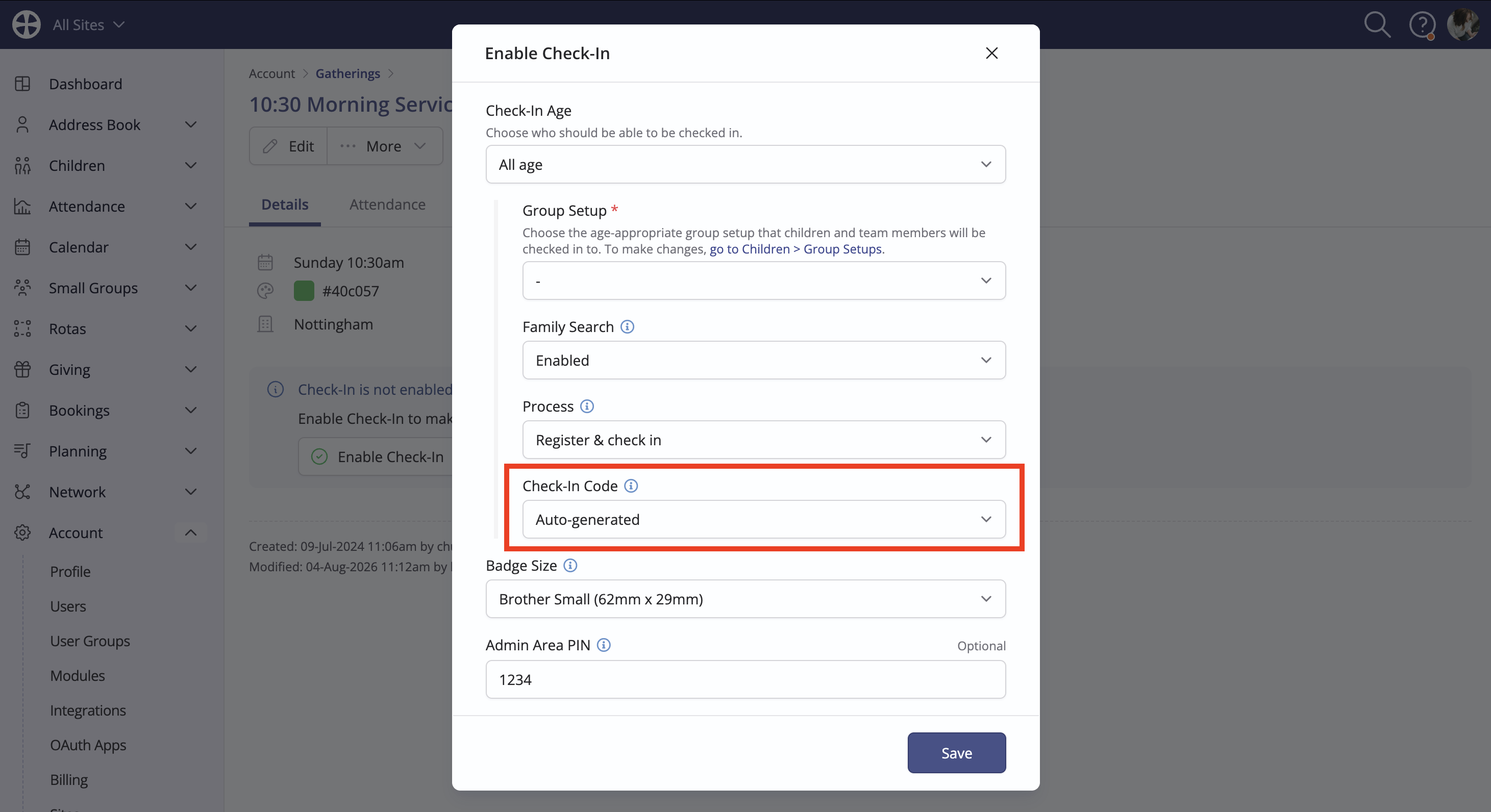
The Check-In Code defines the code to be shown on child and parent/carer pick-up badges. This safeguarding feature shows a unique code for the session on the child and parent/carer pick-up badges. Your team can use this code to ensure each child is being returned to the appropriate responsible person at the end of the session, which is especially helpful for younger children. You can choose between a code that is Auto-generated by the system or one that is Manually entered - perhaps where you have a separate safeguarding numbering system, such as coloured and numbered wristbands that you give to a parent/carer to collect each of their children. When 'Manually entered' is selected, the User experience will require manual entry of a Check-In code to complete the check-in process for each child.
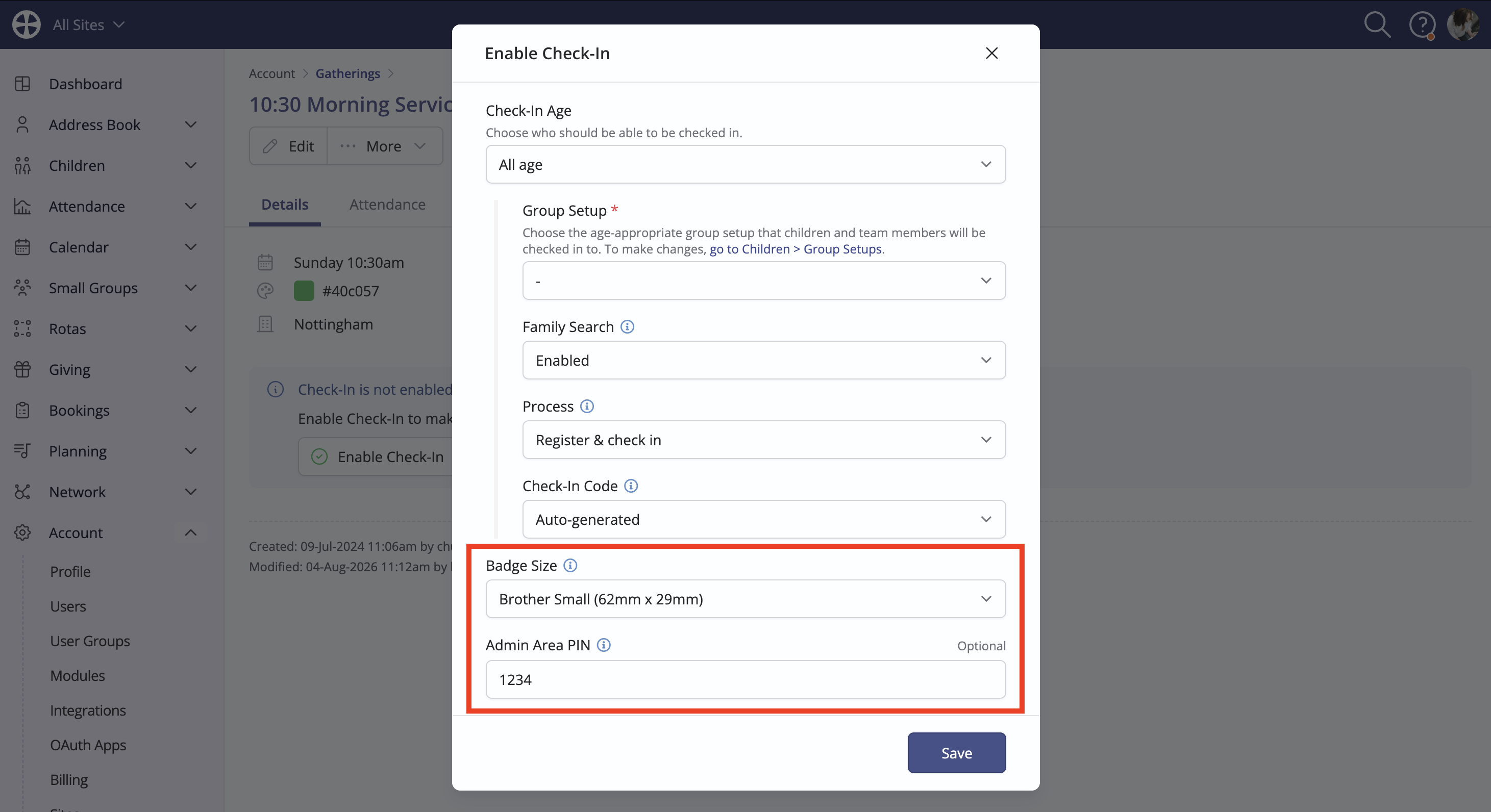
Finally, customise the size of Check-In badges based on your label stock and optionally set a PIN to access the admin area of Check-In sessions created from this gathering.
Click Save and the gathering view page is surfaced. From now on, the gathering will surface in Check-In when creating a session.
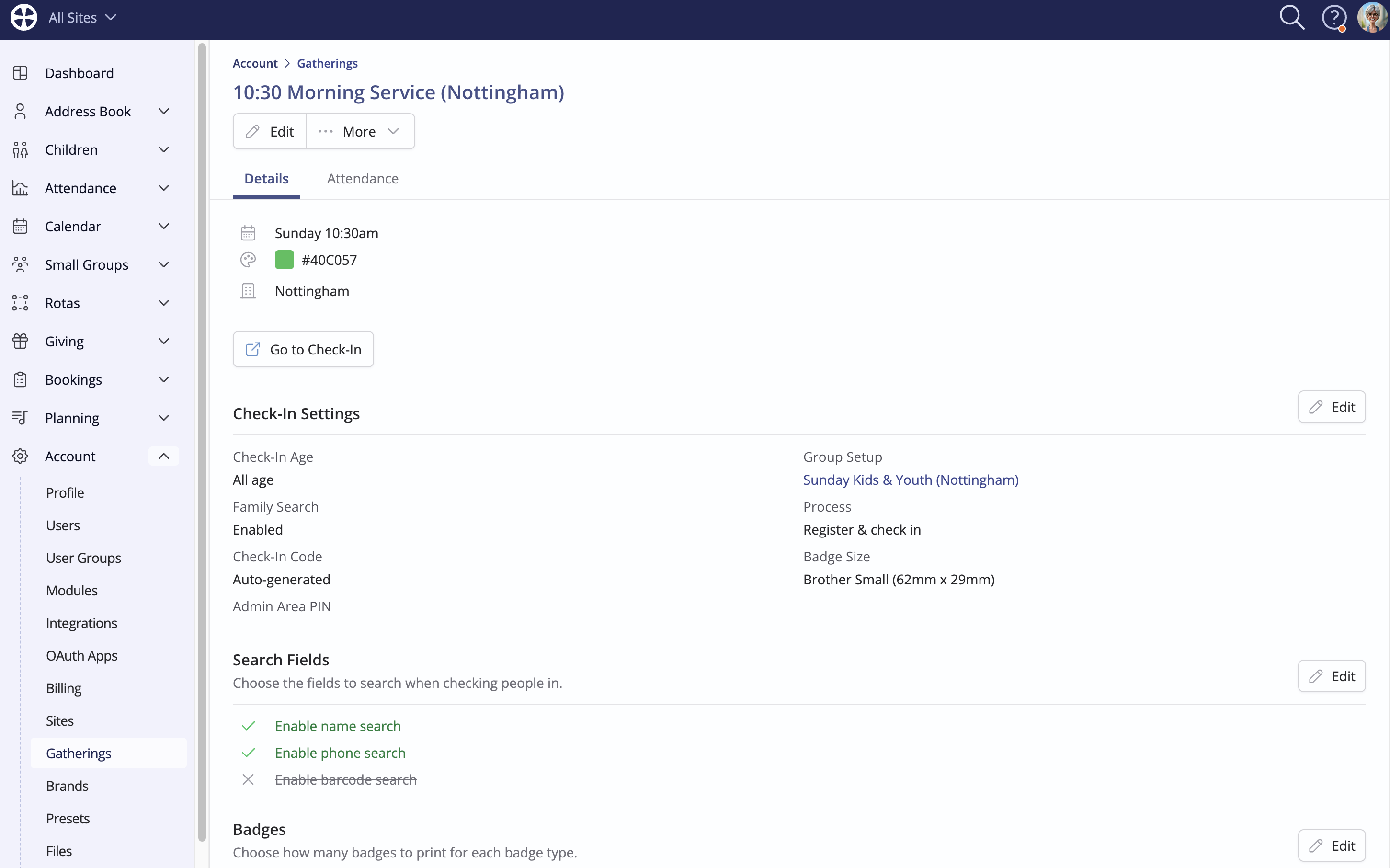
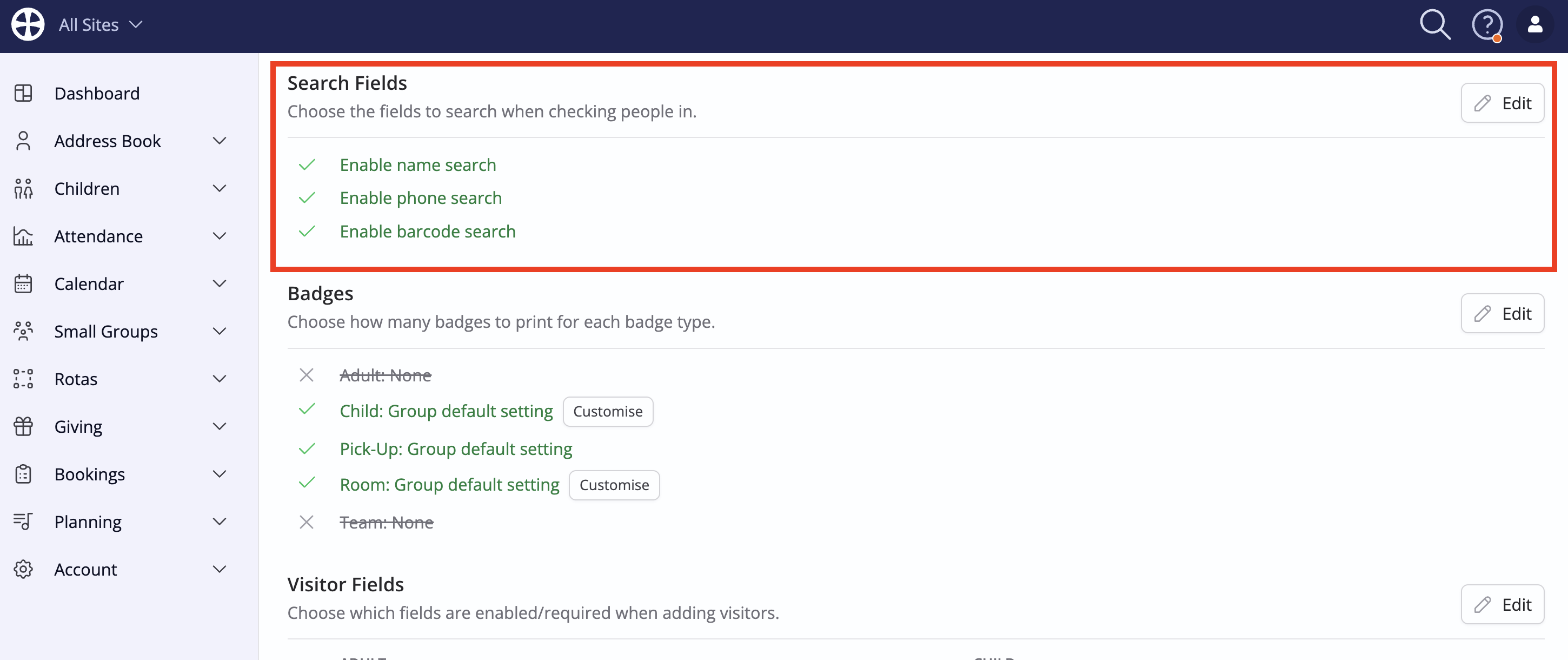
Optionally, you can then further customise Check-In settings for this gathering in the Details tab. First, select how Check-In users can search for people during a session.
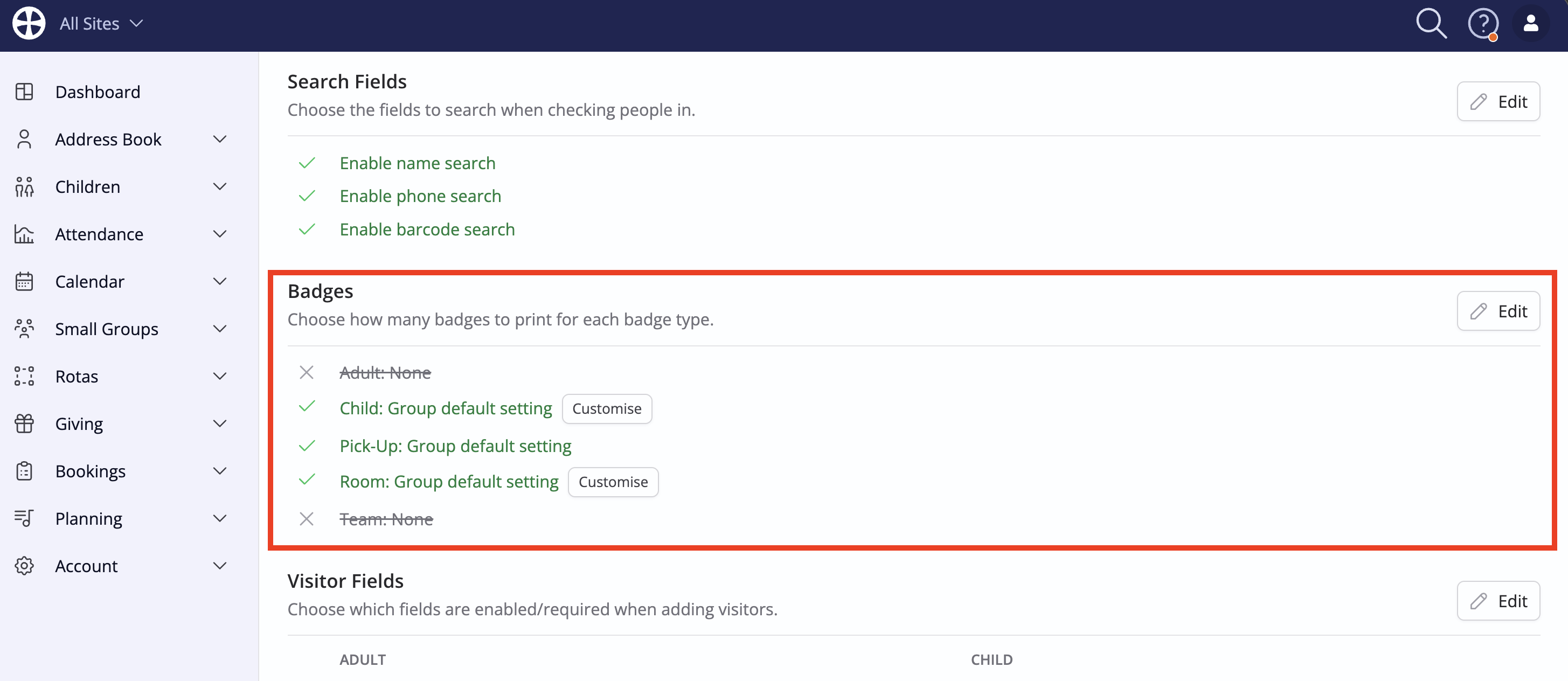
Next, select which badges to print during Sessions created from this gathering.
Top Tip! Customising badge content...
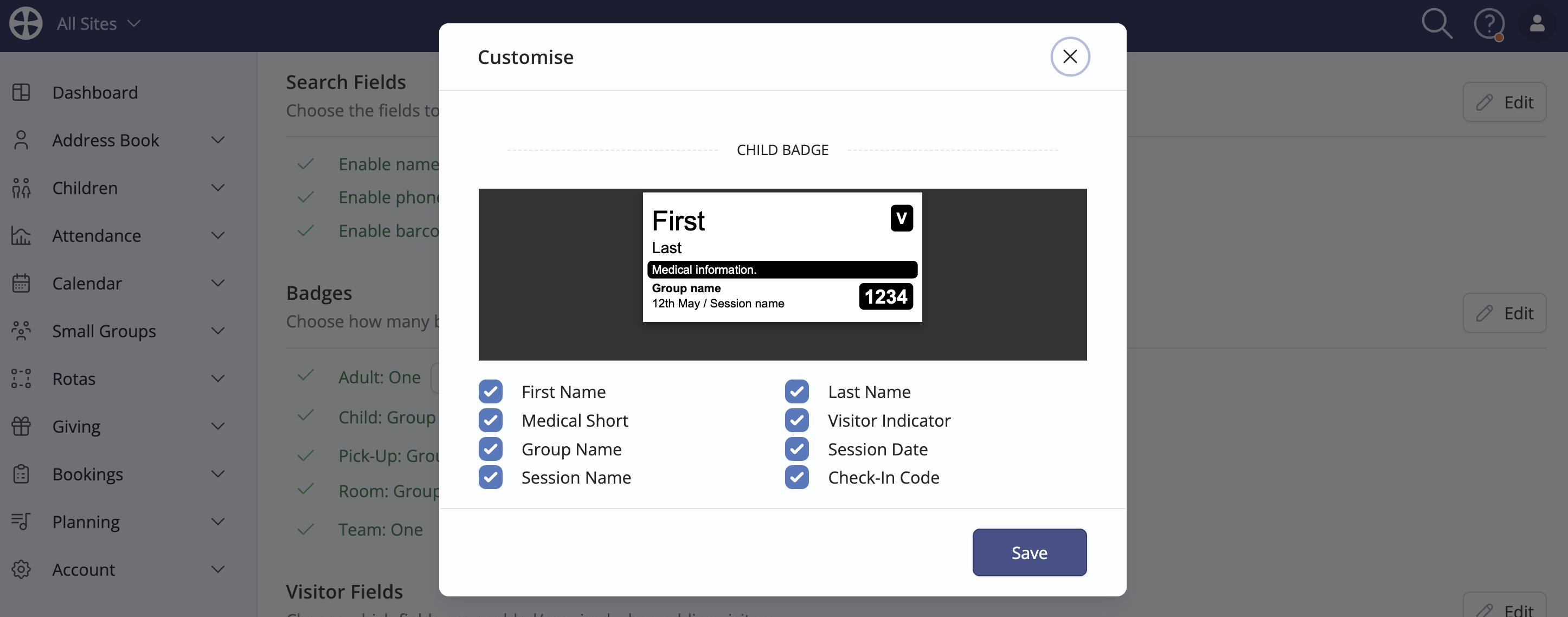
For Adult, Child and Room badges, optionally customise the information displayed on each. Click Customise to configure the settings for each pertinent badge type.
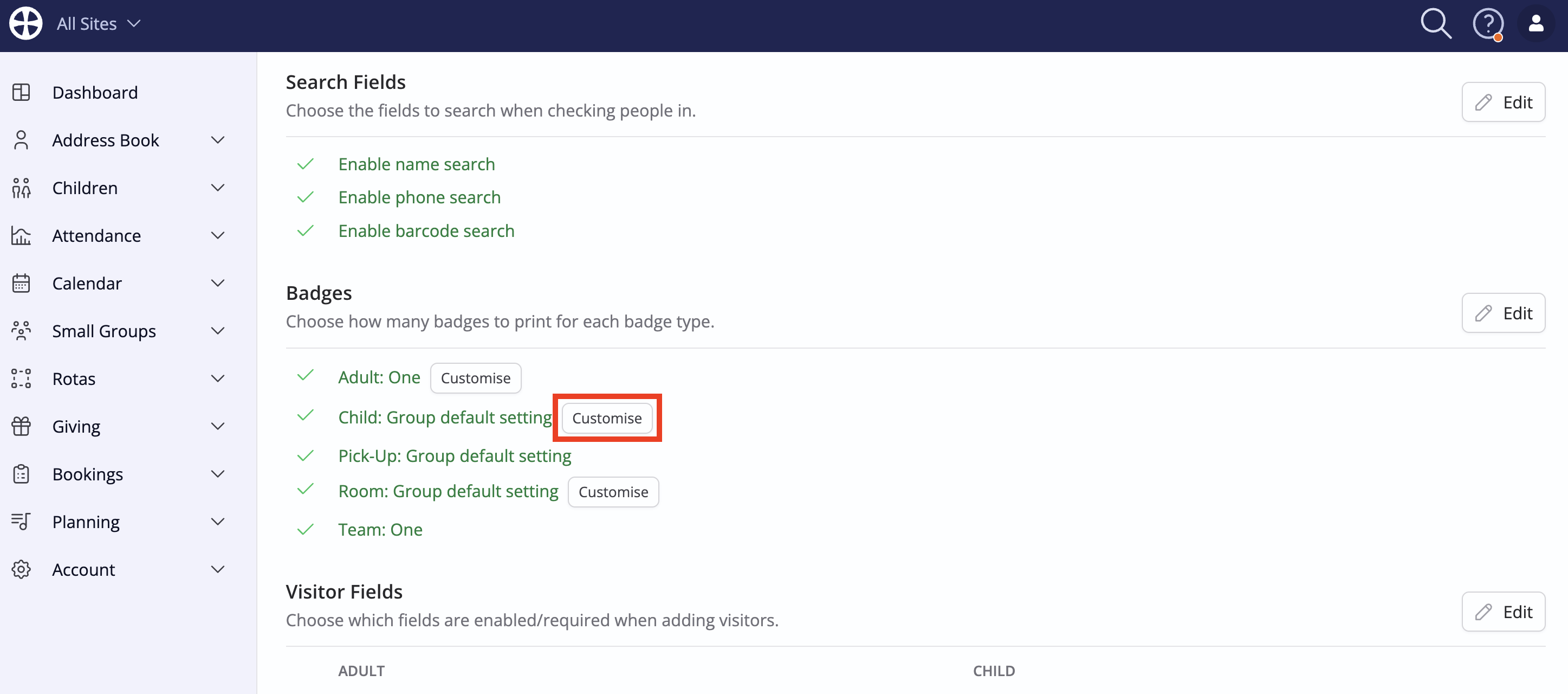
Tick/Untick the options as necessary - the preview badge will automatically update, giving you an idea of what your Check-In badges will look like during a Check-In Session.
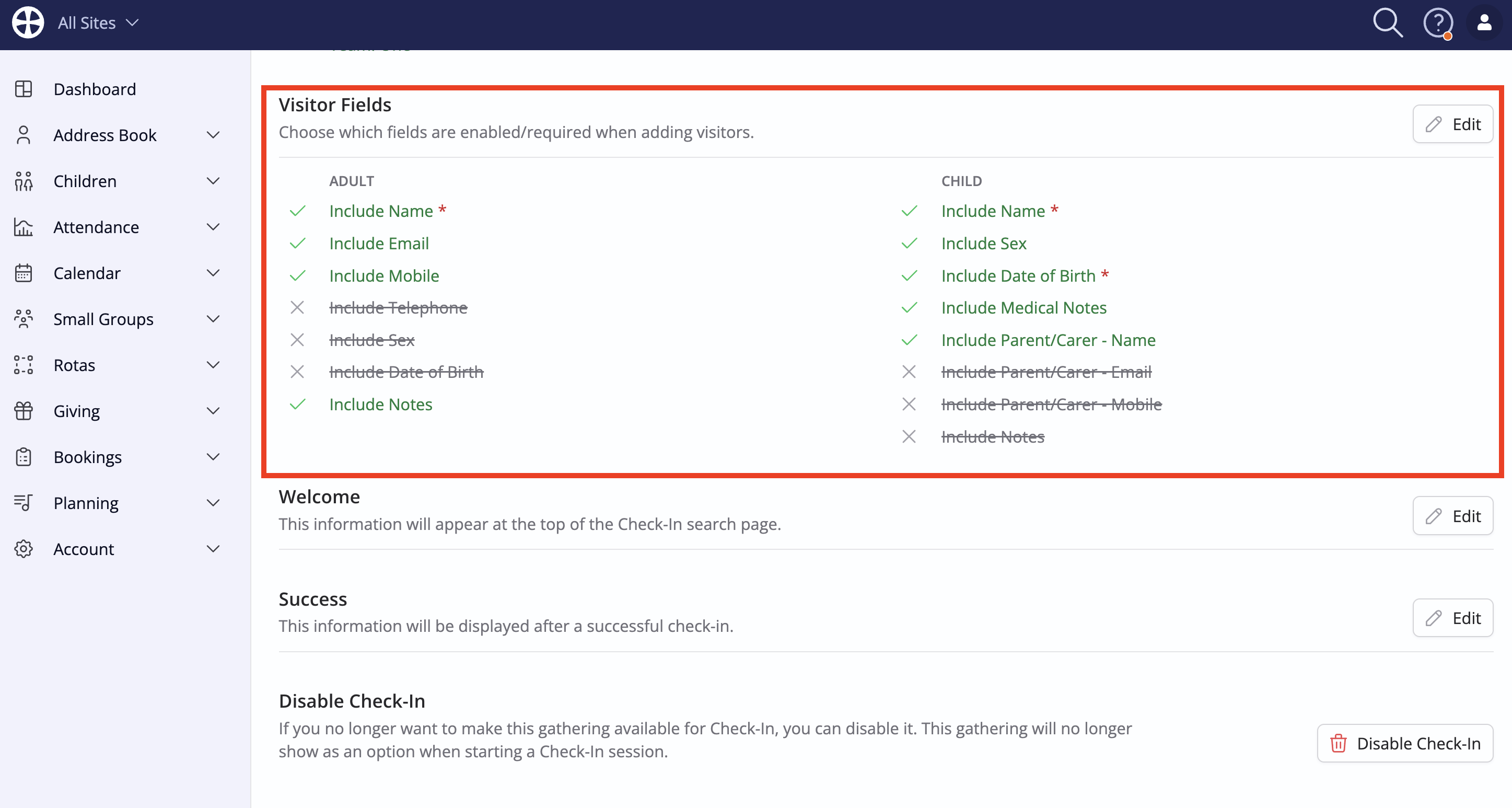
Next, optionally select which fields are visible for Visitors added through the Check-In system.
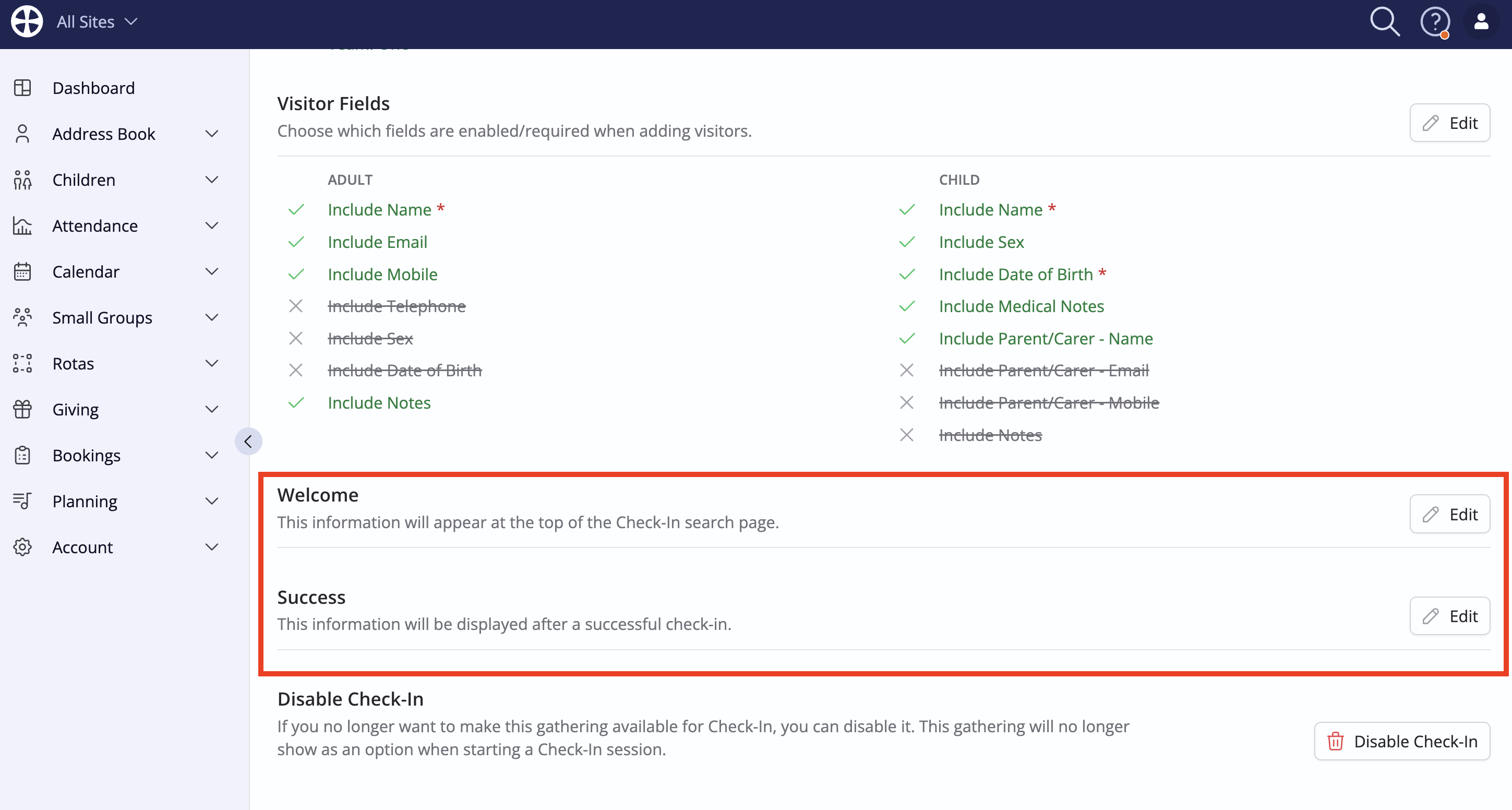
Finally, customise the Welcome message displayed in Check-In, as well as the Success message displayed after a person successfully checks in.
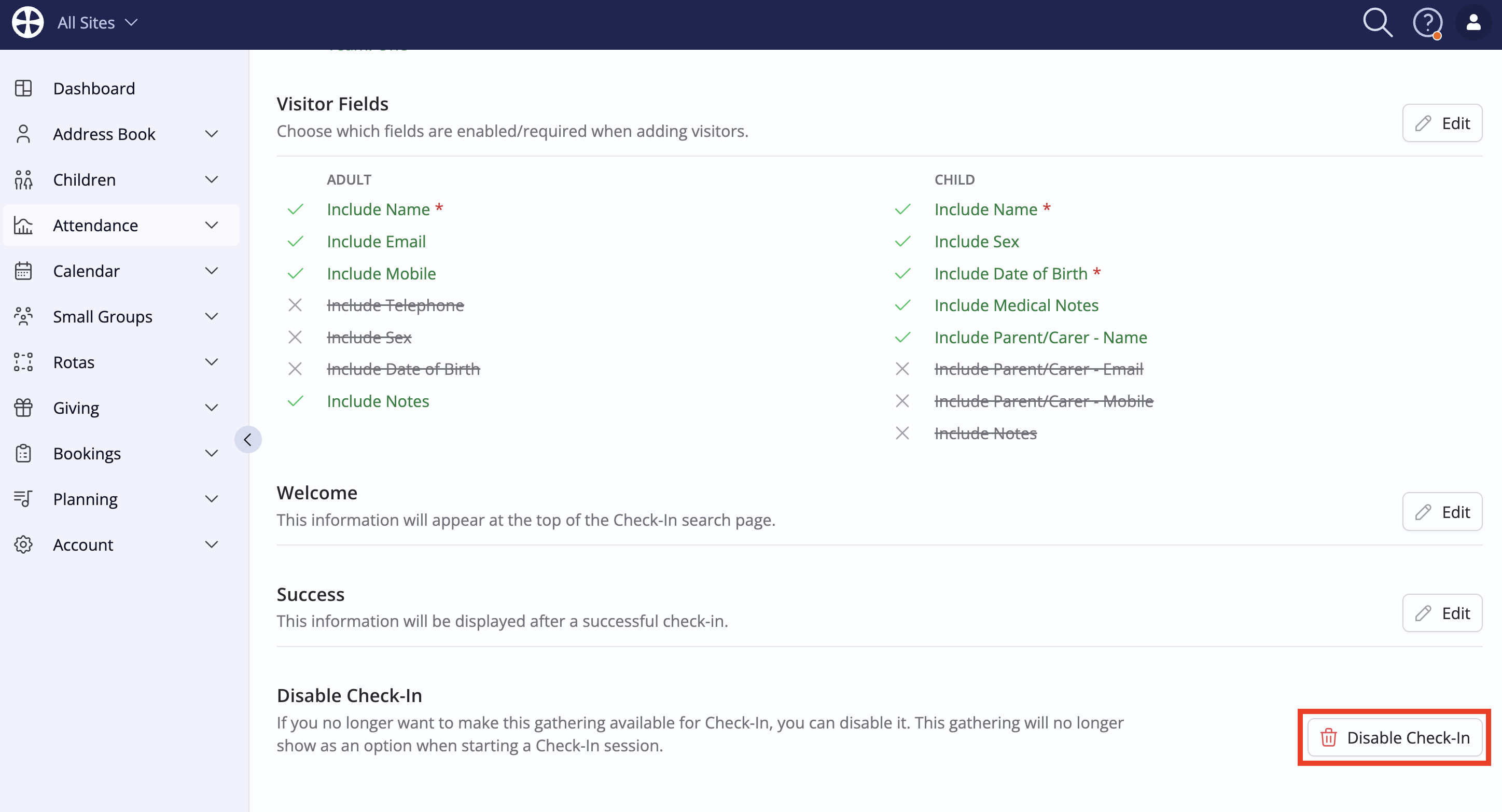
If, in the future, you need to disable Check-In for this gathering, click Disable Check-In.
In the Attendance tab of the gathering's view page, you are then able to configure the Metricsets and Metrics that you wish to apply to this gathering. By default, two metricsets - In-person and Online - are included which you can further customise as required. We will explore this in the next section of this article.