
Configuring attendance metrics for a gathering
Before you begin
To create your gathering, follow the guidance in the support article Adding and managing gatherings. You can then proceed to follow the guidance here.
Having created your gathering, the next step is to add Metricsets and Metrics for each attendance statistic you wish to collect for the gathering. All gatherings have preset metricsets which can be edited and deleted. Each gathering must have at least one metricset and one metric - as mentioned, when a gathering is created, two metricsets with associated metrics are added by default:
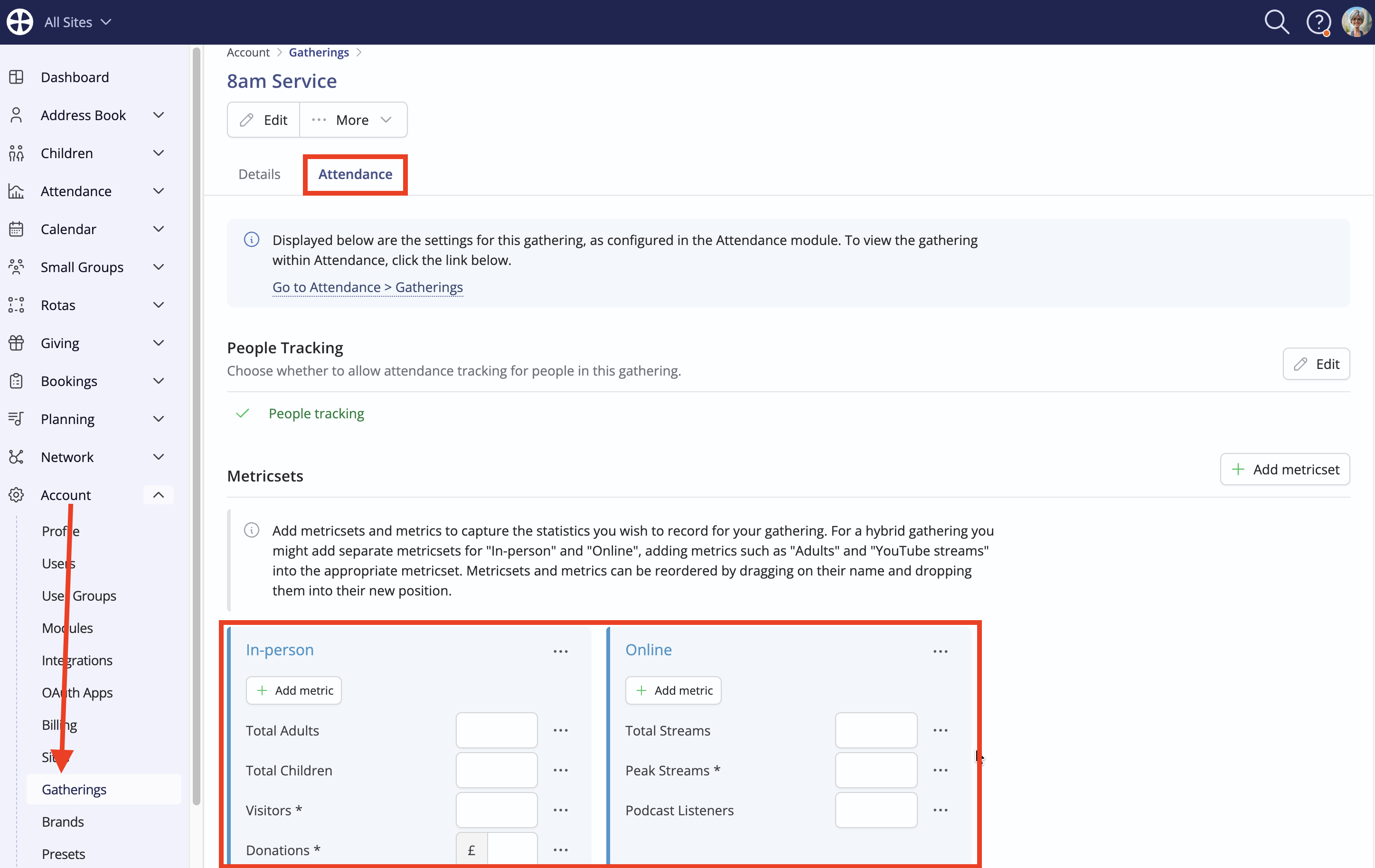
You can select to Edit these metricsets or, alternatively, remove them and begin afresh, clicking Add metricset to add a new metricset:
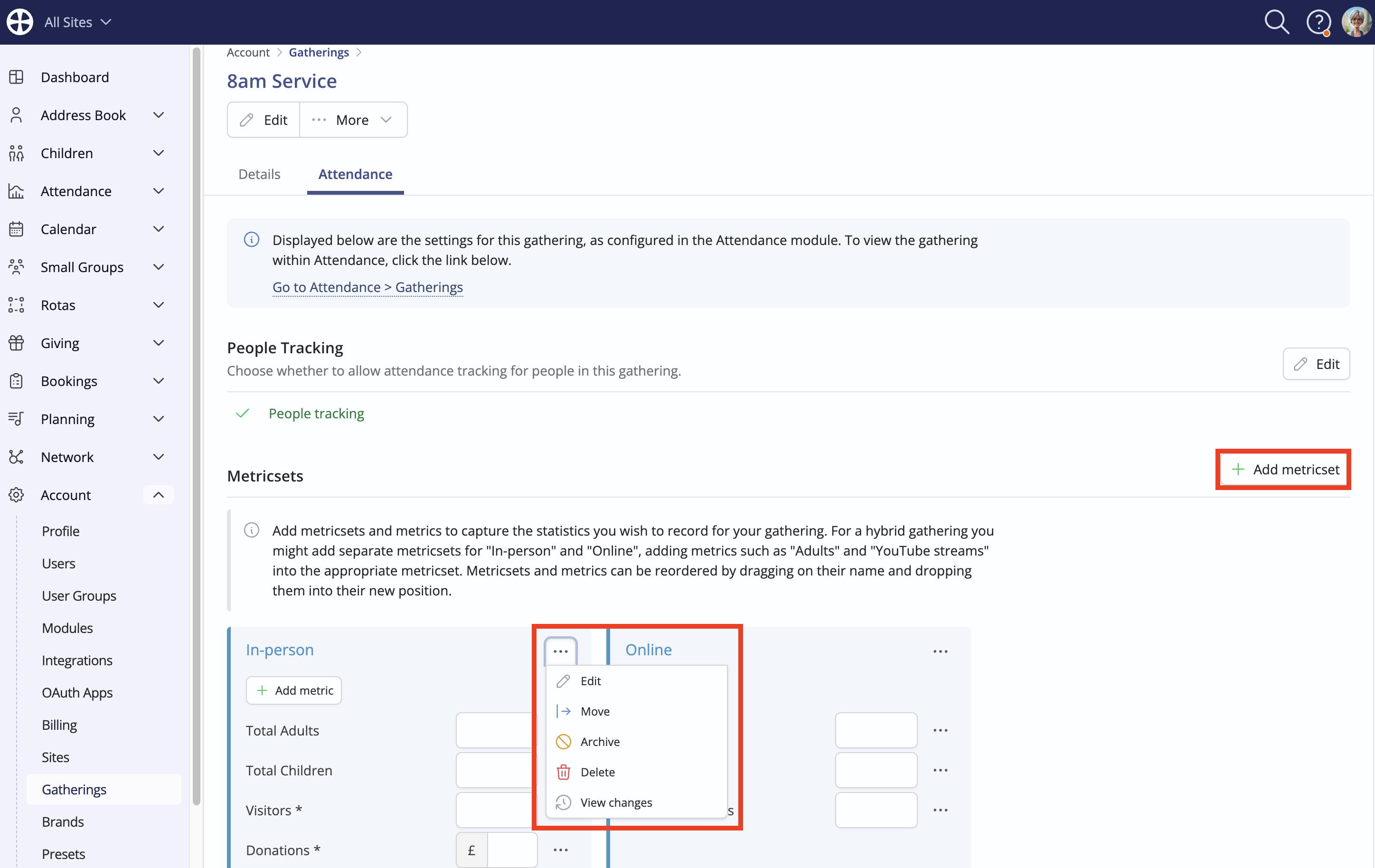
Whether you select to edit or add a fresh metricset, type a suitable Name and click Save.

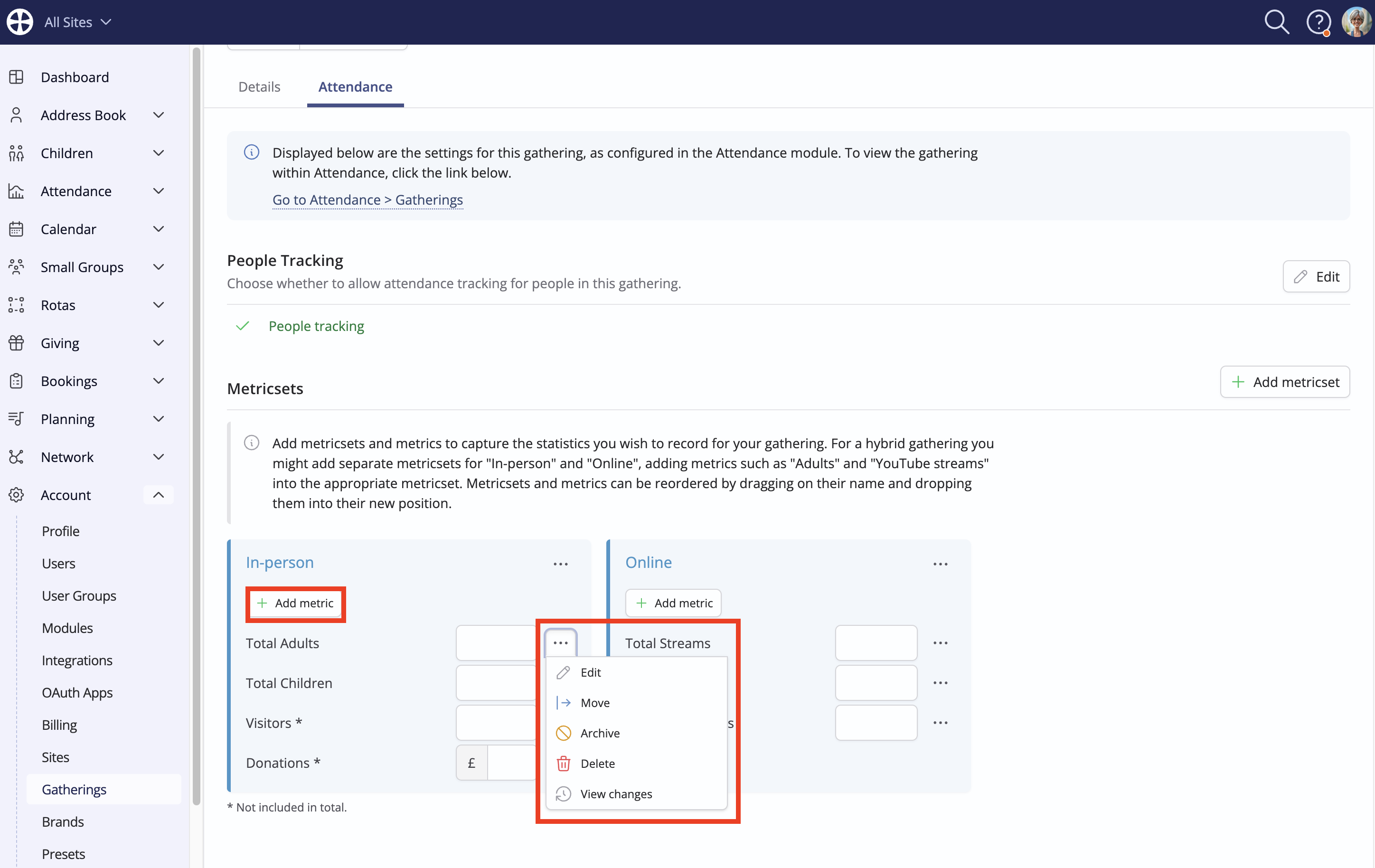
Next, either select to Edit a metric (for an existing metricset) or click Add metric to add a statistic of relevance to a new metricset. For example, you might add metrics for 'Adults' and 'Children', which will be used to collect the attendance 'counts' of those present in the gathering.
On the Add metric (or Edit metric) pop-up, enter a suitable Name and choose the metric Type. You can collect metric data as Number values or Currency values. Currency metrics are ideal for recording details of the 'offering' collected at the gathering. When later adding attendance, the metric values are aggregated to produce the metricset total for each type set to Include in total but you can exclude certain metrics from the metricset totals if you wish. In this way, you can set up a metricset that will collect attendance and non-attendance data, with only the attendance metrics totalled for each type. For example, you might add Number metrics for 'Adults' and 'Children' that are totalled but also collect metrics for 'Visitor Connection Cards' that are excluded from the metricset total. Click Save to add the metric.
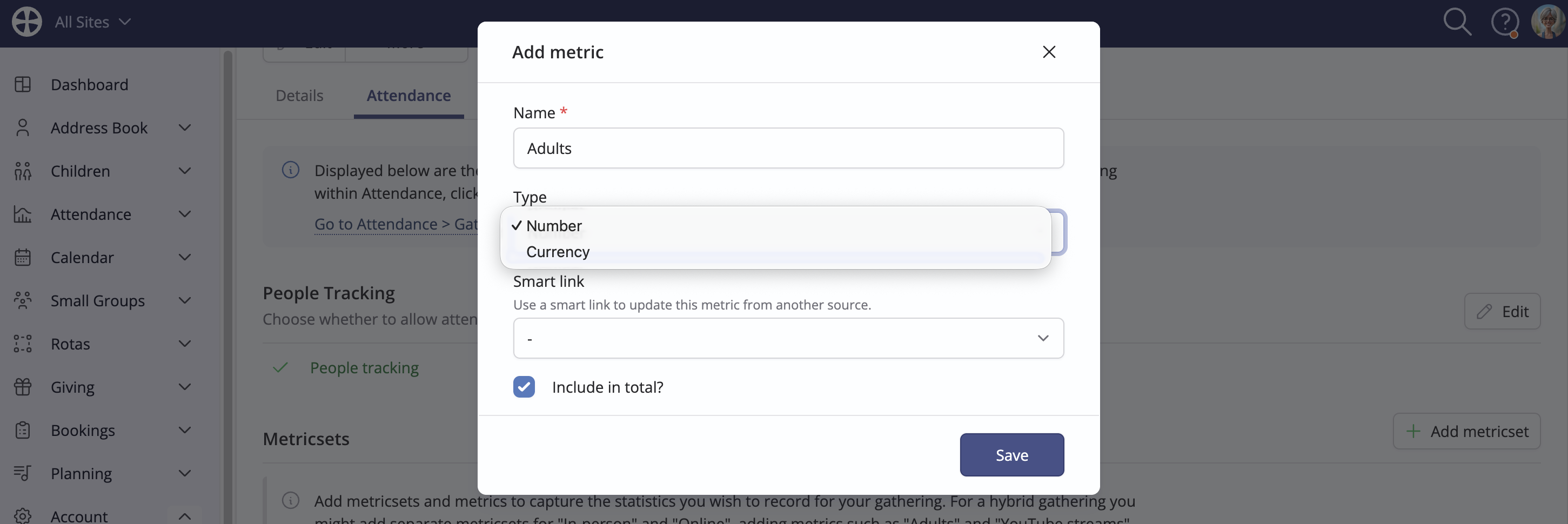
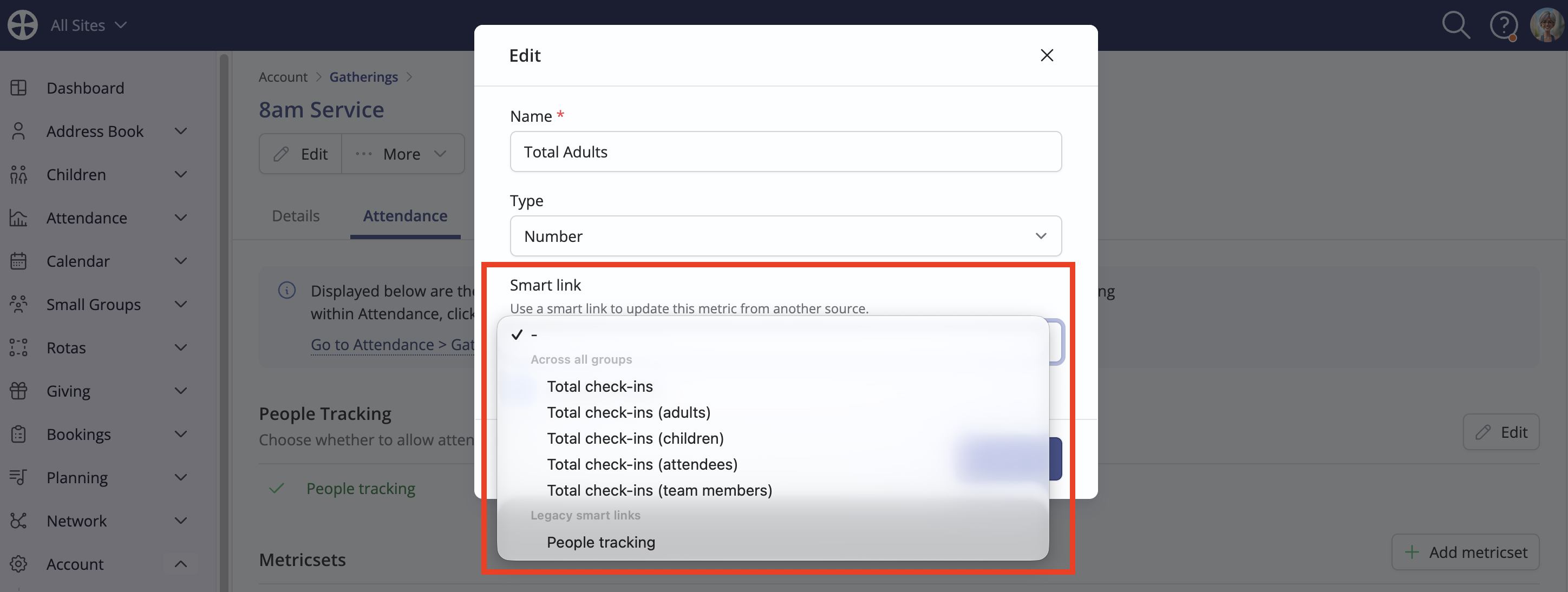
For a gathering with People tracking enabled, you can optionally Smart link a metric to auto-update the data from a selected source. This option isn't shown when people tracking is disabled. In this way, rather than manually entering metric values to record attendance, you can lock the metric so that it auto-populates with the data from people tracking as you tick the names of attendees. A smart linked metric is locked and cannot be manually populated with data - the metric data is populated as you tick or untick names when recording people tracking. See the article Adding attendance for a gathering for further information on how this works.
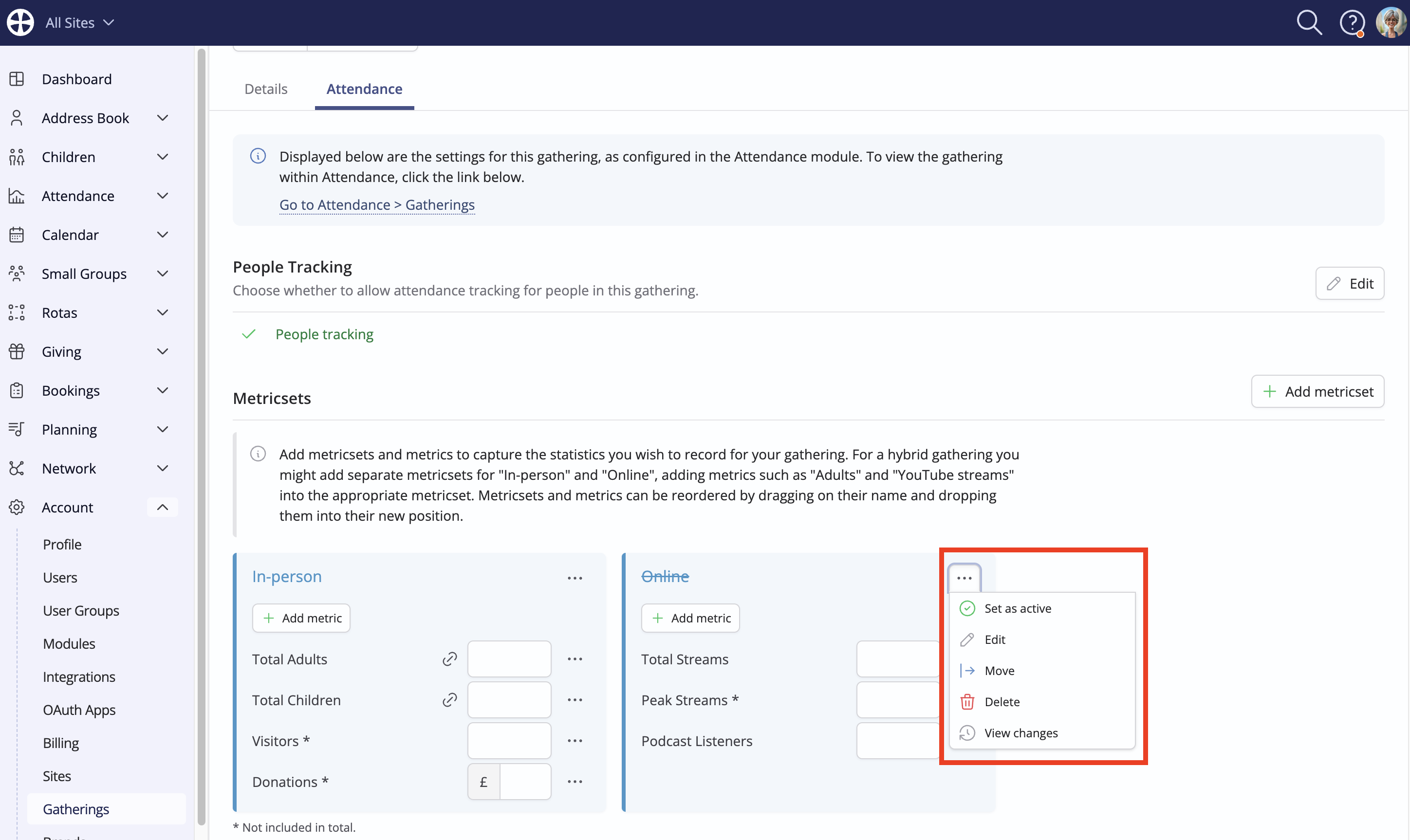
Continue adding metrics and metricsets as required for the gathering. It's helpful to remember that attendance reports can be filtered by gathering and also more granularly by metricset and metric. If your reporting needs later change, you can easily Move metrics between metricsets in the same gathering, Move metricsets between gatherings, Archive metrics and metricsets that are no longer in use and Set as active again if necessary without losing the related attendance data. Finally, note that metrics and metricsets can be reordered within a gathering by dragging the item 'Name' into the preferred order position.
Having added each of your gatherings and set up the metricsets and metrics to record data, you're now ready to begin collecting attendance data - see the related support article Adding gathering attendance.