Adding and managing gatherings

In this article

What is a gathering?
Adding a gathering
Configuring a gathering's Check-In settings
Configuring attendance recording for a gathering
Managing gatherings

What is a gathering?

Gatherings are the central place where you manage the details of your services and meetings, such as a Sunday 10am service or a midweek communion service. Each gathering can be configured to work with the Attendance and Children modules, allowing you to optionally check in both adults and children for specific meetings. Gatherings are site-specific. In a multi-site setup, you’ll need to create a separate gathering for each meeting at each Site. Gatherings are managed by users with at least Manage permissions for the Attendance module in the Account Settings area.

Adding a gathering

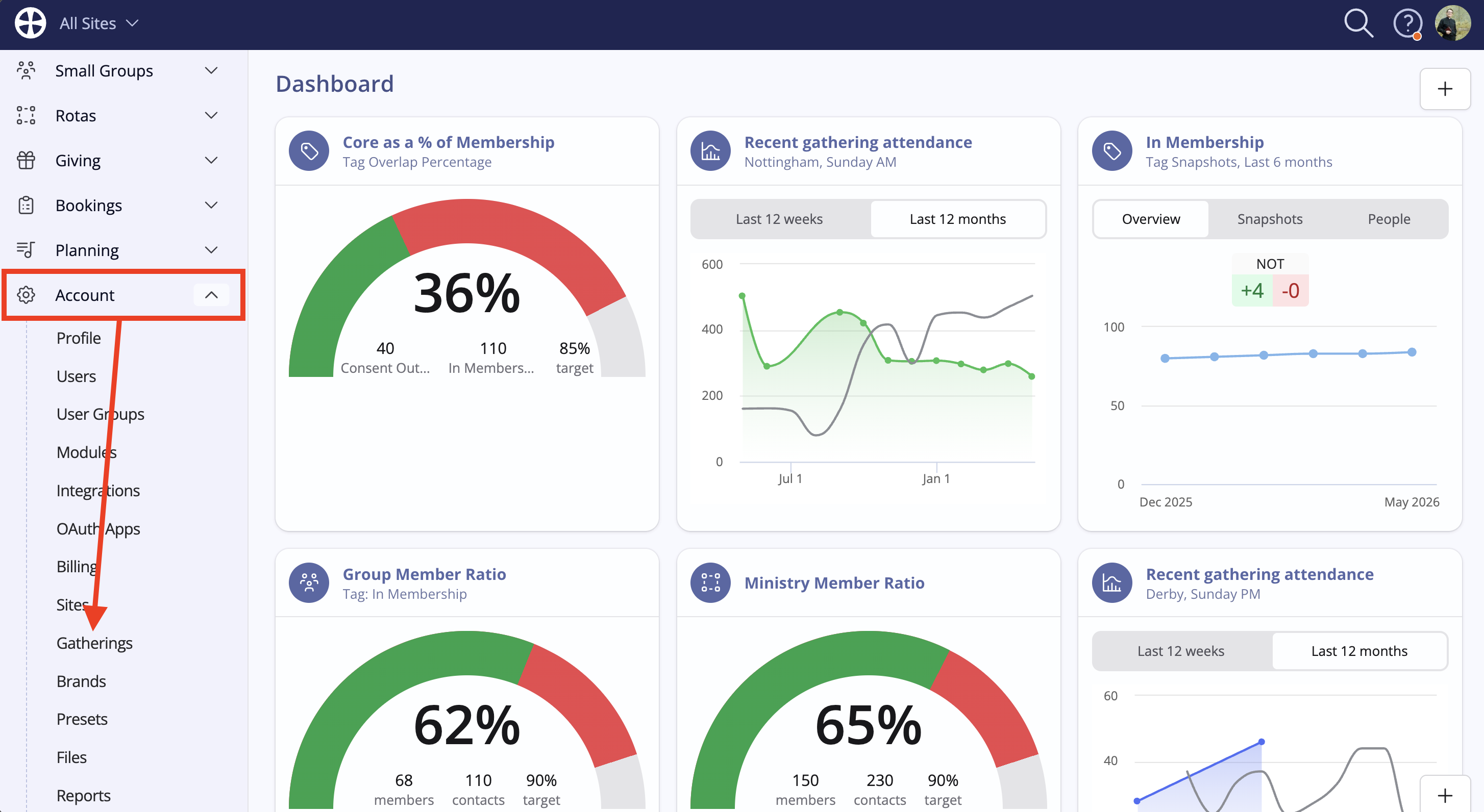
Gatherings can only be added and managed by a user with at least Write permissions for the Attendance module. From the Menu, select Account and then Gatherings:
Click to see a larger version

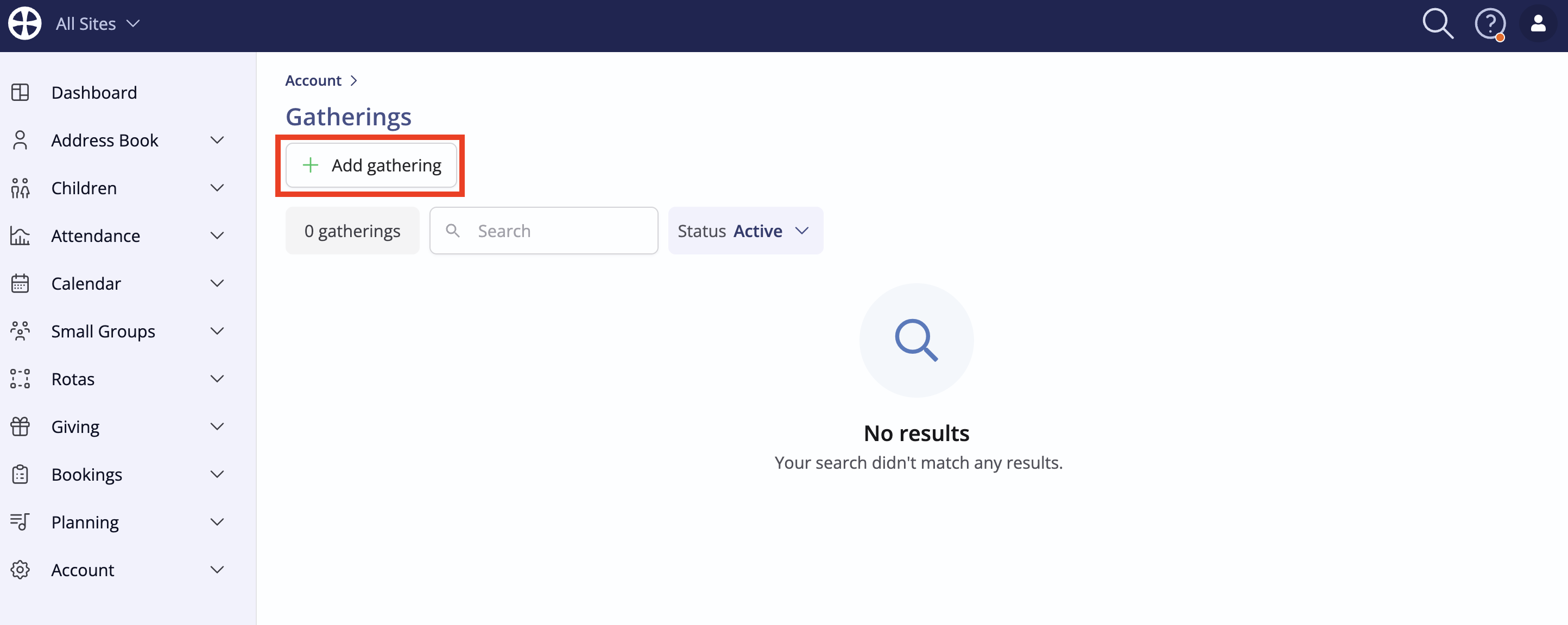
To get started, click Add gathering:

Click to see a larger version

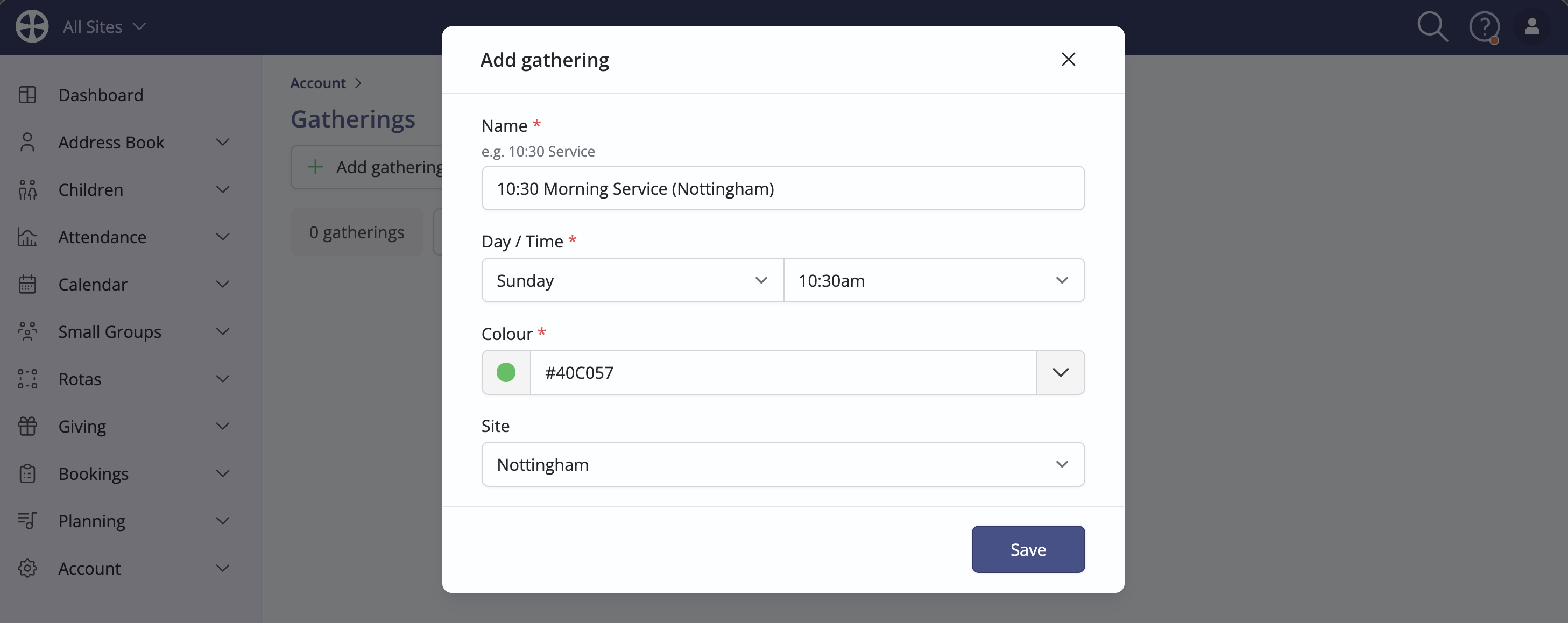
Give your gathering a suitable Name and specify the Day of the week and Time that this regular meeting happens; you can also select a colour to help differentiate between gatherings in a long list. Multi-site customers will also need to specify the Site this gathering is a part of. Click Save to add your gathering.
Click to see a larger version

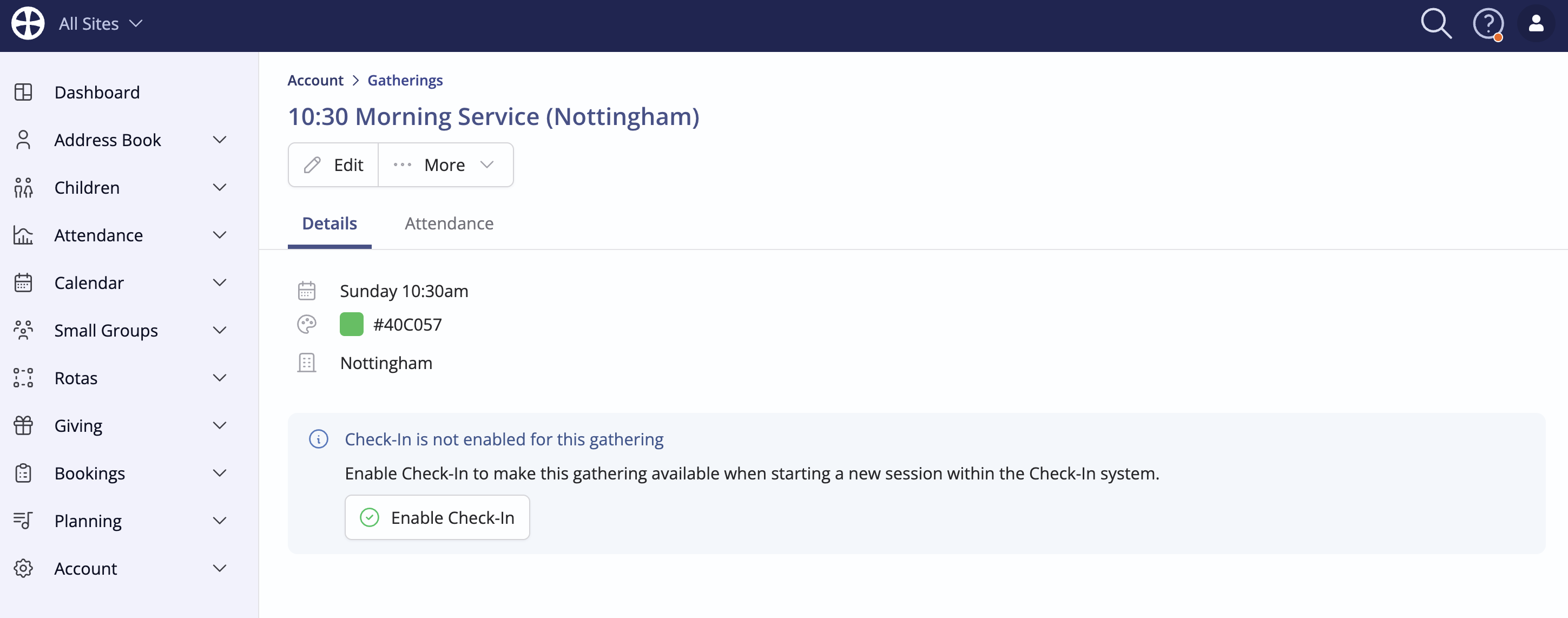
You are now taken to the gathering's view page, where you can manage the gathering's settings.
Click to see a larger version

Configuring a gathering's Check-In settings

From the gathering's view page, if this gathering involves checking in adults, children or both through Check-In, click Enable Check-In:

Click to see a larger version

First, select what types of people will be checked into this gathering - either Adults, Children or All Age. When using Check-In, adults are checked into an Attendance module record and Children are checked into a Children module record. If you select All Age or Children, you'll also need to specify which Children module Group Setup this gathering relates to.

Click to see a larger version

Family Search is enabled by default but you can select to disable that if you prefer. Next, set the Check-In Process and Check-In Code options and customise the size of Check-In badges based on your label stock. Optionally, set a PIN to access the admin area of Check-In sessions created from this gathering:

Click to see a larger version

Click Save and the gathering view page is surfaced. From now on, the gathering will surface in Check-In when creating a session. 

Click to see a larger version

Optionally, you can then further customise Check-In settings for this gathering in the Details tab. First, select how Check-In users can search for people during a session:

Click to see a larger version

Next, select which badges to print during Sessions created from this gathering:

Click to see a larger version

Top Tip! Customising badge content...

For Adult, Child and Room badges, optionally customise the information displayed on each. Click Customise to configure the settings for each pertinent badge type:

Click to see a larger version

Tick/Untick the options as necessary - the preview badge will automatically update, giving you an idea of what your Check-In badges will look like during a Check-In Session.

Click to see a larger version

Next, optionally select which fields are visible for Visitors added through the Check-In system:

Click to see a larger version

Finally, customise the Welcome message displayed in Check-In, as well as the Success message displayed after a person successfully checks in.

Click to see a larger version

If, in the future, you need to disable Check-In for this gathering, click Disable Check-In.

Click to see a larger version

In the Attendance tab of the gathering's view page, you are then able to configure the Metricsets and Metrics that you wish to apply to this gathering. By default, two metricsets - In-person and Online - are included which you can further customise as required. We will explore this in the next section of this article.

Click to see a larger version

Configuring attendance recording for a gathering

In the last section, we added a gathering. We'll now add Metricsets and Metrics for each attendance statistic you wish to collect for the gathering. As previously mentioned, all gatherings have preset metricsets which can be edited and deleted. Each gathering must have at least one metricset and one metric - as noted above, when a gathering is created, two metricsets with associated metrics are added by default:

Click to see a larger version

You can select to Edit these metricsets or, alternatively, remove them and begin afresh, clicking Add metricset to add a new metricset:

Click to see a larger version

Whether you select to edit or add a fresh metricset, type a suitable Name and click Save.

Click to see a larger version

Next, either select to Edit a metric (for an existing metricset) or click Add metric to add a statistic of relevance to a new metricset. For example, you might add metrics for 'Adults' and 'Children', which will be used to collect the attendance 'counts' of those present in the gathering.

Click to see a larger version

On the Add metric (Edit metric) pop-up, enter a suitable Name and choose the metric Type. You can collect metric data as Number values or Currency values. Currency metrics are ideal for recording details of the 'offering' collected at the gathering. When later adding attendance, the metric values are aggregated to produce the metricset total for each type set to Include in total but you can exclude certain metrics from the metricset totals if you wish. In this way, you can set up a metricset that will collect attendance and non-attendance data, with only the attendance metrics totalled for each type. For example, you might add Number metrics for 'Adults' and 'Children' that are totalled but also collect metrics for 'Visitor Connection Cards' that are excluded from the metricset total. Click Save to add the metric.

Click to see a larger version

For a gathering with People tracking enabled, you can optionally Smart link a metric to auto-update the data from a selected source. This option isn't shown when people tracking is disabled. In this way, rather than manually entering metric values to record attendance, you can lock the metric so that it auto-populates with the data from people tracking as you tick the names of attendees. Note that only Address Book contacts can be tracked, so smart linking is only suitable for contact metrics. A smart linked metric is locked and cannot be manually populated with data - the metric data is populated as you tick or untick names when recording people tracking. See the article Adding attendance for a gathering for further information on how this works.

Click to see a larger version

Continue adding metrics and metricsets as required for the gathering. It's helpful to remember that attendance reports can be filtered by gathering and also more granularly by metricset and metric. If your reporting needs later change, you can easily Move metrics between metricsets in the same gathering, Move metricsets between gatherings, Archive metrics and metricsets that are no longer in use and Set as active again if necessary without losing the related attendance data. Finally, note that metrics and metricsets can be reordered within a gathering by dragging the item 'Name' into the preferred order position.

Click to see a larger version

Having added each of your gatherings and set up the metricsets and metrics to record data, you're now ready to begin collecting attendance data - see the related support article Adding gathering attendance.

Managing gatherings

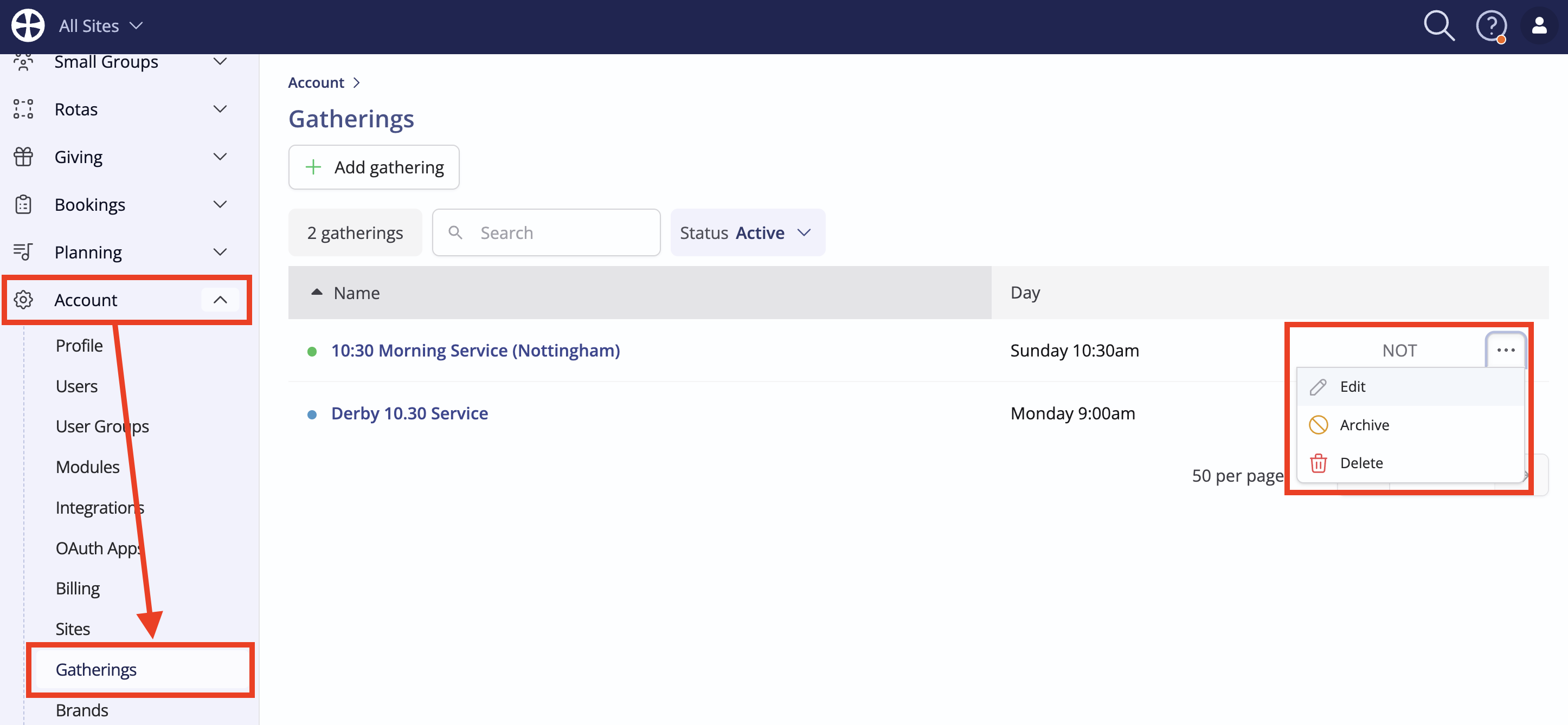
If you need to make changes to a gathering at any point, navigate to the gatherings section of the Account menu. From the action menu, select Edit.
Click to see a larger version

In the same menu, you can optionally Archive or Delete a gathering. Note, it isn't possible to delete an gathering until all Attendance records associated with that gathering are also deleted. Archiving is a less destructive action, preserving any historic attendance records while removing the gathering from the available options for future Attendance recording.

Did this answer your question? Thanks for the feedback There was a problem submitting your feedback. Please try again later.

Still need help? Contact ChurchSuite Contact ChurchSuite