
Migrating session template settings to gatherings
In this article
What's changing and why?
Which session templates do I need to migrate?
Migrating a template
Frequently asked questions
What's changing and why?
Historically, the default session settings for Child Check-In have been stored in a Session Template against a Group Setup in the Children module. Since the Check-In System now supports attendance recording for adults and children - and because there are additional Check-In settings for all-age and adult-only configurations - it makes sense to now centralise all the Check-In settings for adults and children at the account Gathering level.
The purpose of this article is to walk you through using the Migration Tool that we've built to help you migrate your current session template Check-In settings to the relevant account Gathering. You can add a new Gathering if one hasn't yet been created or archive a Session Template that no longer serves a useful purpose.
Importantly, there is no change to the Check-In System's functionality or to your Groups and historic attendance data. Once migration is completed, your Check-In users will be able to start an attendance session for the appropriate gathering.
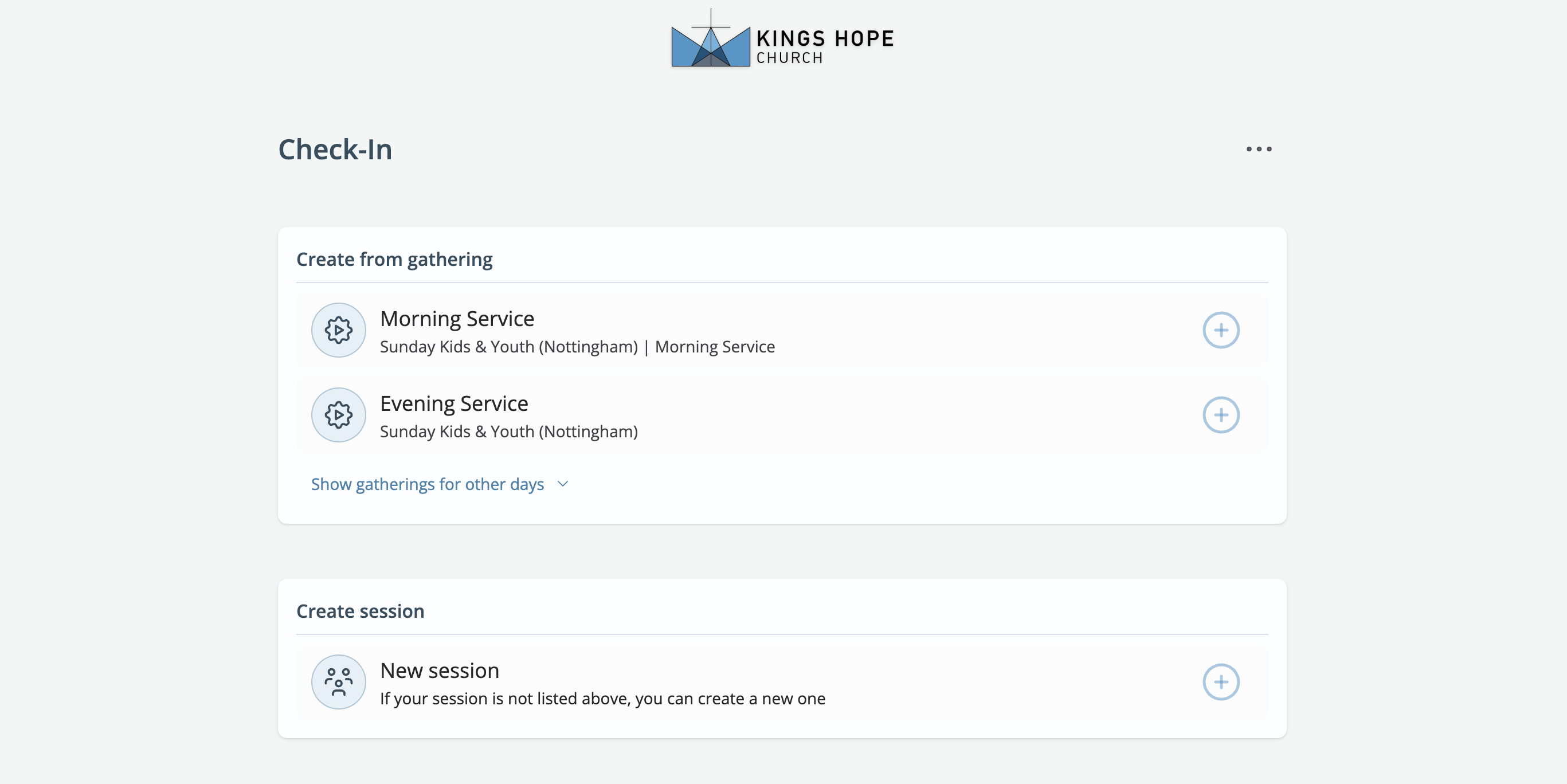
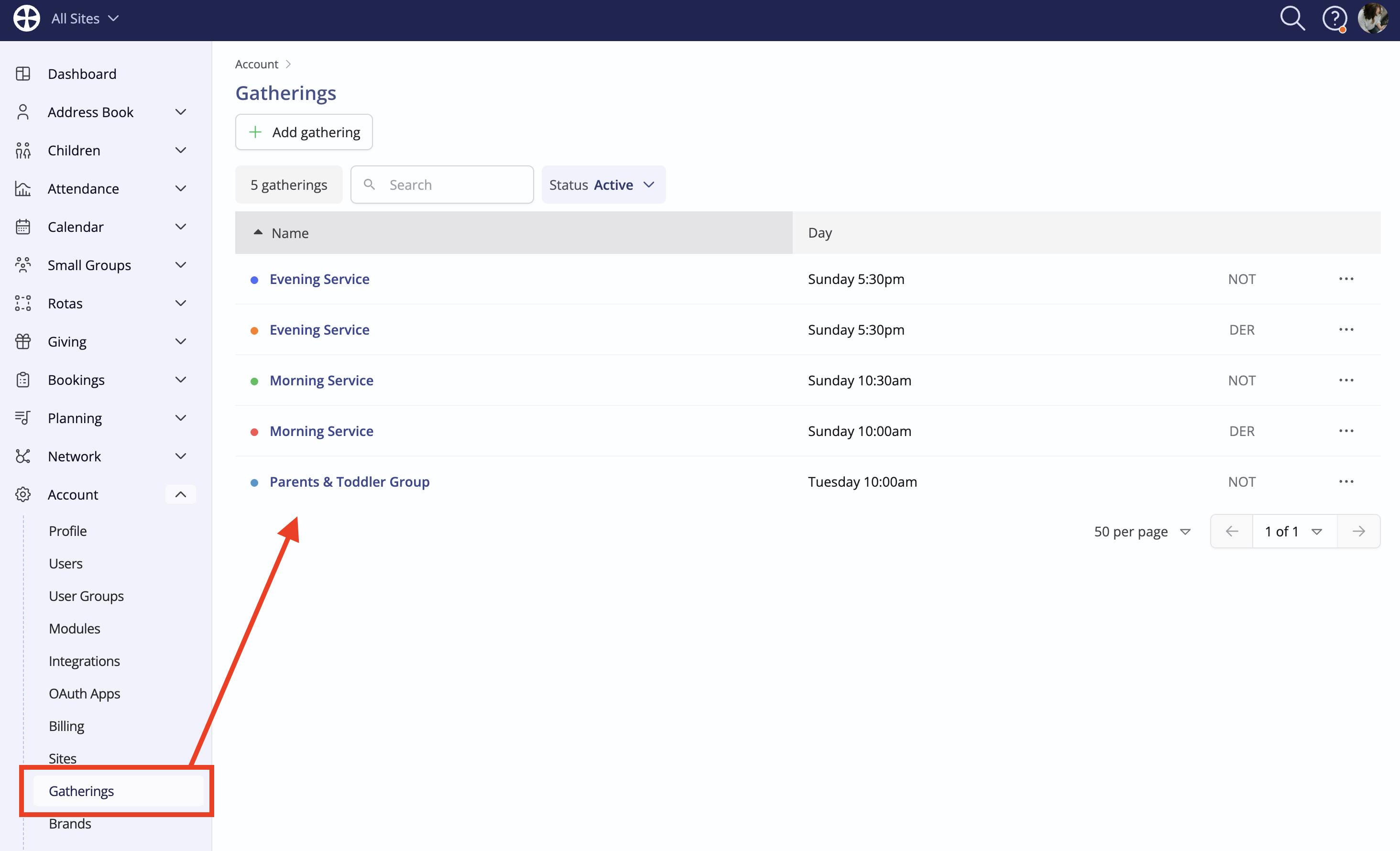
Before reading on, you may find it helpful to check out a related article about Adding and managing gatherings. You will also find it helpful to refamiliarise yourself with the Gatherings that you already have in your Account Settings:
Which session templates do I need to migrate?
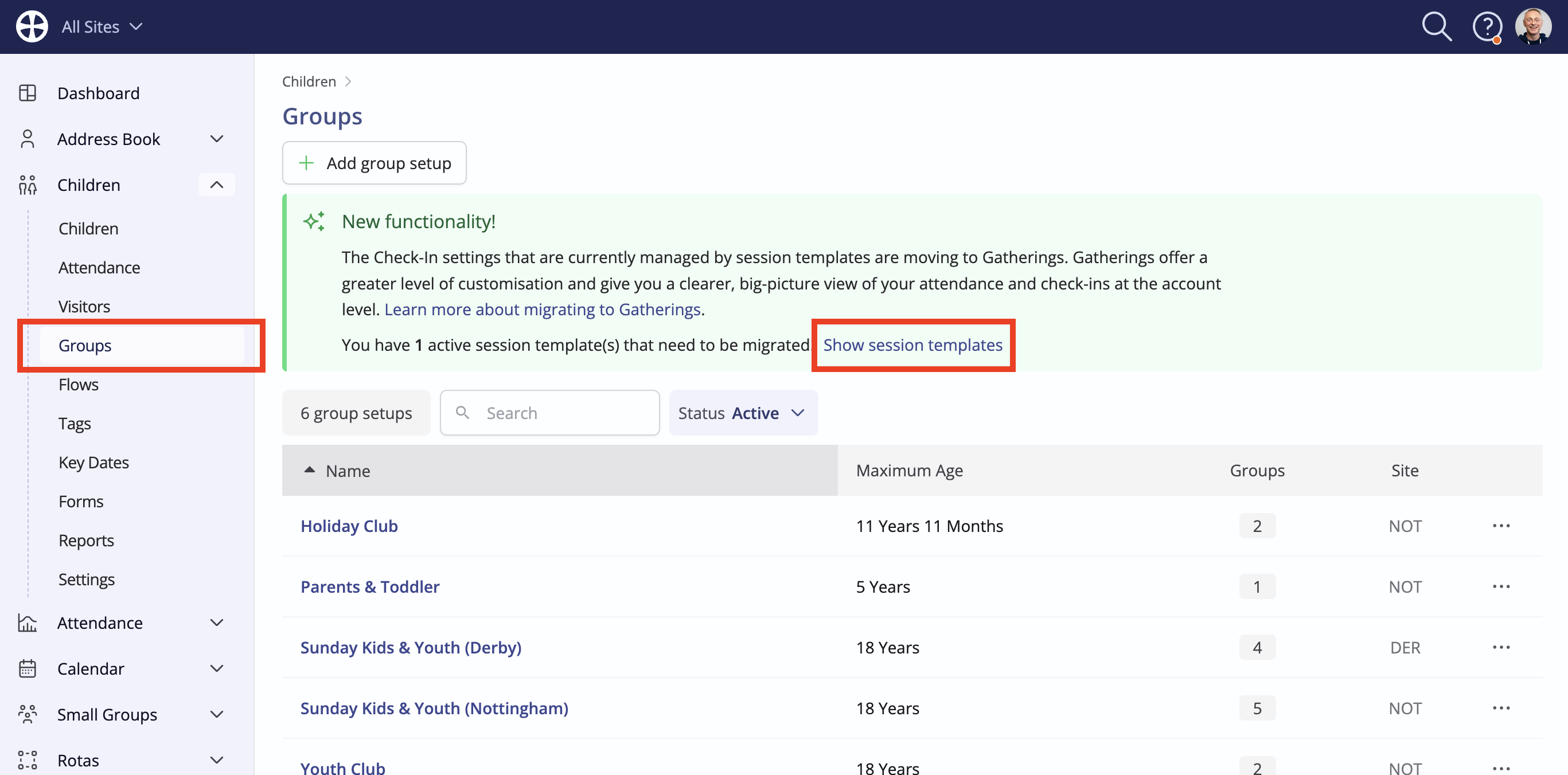
Navigate to the Groups section of the Children module. If you have any session templates that need migrating, you'll see a green banner message and the option to Show session templates that need migrating (or archiving, if they are no longer needed).
Migrating a template
For each template that needs migrating, click on it to open it to view. Note that a group setup may have more than one template, perhaps one for each of your various services or gatherings. Click Migrate now.
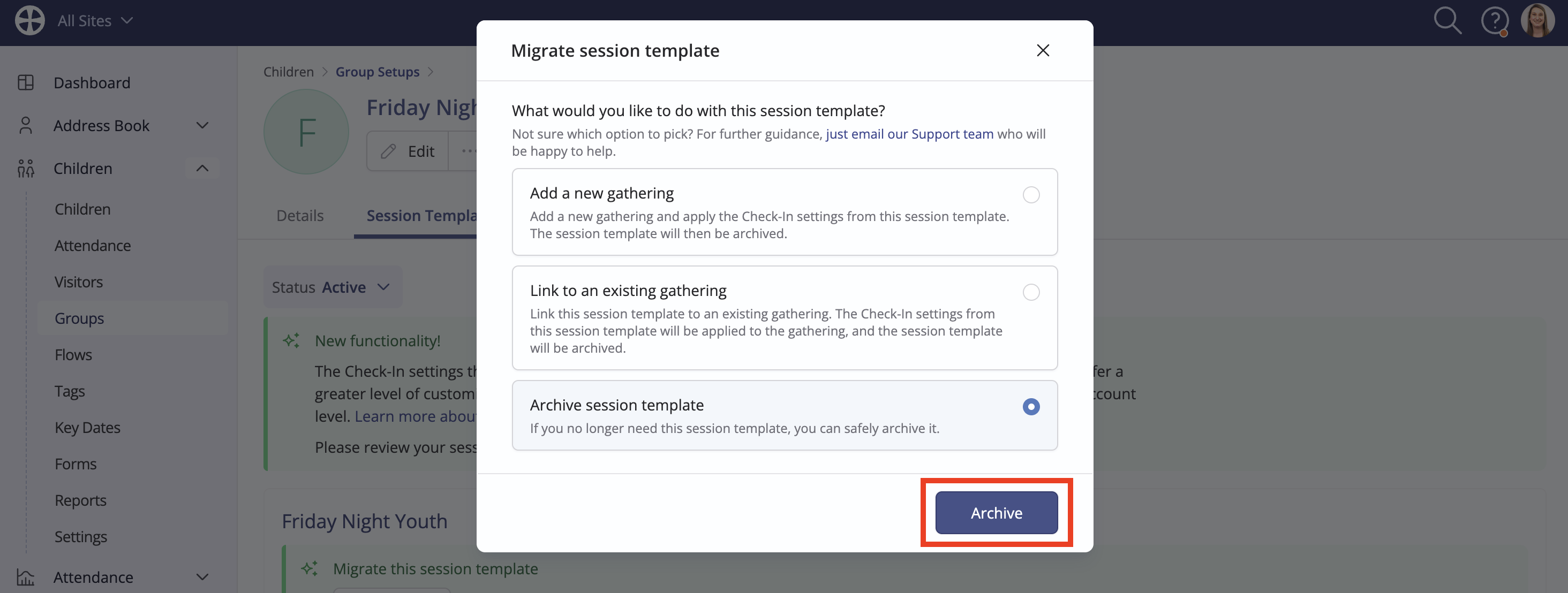
You have three options: Add a new gathering, Link to an existing one or Archive the template:
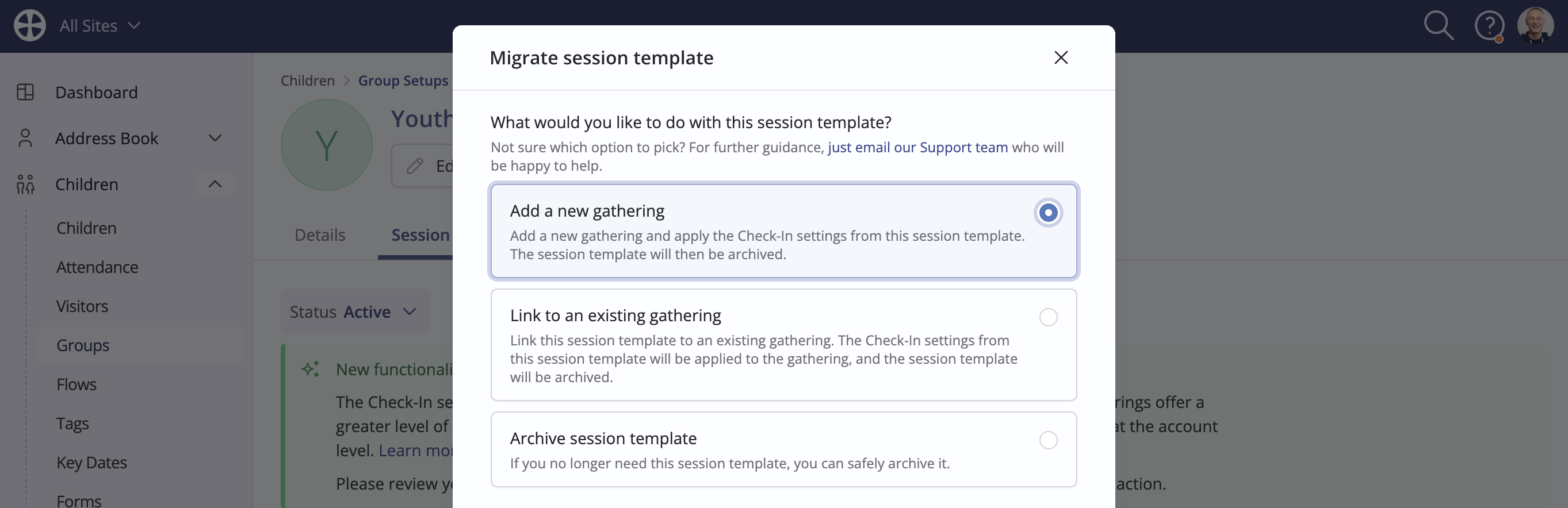
Let's look at each option in turn.
Add a new gathering
This option is suitable where you have not previously added the gathering this Check-In session template relates to. Enter the new gathering details: give it a suitable Name - the session template name is populated by default, but you can change it. Select the gathering Day / Time and choose a Colour, which is used to visually distinguish it when shown in your ChurchSuite modules. For multi-site customers, a gathering is always Site-specific. Click Add and migrate to complete the process
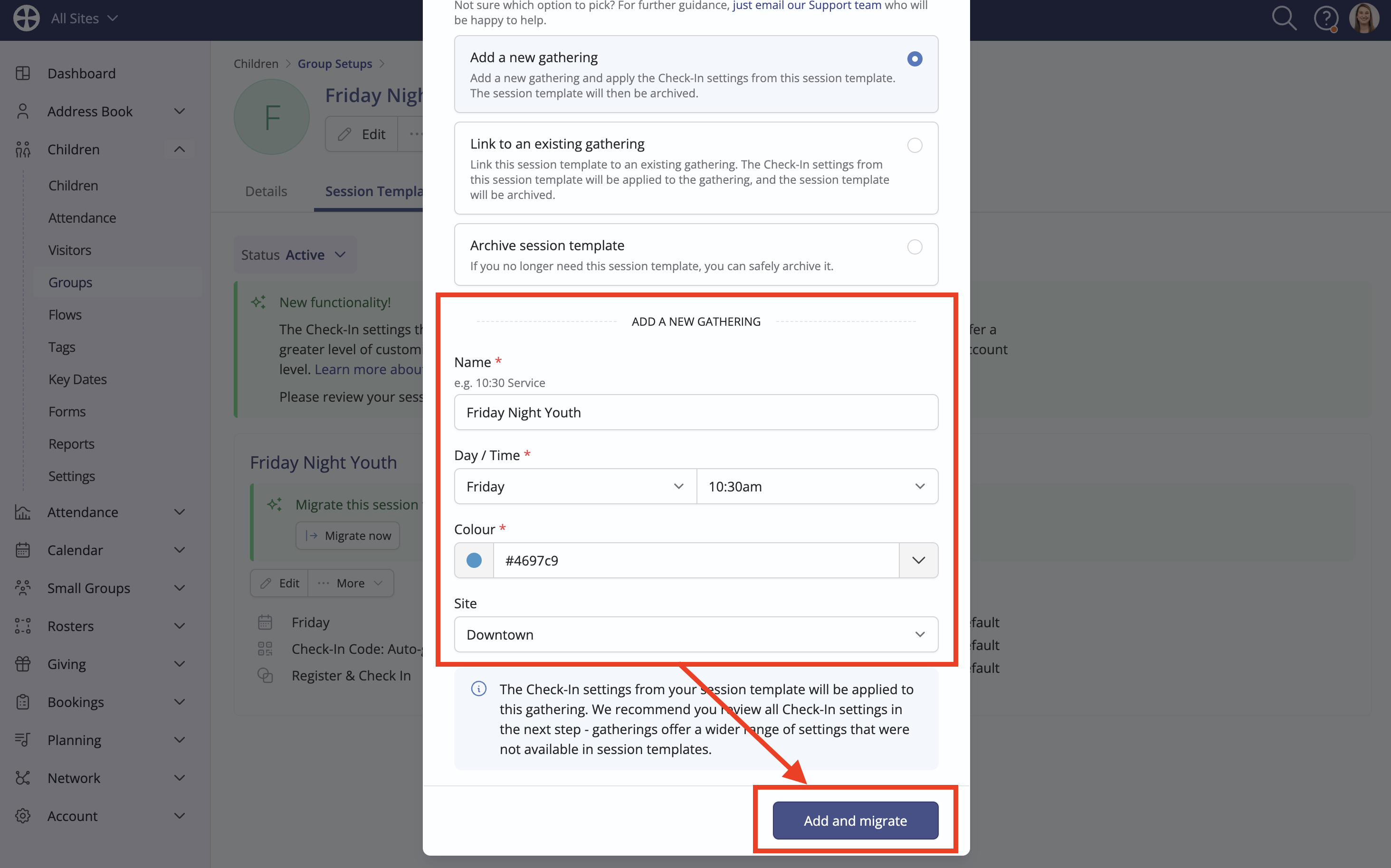
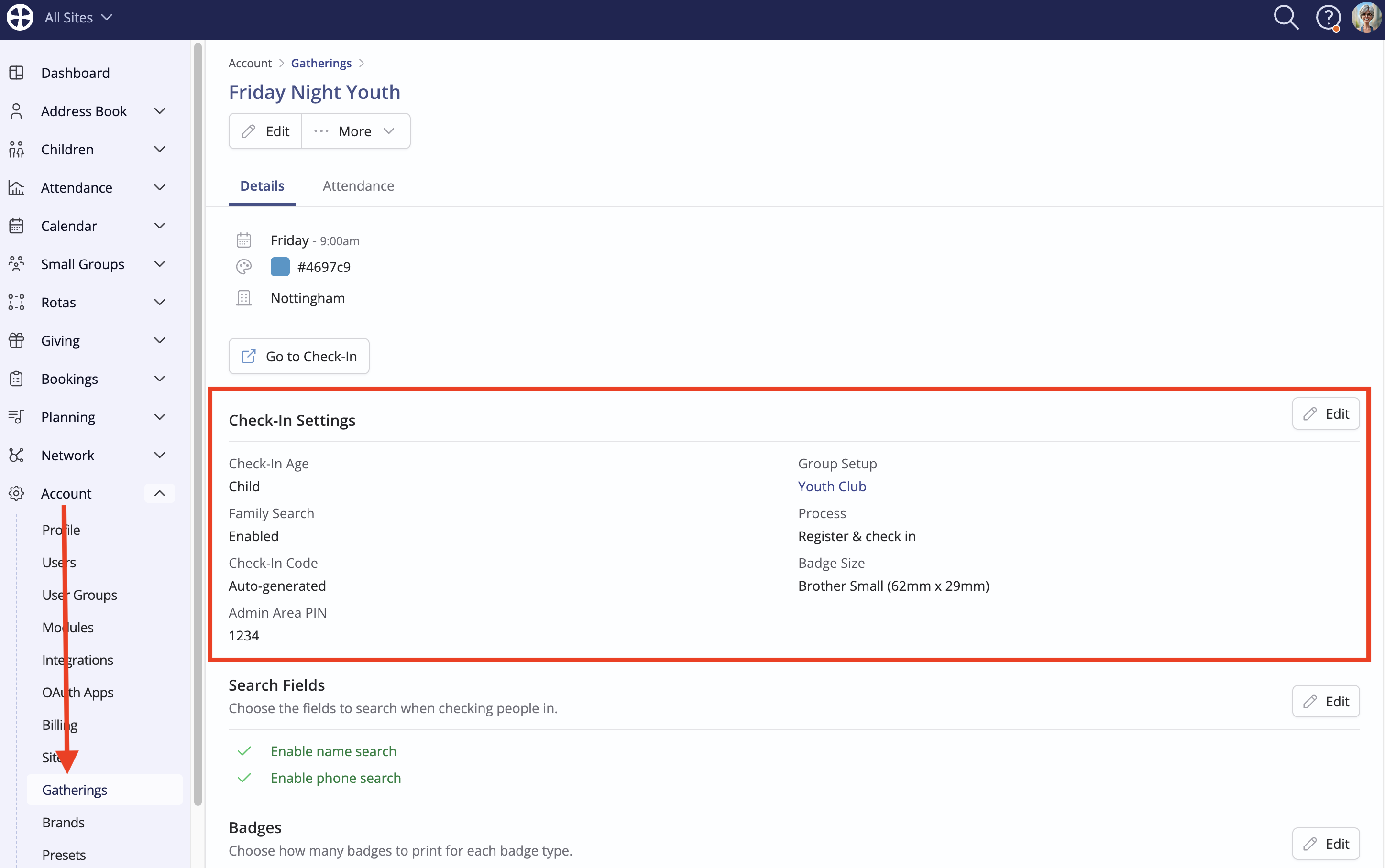
The gathering View is shown, and the former template settings have migrated to the new gathering's Check-In Settings and Badges settings. Take a moment to review all the gathering-specific settings on the Details tab before returning to the Children module's Groups section to continue migrating other templates.
Link to an existing gathering
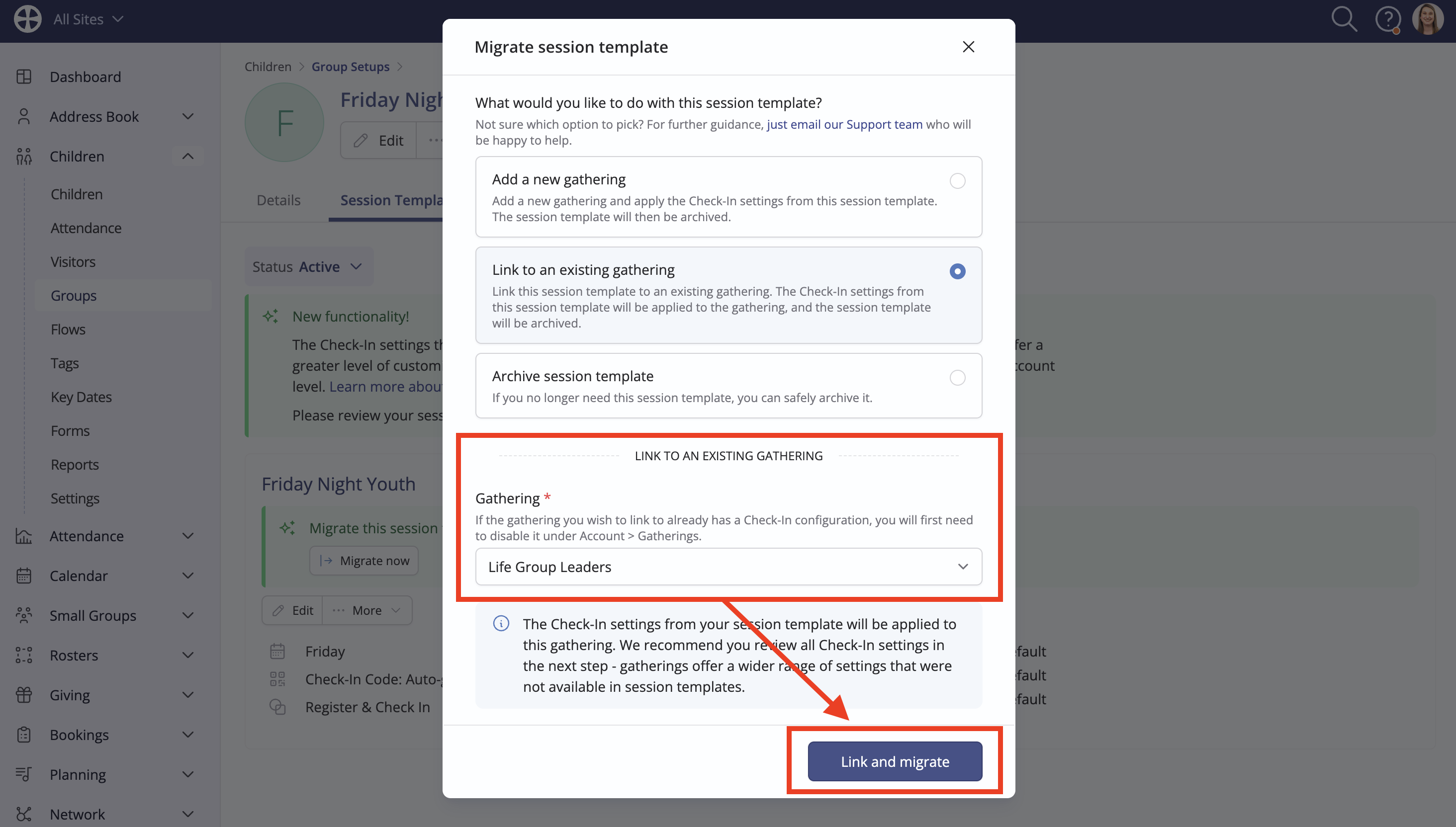
This option is suitable where you have already added each of your gatherings but not yet configured the Check-In settings for the gathering the session template relates to. Select the appropriate gathering to link to and click Link and migrate to migrate the template settings to the gathering.
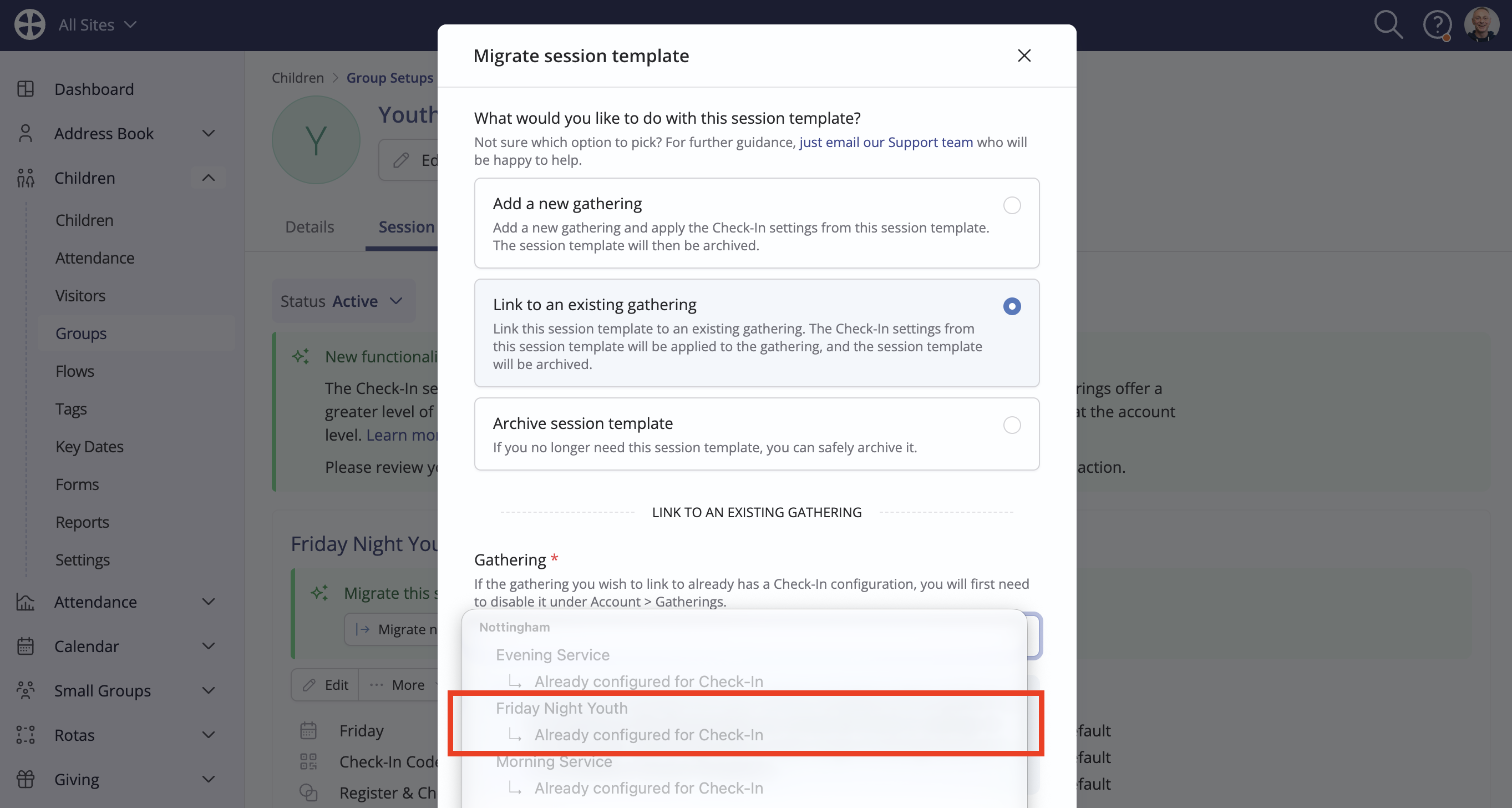
However, if you have previously configured the gathering for Check-In, this will be clearly identified in the list, and you will be unable to choose that gathering again. In this scenario, you can safely archive the session template; no migration is necessary, and you can return to the Children module's Groups section to continue migrating other templates.
If you have clicked Link and migrate (explained above), the gathering View is shown, and the former template settings have migrated to the gathering's Check-In Settings and Badges settings. Take a moment to review all the gathering-specific settings on the Details tab before returning to the Children module's Groups section to continue migrating other templates.
Archive session template
If the session template is no longer needed or if you are unable to link it to an existing gathering because it has already been configured for Check-In, select Archive session template and click Archive. Archiving a template has no impact on the Groups or historical Check-In attendance data. Return to the Children module's Groups section to continue migrating other templates.
Frequently asked questions
| Question | Answer |
| Does migrating a template impact groups or attendance data? | No, groups and historical group attendance data are unaffected by the template migration process or by archiving a session template. |
| Where can I view gatherings? | Gatherings are managed at an account level in your Account Settings. These can be accessed by any User with Write permissions or above for the Children module or Attendance module. Navigate to Account > Gatherings: |
| We have a session template that is currently set to show in the Check-In system on multiple days in the week. How does that get migrated? | Each day of the week that a Check-In session runs for a Group Setup is essentially a separate gathering. Imagine a Kid's Holiday Club running Monday to Wednesday. This will require three separate gatherings. You could migrate the session template to one of the gatherings and then configure the Check-In settings for the other two gatherings with the same settings. Or, you may prefer to simply archive the session template and configure the Check-In settings for all three gatherings. |
| Can I configure the Check-In System differently for each of our gatherings? | Absolutely! With session templates, the Check-In system relied on Children module settings for a single set of Check-In options for all sessions. By contrast, each Gathering has its own Check-In configuration for Check-In settings (inc. Admin PIN), Search Fields, Badges, Visitor Fields, Welcome and Success messages.
The Check-In configuration for each Gathering can be designated as all-age, adult-only or child-only. |
| We use separate group setups and a different check-in process for our children and youth on Sundays. How do we manage this? | It's only possible to link one group setup to each gathering. If you are unable to run your Sunday children and youth ministry as a single group setup, you will need two gatherings for the one gathering: one linked to the children setup and one linked to the youth setup; each set with the appropriate check-in process. |