Send My ChurchSuite invitations to your members
In this article
Introduction
Customising the My ChurchSuite invitation emails
Allowing My ChurchSuite login
Sending individual invitations
Bulk-sending invitations
Managing the My ChurchSuite invitation process
Introduction
My ChurchSuite is the ideal way for members to stay connected and up-to-date with everything that's going on. It is designed to help maximise member engagement. Through My ChurchSuite, members can manage their own details and those of their children, sign up for events, join small groups, stay on top of the rotas they're serving on and much more!
Access to My ChurchSuite is granted through an invitation process initiated and controlled within your ChurchSuite account, allowing you to fully manage people's access. Note that My ChurchSuite invitations sent through the Children module are sent to the email address specified in the Child Email field, which can be a parent/carer email address or the child's email address.
Members can access My ChurchSuite through any web browser on any device or using the free iOS or Android apps available from the respective app stores. Before proceeding, please see the related support article titled 'Activating My ChurchSuite'.
Families with shared email addresses
My ChurchSuite can be accessed individually by family members who share the same email address. While the login email address is the same, each family member can access their My ChurchSuite profile with their own password. If family members share the same email address and password, they will be presented with a list of matching accounts to choose from:

Follow the instructions in this article to send each family member their My ChurchSuite invitation.
Customising the My ChurchSuite invitation emails
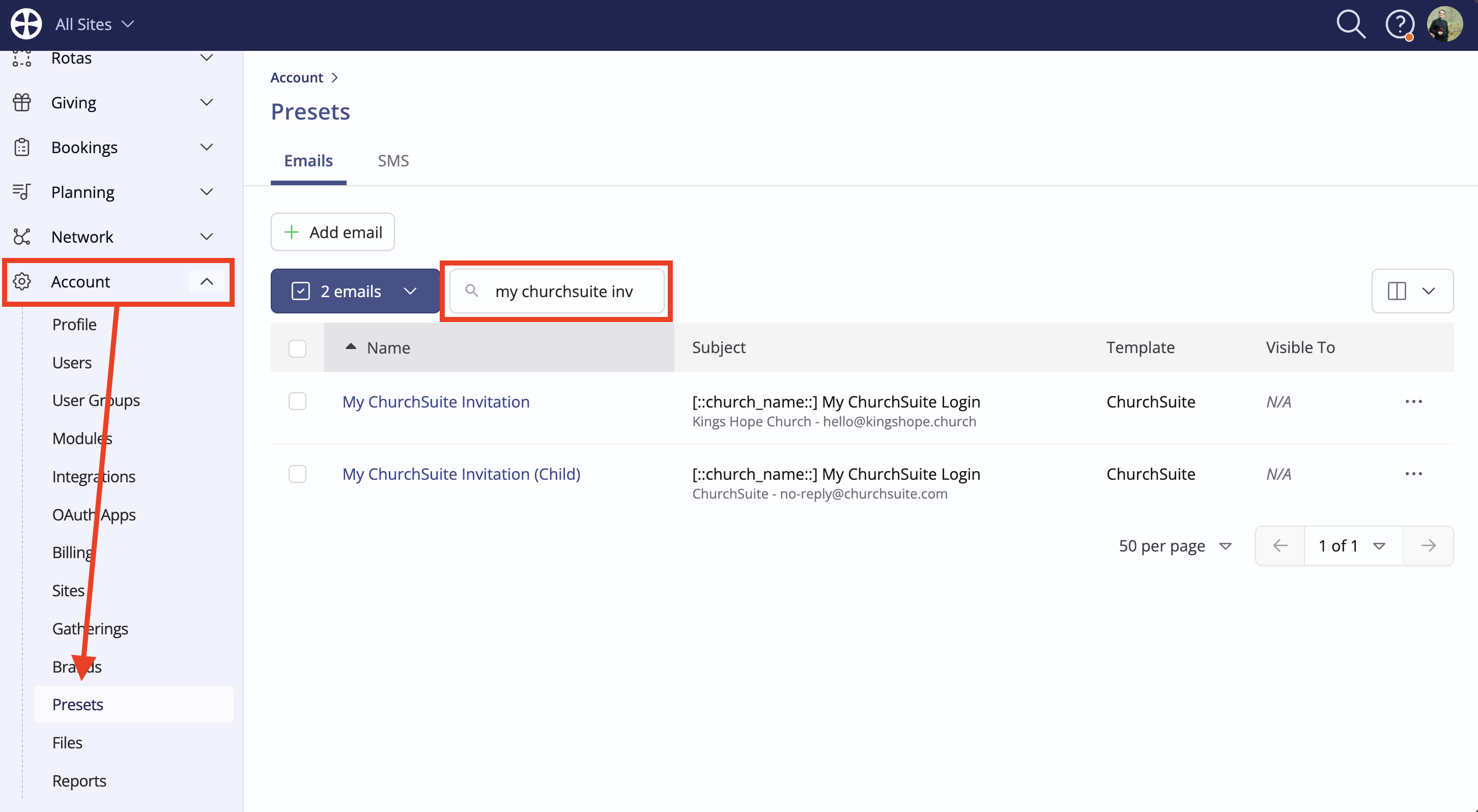
You can customise the My ChurchSuite invitation, adding content to introduce your recipients to My ChurchSuite and explaining why you're inviting them. Head to your account Presets, accessed via the My profile option on your User menu. Use the Search feature to filter through a long list of presets and locate the Invitation presets, which have a 'ChurchSuite' template. There are two emails - one for contacts, which are sent from the Address Book, and one for children, which are sent from the Children module. Select Edit from the preset Actions to make changes.
Important!
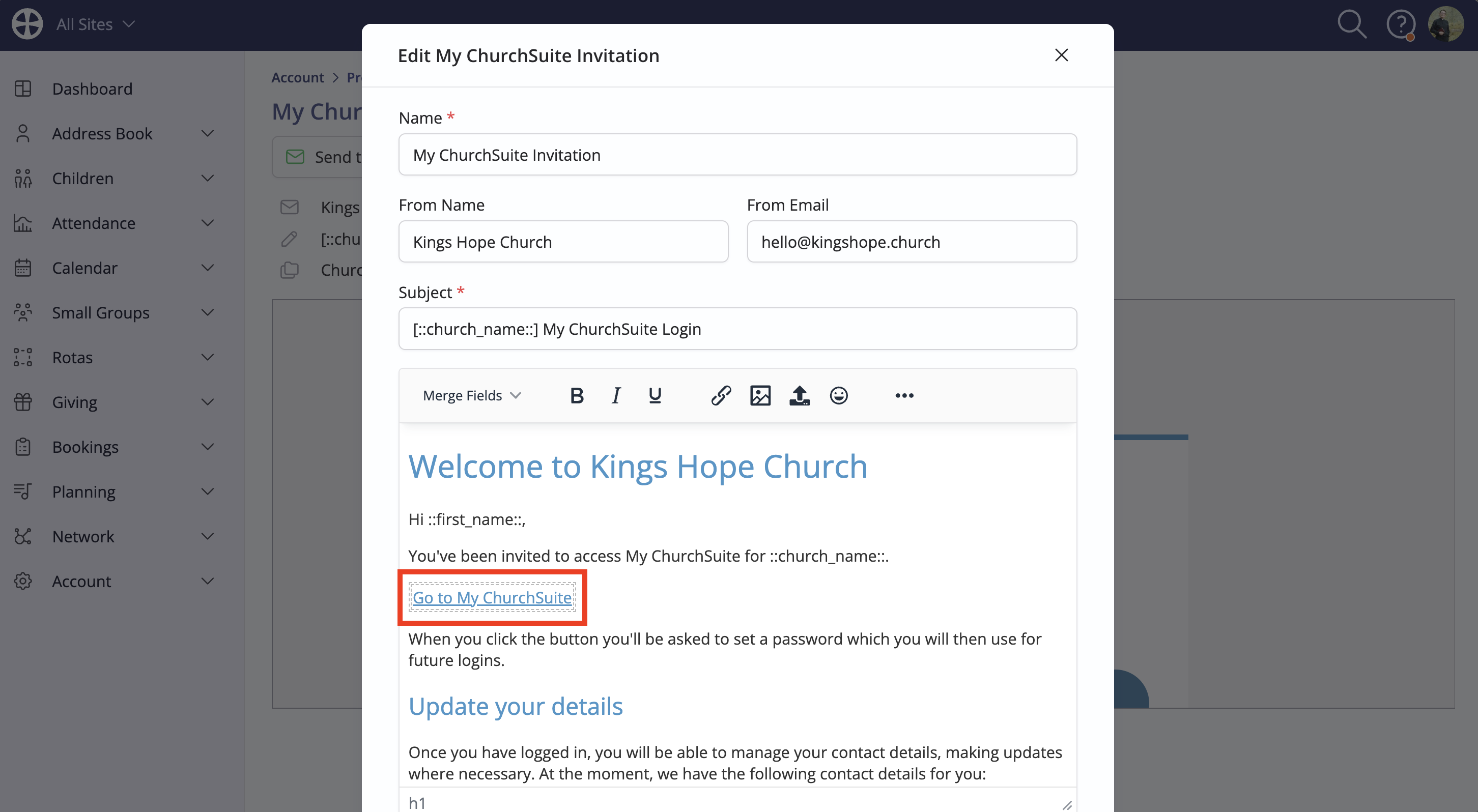
Highlighted in the example image below, the Go to My ChurchSuite merge field must always be present in the invitation email body. You can move it, relabel it and add additional email content before and after it but the ::my_registration_link:: merge field itself must always be present and not tampered with. This merge field is used to generate each recipient's unique registration link to access their My ChurchSuite account. Without it, recipients will be unable to register and set their passwords.
Optionally, customise the Email From Name and From Email address, adding a designated individual or department and a managed email address to which replies will be delivered. The HTML editor tools can be used to further customise the invitation message content, embed other links or insert images and styled text. For the "Child" invitation, ensure the language is appropriate for a younger audience. Save any changes made.
Allowing My ChurchSuite login
Access to My ChurchSuite for contacts and children can be managed on a person-by-person basis. Allow My ChurchSuite login is set to Yes automatically when a My ChurchSuite invitation is sent. You will be unable to send My ChurchSuite invitations, if they do not have an email address. Alternatively, you can enable My ChurchSuite login from the contact edit page and it can be revoked at any time. Select Edit to make changes to a person's details.
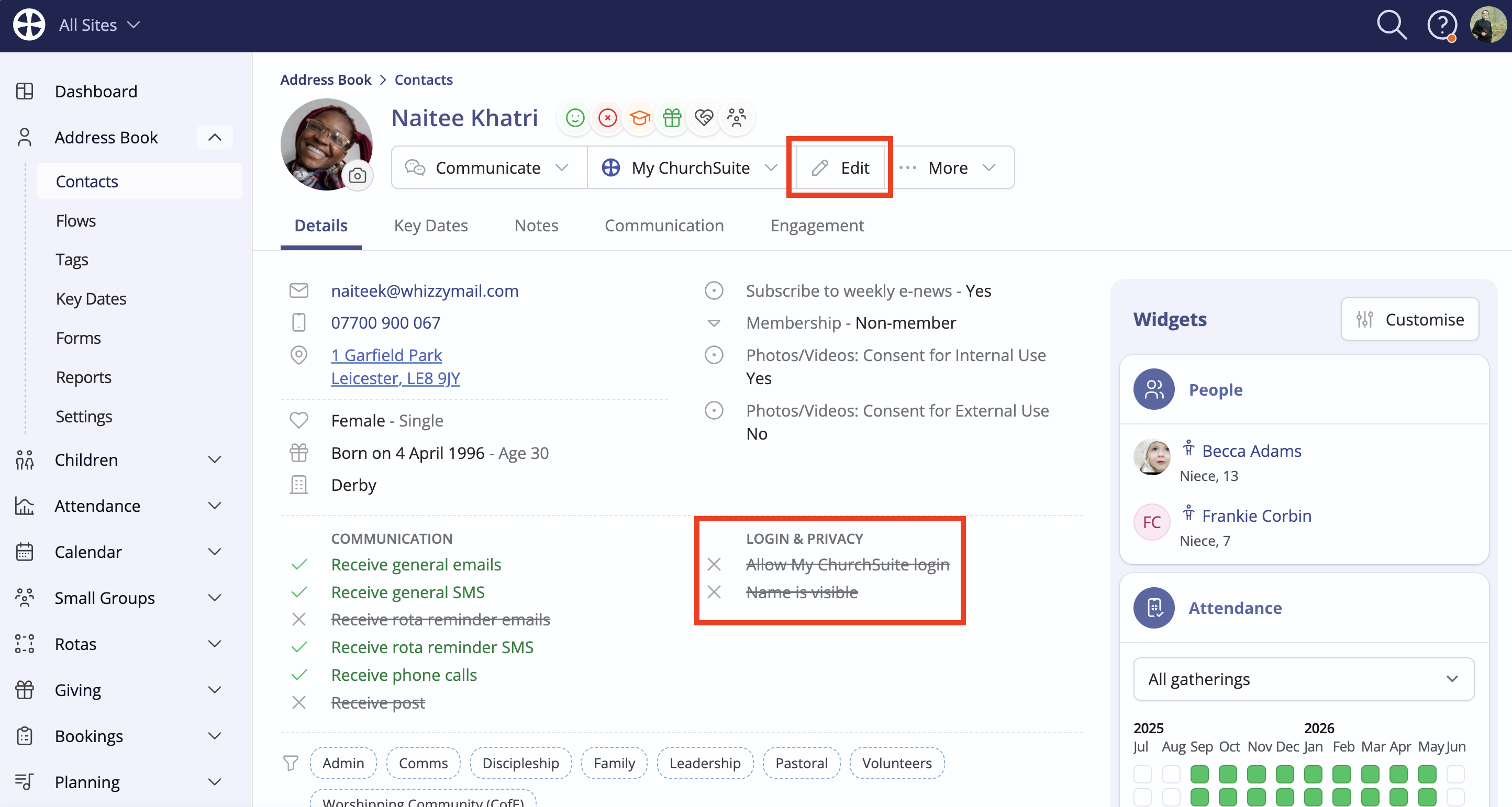
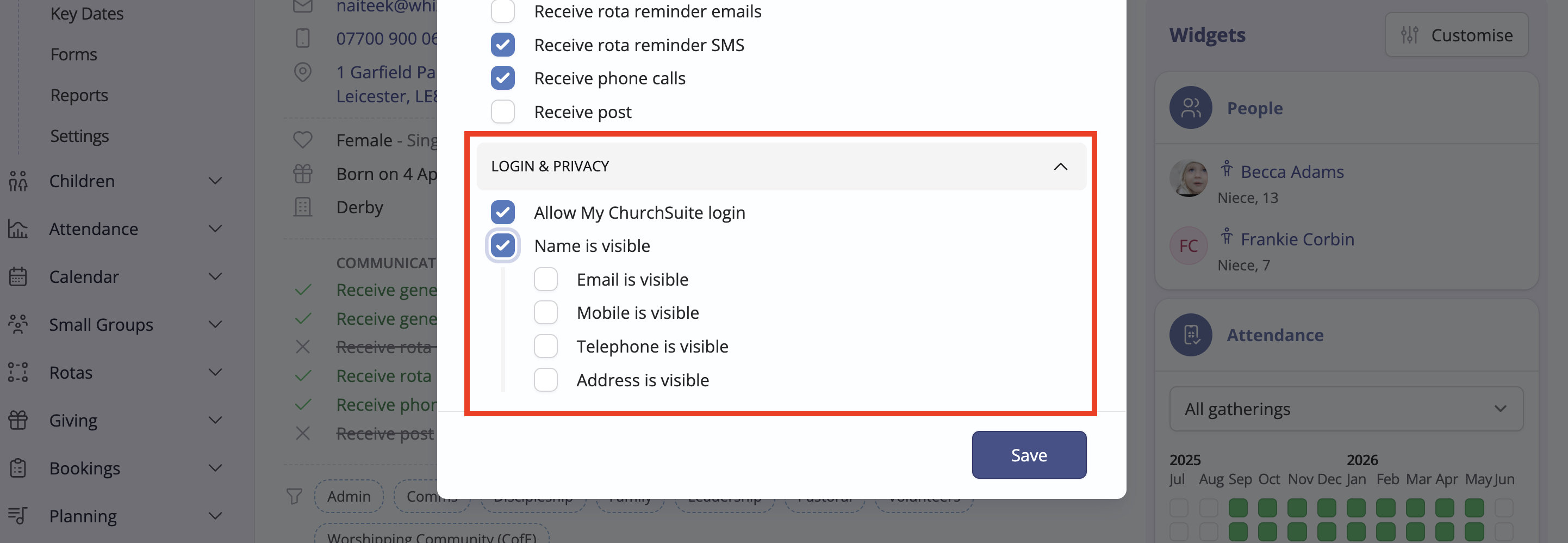
Scroll down the Edit pop-up to the Login & Privacy section and tick Allow My ChurchSuite login. Each person's default privacy settings are derived from the module settings; however, you can make changes to a person's privacy settings if necessary. Save any changes made.
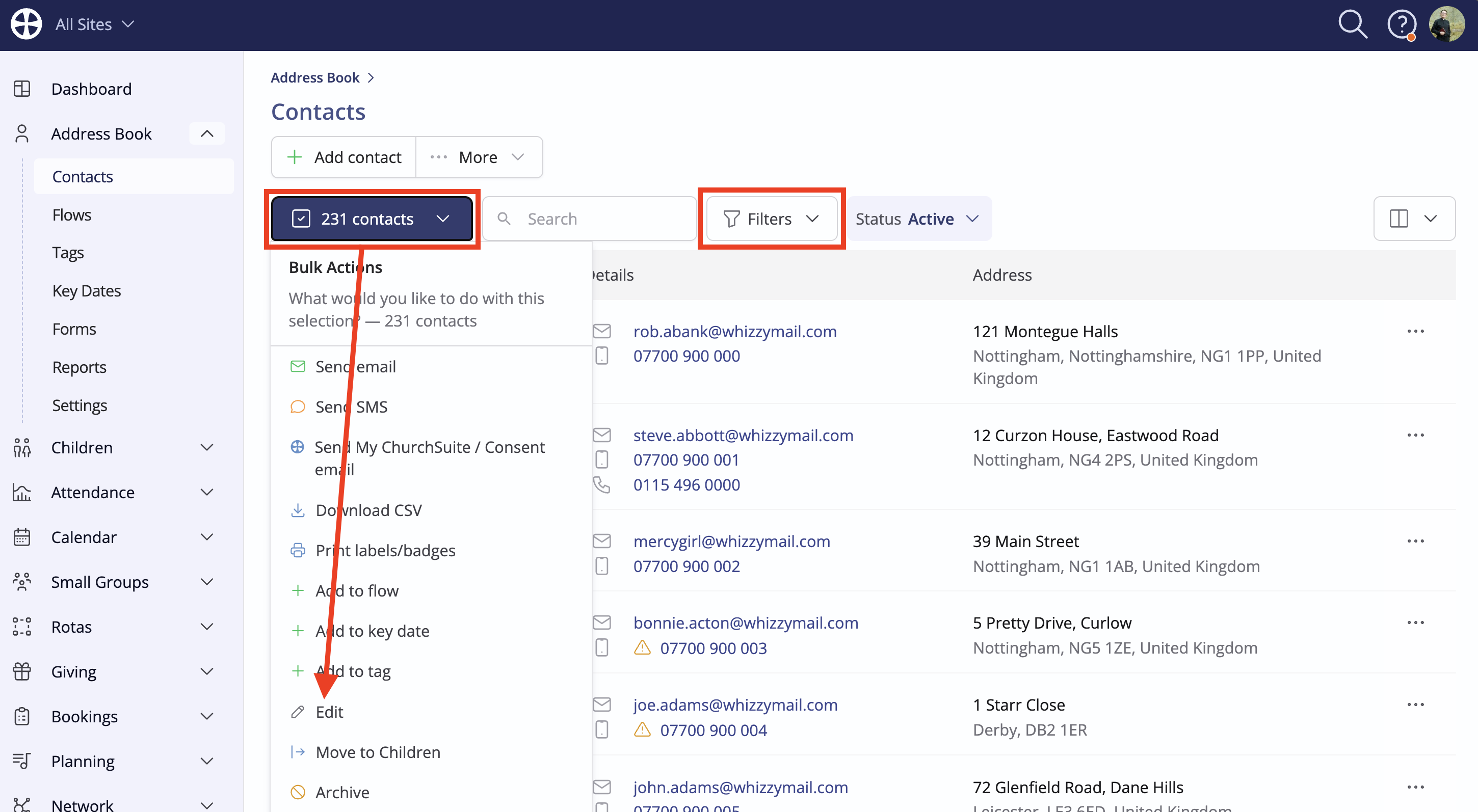
Using bulk actions, you can make changes to My ChurchSuite access for multiple contacts and children at once. Working from the Contacts or Children section of the respective modules, select the people to be changed - or filter, perhaps by tag, to find specific people - and choose Edit from the Bulk Actions.
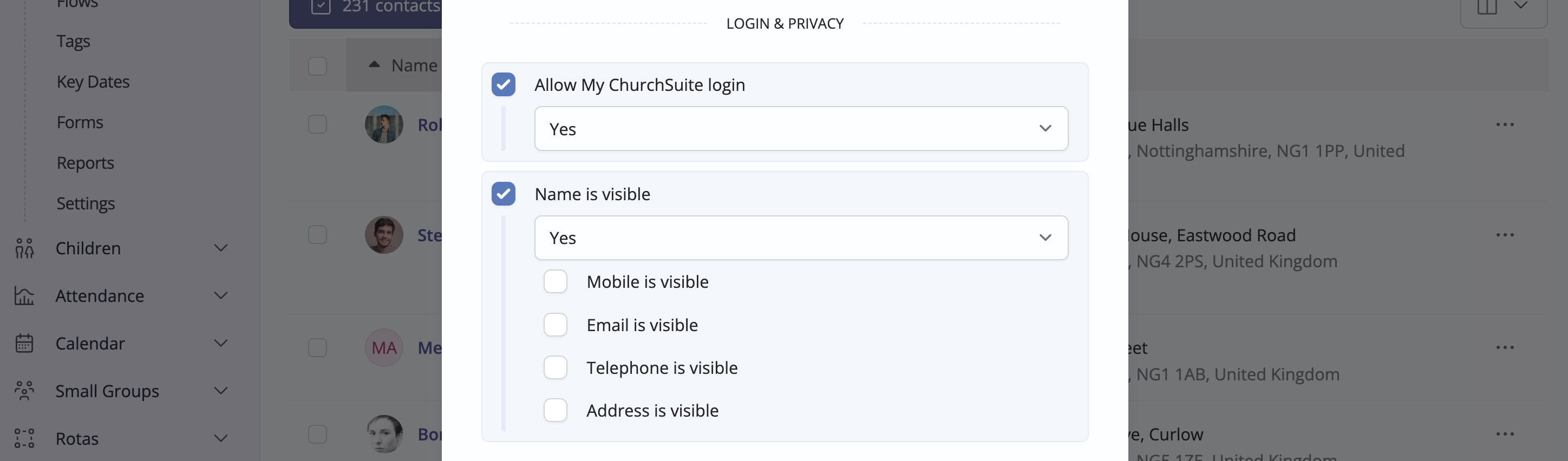
On the bulk Edit pop-up, noting the number of records the changes will be applied to, set the Allow My ChurchSuite login value to Yes. Update any other relevant privacy settings as needed. Click Save to apply the changes to all the selected individuals.
Sending individual invitations
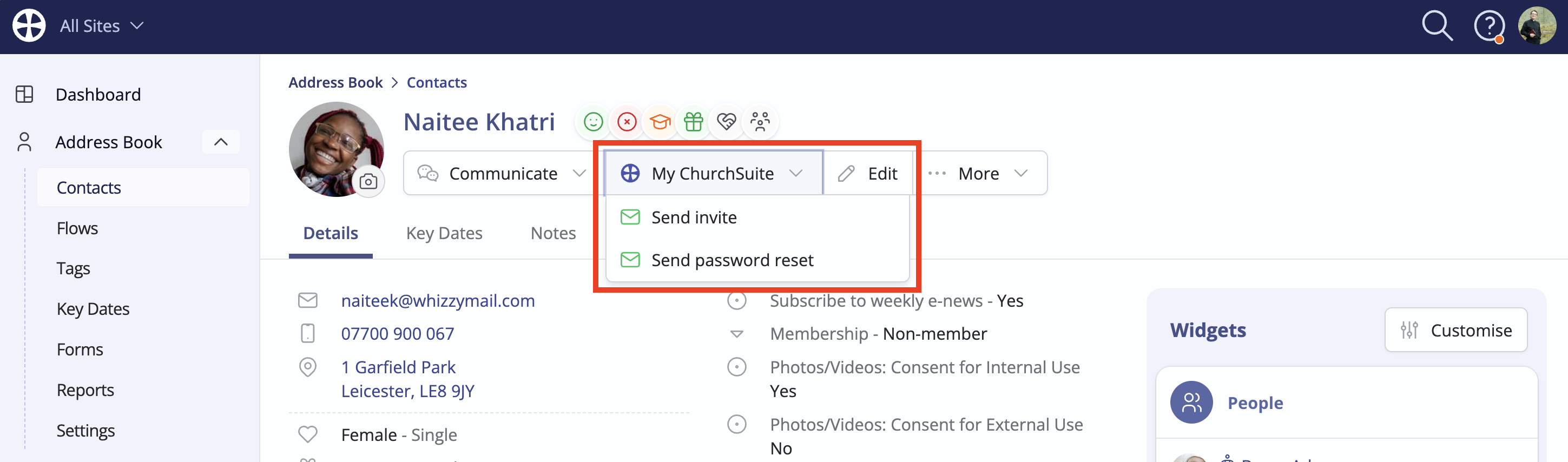
From a person's profile, select Send invite from the My ChurchSuite actions. The option is only shown if the person has an email address. An email address is required to send the invitation and for the recipient to log in to My ChurchSuite. As previously mentioned, when you send a My ChurchSuite invitation, Allow My ChurchSuite login is automatically set to yes. Additionally, you cannot send child invitations for a child under the Age of Consent specified in the Children module settings - see the related article on Activating My ChurchSuite for further information.
The sent invitation email is logged in the person's Communication tab. The email contains an obfuscated summary of the person's current contact details, inviting them to update any incorrect information once they've logged in. Here's an example:
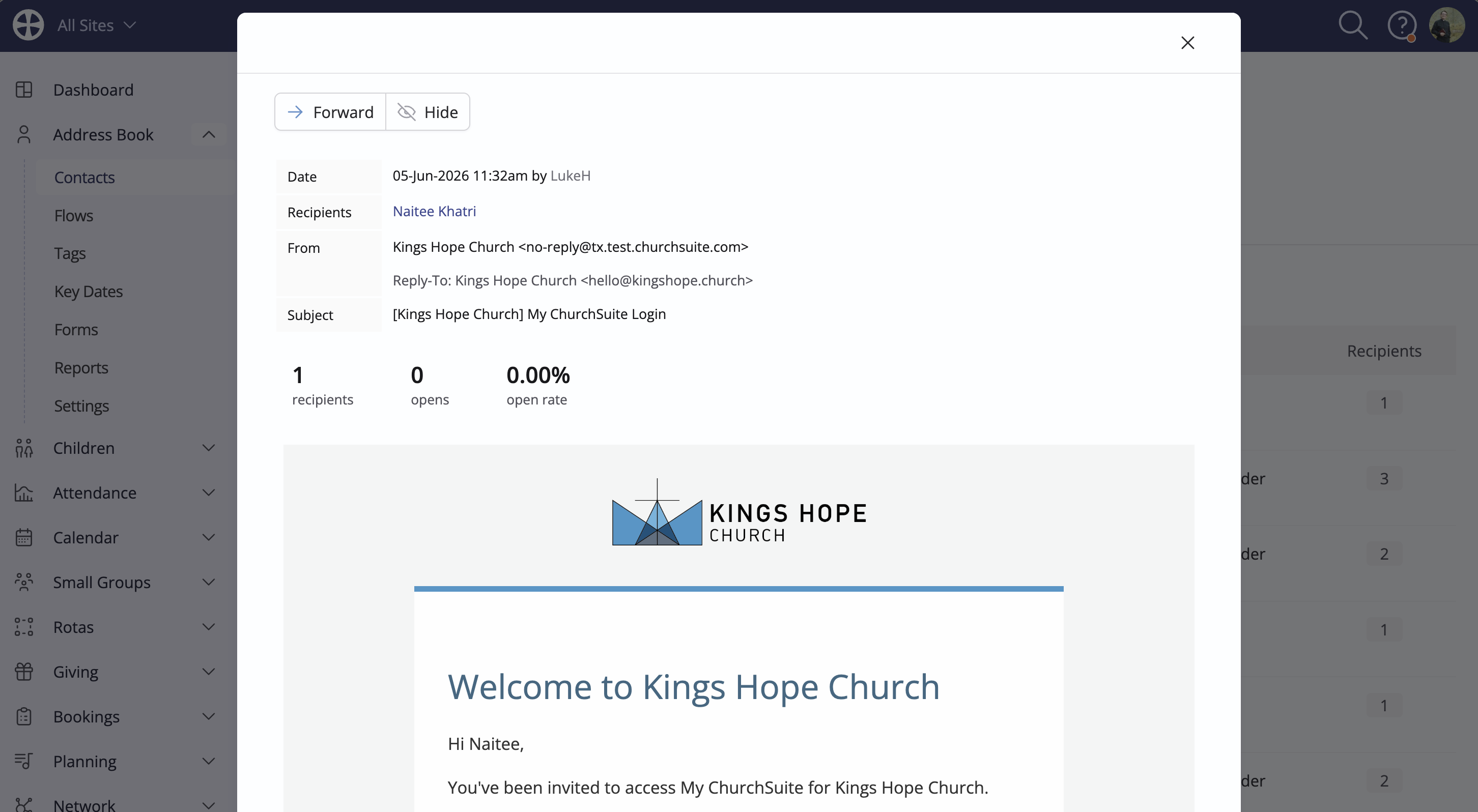
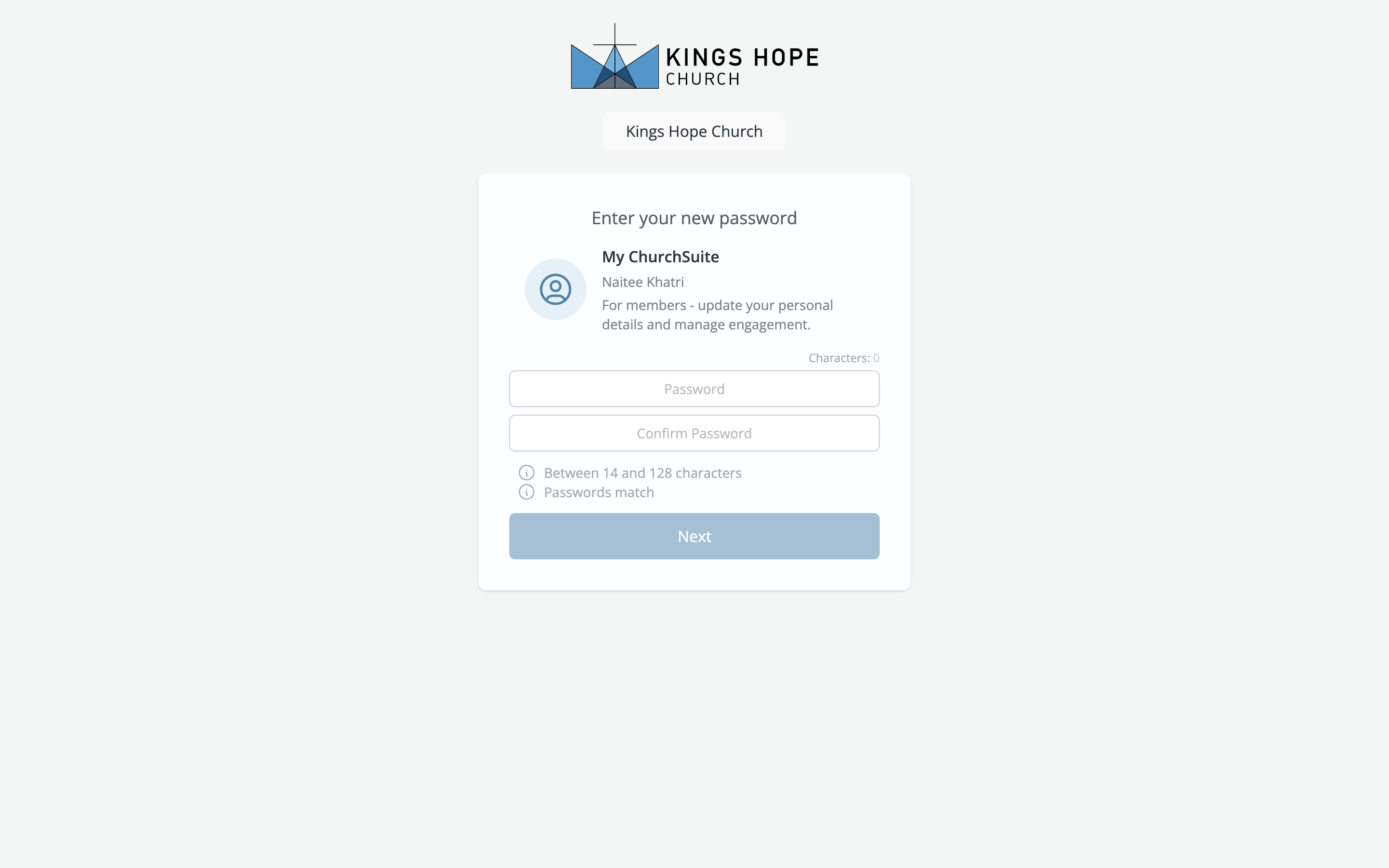
From the invitation email link, recipients are taken to the My ChurchSuite registration page to add and confirm their password. App users must complete their My ChurchSuite registration in a browser before using their email address and password to access My ChurchSuite in the app.
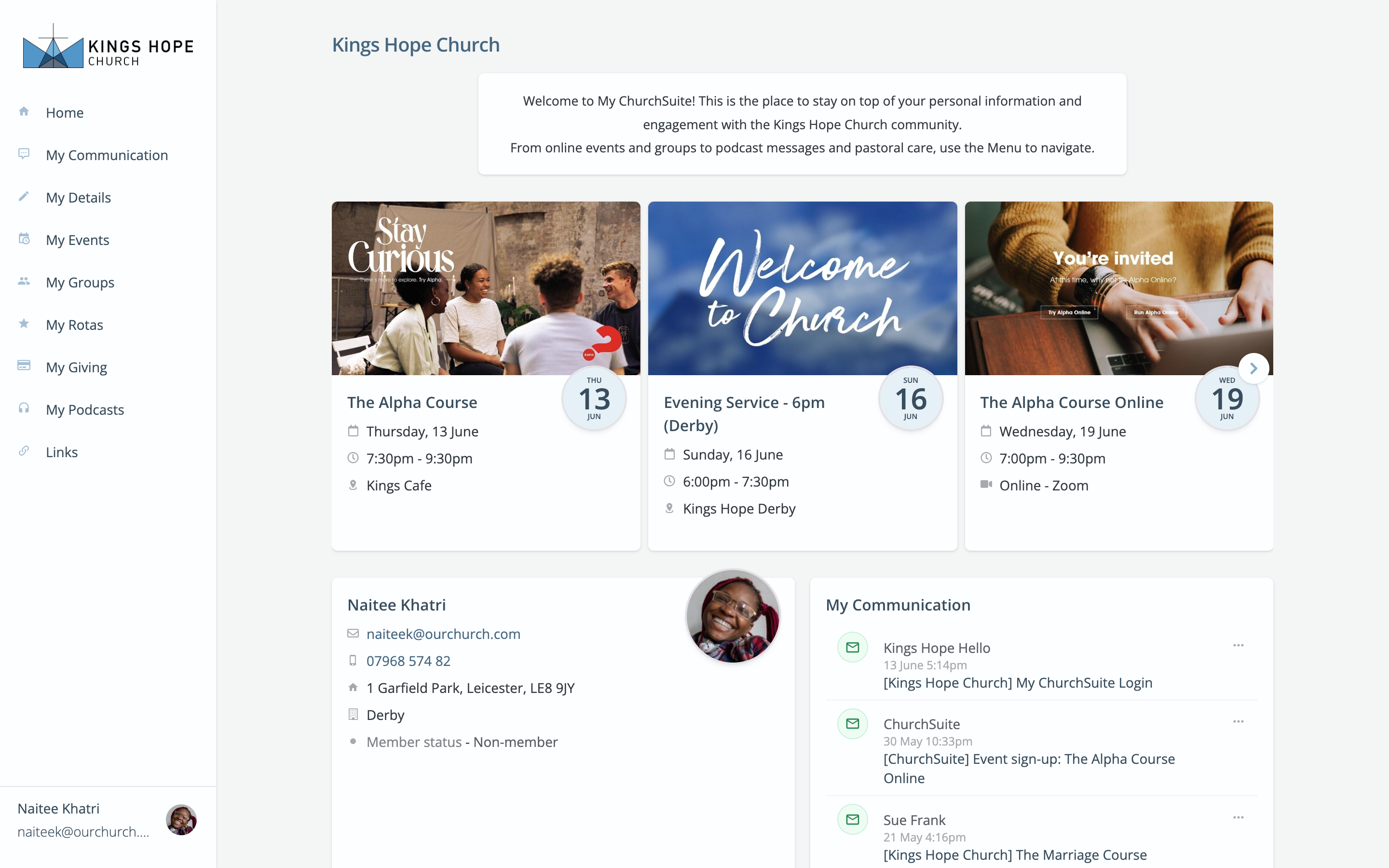
After completing the registration process, the My ChurchSuite Home page will open.
We've created a My ChurchSuite User Guide, which you may wish to share in its current form or use as a basis for producing your own guide customised for the My ChurchSuite features you are using in your context.
Top Tip! Send invitations from a Flow
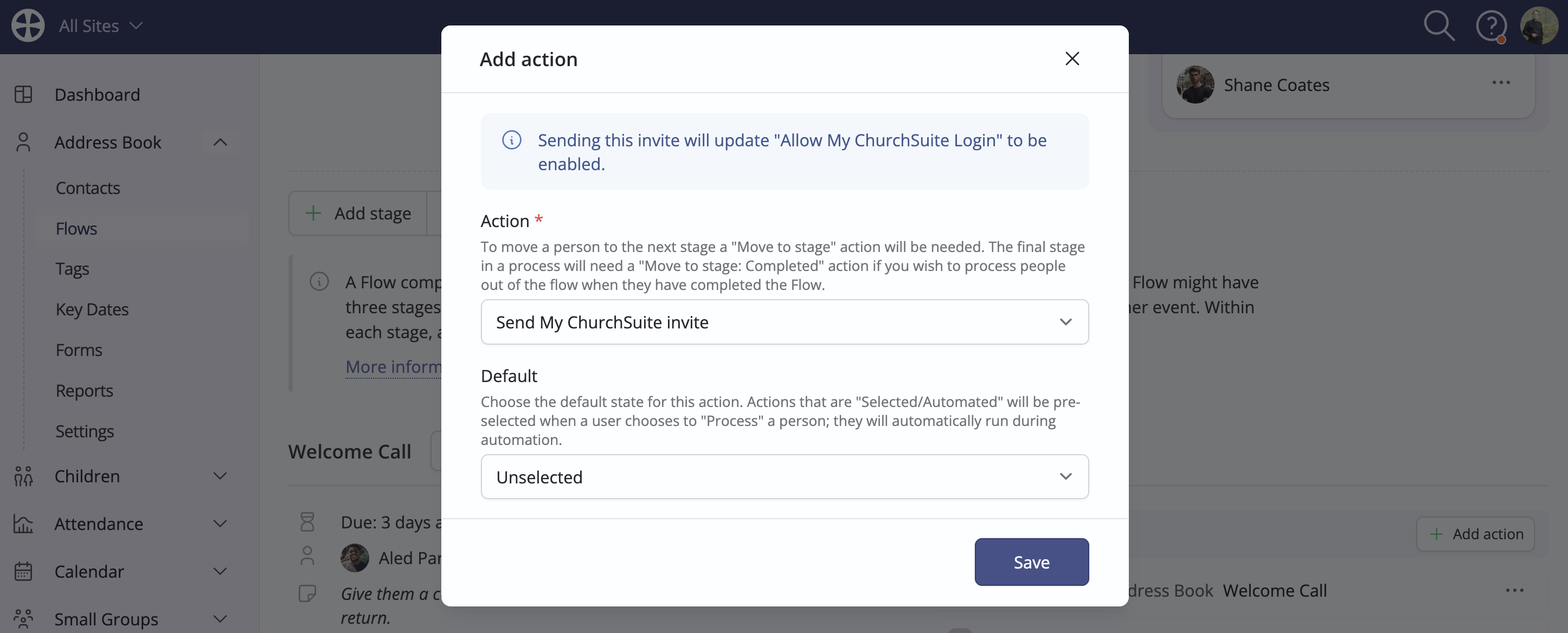
It's not uncommon for churches to want to send someone a My ChurchSuite invitation as part of their welcome and integration processes for newcomers. For those using Flows to manage common administrative tasks, you can also send My ChurchSuite invitations using the Send My ChurchSuite invite action.
Bulk-sending invitations
To bulk-send My ChurchSuite invitation emails, navigate to the Contacts/Children section of the Address Book or Children module as appropriate. First, filter your list of people to the people you want to invite:
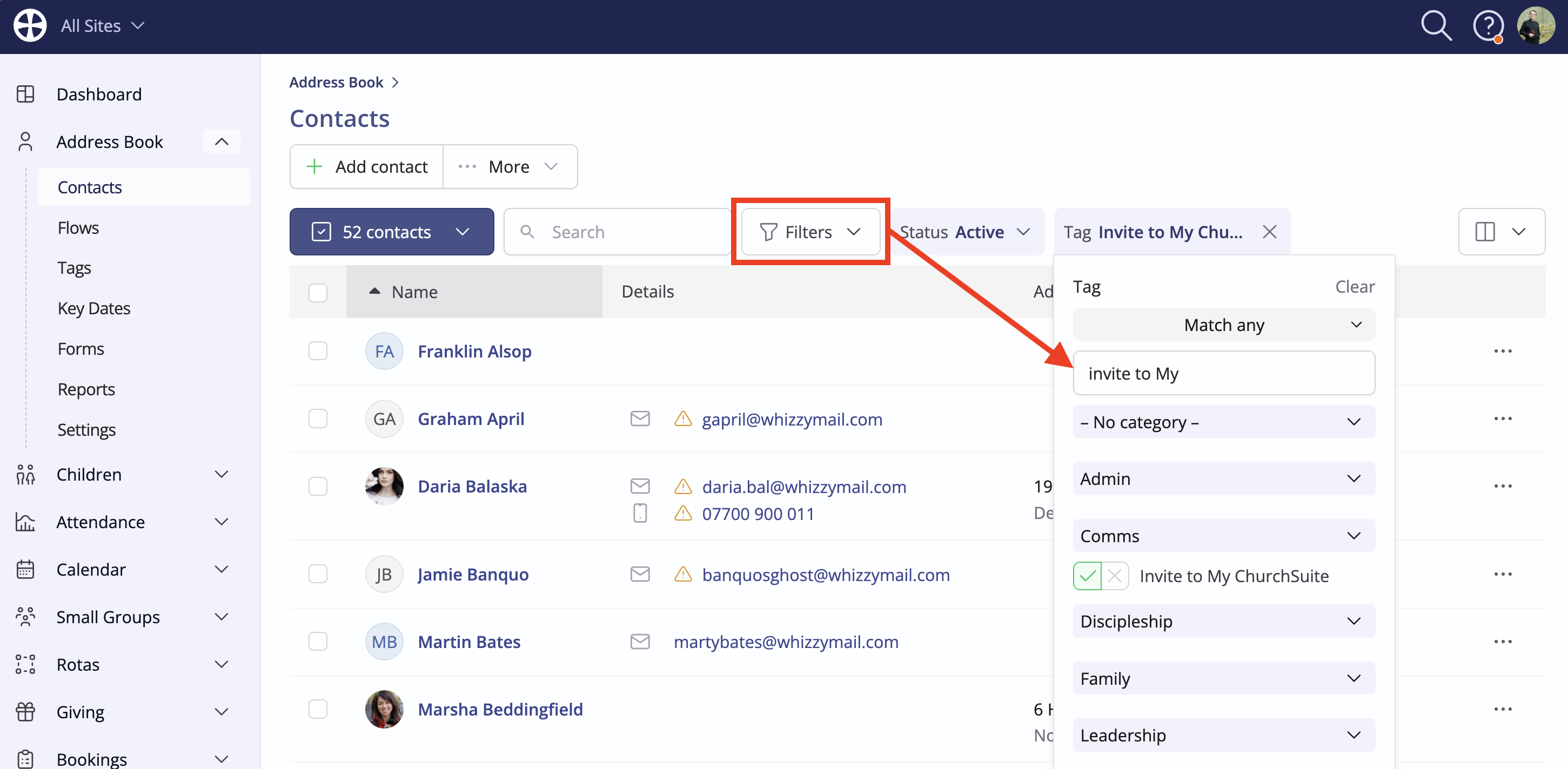
Next, click to surface the Bulk Actions:
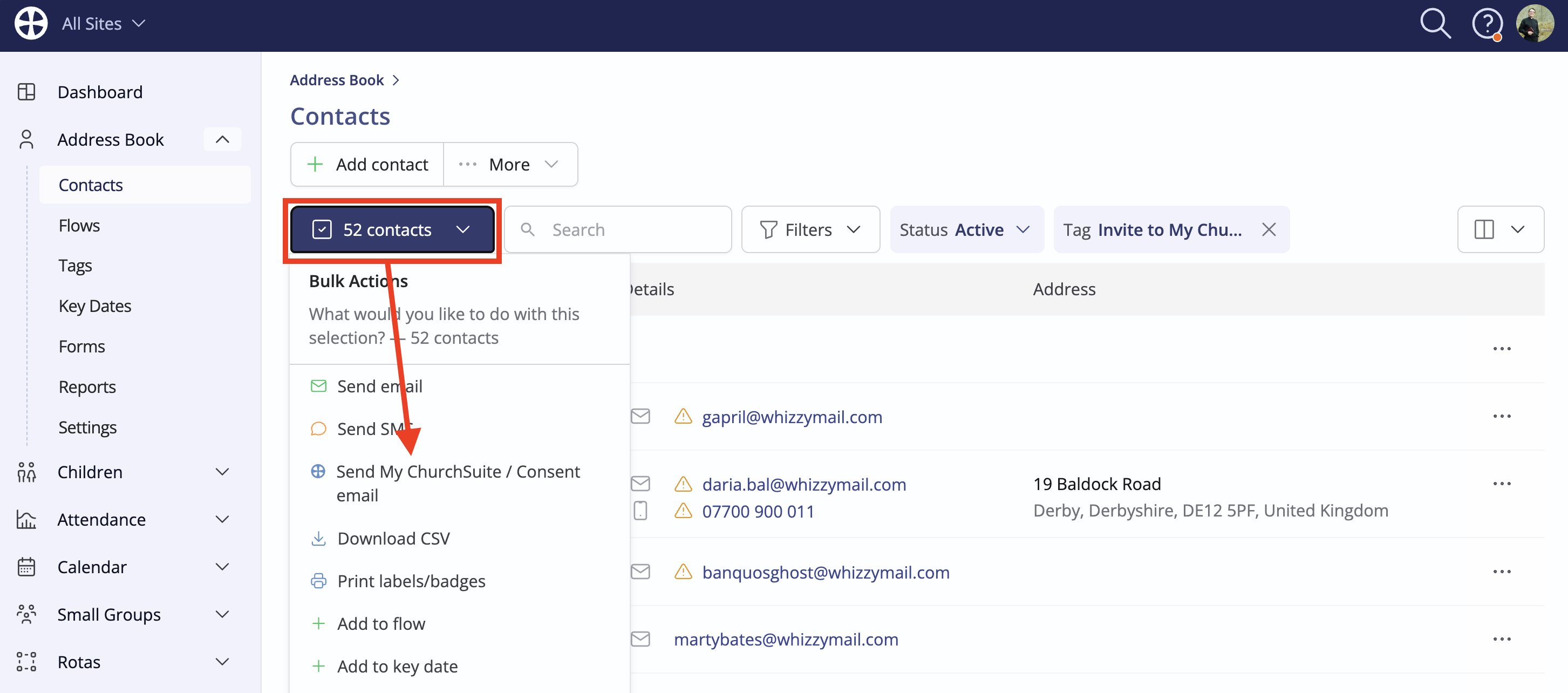
Select My ChurchSuite/Consent action and select My ChurchSuite invitation:
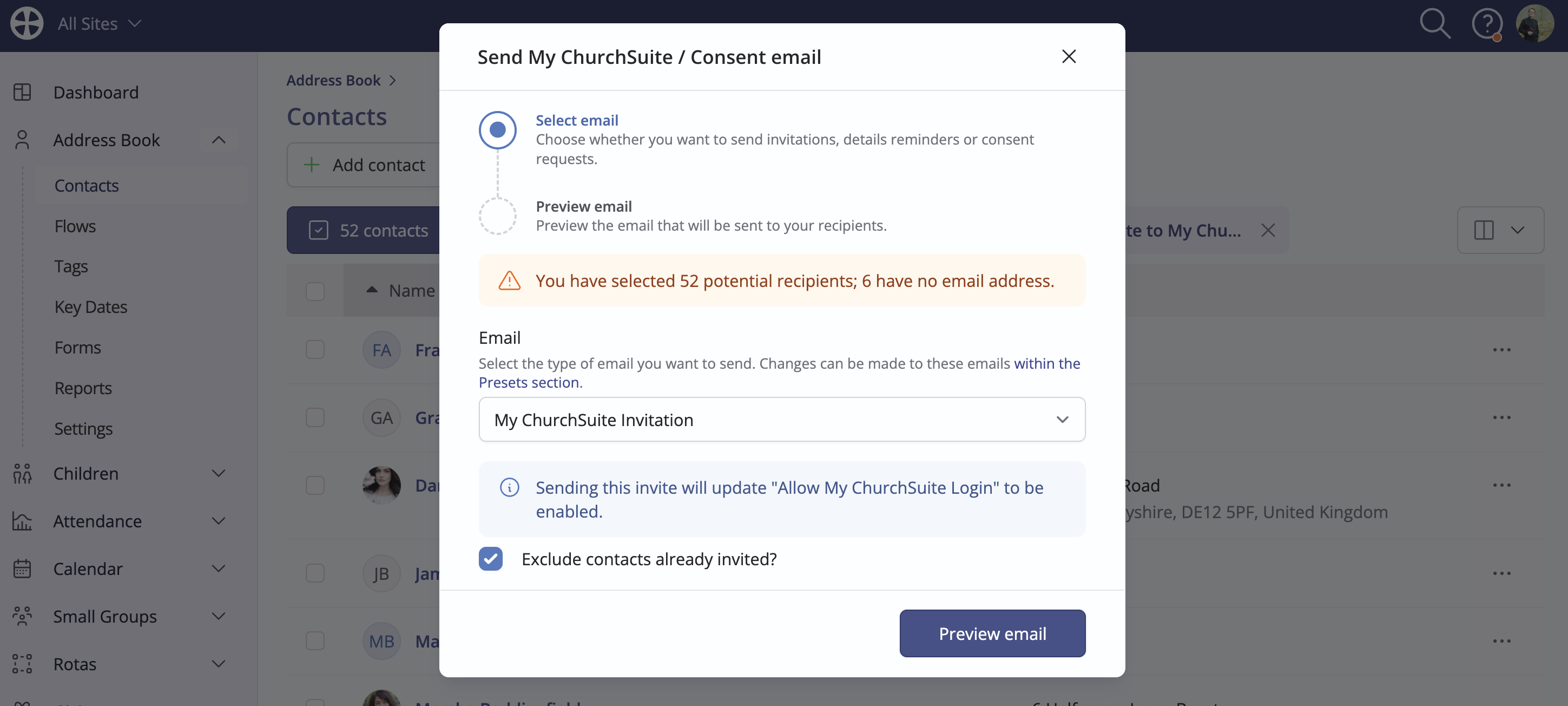
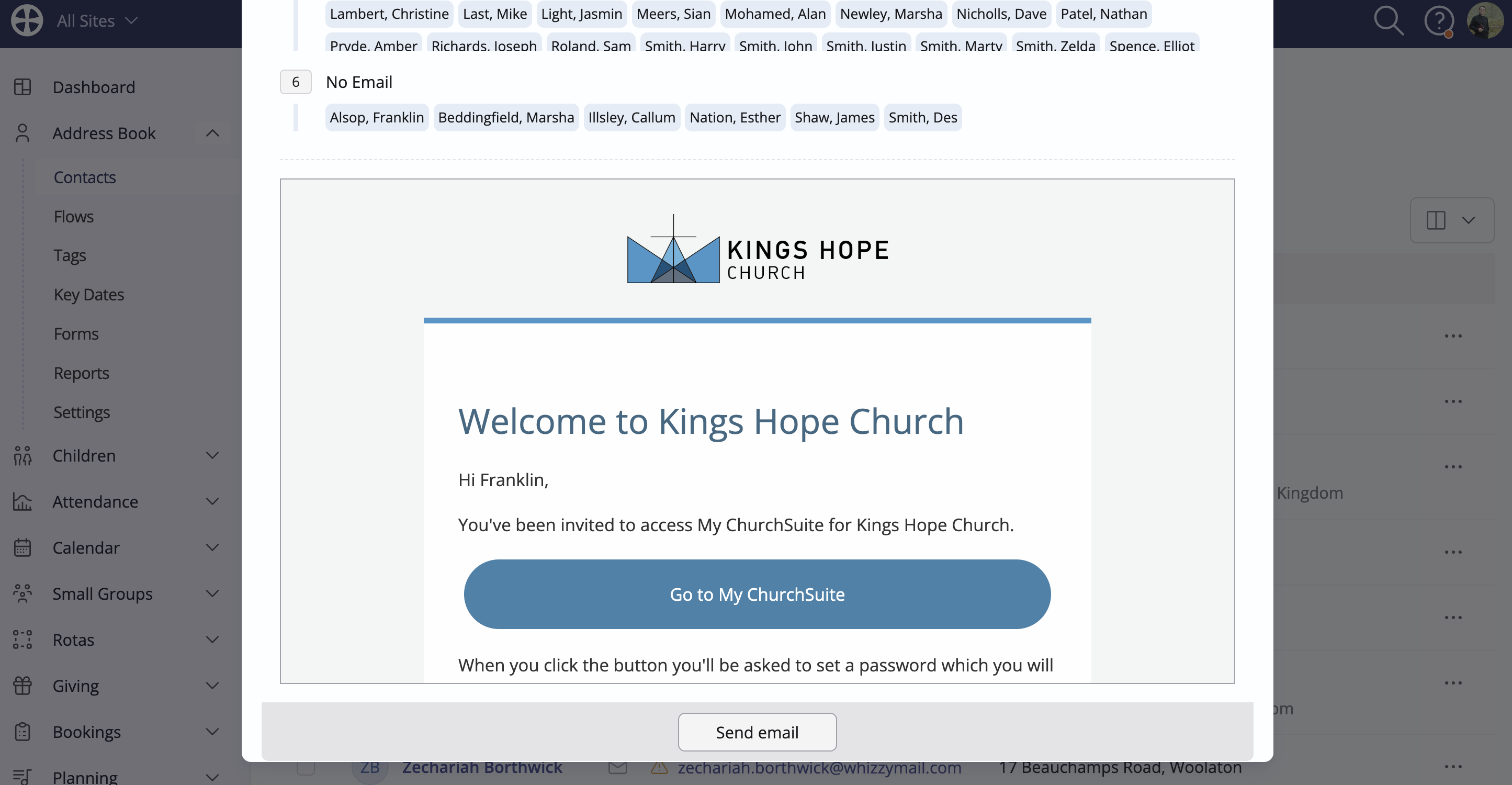
Review your recipient list and email preview, then click Send email.
Managing the My ChurchSuite invitation process
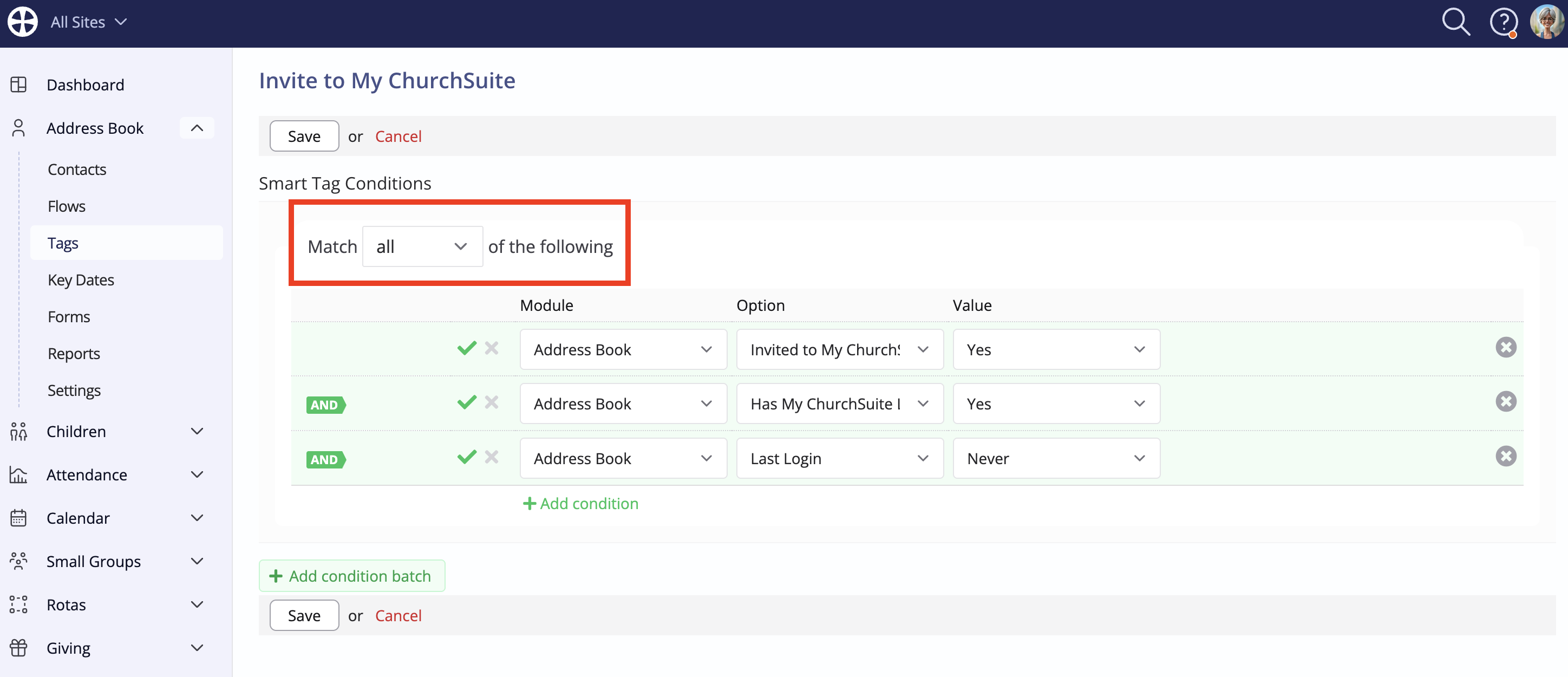
In addition to the Inactive Contacts/Children and Recent Logins reports in the Address Book and Children module Reports sections, there are Smart Tag conditions that can provide helpful insights into My ChurchSuite engagement. See our related support article for further information on creating Smart Tags.
There are Address Book and Children module conditions for:
- Has My ChurchSuite Login, i.e. Allow My ChurchSuite login is enabled
- Invited to My ChurchSuite, i.e. an invitation has been sent
- Last Login
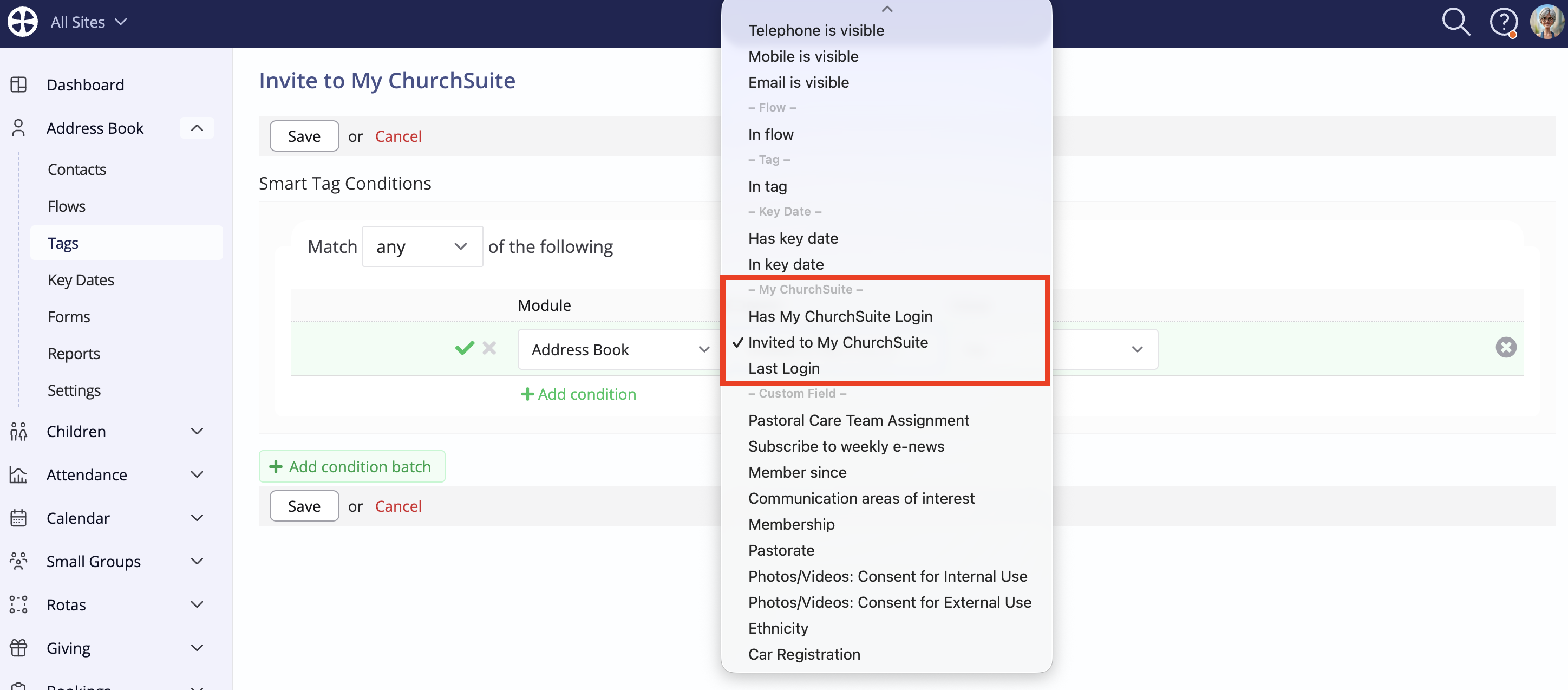
For example, you can add a Smart Tag that identifies people who have been sent My ChurchSuite invitations but never logged in - perhaps to remind them what they're missing out on!